
Creating and maintaining downloads
A download is an entry with exactly one file. You create it under Components → Fileshelf → Downloads → New.
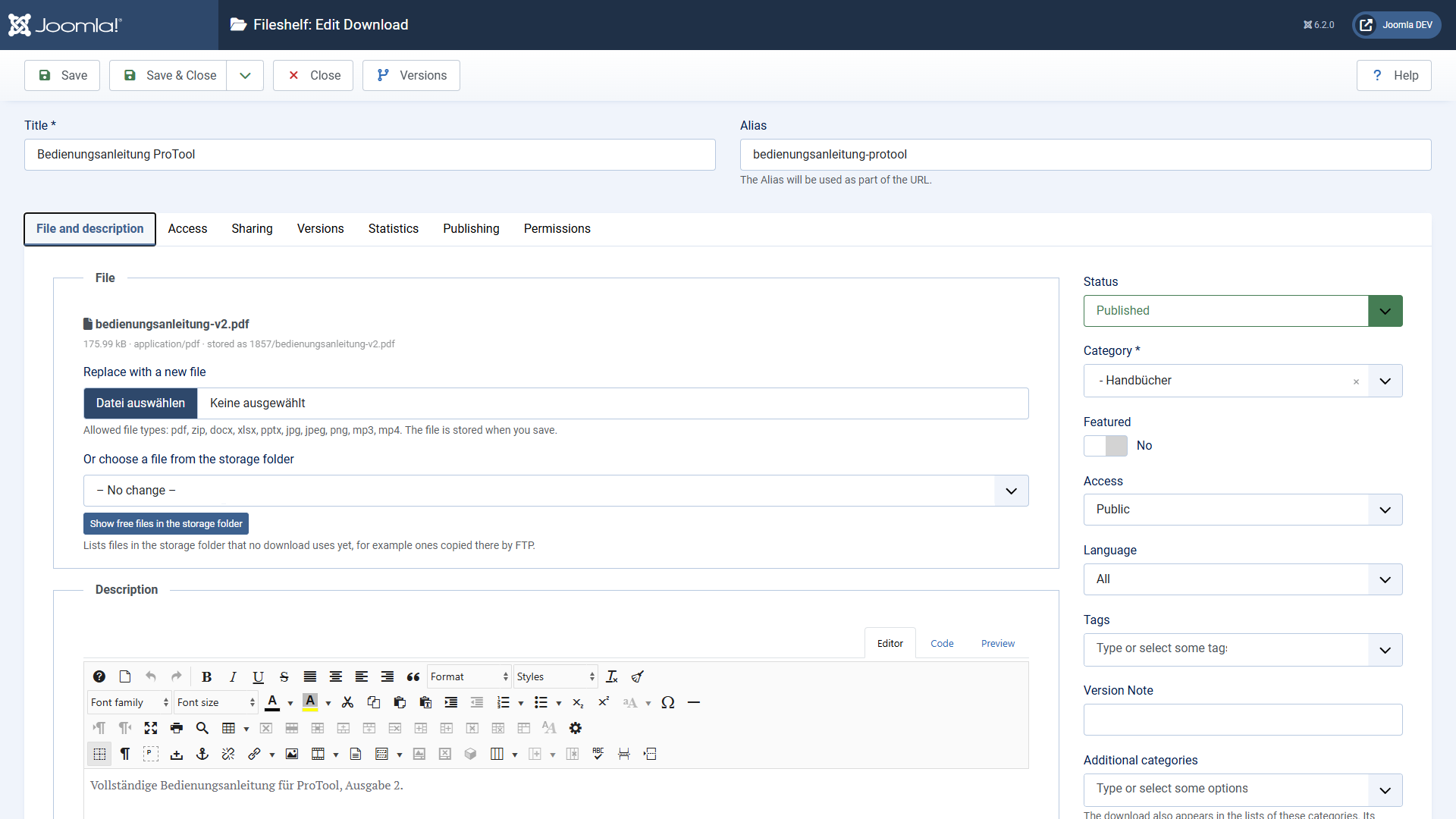
The form has at most seven tabs: File and description, Access, in the Pro version Sharing, Versions and Statistics, plus Publishing and Permissions. Custom fields get a tab of their own, as with articles.
Tab “File and description”
- Category – the main category. It decides the address of the download, its inherited permissions and the folder its file lies in.
- Additional categories – the download also appears in the lists of these categories. Address and inherited settings still come from the main category.
- Description – appears on the page of the download. It is edited with the same editor as an article, with images, media and the editor buttons; content plugins work in it as in articles. If the field shows only an empty frame, the editor is the cause: check the editor under Users → your profile → “Basic Settings” and, with JCE, whether an editor profile is published and applies to your user group.
- Tags and fields as with articles.
The file
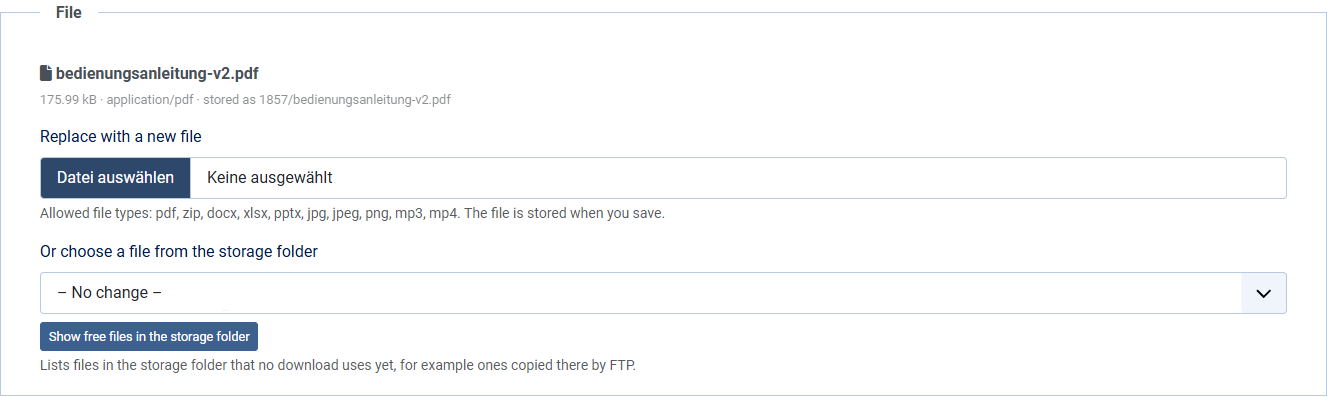
- Upload a file – the file is stored in the folder of the main category when you save.
- Or choose a file from the storage folder – lists files that do not belong to a download yet, such as ones copied there by FTP. Fileshelf reads the folder only when you click Show free files in the storage folder; the list shows up to 200 files.
- If the same file already belongs to another download, Fileshelf shows a note.
- Version – under “About the file”, free text such as
2.1. Visitors see it in the lists. In the Pro version the facts about the file stand at the top of the tab “Versions”. - License – appears there once an import from another download extension has created the field (Pro version). On the website it carries the label “License” in the visitor's language.
Allowed are the file types from Options → Storage → Allowed file types. Programs and web
pages (for example php, svg, html) are never accepted, not even in
names like report.php.pdf. Fileshelf also checks whether the content matches the extension,
and Joomla checks the file as well.
Extensions and other software packages
A ZIP with an extension for Joomla, Shopware or WordPress contains PHP files. Joomla refuses such archives on upload, and Fileshelf then says what to do. To offer extensions, switch on Options → Storage → Allow software packages. Fileshelf then accepts zip, tar, gz and tgz archives with program code:
- only on upload in the backend (form, multiple upload, import), never from the website;
- only while the self test reports the storage folder as protected – otherwise Fileshelf refuses the package with a hint to the self test;
- never with a forbidden part in the name such as
package.php.zip.
For tar.gz and tgz also add gz and tgz to the allowed file
types. Programs such as .exe or .msi stay blocked. Visitors always get a package as a file
to save; the checksum on the page of the download helps them verify it.
Tab “Access”
Here you set a password for this one download (see Password protection). In the Pro version you also bind the download to plans of Membership Pro there.
Tab “Sharing” (Pro version)
One-time and time-limited links (see Links) and the notifications (see Notifications).
Tab “Publishing”
Status, access level, language, start and end of publishing, author and counter. An unpublished or expired download does not exist for visitors – not even through an old link.
On saving, Fileshelf checks the permissions, whichever way the download comes (form, several files, upload from the website): only who may change the state in the category can publish – otherwise a new download stays unpublished. Only one's own access levels can be chosen, and an additional category only where one may create downloads.
The list
For every download the list shows the main category, the file with type and size, version, access level and counter. A download without a file is marked red. Above the list are quick filters with their numbers: All, Published, Unpublished and – if there are any – Without file. The filter options also filter by status, featured, file, category (main or additional) and level, access level, author, language and tag.
- Download in the backend – the file name in the column “File” fetches the file without counting it. The user needs the permission “Download in the backend” for it.
- Batch processing – set access level, language and tags, add or remove additional categories, move to another main category. Copying is not offered, because a file belongs to one download only.