
Return channel: what comes back when a mail does not arrive (Pro)
Pro version. This feature belongs to the Pro version of Mail Log. What the free version can do is described under Free version and Pro version.
An e-mail your mail server has accepted is not yet delivered. The recipient's server only checks afterwards whether the address exists at all and whether it wants the message. If it refuses, it sends a report back — to the mailbox of your sender address. As a rule, nobody reads it there.
That mailbox is what the Pro version fetches. It sorts what it finds, matches every report to the message it belongs to and draws conclusions from it — see the chapter Suppression list.
What Mail Log tells apart
| Kind | What is behind it | Consequence |
|---|---|---|
| Permanently undeliverable | The address does not exist, the mailbox was deleted. Status codes of the form 5.x.x. | The address is suppressed immediately. |
| Temporary | Mailbox full, server briefly unreachable, greylisting. Codes of the form 4.x.x. | Counted. Suppressed only once a threshold is reached. |
| Complaint | Someone marked your mail as spam and their provider reports it back. | The address is suppressed immediately. |
| Automatic reply | Out-of-office notice or similar. Not an error, just information. | None. |
| Not classified | A report that could not be identified with confidence. | None. It stays in the list so that somebody can look at it. |
The last row is deliberate. A report Mail Log does not understand is not proof of anything — deriving a suppression from it would shut out genuine recipients as soon as some unrelated mail lands in the box.
Setting up the mailbox
Open Options → Return channel → Mailbox.
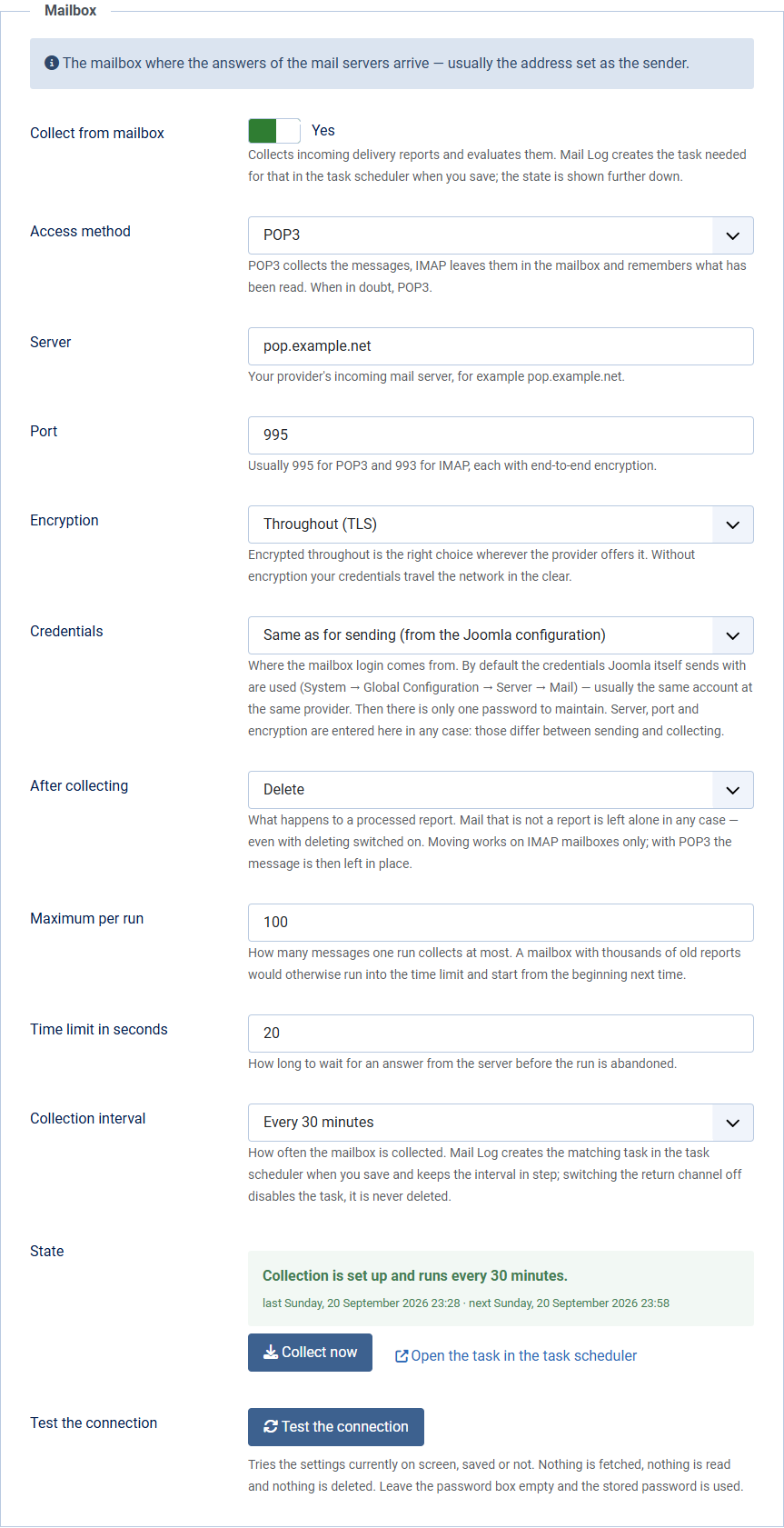
| Collect from mailbox | The main switch. Off by default. |
| Access method | POP3 collects the messages, IMAP leaves them in place and remembers what has been read. When in doubt, POP3. |
| Server and Port | Your provider's incoming mail server. 995 for POP3 and 993 for IMAP are usual, both fully encrypted. |
| Encryption | Throughout (TLS) wherever the provider offers it. Without encryption your credentials travel the network in the clear. |
| Credentials | By default Same as for sending: Mail Log logs in with the same details Joomla sends with (System → Global Configuration → Server → Mail). Then there is only one password to maintain — see below. For a separate mailbox choose Separate ones for this mailbox; only then do the next two fields appear. |
| User name and Password | Only with separate credentials. Usually the full address of the mailbox. The password is stored encrypted and never shown again; leave the box empty and the stored password stays as it is. |
| Folder | IMAP only. INBOX is the inbox. |
| After collecting | What happens to a processed report: delete, keep or move to a folder. Only IMAP mailboxes can move. |
| Maximum per run | How many messages one run collects. A mailbox with thousands of old reports would otherwise run into the time limit and start from the beginning next time. |
| Collection interval | How often collection happens. Mail Log creates the matching task in the task scheduler when you save — see below. |
| State | Not a field but a statement: whether collection is really running, when it last ran and when it is due again. |
Why the credentials are not entered twice. Whoever sends through a provider usually collects there too: the same account, the same password, only a different server and a different protocol. Typed in a second time it is mostly a source of error — at the next password change you update one place and forget the other, and collection fails silently.
So by default Mail Log uses the sending credentials and stores no second password at all.
Server, port and encryption remain separate fields, because those genuinely
differ: smtp.example.net:587 for sending, pop.example.net:995 for
collecting. Guessing them would be convenient and wrong.
If your site does not send over SMTP but through PHP mail or Sendmail, there is nothing to take over. The connection test says so and points to the separate fields.
Under Evaluation there is also Store the full report. With it switched on, Mail Log keeps the incoming report as it arrived — useful when a report was not recognised properly. A bounce report carries the original message with it, so it is encrypted exactly like the raw copy of an outgoing message as soon as you switch on encryption in the Complete message section.
How does the remote server know where to reply?
From the message itself — not from the visible From, but from the
envelope sender. Every e-mail carries two sender addresses: the one in the
letterhead, which you and your recipients see, and the one on the envelope, which is negotiated
between the mail servers only. Bounce reports always go to the envelope sender. In the report
that comes back it appears as Return-Path.
Joomla sets both to the same address: the sender e-mail from System → Global Configuration → Server → Mail. Nothing has to be configured for the reports to arrive — they land in the mailbox of your sender address. That is the mailbox you enter above.
One exception worth knowing: many mail providers replace the envelope sender with the account your site authenticates as when sending. The reports then arrive there and not at your sender address.
How to find out for certain: have your site send you a mail and look at the
Return-Path header in the copy you receive — the mailbox of that address
is the right one.
Why Mail Log does not suggest a separate bounce mailbox. A mailbox used only
for reports would be nicer: Mail Log could tidy up in it without ever touching your customers'
mail. That would require the envelope sender to differ from the visible From — and
Joomla has no setting for it. Simply changing the sender address to bounce@… would
be the wrong way round: that address would then appear on every mail your site sends, and
anyone replying would be writing to the bin.
If your provider replaces the envelope sender anyway (see above), you already have the separate mailbox — it is the one belonging to the sending account.
Checking that the credentials are right
Below the fields there is Test the connection. The button tries the values currently in the form — saved or not. It checks the connection, the encryption, the login and, with IMAP, the folder. It also reports how many messages are in the mailbox: a zero where there should be hundreds usually means the wrong mailbox is configured.
Nothing is fetched, read or deleted during the test.
How often collection happens
Collection only happens when a scheduled task triggers it — Joomla fetches nothing by itself. Mail Log takes care of that: as soon as you switch collection on and save, it creates the task Mail Log: collect delivery reports in the task scheduler, with the interval you chose under Collection interval. Change the interval and the task follows on the next save. Switch collection off and the task is disabled — it is never deleted, your settings stay.
The State box below tells you where you stand at any time. It distinguishes the four cases that otherwise all look the same — namely, like nothing:
| There is no task yet | It is created on the next save. |
| The task is switched off | It is switched on again on the next save. |
| The task scheduler does not run | No scheduled task has ever run on this site. This is the one obstacle Mail Log cannot clear by itself — see below. |
| Everything is in place | With interval, last run and next run. |
The task scheduler has to run. Joomla does not execute scheduled tasks on its own — it needs either a cron call on the server or the Lazy Scheduler setting, which lets tasks run along with site visits. If the task is there and still nothing happens, this is almost always why. How execution is set up can be seen under System → Scheduled Tasks.
- Collect now — runs the collection at once, without waiting for the next interval. What runs is the same task that would run at night; what was read and processed is then in the task's log. For the first run after setting things up this is the shortest way.
- Open the task in the task scheduler — where the log, the counters and the execution rules live. The link only appears if you are allowed to use the task scheduler.
You keep the last word. The task Mail Log creates carries a note saying that Mail Log maintains it. Remove that note and the task is yours: Mail Log then changes neither its interval nor its state and only reports on it. That way you can, for instance, enter a cron expression the drop-down does not offer.
The Bounces screen
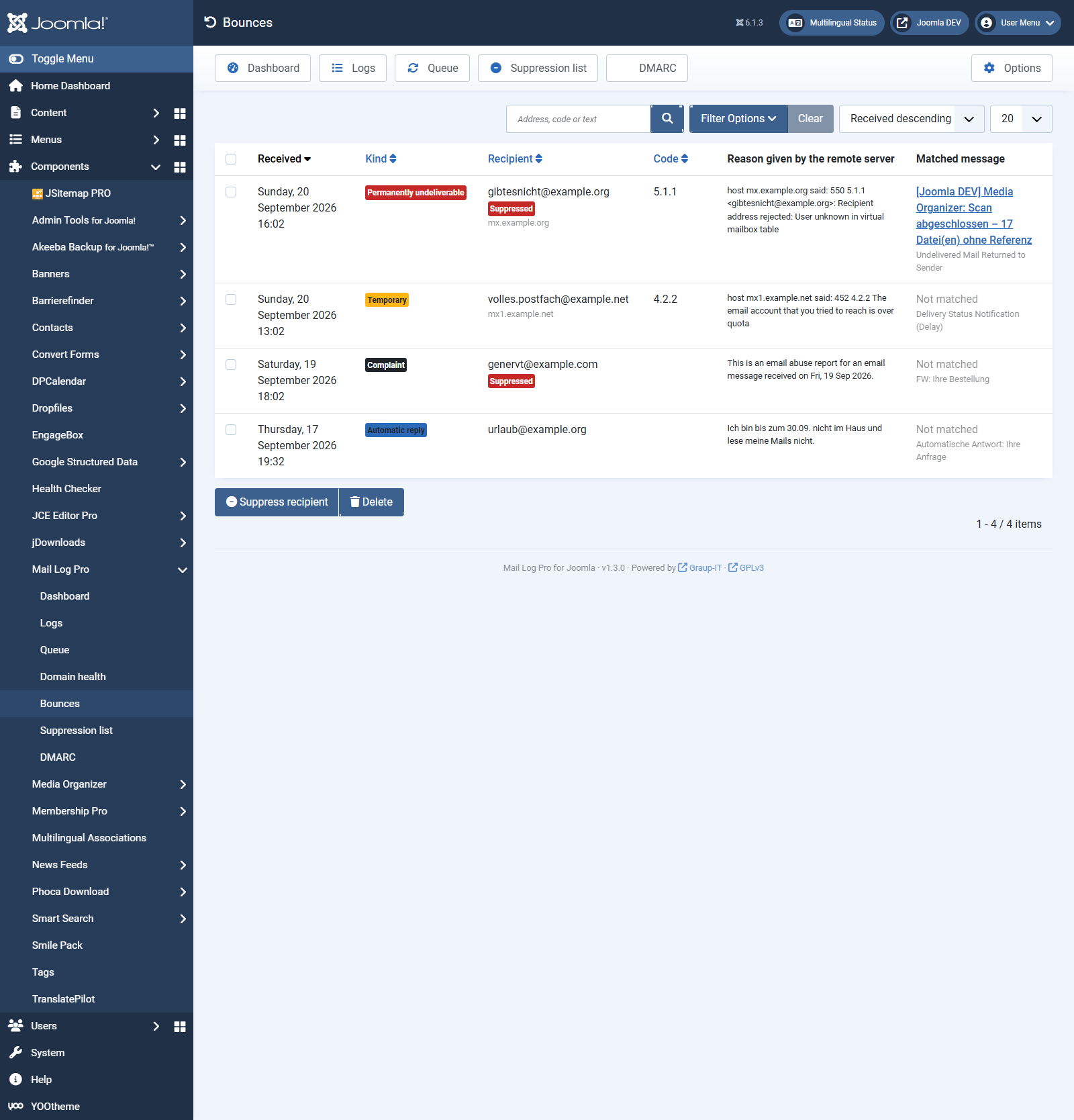
Under Mail Log → Bounces you see what came back: time, kind, recipient, status code, the remote server's reason in its own words and the matched message. Below the recipient stands the refusing server, where it was named; a red Suppressed shows that the address is already on the suppression list.
You can filter by kind, period and free text; the search covers recipient, subject, reason, status code and message ID.
- Suppress recipient — puts the addresses of the selected rows on the suppression list by hand. Useful for the cases Mail Log does not suppress on its own: a stubborn temporary refusal, say, or a report that could not be classified.
- Delete — removes bounces from the list. Nothing can be edited here: what the remote server answered is a record, not a form.
How a report is matched to its message
Mail Log tries two ways, in this order:
- By message ID. Proper bounce reports include the header of the original message, and that carries its Message-ID. Mail Log has recorded that identifier since version 1.1.0 — this is an equality, not a guess.
- By recipient and time window. If the remote server does not include the identifier, Mail Log looks for the most recent message to the same address within the configured window (Options → Return channel → Evaluation, seven days by default).
The second way can get it wrong — which is why it is the second, and why a report would rather stay unmatched: it then appears in the list marked Not matched. That is more honest than a wrong match nobody will ever notice. A larger window raises the hit rate and the number of wrong matches alike.
Reports that are not matched still count. They arise, for example, when the original log entry has since been removed by the retention policy, or when the message went out before Mail Log was installed.
In the log and on the dashboard
- In the log list every message that received a bounce carries an extra badge — next to the send status, not in its place. "Sent" is still correct: the message did leave your mail server. The Bounce filter narrows the list to those messages.
- On the dashboard there is a strip with the undeliverable rate for the configured period, broken down by kind, plus the number of suppressed addresses. It is measured against the number of messages sent; automatic replies and unclassified reports do not count. The strip only appears once fetching is switched on — before that a zero would not be information but a claim.
As a rule of thumb: below one per cent is unremarkable, above two per cent you should look at your recipient list. What matters more than the rate, though, is its make-up — a handful of complaints weighs more than a lot of full mailboxes.
What happens to mail that is not a bounce report
Nothing. It is read, not recognised and left in place — not deleted, not moved, not marked as read, not even when “After collecting” is set to Delete. The task log counts it separately, for instance “12 read, 3 processed, 9 left alone”.
But it is only looked at once. Mail Log remembers which messages it has
already examined and skips them on the next run without even fetching them. It uses the
protocol's permanent identifiers for that (UIDL with POP3, the UID with IMAP) —
nothing about the message itself is changed.
Why this matters. Without that memory every run would read the same foreign mail again and use up the maximum per run. In a mailbox that also holds ordinary mail this would eventually mean: every run collects a hundred foreign messages and never reaches the reports behind them — with no error and a green state.
The list is kept in step rather than piling up: whatever is no longer in the mailbox is forgotten on the next run. Change the mailbox and it starts over.
If your server cannot do UIDL — rare, as the command is optional in the standard
— collection works as before and looks at every message on every run. A mailbox used only for
reports is the better choice then.
Limits
- Mail that is not a bounce report is left untouched — even with the “delete” setting. It is not deleted, not moved and not marked as read. Mail Log only touches what it recognised as a bounce report and processed.
- Not every server reports back. Some receiving systems accept messages and discard them silently. No return channel helps against that, only sound domain health.
- Complaints only reach those who are registered. The feedback loops of the large providers require the sender to sign up. Without that you see undeliverable mail but no spam markings.
- Fetching needs outgoing connections to your incoming mail server. Where the host blocks them, the task reports a connection error.
The same mailbox carries something else
This mailbox receives more than bounce messages: the daily DMARC reports arrive here too — if you point them here. Mail Log sorts out which is which while collecting; anything that is neither is left untouched. How to switch the reports on and what they say is explained in the chapter DMARC.