
Quick start: the dashboard
Mail Log works immediately after the installation. This page shows how to produce the first entry and how to read the dashboard properly.
Producing the first entry
Send any email through your website — easiest is the built-in test email under System → Global Configuration → Server → Send Test Mail. Then open Components → Mail Log. The message appears as the most recent entry.
Reading the dashboard
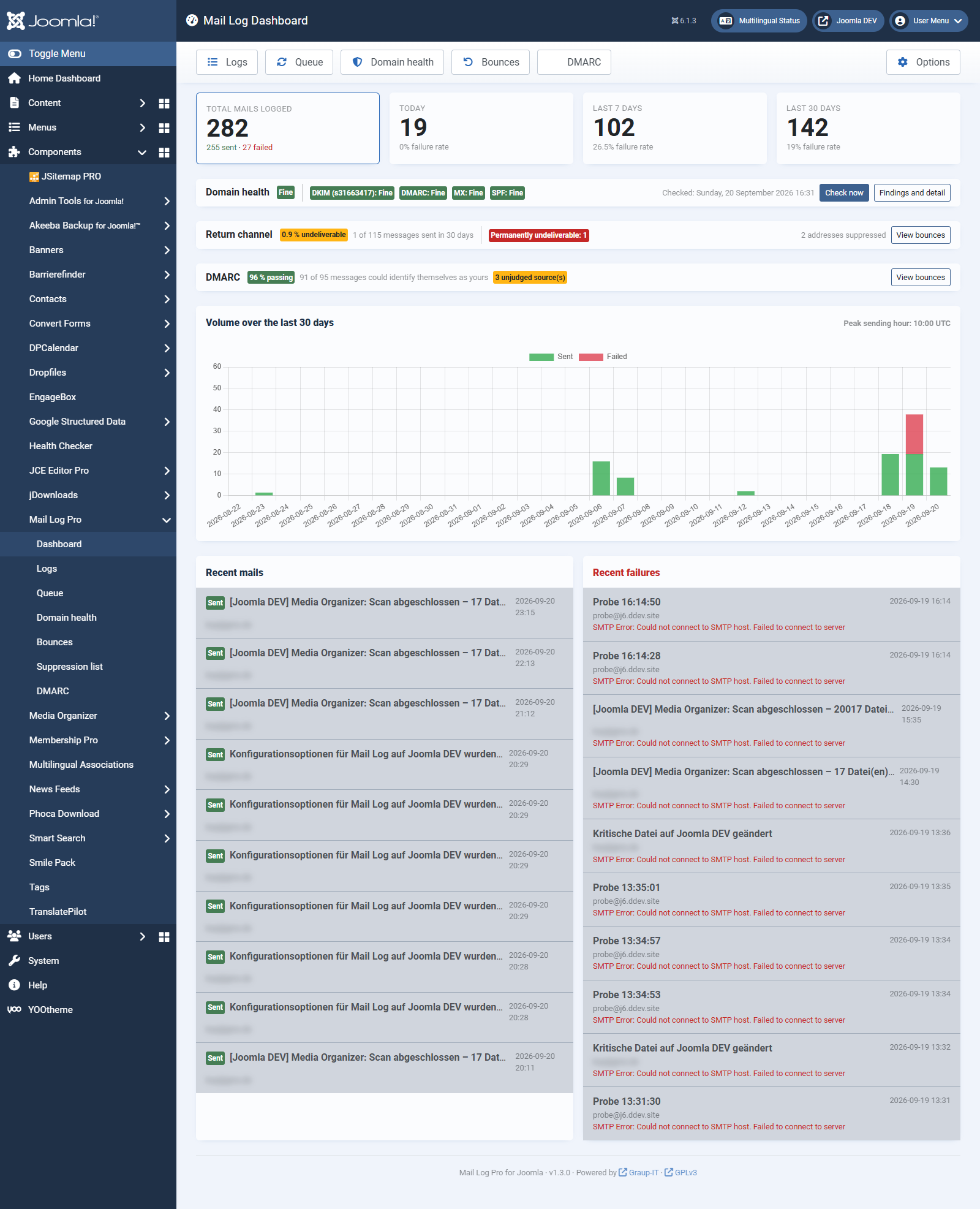
At the top there are four key figures:
| Tile | Meaning |
|---|---|
| Emails in total | All logged mails, broken down into sent and failed. |
| Today | Mails of the current day with error rate. |
| Last 7 days | Weekly figure with error rate. |
| Last 30 days | Monthly figure with error rate. |
Below them follow:
- The activity chart — sent and failed mails per day over the last 30 days, stacked. Above the chart the peak hour of the period is shown.
- The domain health strip — above the chart. In a single line it tells you whether SPF, DKIM, DMARC and MX of your sender domain are in order; the chapter Domain health explains what it can say.
- The queue strip — Pro version only, and only while automatic retry is switched on or something is still waiting. It says how many messages are waiting for another attempt, when the next one is due, and how many were given up — one click shows exactly those. Given-up messages never arrived; they turn the strip red until you requeue or cancel them.
- The return channel strip — Pro version only, and only once the mailbox is being fetched. It gives the undeliverable rate for the period, broken down by kind, and the number of suppressed addresses; the chapter Return channel explains the figures.
- The DMARC strip — Pro version only, and only while the evaluation is switched on. It says how much of your own sending passed, and how many sending servers are still unjudged; the chapter DMARC explains both.
- Latest emails — the most recent messages with status, subject and sender. One click opens the detail view.
- Latest errors — the most recent failed deliveries, so that you see problems immediately.
If the chart does not render (with JavaScript switched off, for instance), Mail Log shows the same figures as a table automatically. No information is lost.
Where to go from here
Mail Log has three working screens: Dashboard, Logs and Queue. Each of them carries the way to the other two at the top left — you do not need the Joomla menu on the left, which is often collapsed anyway.
Alongside them are the screens that belong to one subject: Domain health, Bounces and Suppression list. They are offered where they are needed — on the dashboard and next to each other. The Joomla menu on the left always reaches them.
On the right of the toolbar, every screen of the extension carries the Options button, provided you may change the settings. Adjusting a threshold while standing on the suppression list needs no navigating back.
Logs takes you to the complete list. There you filter and search all entries — that is described in the chapter The log list.
Applies to version 1.5.0.