
Reports: duplicates and broken references
Besides the unreferenced files, Media Organizer provides two more reports. Both are pure displays: they delete nothing and change nothing.
Duplicates
The report finds files with identical content — detected by the checksum (SHA1), not by the file name. Two files can therefore have completely different names and sit in different folders; what counts is that their content is the same byte for byte.
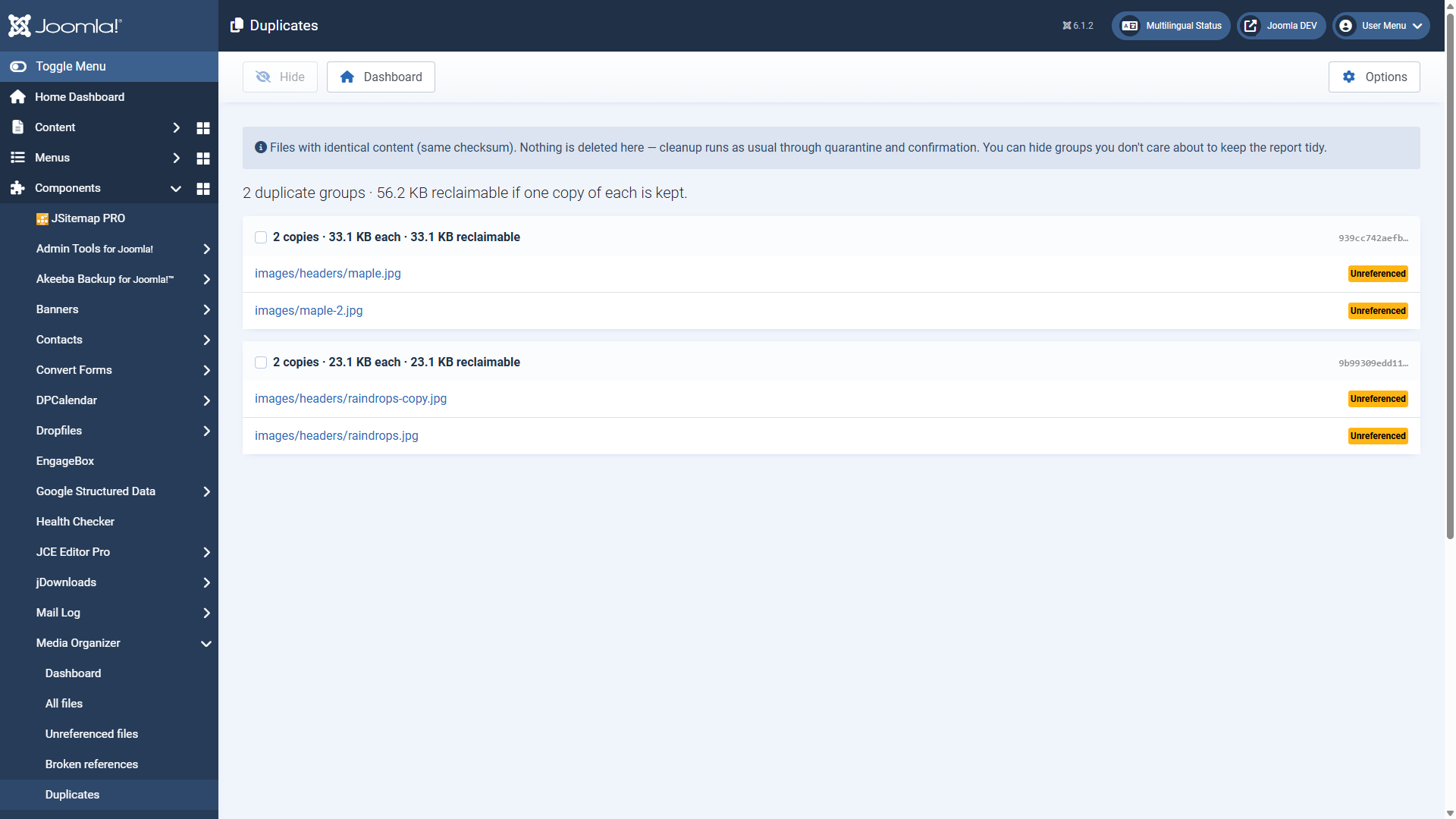
Every group shows:
- how many copies there are and how large each of them is,
- how much space would be freed if one copy each stays,
- the beginning of the checksum,
- the status of every single copy (referenced or without a reference).
Do not blindly delete all copies but one. Check the status: if several copies are referenced, different content points to different files. Delete one of them and the corresponding reference is broken — you would have created a dead image link.
The sensible case is: one copy referenced, the others not. Then the unreferenced ones can go — through the normal route.
Cleaning up runs through quarantine and confirmation here as well. The report is the magnifying glass, not the broom.
With Hide you take groups out of the report that you deliberately want that way — images maintained twice on purpose, for instance. That keeps the list useful over time.
Broken references
This report turns the direction of view around: it shows content pointing to a file that does not exist. Dead image links, in other words — the broken image icon in the frontend.
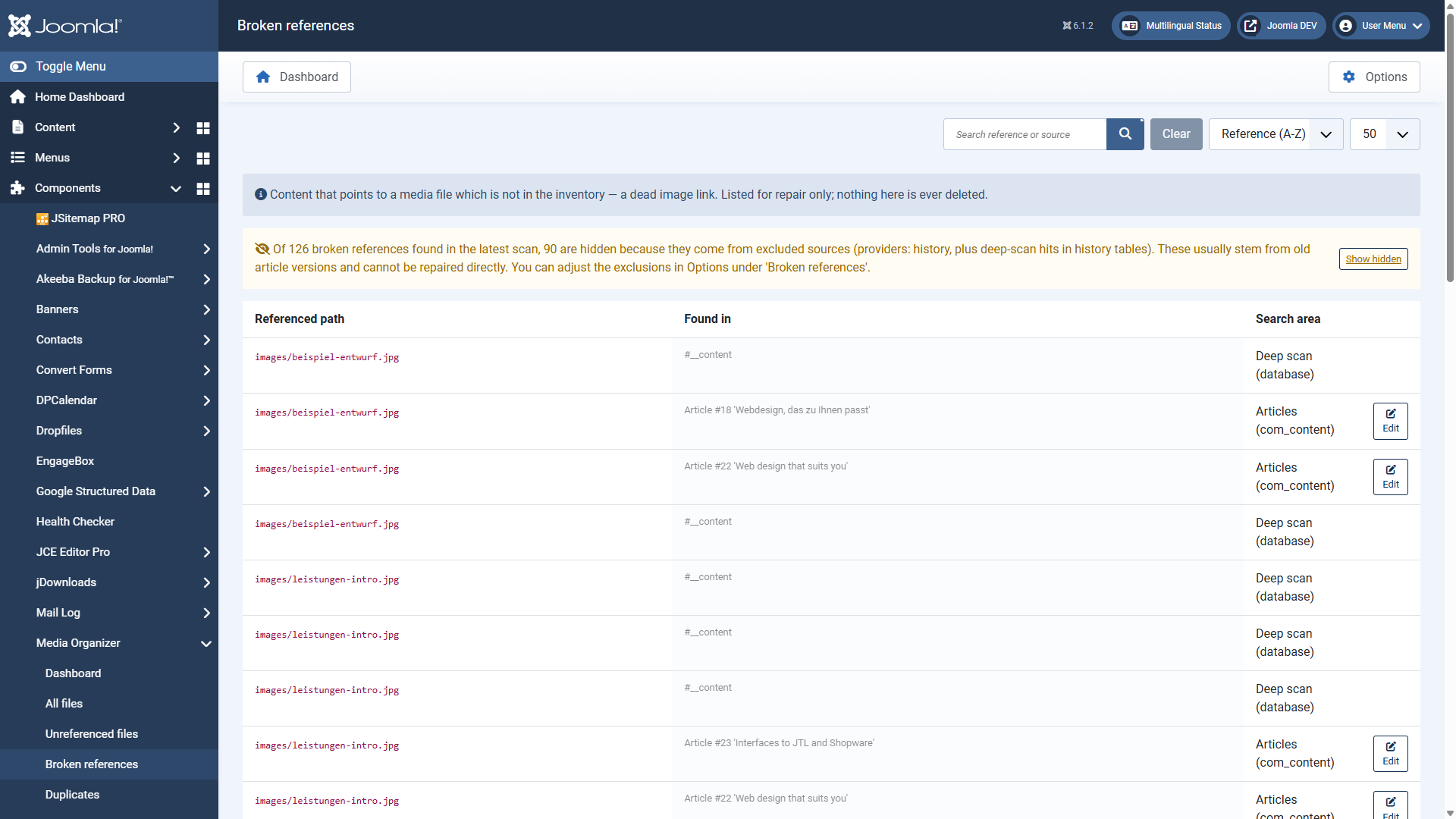
The columns:
| Referenced path | The file that is missing. |
|---|---|
| Found in | Where the reference sits, for example "Article #3 'Welcome to your blog'". |
| Search area | Which area reported the reference. |
| Edit | Jumps straight into the content to repair it. |
The same missing path appearing more than once is normal: several search areas found it independently.
Why the version history is hidden
By default, hits from the version history are not listed as broken references. The reason is practical: old article versions naturally point to images that were replaced long ago. Those hits would flood the report without there being anything to repair.
You control this under Options → reports & view with hide providers from
broken references (default history) and history tables (default
#__history).
A typical workflow
- Open the report and see whether the missing file was merely moved or renamed.
- If so: jump into the content via Edit and correct the path.
- If the file is really gone: remove the reference or put a replacement image in.
- Scan again — the entry disappears.
A look at this report is worthwhile after every cleanup. It is the counter-check: if you removed something by accident that was needed after all, it shows up here.
Where to go from here
Applies to version 1.1.0.5.