
Quick start: the first scan
A scan rebuilds the inventory of your media files and searches for references to them. It is harmless:
A scan never writes to the file system. It reads, compares and writes the result to the database. Nothing is moved, nothing renamed, nothing deleted.
Starting the scan
Open Components → Media Organizer and click Scan. The scan runs in steps and shows its progress; on larger websites you can abort it and continue later.
How long it takes depends mainly on the number of media files and the size of your database. On a typical medium-sized website it is seconds to a few minutes.
Reading the dashboard
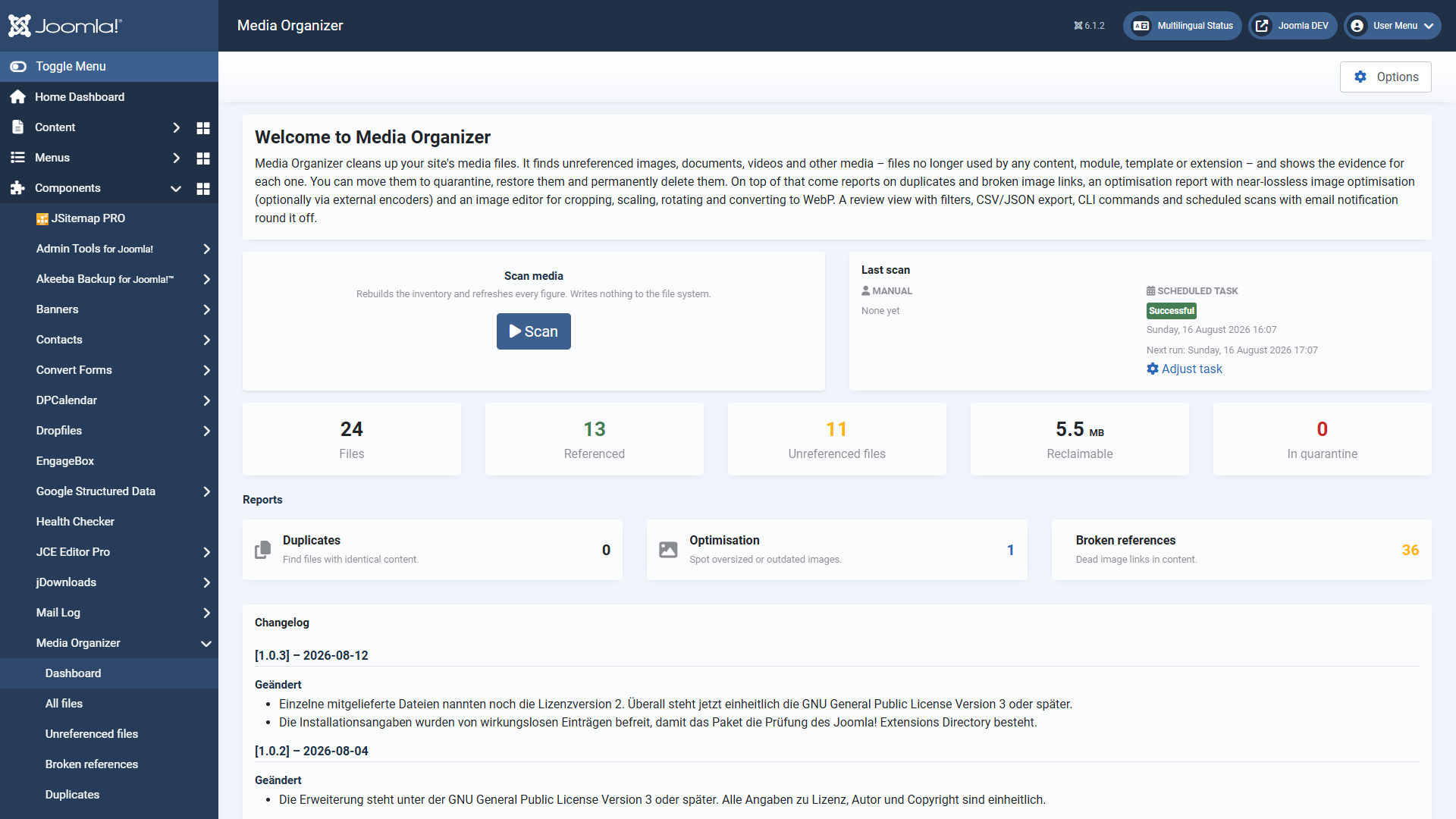
| Figure | Meaning |
|---|---|
| Files | All media files recorded in the configured media folders. |
| Referenced | Files for which at least one occurrence was found. These are in use. |
| Files without a reference | Files for which no occurrence was found. These are candidates — not a verdict. Check them before you act. |
| Reclaimable | How much space the unreferenced files occupy together. |
| In quarantine | Files already moved, waiting to be restored or deleted for good. |
"Without a reference" does not mean "superfluous". It means: nothing was found in any of the enabled search areas. If a file is used somewhere that is not covered yet, it appears here as well. That is exactly what the evidence is for — and exactly why Media Organizer deletes nothing by itself.
The three reports
- Duplicates — files with identical content (same checksum), images uploaded more than once, for instance.
- Optimisation — images that are considerably larger than necessary.
- Broken references — content pointing to a file that does not (any longer) exist. Dead image links, in other words. Nothing is deleted here; the list is for repairing.
What you should do now
Resist the temptation to push everything unreferenced into quarantine straight away. A sensible first pass looks like this:
- Open Files without a reference.
- Look at a few files in detail — the evidence shows you everywhere that was searched. That gives you a feel for whether the coverage fits your website.
- Watch out for a notice about incomplete coverage. If it appears, an installed extension is not covered yet — then the list has to be taken with care, and deleting for good is blocked anyway.
- Start with a small, unambiguous selection and move it to quarantine. Watch your website for a few days. Then the rest.
Automating scans
Scans can run regularly through the Joomla task scheduler and inform you by email. The scheduled scan can only find and report — it never moves or deletes anything. There is deliberately no automatic cleanup.
Where to go from here
Applies to version 1.1.0.5.