
Quarantine, restoring, deleting for good
Cleaning up in Media Organizer always runs in two separate steps: first quarantine (reversible), then — much later and only if you want it — deleting for good (irreversible). This separation is the core of the safety concept.
Step 1: move to quarantine
Select the files in the review view and click Quarantine. They do not go straight into quarantine but first into a confirmation dialogue.
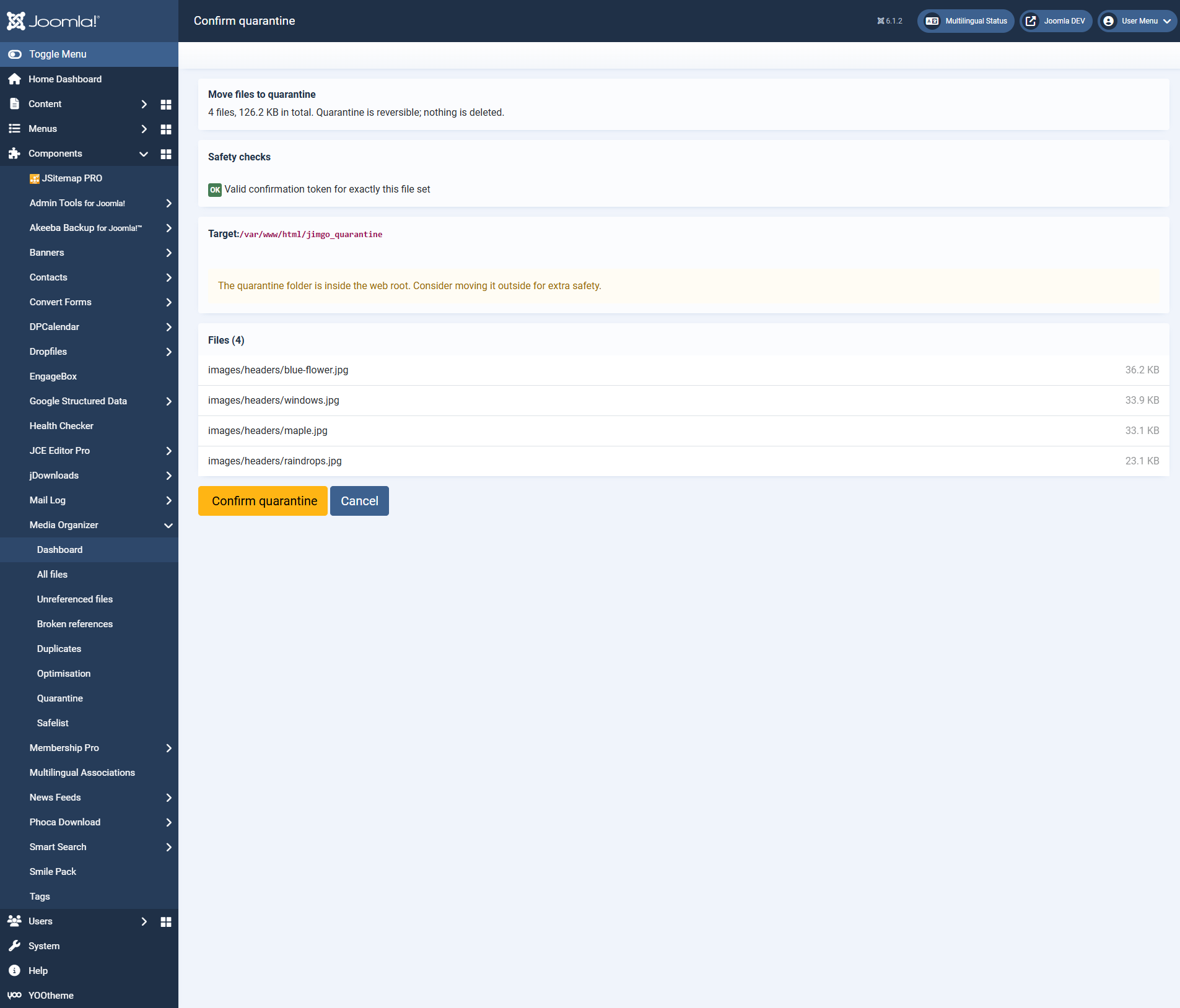
The dialogue shows you:
- Scope — how many files and how much space.
- Safety checks — among them that a valid confirmation token exists for exactly this set of files.
- Target folder — where they are moved to.
- The complete file list — every path individually, so that you can check it.
The confirmation token binds action, user, scan and the exact file list together and is valid only once. If you change the selection it becomes invalid. That way no old or foreign confirmation click can delete a different file list than the one you saw.
What happens in quarantine
The files are moved to a protected folder. They can no longer be reached from the web — so your website behaves as if they had been deleted. That is exactly the point: you see the effects without losing the files.
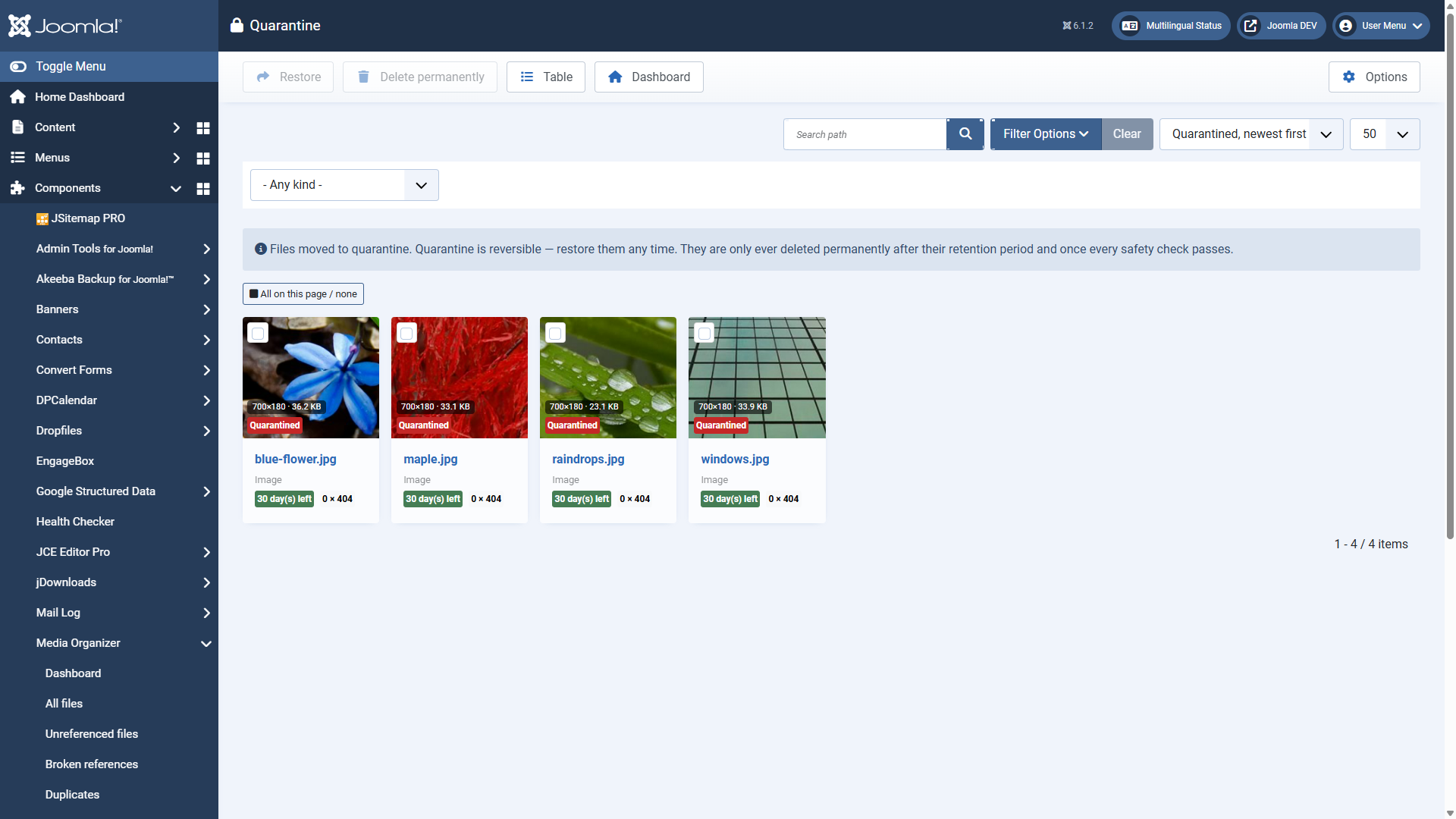
Every tile shows the remaining retention period ("30 days left"). The thumbnails keep working although the files sit outside the web root — Media Organizer streams them for administrators only.
The quarantine folder should be outside the web root. If it is inside, the confirmation dialogue points that out. You can change the path in the options.
Restoring
If you notice that a file is needed after all: select it, Restore. It moves back to its original place. At the next scan it is classified anew as normal.
That is the whole trick of it — the worst case is a brief scare, not data loss.
Step 2: delete for good
Only this step really removes files. It is deliberately inconvenient.
Before deleting, Media Organizer checks twelve independent conditions. All of them have to be met. There is no switch that bypasses this — not even for administrators. Among them are:
- The retention period has expired.
- The file is unchanged since the quarantine (checksum and modification date).
- A valid, one-time confirmation token exists for exactly this file list.
- The user has the necessary permission.
- The coverage is complete — no installed extension without a profile.
- Since the quarantine no 404 accesses to the file have been recorded (if the 404 monitoring is active).
If a condition fails, Media Organizer names all violations at once — not just the first. That way you know everything that is in the way.
The retention period is a precondition, not a trigger. After it expires, nothing happens by itself. It merely allows you to delete — you still have to do it yourself.
A proven approach
- Move a small, unambiguous selection to quarantine.
- Keep running the website normally. Let the 404 monitoring run along.
- After a few weeks: have any 404 hits turned up? Then restore and look for the reference.
- If all stayed quiet and the period has expired: delete for good.
- Next batch.
Where to go from here
Applies to version 1.1.2.0.