
Optimisation and image editor
Besides cleaning up, Media Organizer can also shrink and edit images. Both are reversible and run strictly locally — no image is sent to an online service.
The optimisation report
The report shows images with optimisation potential, measured against the thresholds from the options. It is a recommendation — nothing is changed until you trigger it.
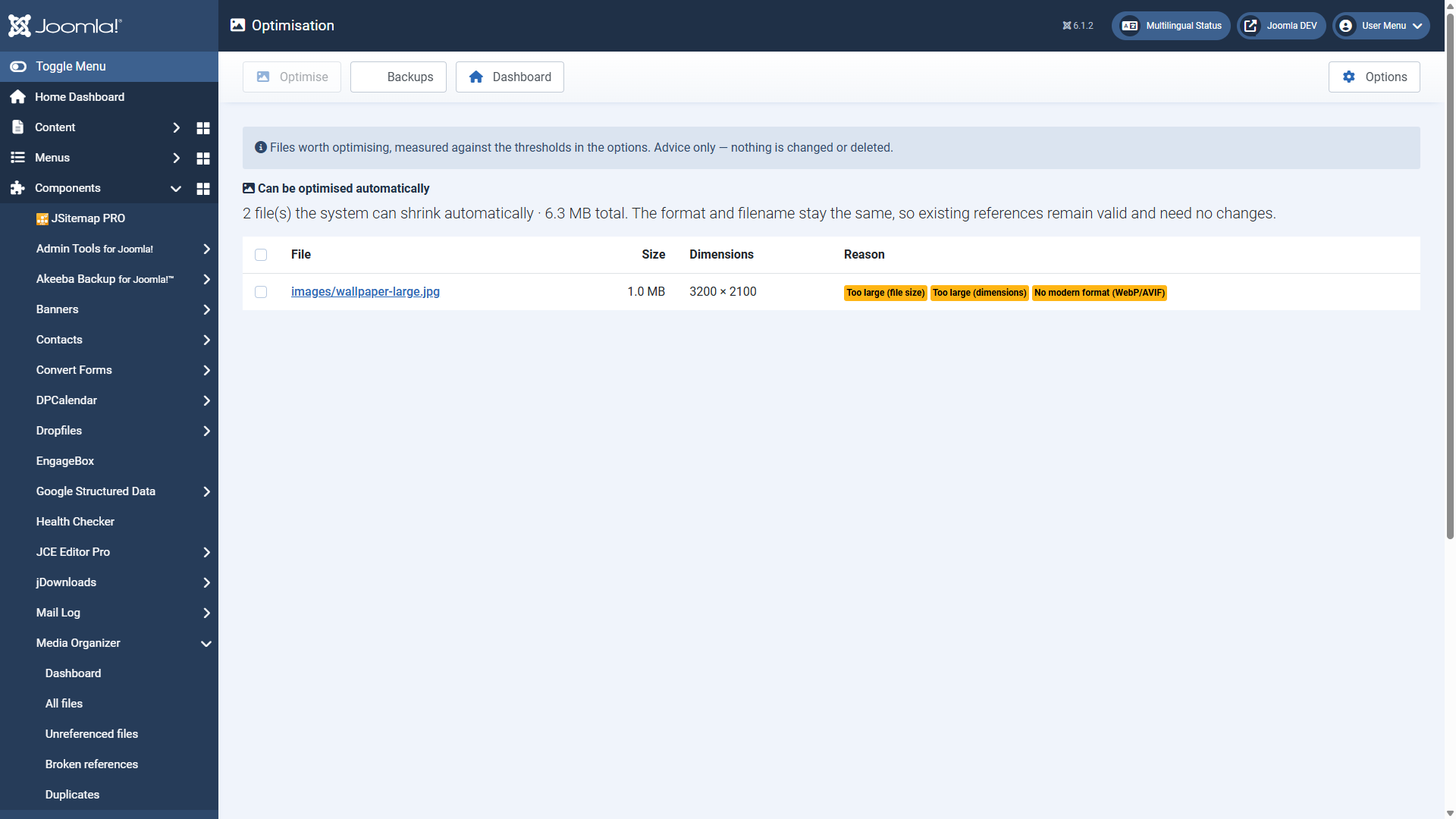
Typical reasons:
- Too large (file size) — exceeds the configured maximum file size (default 500 KB).
- Too large (dimensions) — exceeds the maximum edge length (default 2500 px).
- Not a modern format (WebP/AVIF) — a raster image that would be considerably smaller as WebP or AVIF.
- Outdated format — BMP or TIFF, for instance.
Two groups — and the difference matters
The report deliberately separates them:
Automatically optimisable. Format and file name stay the same. Existing references stay valid and do not have to be adjusted. This is the safe case.
In the editor only. Here an optimisation would change the format (to WebP, for example) and therefore the file name. Existing references still point to the old file and are not switched over automatically. Such images are therefore never touched automatically.
Triggering optimisation
Select the files and click Optimise. Before that the following applies:
- The original is backed up (default:
jimgo_optimize_backup, outside the web). - Nothing is ever scaled up — only down.
- If the optimisation brings less than the minimum saving (default 10 %), the original stays untouched. No loss of quality for a few kilobytes.
- Very large images are skipped so that decoding stays within memory — they appear as "too large to process".
Via Backups you reach the saved originals and can undo an optimisation.
External optimisers
If specialised encoders are installed on the server, Media Organizer uses them for compression — that brings considerably more than the built-in libraries:
| Format | Tools | Note |
|---|---|---|
| JPEG | jpegoptim | — |
| PNG | pngquant, oxipng, OptiPNG | pngquant is lossy (the biggest saving); oxipng and OptiPNG are lossless. Automatic prefers pngquant. |
| WebP | cwebp | When the source is already WebP. |
| GIF | gifsicle | Keeps animations. |
Media Organizer downloads nothing and ships nothing along — it only uses what is already installed. If a tool is missing, it falls back to the built-in library automatically. Under Options → optimisation → available optimisers you see what was detected.
The image editor
You open the editor from the detail view via Edit.
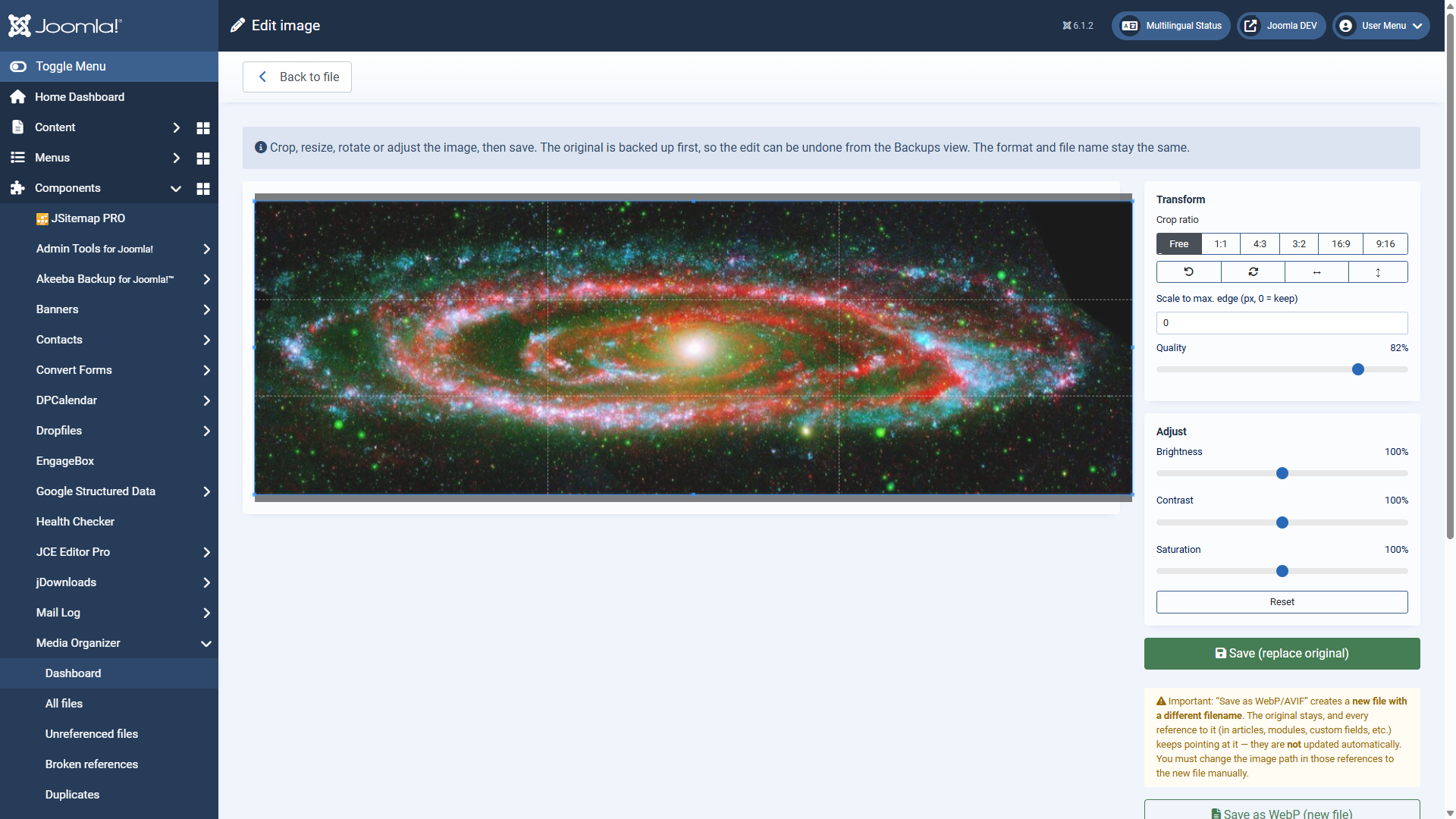
Possible are:
- Cropping — freely or with a fixed ratio (1:1, 4:3, 3:2, 16:9, 9:16)
- Rotating and flipping
- Scaling to a maximum edge length
- Setting the quality
- Adjusting brightness, contrast and saturation
Here too the original is backed up beforehand; through the backups view you undo the edit.
Saving: two routes with different consequences
| Route | What happens | References |
|---|---|---|
| Replace the original | Format and file name stay the same. | stay valid ✓ |
| Save as WebP/AVIF | Creates a new file with a different file name. The original remains. | still point at the original — you have to switch them over manually |
This is the most common stumbling block. If you save an image as WebP, nothing changes in your content — it still points at the old file. The occurrences you have to adjust are listed in the detail view of the original under "referenced by".
Where to go from here
Applies to version 1.1.0.5.