
The log list
The log list shows all logged mails. You reach it through the menu item Mail Log in the sidebar or via Open logs on the dashboard.
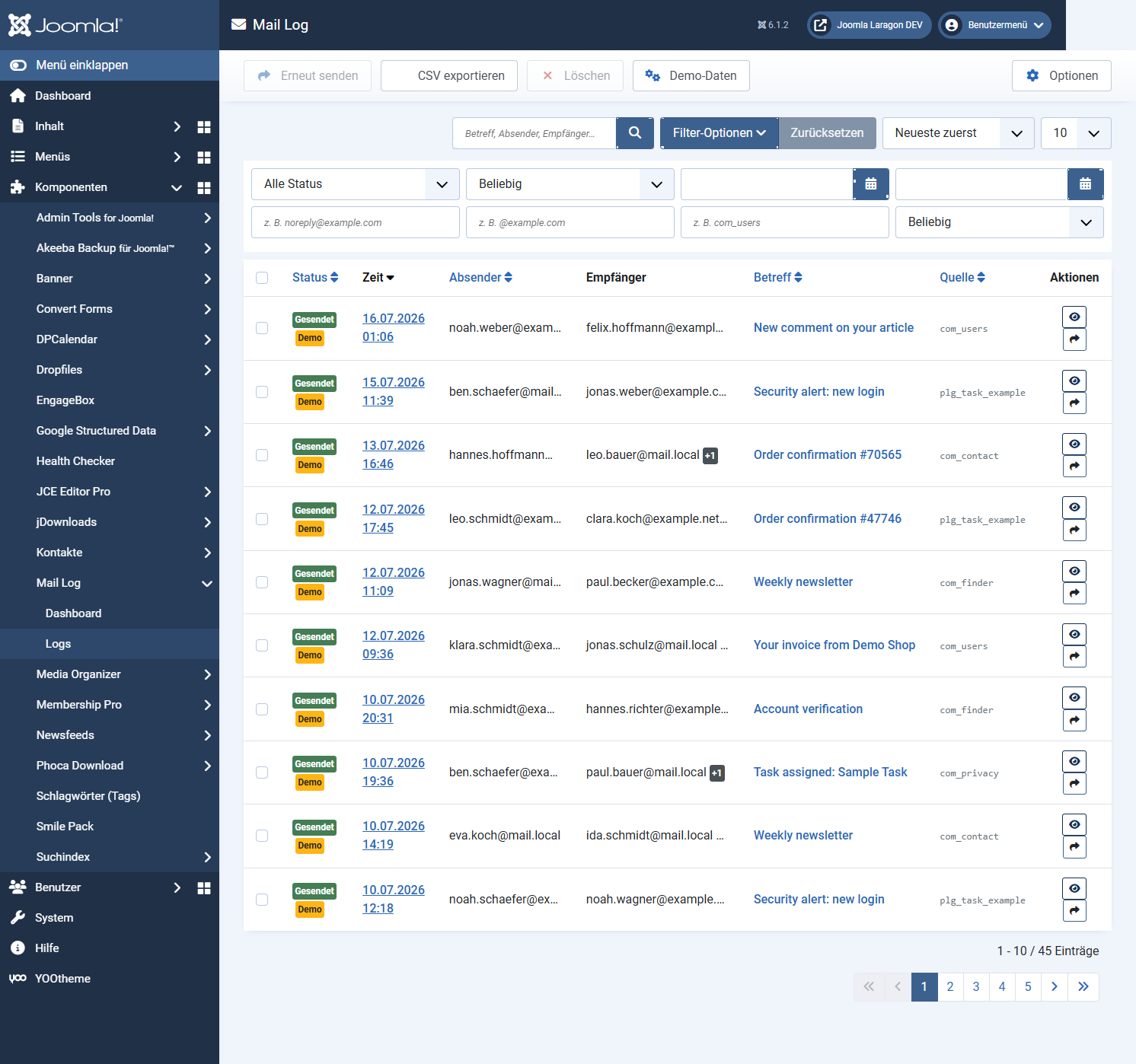
The columns
| Column | Content |
|---|---|
| Status | Sent, failed or skipped. For errors a tooltip shows the error message. |
| Time | Time of sending. |
| Sender | The sender address. |
| Recipient | The first recipient; further ones are shown as "+n". |
| Subject | The subject line. Icons indicate attachments and resent mails. |
| Source | The extension that triggered the sending, where recognised (com_users, for example). |
| Actions | View the entry and — with the corresponding permission — resend it. |
A yellow demo marker identifies test entries you created yourself (see below).
Searching and filtering
Via Filter options you open the filter bar:
| Search | Searches subject, sender, recipient, source and the reference ID. |
| Status | Sent only, failed only or all. |
| Period | Quick selection (today, 7/30/90 days) or your own from/to date. |
| Sender contains / recipient contains | Free-text partial matches on the addresses. |
| Source extension | Restrict to one triggering extension. |
| Context | Frontend, backend, CLI or API — depending on where the mail originated. |
The column headers status, time, sender, subject and source are sortable. The page size is set at the foot of the list.
Several entries at once
Use the checkboxes to mark several entries and then apply a toolbar action — Resend or Delete (each requiring the matching permission). Both actions ask for confirmation first.
Exporting
Demo data for trying things out
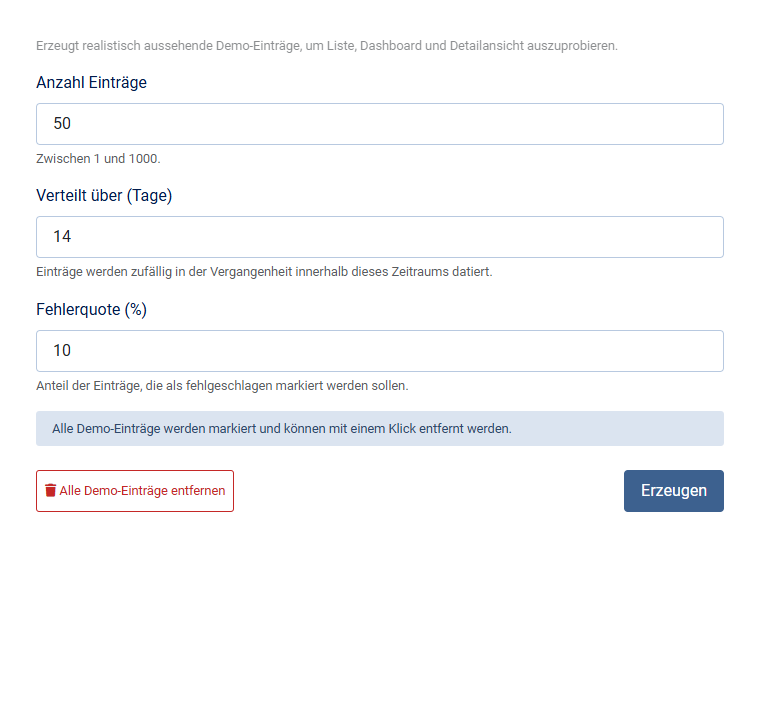
With the permission manage demo data you create realistic-looking test entries through the toolbar, to try out the list, the dashboard and the detail view. All demo entries carry the demo marker and can be removed again with one click.
Applies to version 1.0.4.