
Looking at an entry
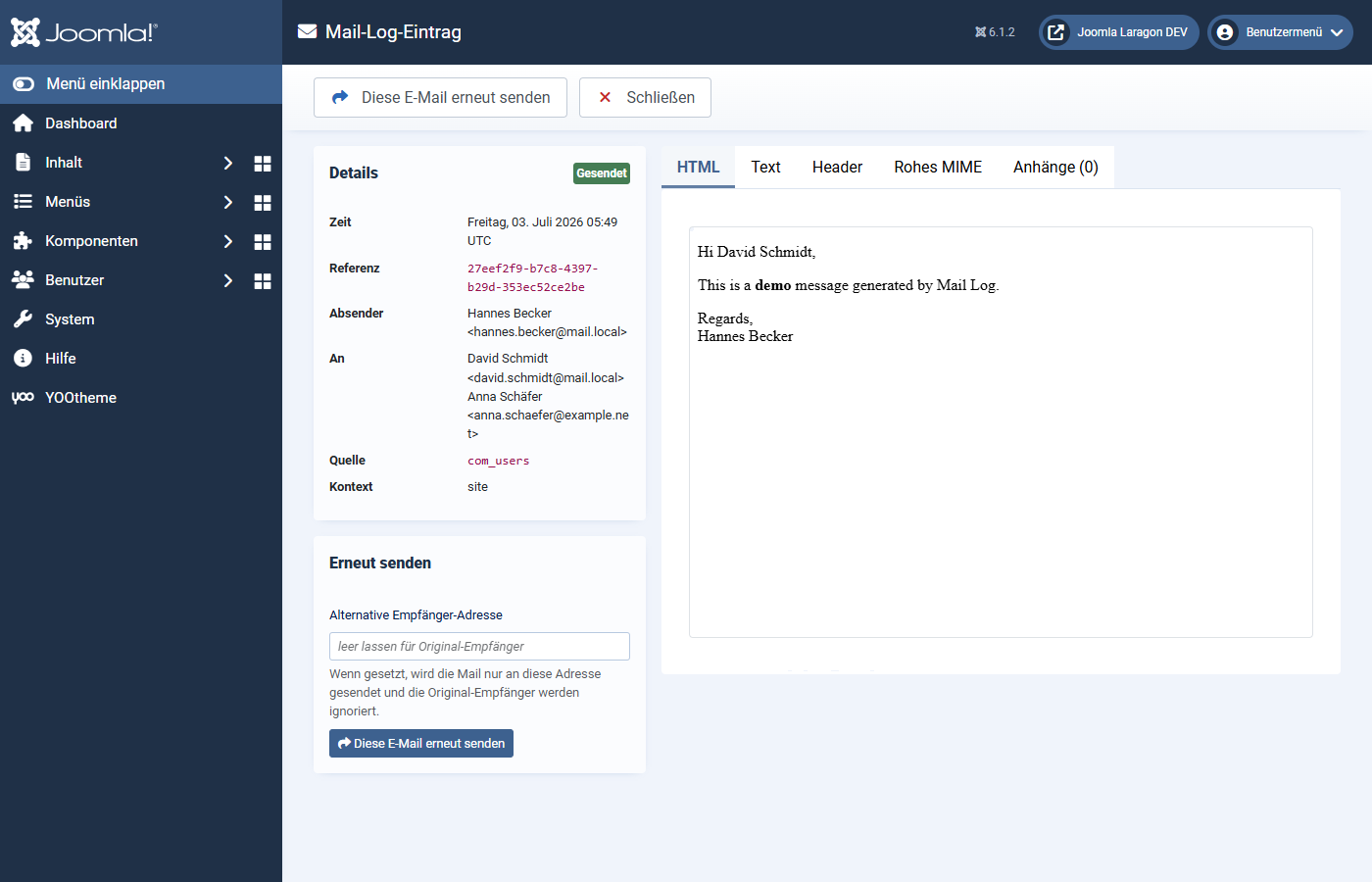
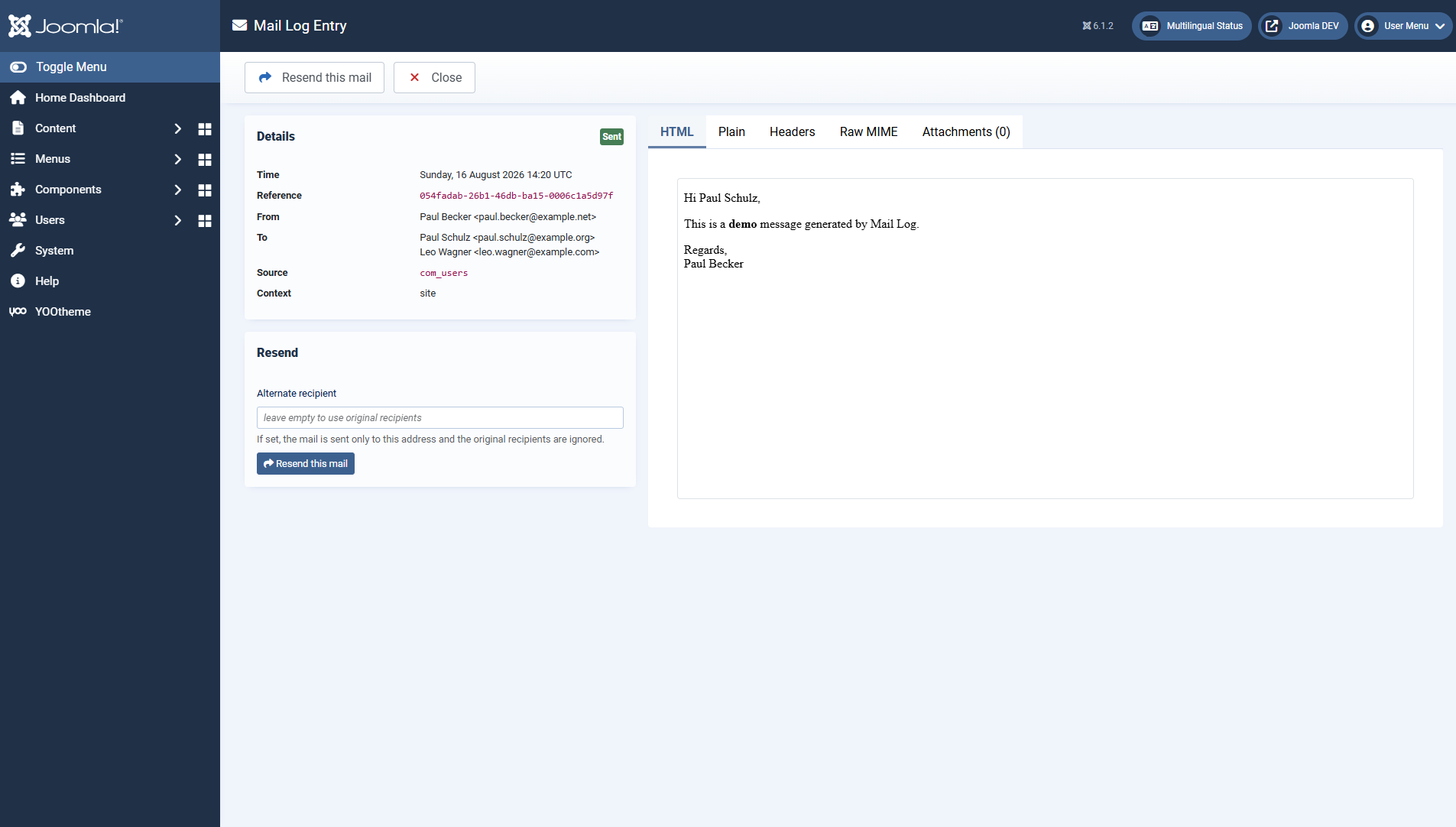
Clicking an entry — on the time, the subject or the view button — opens the detail view with everything recorded about that mail.
The metadata
The left column sums up what is known about the mail:
- status, time and a unique reference ID
- sender as well as to, CC, BCC and reply-to
- source (triggering extension) and context (frontend/backend/CLI/API)
- the IP address and the logged-in user, where available
- for errors, the full error message from the mail server
- a notice if the text was stored truncated
The content tabs
| Tab | Content |
|---|---|
| HTML | The HTML text, shown in an isolated preview (more on this below). |
| Text | The plain text version of the message. |
| Headers | The custom headers of the message. |
| Raw MIME | The exact RFC822 message, if storing it is enabled. |
| Attachments (n) | The captured attachments with name, type and size, ready to download. |
The HTML text is displayed in an isolated frame (sandbox): scripts in the mail HTML
are not executed, and the content cannot influence the backend. That way you can look at foreign
messages safely.
When there is no text
Depending on the settings, the body is deliberately not stored or stored only in part. In those cases a notice explains why:
- "The body is stored encrypted and was decrypted for display." — you see the plain text; in the database it is encrypted.
- "For this entry only metadata is stored." — typical for sensitive mails such as password resets.
- "For this entry only the first 4 KB of the body are stored." — the default stores a short excerpt; the size shown corresponds to the configured excerpt size.
Reading the bodies requires the permission view mail content. Without it you see the metadata but not the text.
Downloading
With the permission download attachments and .eml you download the raw message as an .eml file through the toolbar (to open it in a mail client) as well as individual attachments from the tab of the same name.
The sending chain
If a mail was resent, Mail Log links the new entry to the original one. The detail view shows this chain, so you can trace which sending came from which.
Applies to version 1.0.4.