
Versions and expiry date (Pro)
Pro version. This feature is part of the Pro version of Fileshelf. What the Free version does is covered under Free version and Pro version.
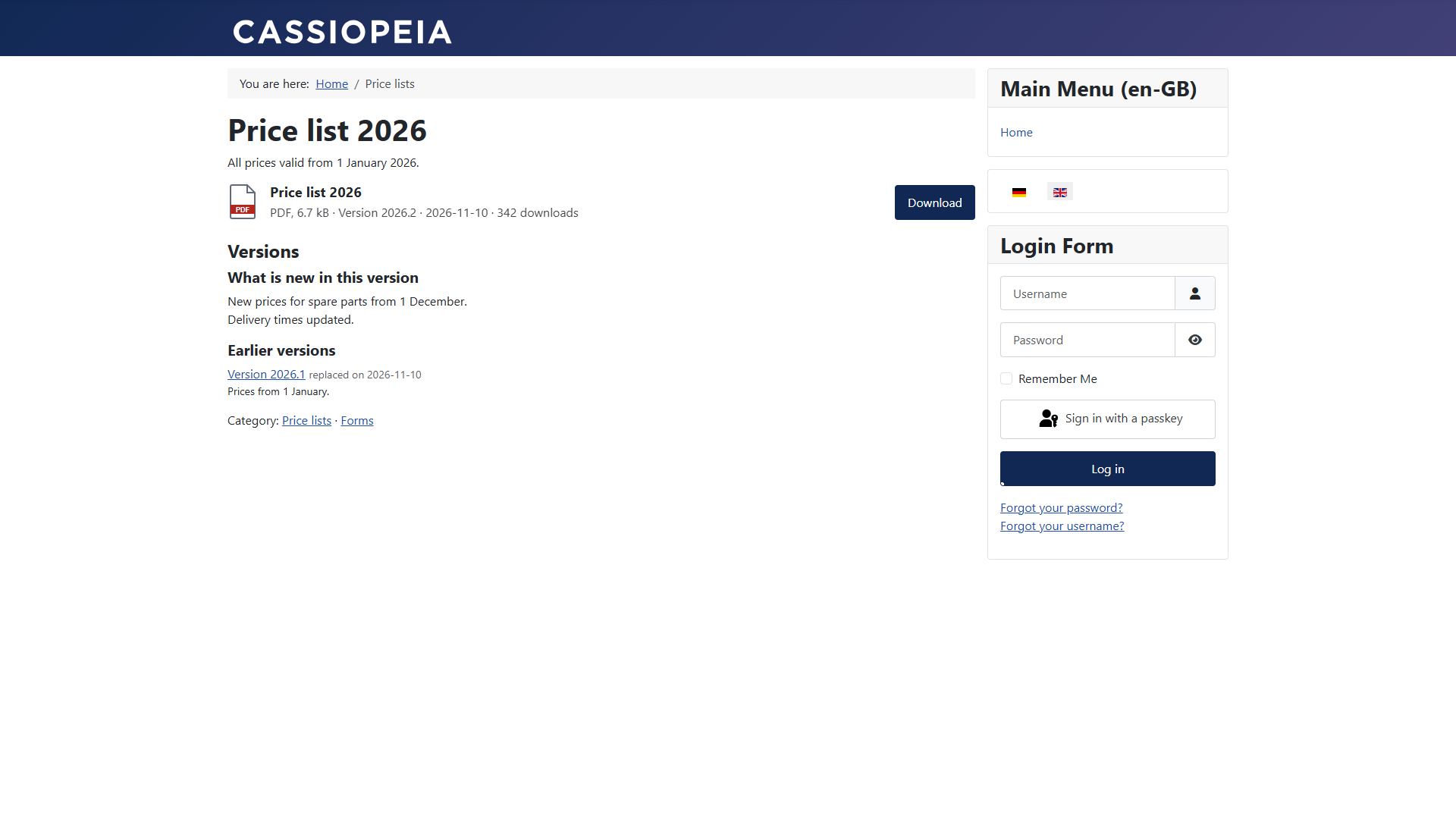
When you replace the file of a download, the earlier file stays as a version. Visitors find it on the download page, with what changed. A download can also get an expiry date.
Adding a new version
- Open the download and upload the new file in the tab File (or choose one from the storage folder).
- Enter the new version label in the tab Download, e.g. 2026.2.
- Write what is new under Changes in this version in the tab Versions.
- Save.
The earlier file moves to a subfolder _versions of its category folder and keeps its label and its
changes. Tools and media manager treat it as in use.
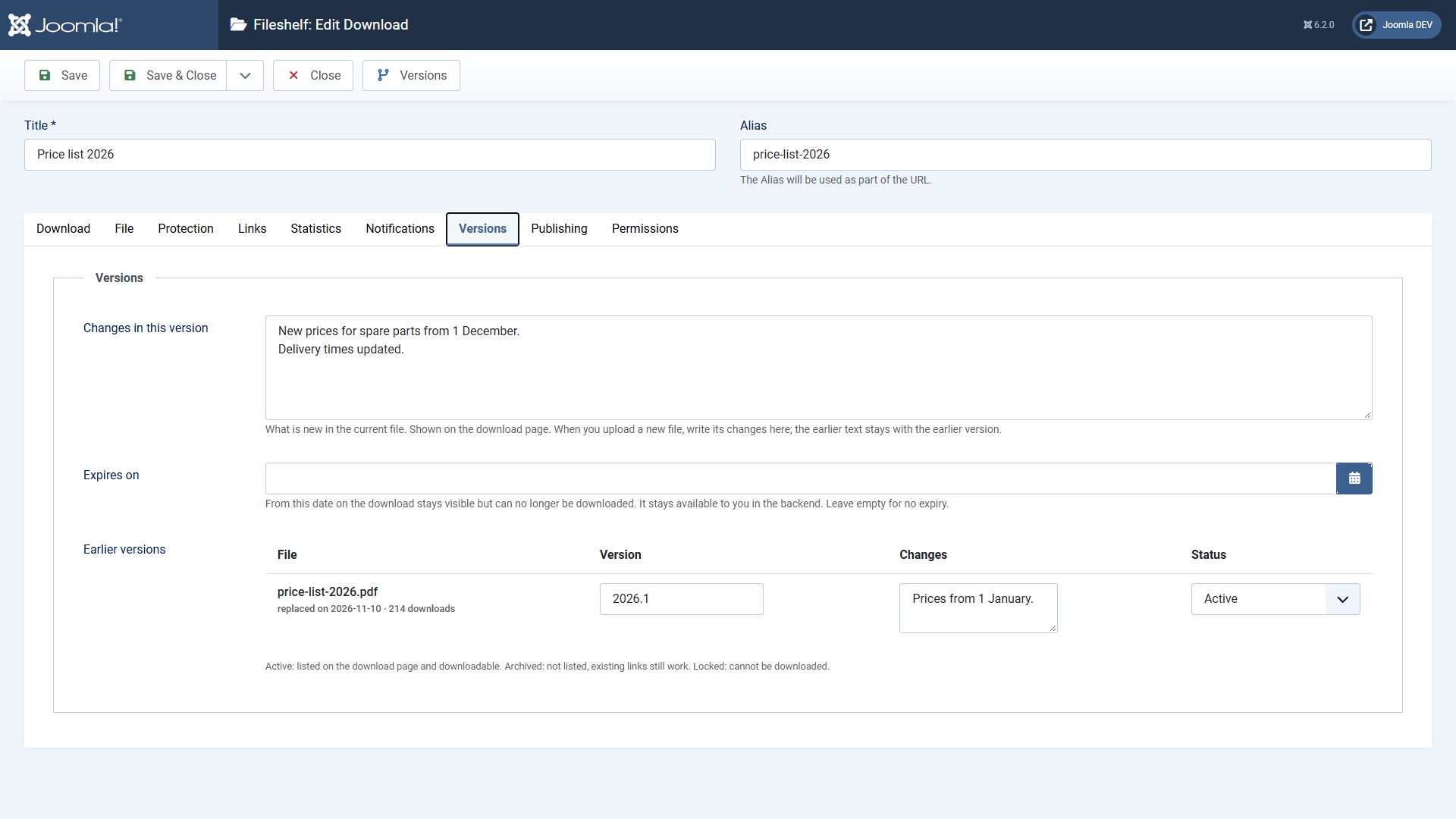
Managing earlier versions
Each earlier version has a label, changes, a counter of its own and a status:
- Active: listed on the download page and downloadable.
- Archived: no longer listed; existing links keep working.
- Locked: cannot be downloaded.
Whether visitors may download earlier versions at all is set in the plugin Fileshelf - Versions (Earlier versions public, default: yes).
On the website
Expiry date
Enter a moment under Expires on in the tab Versions. From then on the download stays visible on the website but shows a lock saying it has expired. In the backend you can still download the file. Clear the field and the download is available again.
Unlike Finish Publishing (tab Publishing): there the download disappears from the website altogether.