
Tools
You reach the tools from the dashboard. They are only available to users with the permission “Configure ACL & Options” on Fileshelf (Super Users and administrators with this permission).
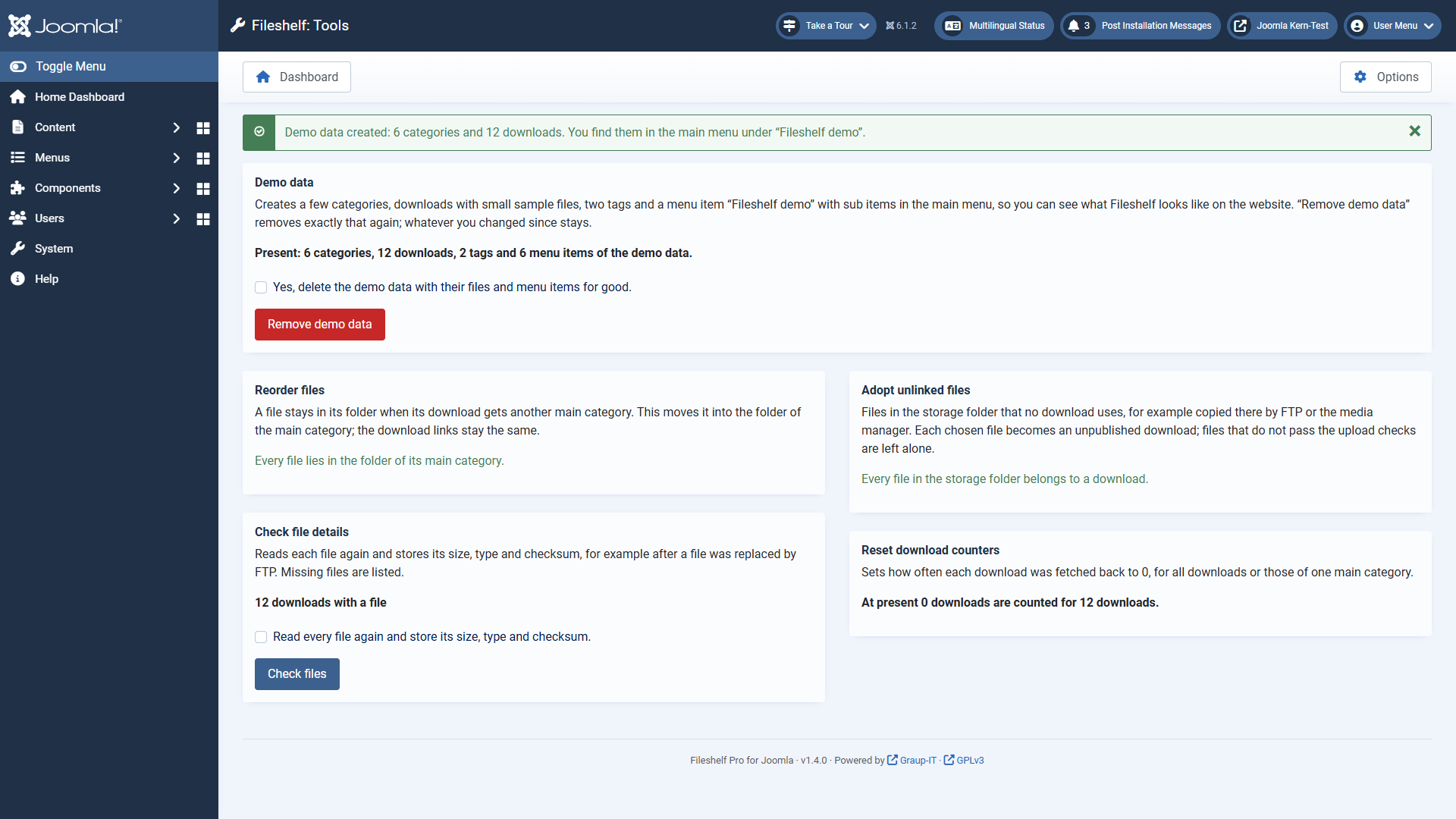
Each tool shows beforehand what it would do. It only runs once you tick the confirmation box and click the button.
| Tool | When you need it |
|---|---|
| Demo data | You want to see what Fileshelf looks like on your website before you create downloads
of your own. “Create demo data” creates six categories (one with the password demo), twelve downloads
with small sample files, two tags and, in the main menu, the menu item “Fileshelf demo” with one sub item each for
the layouts list, cards and table, a single download and the latest downloads. “Remove demo data” removes exactly
that again, files included. Whatever you changed since, or downloads of your own in a demo category, stay; the
preview names them. |
| Reorder files | A file stays in its folder when its download gets another main category. The tool moves it into the folder of the main category; the links stay the same. |
| Adopt unlinked files | You copied files into the storage folder by FTP or the media manager. Choose files and category; each file becomes an unpublished download with the file name as title. Files that do not pass the upload checks are left alone. |
| Check file details | You replaced a file by FTP. The tool reads each file again and stores size, type and checksum; it names missing files. |
| Reset download counters | Sets the counters of all downloads, or of those of one main category, to 0. This cannot be undone. |