
Switching from other download extensions (Pro)
Pro version. This feature is part of the Pro version of Fileshelf. What the Free version does is covered under Free version and Pro version.
The page Fileshelf → Import takes over categories, downloads, files and download counts from another download extension of the same site. The old extension stays as it is and keeps working: Fileshelf only reads, files are copied. Super Users see the page.
| Source | What is taken over |
|---|---|
| Phoca Download 6 | Categories with image, downloads, counts, version, tags, license |
| jDownloads 4 | Categories, downloads, counts, version, tags, license, passwords; optionally the same file in several categories becomes one download |
| Dropfiles 6 | Categories with image, files, counts, version, tags, several categories per file |
| Membership Pro | The documents of the plans, bound to their plans (see Memberships with Membership Pro) |
If a source is not installed or its tables differ from the known version, the page says why and imports nothing.
How an import runs
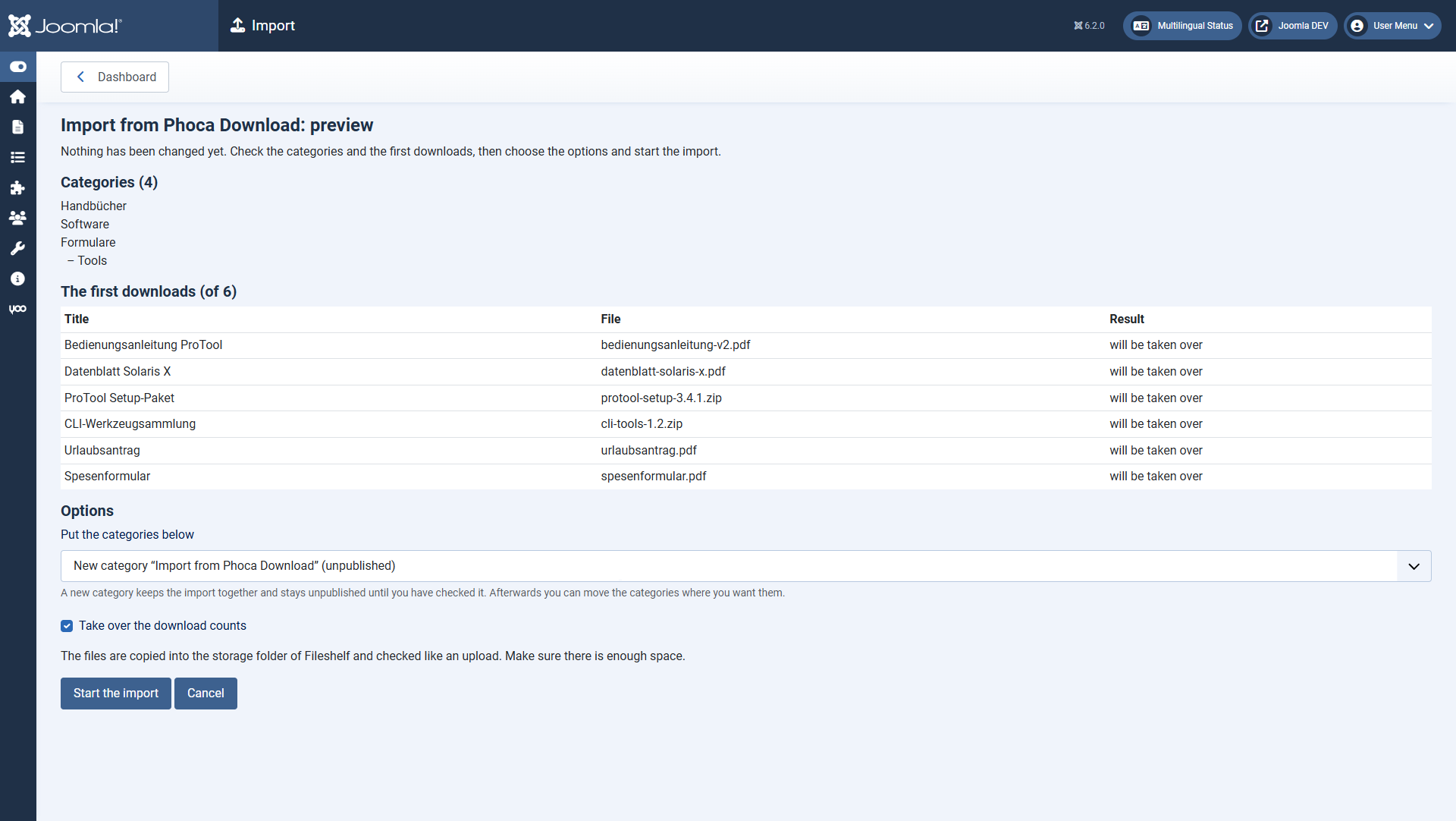
- Choose Preview and import for the source. The preview shows the category tree and the first downloads with what will happen to them – nothing has changed yet.
- Choose where the categories
go.go:Bydefault a new, unpublished - New category "Import from …" (default): it keeps the import
together.together and stays unpublished until you have checked it.
An import can be repeated: what was taken over is skipped; a taken-over download deleted since then comes back.
What is not taken over
- Files Fileshelf does not accept: every file is checked like an upload (allowed file types, size, content). Refused files are listed with the reason in the report; adjust the options if needed and start the import again.
- Files outside the site: links, files in a cloud (Google Drive, Dropbox, OneDrive). Fileshelf only delivers its own files.
- Passwords stored only encrypted: such downloads and categories arrive unpublished; set a new password and publish them.
- Single download records: only the count is taken over.
Access levels that do not exist on this site become "Special". License texts go into the field License, which the import creates once.
The report
The report says what was taken over and what was skipped, and leads through the next steps.
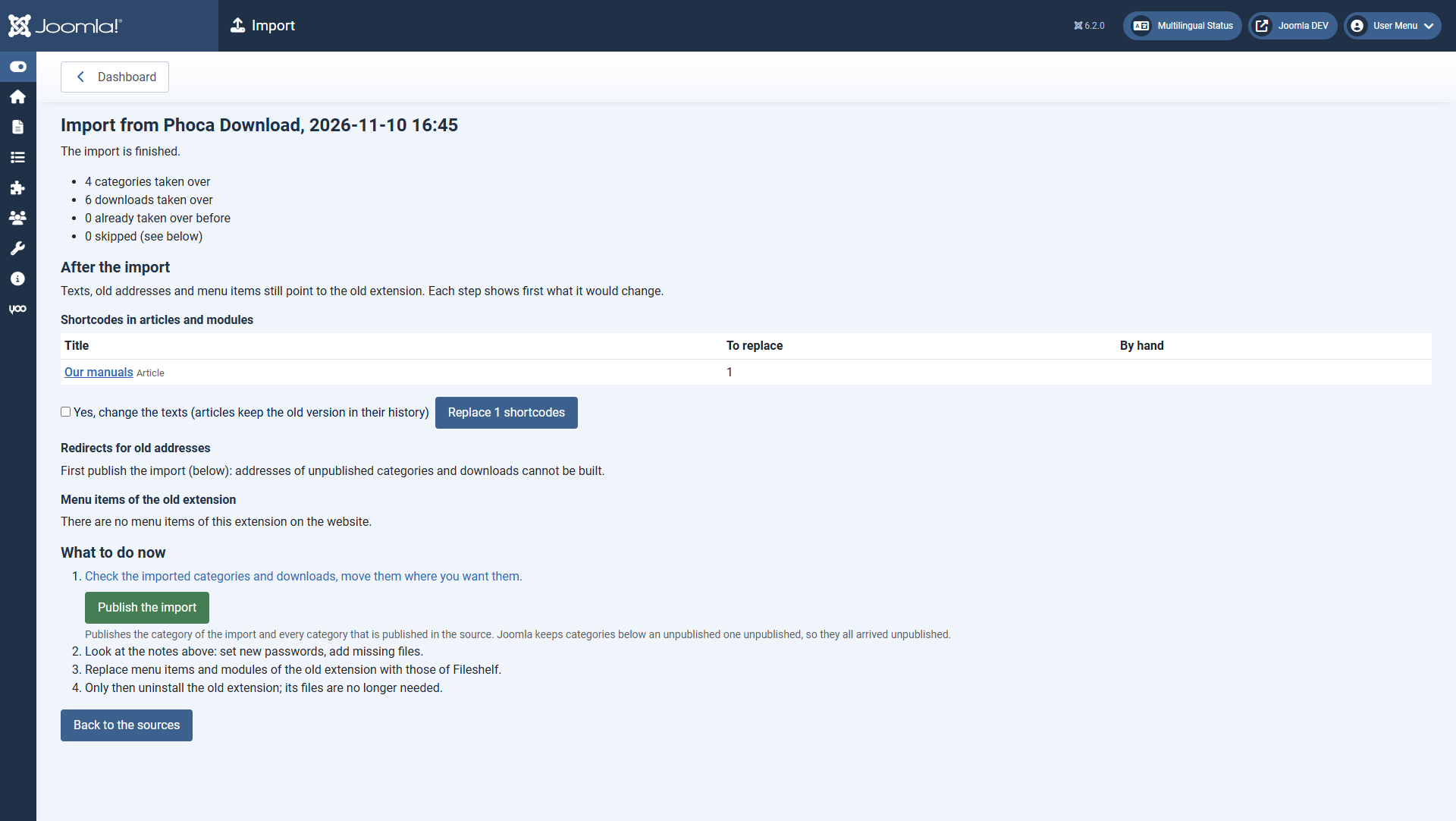
- Publish the import:
Joomla keeps categories below an unpublished category unpublished. Thethe button publishes the category of the import and every category that is published in the source. It stays while one of these categories is still unpublished, so a publish that stopped can be finished. - Replace shortcodes: articles and custom modules with shortcodes of the old extension get those of Fileshelf. Articles keep the old text in their versions. What cannot be replaced is listed under "By hand".
Create redirects:Redirects: old addresses of downloads and categories lead to the newonesones.onceAn old download link gives the file at once, as the old extension did; access level, password and limits apply as for every download. This also works for menu items you have switched to Fileshelf, and after the old extension isuninstalled.uninstalled,Theas long as the plugin "Fileshelf - Import" stays switched on. In addition, Publish the import creates redirects in Joomla; the plugin "System - Redirect" must be switchedon.on for them. If some are still missing, the overview of the import shows Open redirects with a button to create them.- Switch menu items: menu items of the old extension then show the matching page of Fileshelf.
Uninstall the old extension only after you have checked the report.
The import and its aftercare also change articles, modules and menu items. Fileshelf asks for the permission to configure Fileshelf for it (Super User or “Configure ACL & Options”), not the permissions of articles or menus – so give the import only to people who know the whole website. Category images are taken only as image files (jpg, png, gif, webp).