In the backend open System → Install Extensions and drop the ZIP file into the
field.
After the installation Joomla shows an overview of the package with links to the dashboard. In the Free version
it also carries a short note on the Pro version.
On installation Fileshelf creates the storage folder fileshelf/ in the Joomla folder and
writes protection files into it. Then open Components → Fileshelf → Dashboard: it shows
whether the folder is protected (see Storage folder and self-test).
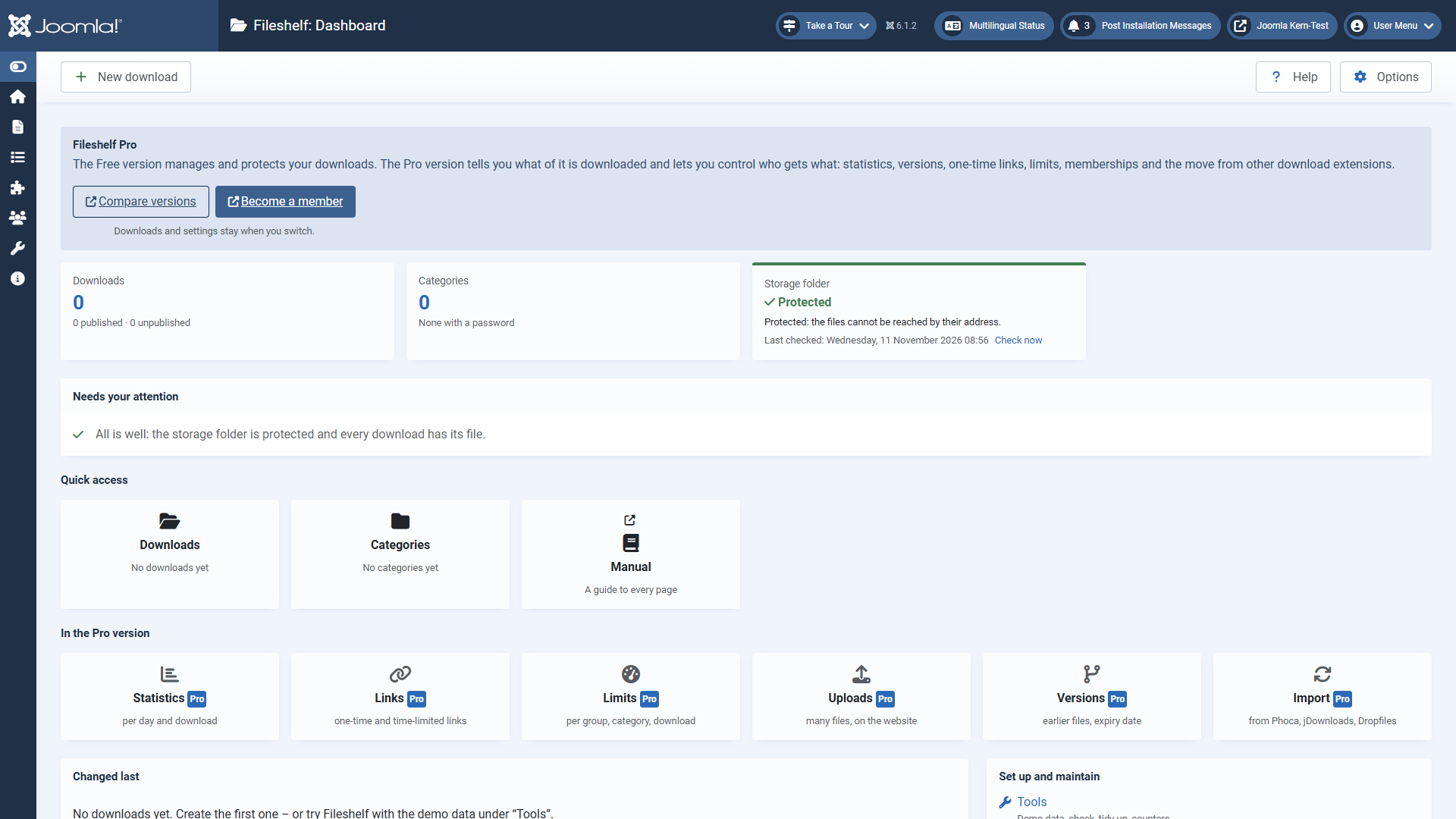
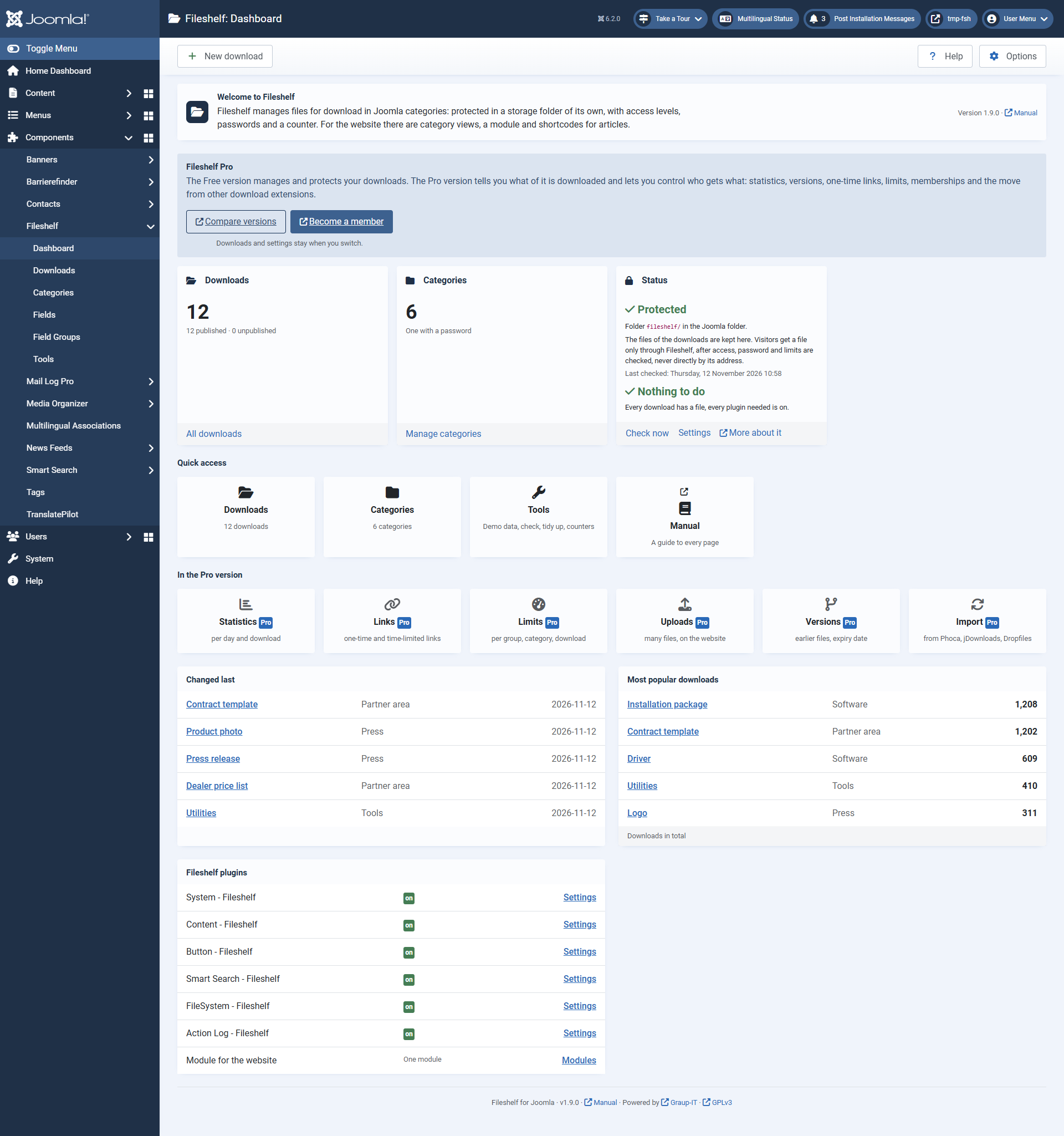
The dashboard: figures and the statedashboard of the storageFree folderversion with nothing to do: the welcome line at the top, the figures with
the status card, below what needs your
attention, quick access andaccess, the downloads changed last.last and most popular, and the plugins.
The dashboard
Needs your attention – appears only when something is to do, highlighted right below the
toolbar, with the number of matters and for each the way to mend it: for example a download without a file
(“Assign a file”), a storage folder whose protection is not confirmed, the switched-off plugin “System –
Fileshelf” (“Open plugin”) or plans that stay locked without Membership Pro.
Welcome line – in two sentences what Fileshelf is and does, with the installed version and
this manual.
Figures – cards of the same height with a head: downloads (published and unpublished),
categories, in the Pro version the hits, and the storage folder. At the bottom of each card is the way on, such as
“All downloads”.
Storage folder – where the folder is and what it is for: the files are kept here, and visitors
get a file only through Fileshelf, with access, password and limits checked. With “Check now”, the settings and
this guide.Needs your attention – only what is to be done, with the way to mend it: for example a
download without a file (“Assign a file”), a storage folder whose protection is not confirmed, or plans that stay
locked without Membership Pro. With nothing to do itthe card is onecalled line.Status and says “Nothing to do”.
Quick access – the pages you need most often, as tiles.tiles; at the end import (in the Pro version)
and tools. The options are at the top right of the toolbar.
Changed last and Most popular downloads – the five downloads edited last;last and
next to them the five published ones fetched most often in total.
Fileshelf plugins – every installed plugin of the package with “Seton” upor “off” and maintain”the withlink toolsto
andits options.settings, plus the number of modules on the website.
In the Free version a box at the top names the Pro version, and the row “In the Pro version”
explains its features, each on a page of its own.
Every page of Fileshelf has the button Help at the top right: it opens this manual. All pages,
including those of the Pro version, are also in the menu under Components → Fileshelf.
Updates
New versions appear under System → Update → Extensions. An update keeps your downloads,
files and settings; it works from any earlier version.
Uninstalling
When you uninstall the package, Joomla removes the tables of Fileshelf. The storage folder with your
files stays – delete it by hand if you no longer need it.