
Requirements and installation
Requirements
- Joomla 6
- PHP 8.3 or newer
- MySQL 8.0.13 or newer, or MariaDB 10.4 or newer
Installing
- Download the package
pkg_fileshelf-<version>.zip. - In the backend open System → Install Extensions and drop the ZIP file into the field.
- After the installation Joomla shows an overview of the package with links to the dashboard. In the Free version it also carries a short note on the Pro version.
On installation Fileshelf creates the storage folder fileshelf/ in the Joomla folder and
writes protection files into it. Then open Components → Fileshelf → Dashboard: it shows
whether the folder is protected (see Storage folder and self-test).
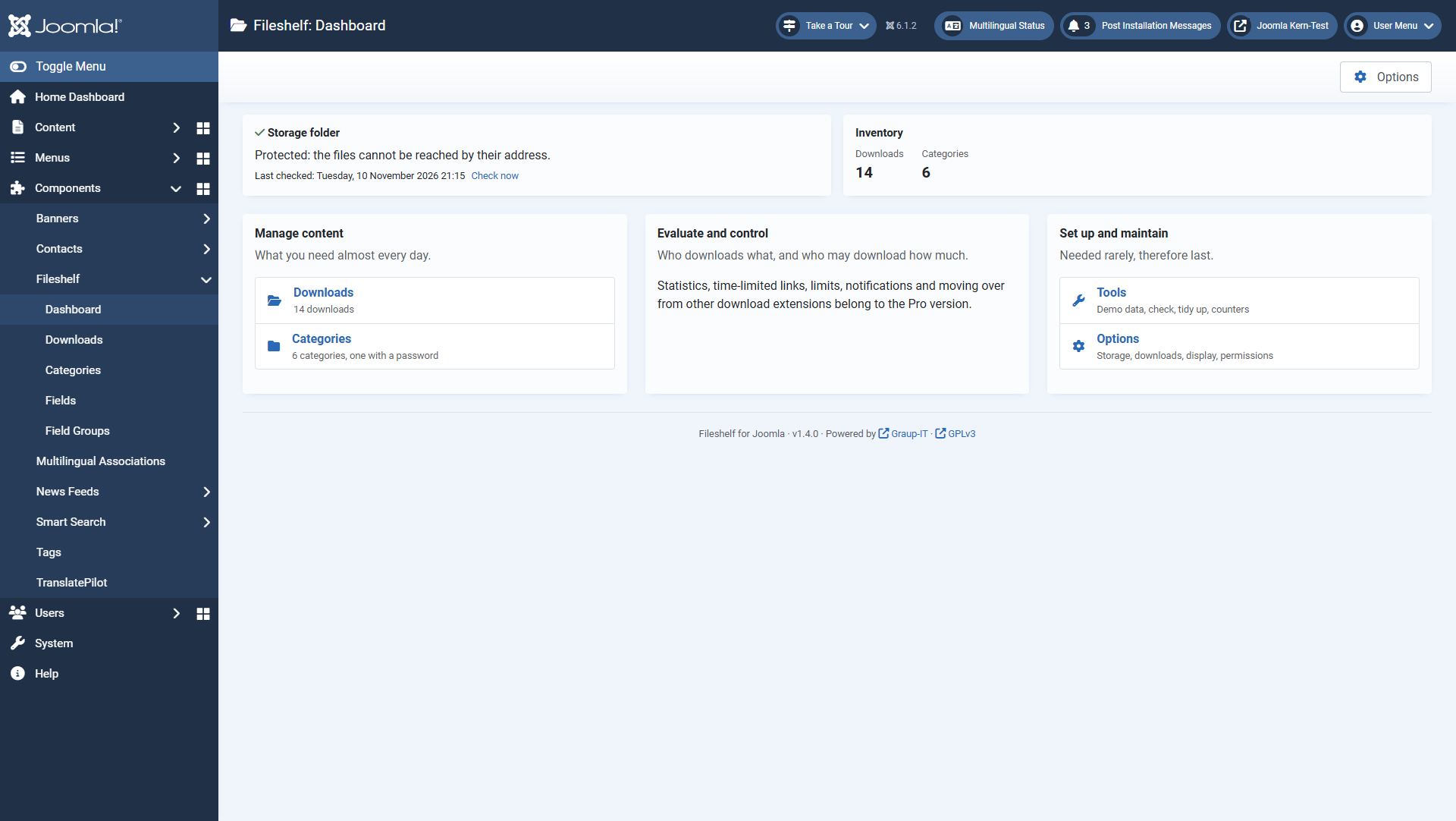
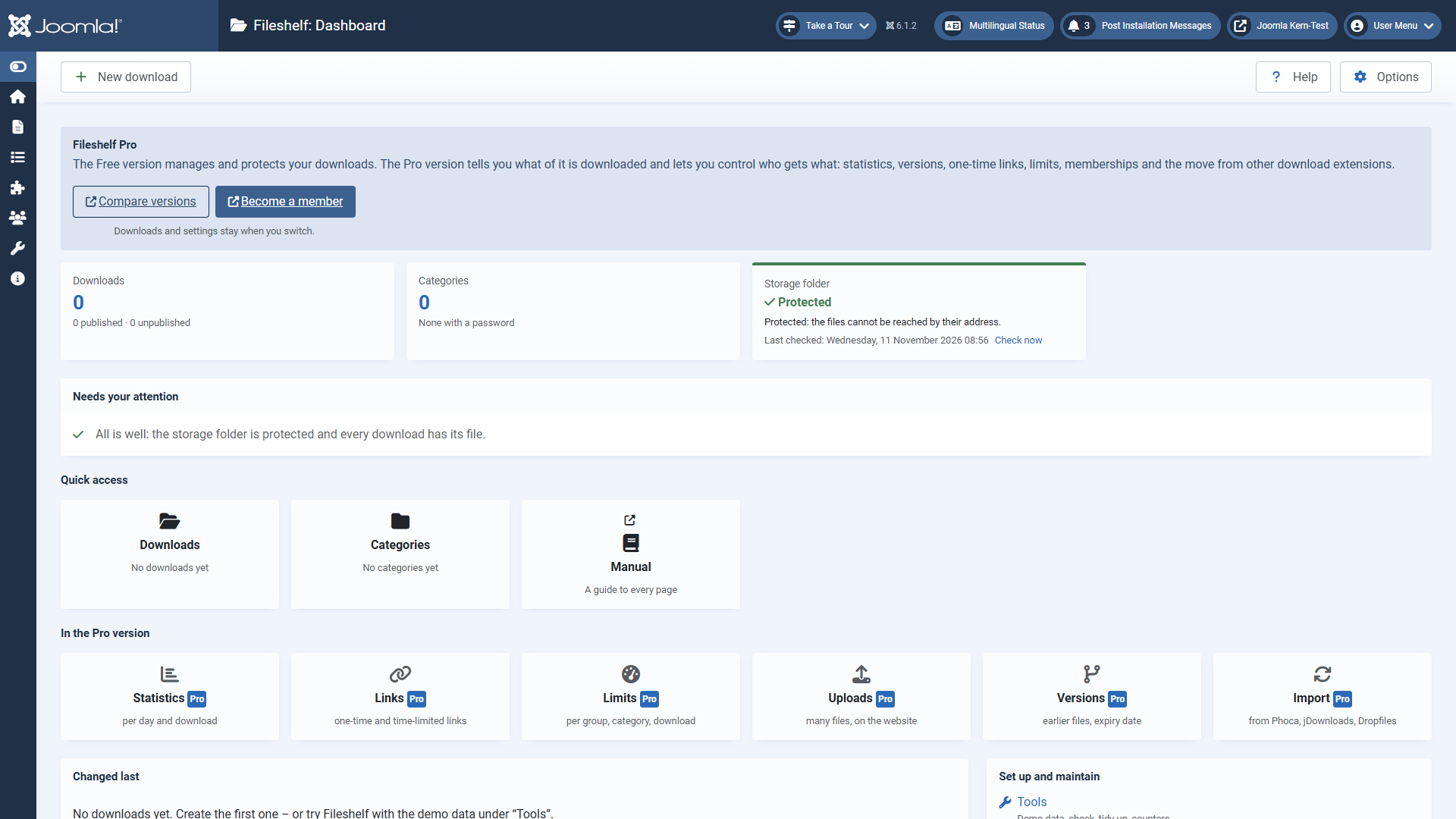
The dashboard
Every linkpage saysof Fileshelf has the button Help at the top right: it opens this manual. All pages,
including those of the Pro version, are also in onethe linemenu whatunder isComponents behind→ it.
Fileshelf.
Updates
New versions appear under System → Update → Extensions. An update keeps your downloads, files and settings; it works from any earlier version.
Uninstalling
When you uninstall the package, Joomla removes the tables of Fileshelf. The storage folder with your files stays – delete it by hand if you no longer need it.