
Links and download by e-mail (Pro)
Pro version. This feature is part of the Pro version of Fileshelf. What the Free version does is covered under Free version and Pro version.
Two ways to hand out a file on purpose: links that work without login and password, and downloads by e-mail address, where visitors get the file only after confirming their address.
Creating a link
- Open the download, tab Links.
- Choose under New link: Once (valid for one complete download) or Valid until a date (7 days without a date, optionally with a maximum number of downloads).
- Enter an address under Send to if you like – Fileshelf mails the link – and a note for yourself.
- Save. The link appears once in the message at the top; copy it.
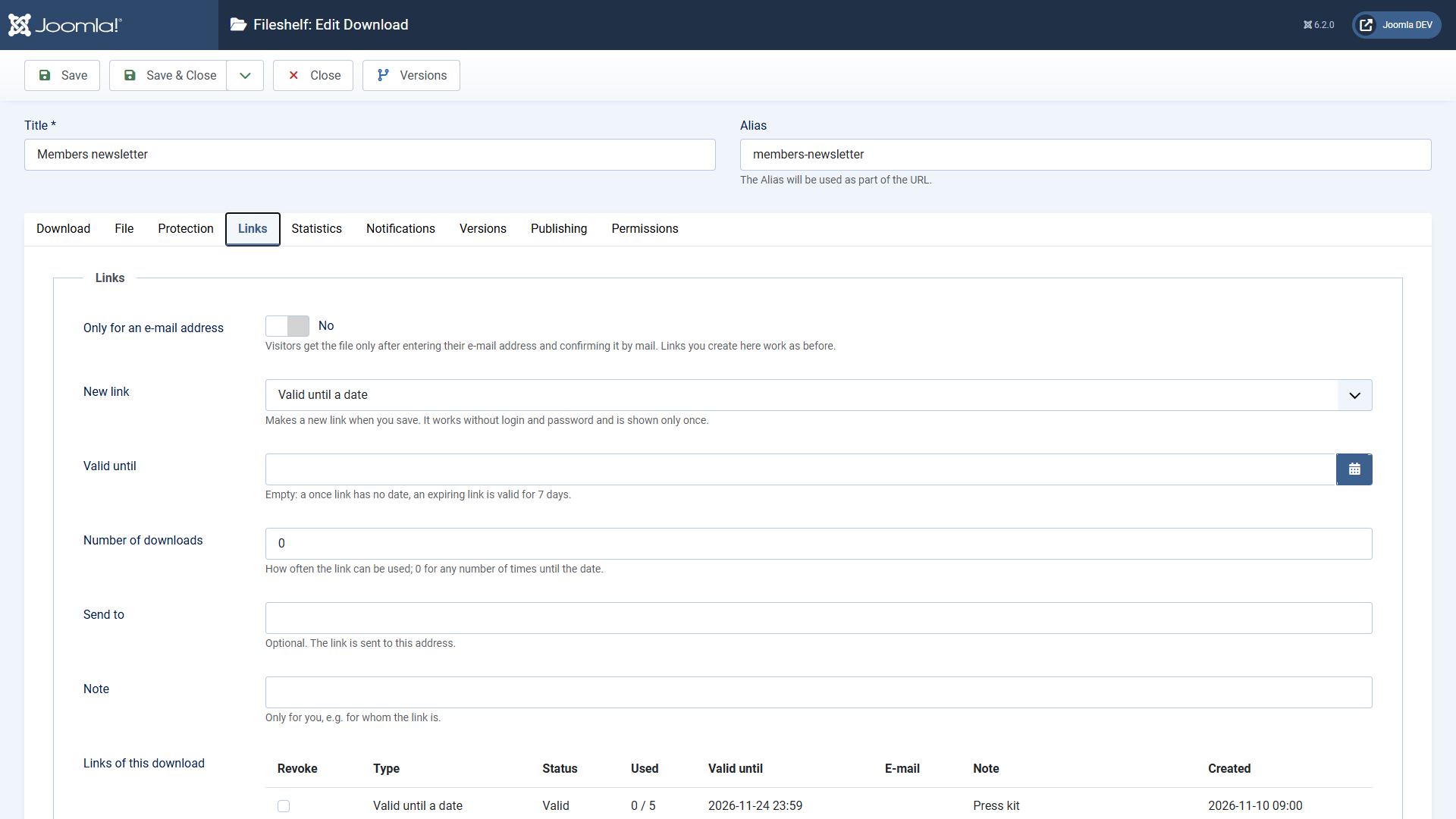
A link also works for downloads that only registered users see or that have a password. It works for this one download only. An interrupted download does not use it up. Fileshelf stores only a fingerprint of the link – that is why it cannot be shown again later.
Revoking: tick the link in the list Links of this download and save. It stops working at once.
Download by e-mail address
Switch on Only for an e-mail address in the tab Links. Then:
- Visitors see a form instead of the button: e-mail address, name (optional) and consent to storing it.
- They get a mail with a confirmation link, valid for 48 hours.
- After confirming they get the download button. It works three times within 48 hours and only for this address.
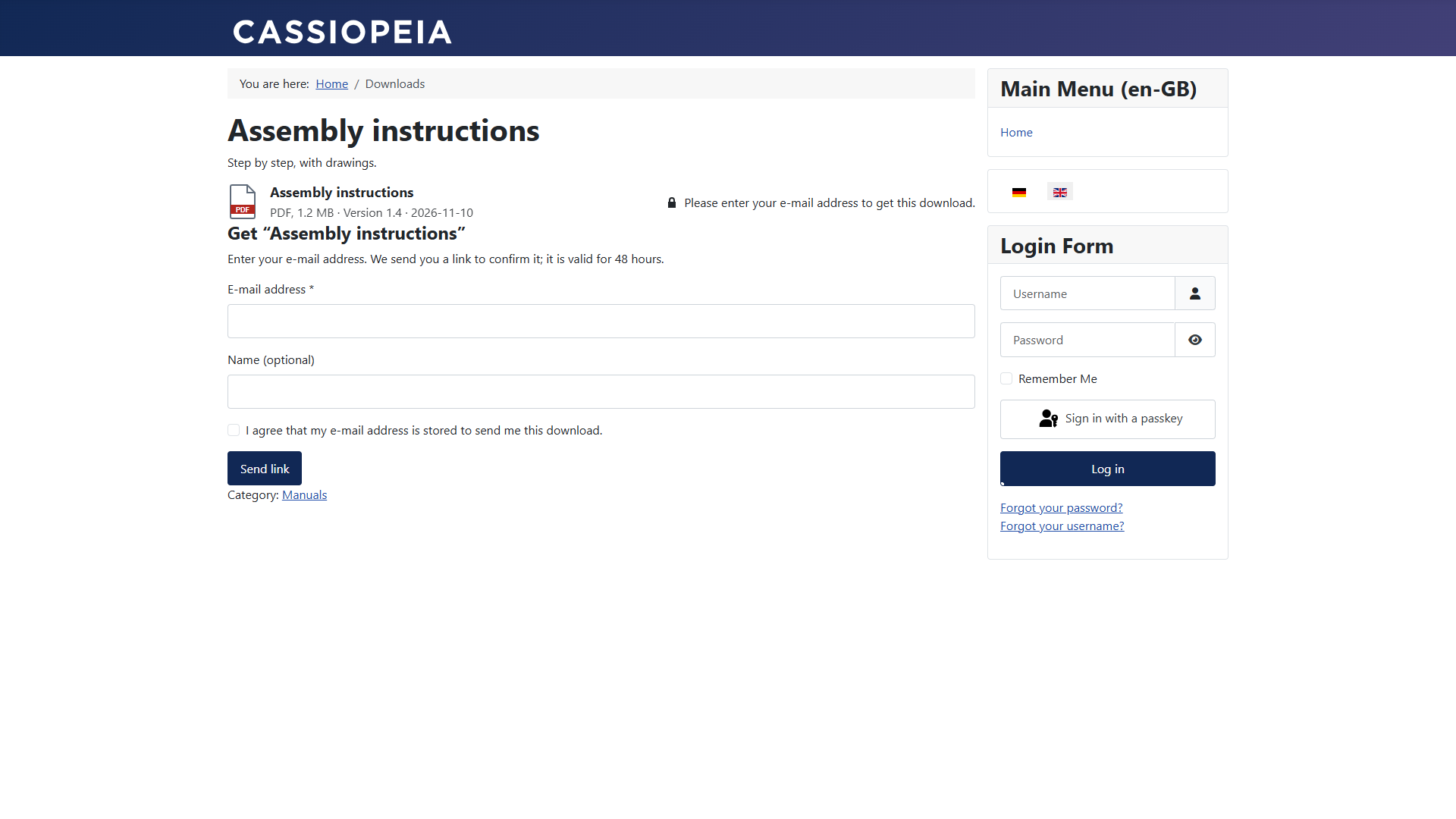
In the plugin Fileshelf - Links you set: the validity in hours, the number of downloads per confirmation, the address of your privacy policy (linked in the consent) and the captcha. Without a choice of its own the captcha of the global configuration applies. An invisible field stops automated requests as well, and the same address gets at most one mail for the same download every ten minutes.
The page “Links”
On the dashboard under Links: all links that still work and all confirmed addresses, with a CSV export. Because the page shows addresses, only Super Users and administrators with the permission “Configure ACL & Options” see it.
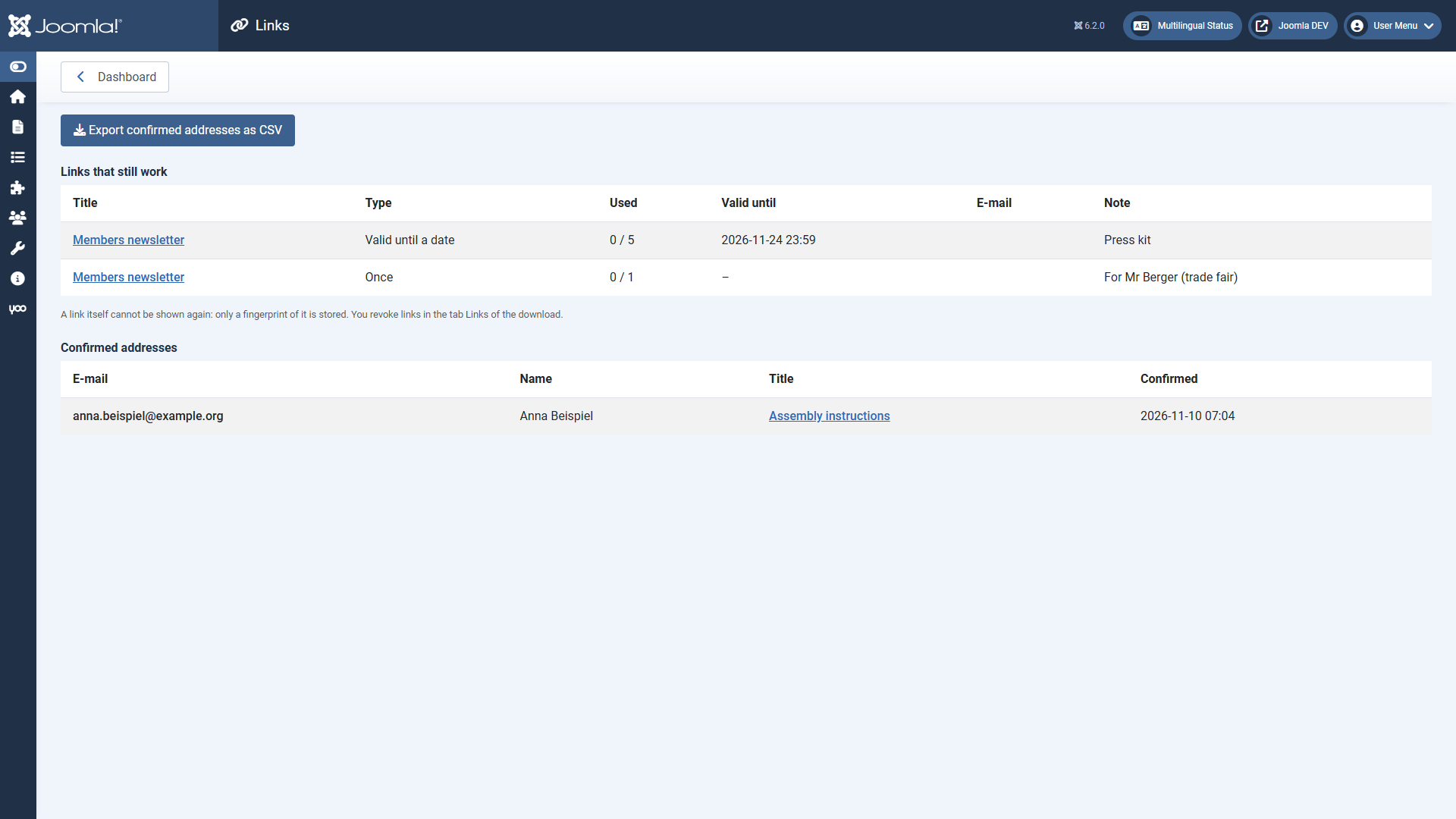
Edit the texts of both mails under System → Mail Templates (extension Fileshelf - Links). How long addresses are kept is described under Privacy.