
Downloads on the website
The menu item types
| Type | Shows | Important settings |
|---|---|---|
| Categories | Categories as a tree, with the number of downloads | Root category, levels, show number |
| Category | The downloads of a category and its subcategories | Layout, ordering, number per page, details (size, version, date, counter, tags), show locked downloads |
| Single download | The page of a download | Send the file directly instead of showing the page |
| Latest downloads | The most recently created downloads | Number, categories, period in days |
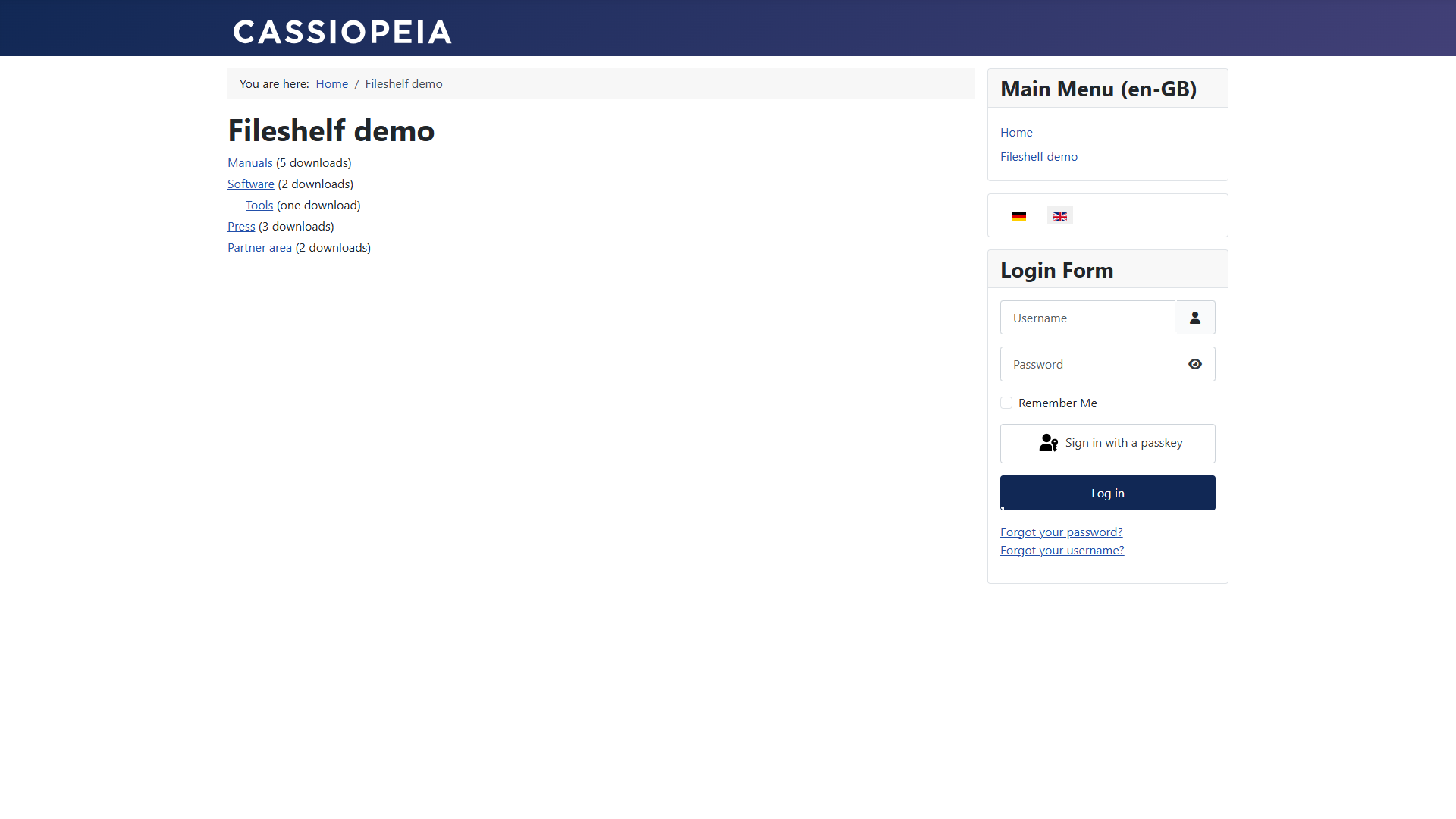
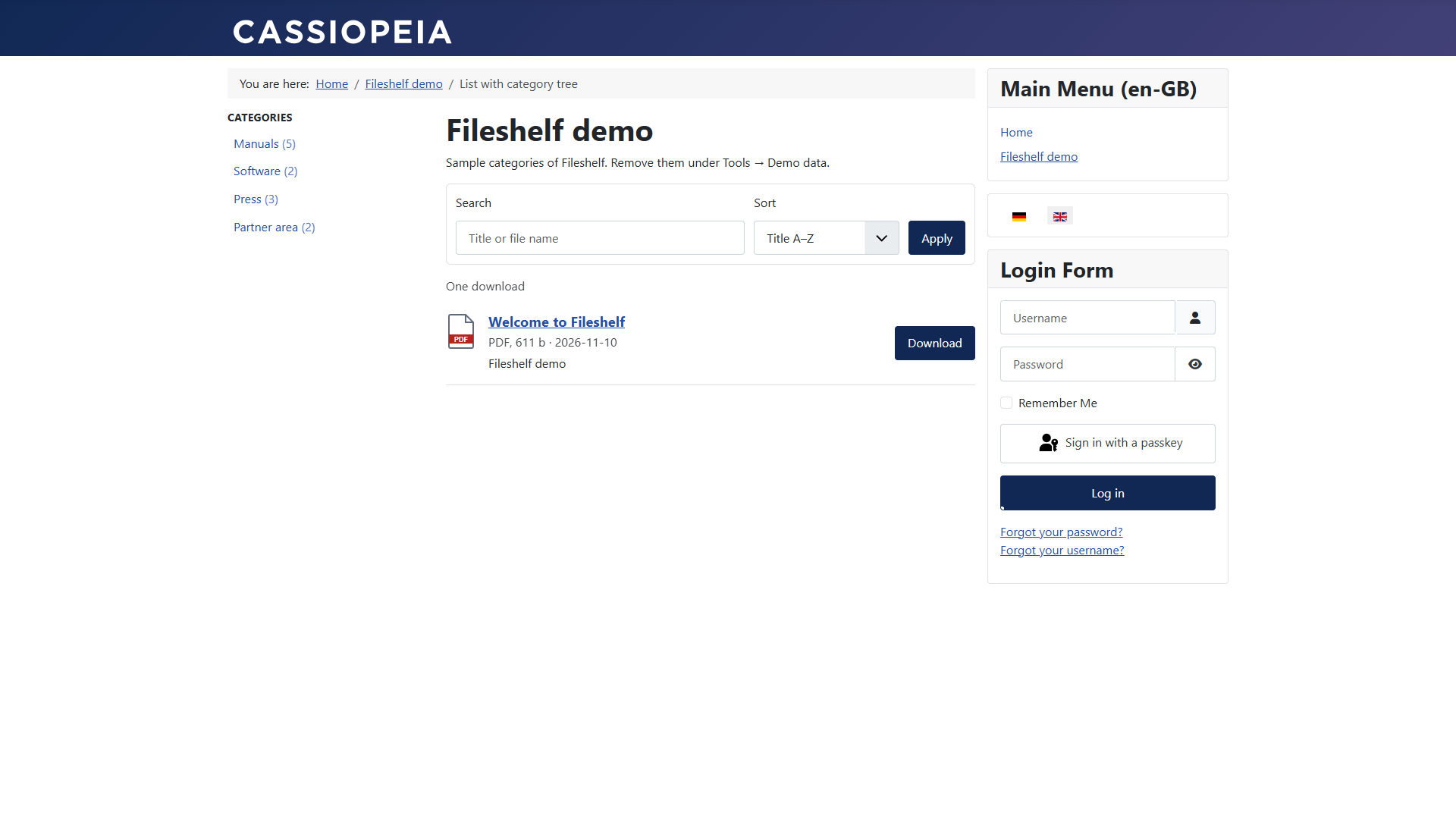
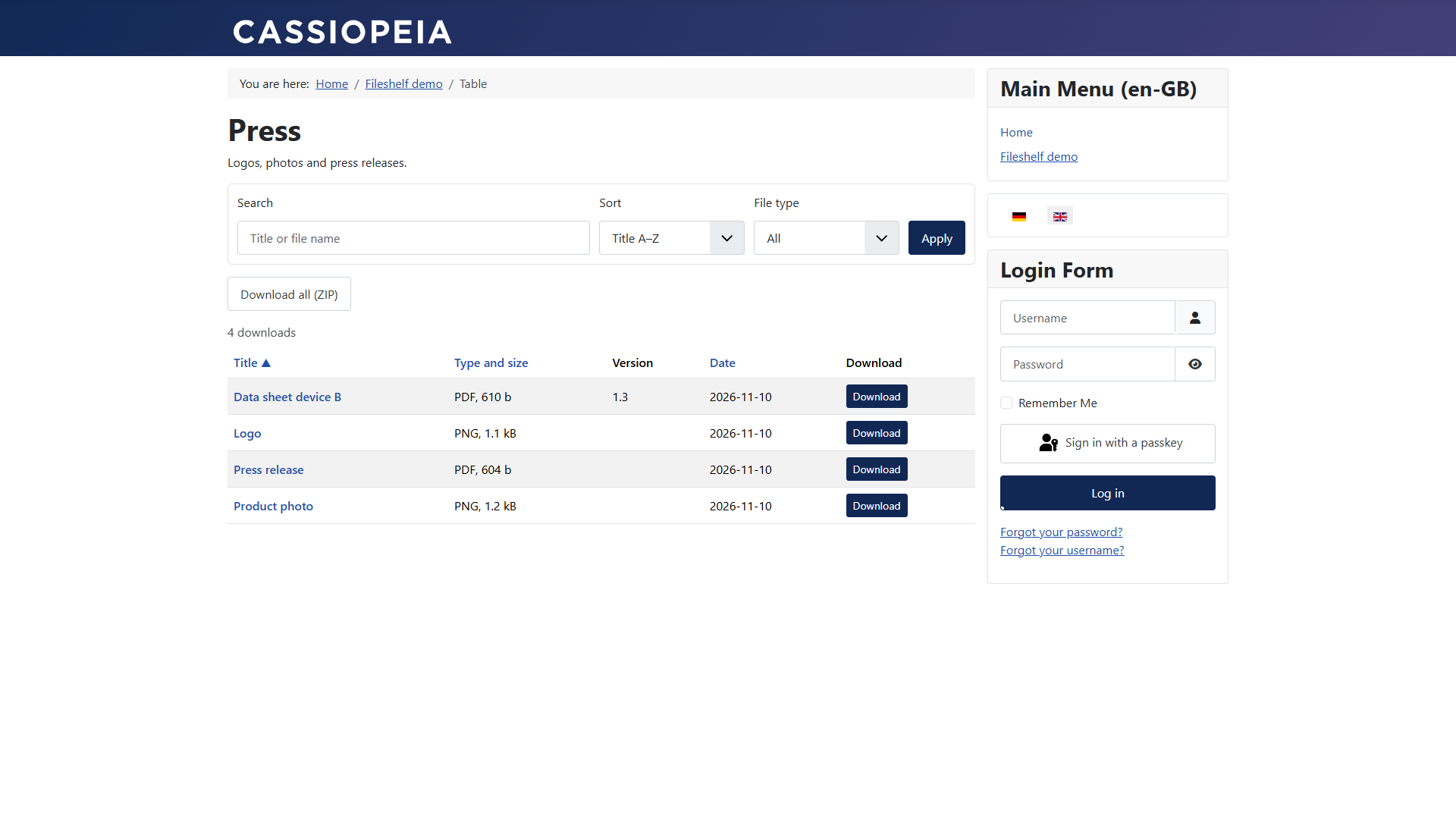
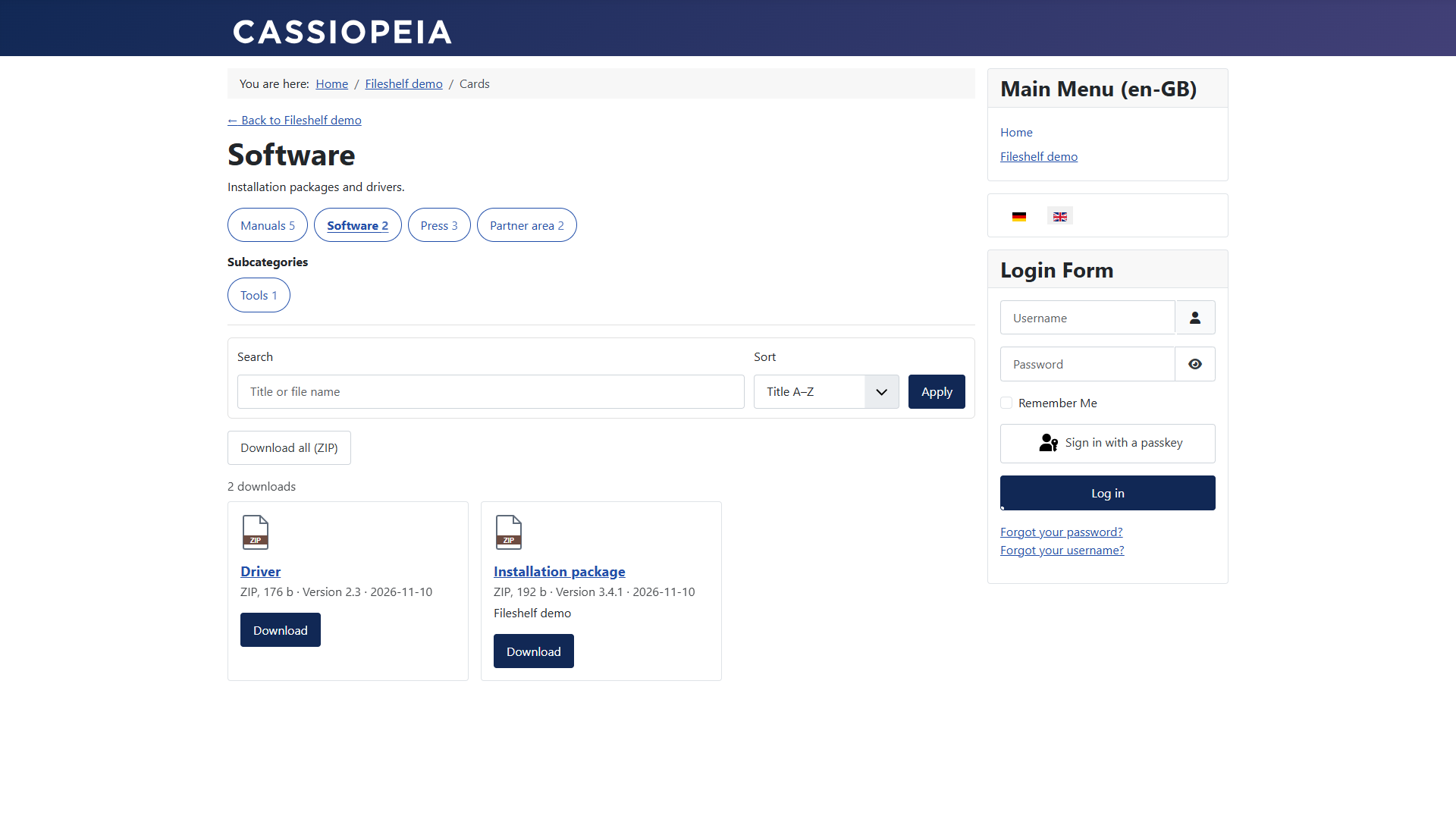
Three layouts of a category
Each layout leads through the categories in its own way. You choose it in the menu item, in the category (tab “Fileshelf: Display”) or for all in the options.
- List with category tree (default) – on the left the tree of the categories below the menu item, with the number of downloads; it opens only along the way to the category shown. On a phone it stands below the list.
- Cards – above the downloads the way back to the parent category, the categories of the same level (the one shown marked) and the subcategories; the downloads as cards.
- Table – “Change category” as a choice, the subcategories in one line, the downloads as a table whose column headers sort. On narrow screens the table scrolls sideways.
Above the list visitors can search (title and file name), sort and – with several file types – filter by type. The choice is part of the address, so a filtered link can be passed on. Switch it off with Search and sorting in the menu item or in the options. Joomla's breadcrumbs show the way from the menu item to the category or the download.
Fileshelf takes the look of buttons, fields and tables from the template: every button carries the classes of
Bootstrap (Cassiopeia and many other templates) and of UIkit (YOOtheme Pro) at once. For more, create overrides for
com_fileshelf/category and the layout fileshelf/item.
Locked downloads
Downloads whose access level the visitor lacks are hidden. With Show locked downloads (options or menu item) they appear with a lock and a link to log in. Password-protected downloads always stand in the list, with the link Enter password.
The page of a download
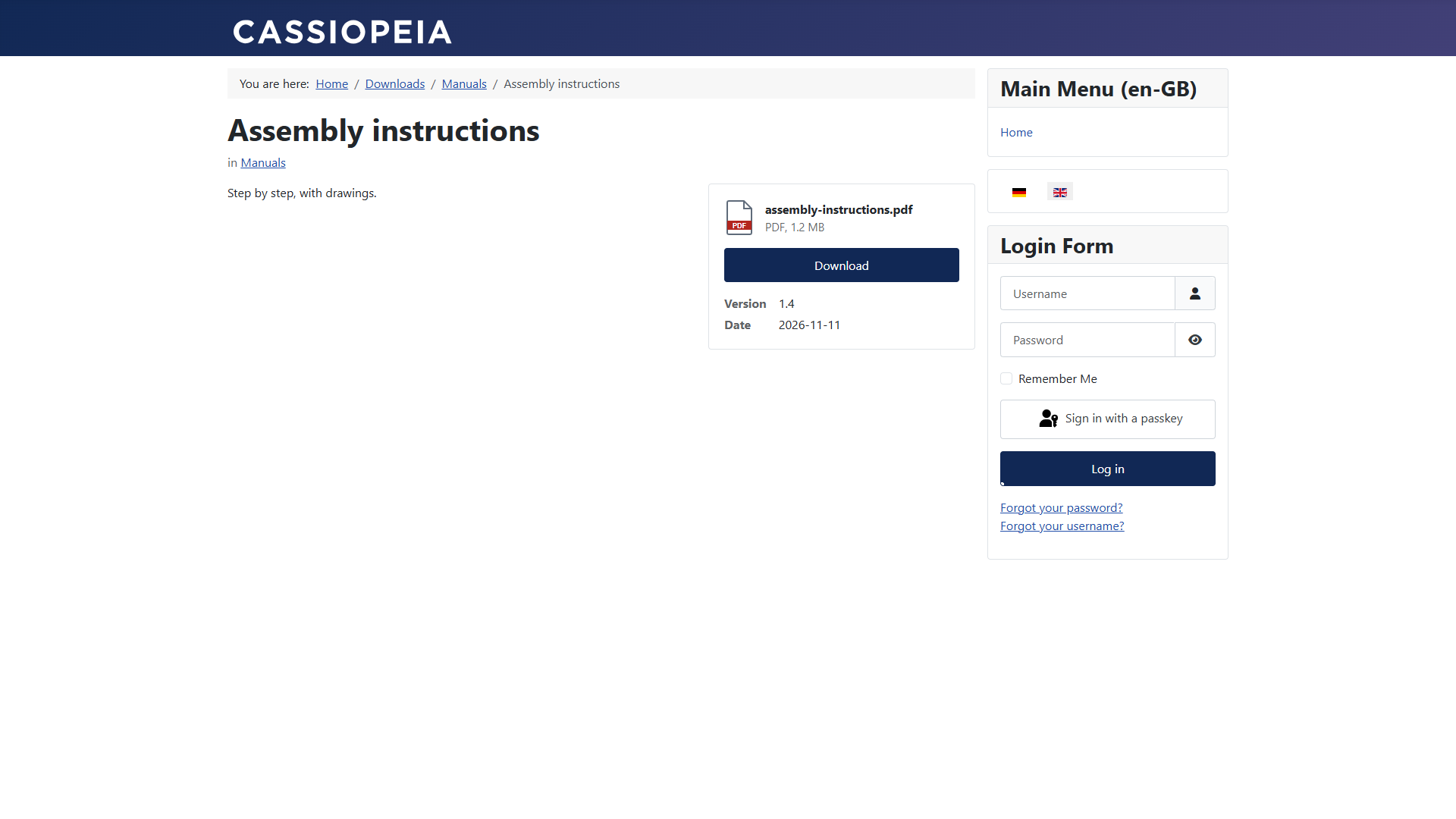
The download box names the file with type and size, carries the button Download (or the lock with its reason) and the details version, date and – if switched on – the number of downloads. On request it shows the checksum (SHA-256) to unfold, so visitors can verify a downloaded file; it is switched on in the options or in the menu item “Single download”. In a narrow area – on a phone or in a narrow column – the box stands above the description.
If a download appears in several categories, its page tells search engines that the address under the main category is the authoritative one (canonical). So it does not count twice.
Addresses
With search engine friendly URLs switched on, the addresses look like this:
- Page of a download:
…/price-lists/price-list-2026 - File:
…/price-lists/price-list-2026/file - Password form:
…/price-lists/price-list-2026/unlock
The option Remove IDs from URLs (Options → Integration) decides whether the number of the download stands in the address. The alias of a download must be unique per category.