# Notion Source (EN)
Makes Notion databases available as a dynamic content source in the YOOtheme Pro page builder · Version 1.2.3 · Stand 07.09.2026
# Notion Source at a glance
Notion Source makes your Notion databases available as a dynamic content source in the YOOtheme Pro page builder. You store your Notion integration token once; after that every database you have shared with the integration becomes a source in the builder: you pick a database, filter and sort it if needed, and use the entries and their properties directly in your layouts.
Notion Source is a system plugin for Joomla 6 and produces no output of its own in the frontend — the content appears where you place it in the YOOtheme builder.
The screenshots in this manual were taken on a German Joomla installation. The extension follows the language of your installation, so the labels appear in English on an English backend.
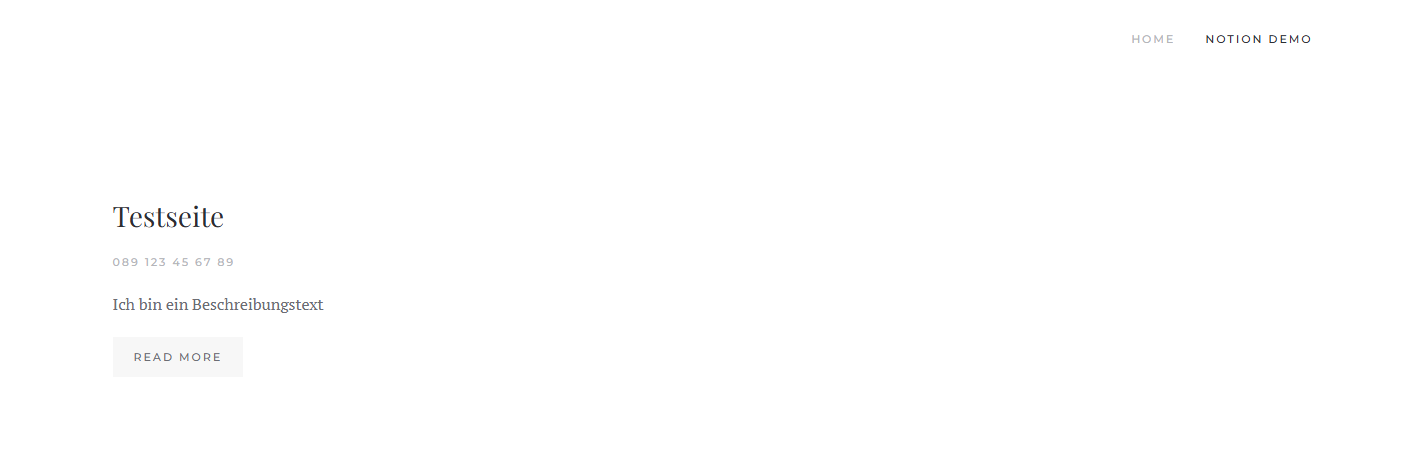 A page built with the YOOtheme builder whose content (title, phone number, description) comes from a Notion database.## What you use Notion Source for
- **Maintain content in Notion, publish it on the website.** Your team works in Notion; the website shows the same data without you maintaining it twice.
- **Lists and directories.** Teams, references, events, FAQs, job openings — anything held in Notion as a database becomes a YOOtheme grid.
- **Filtered views.** Show only the entries with a certain status (for example "Published"), sorted by any property you like.
## How it works
When you save the plugin, Notion Source reads the property schema of all accessible databases once and stores it in a local cache. The builder offers you the matching fields from it immediately, without querying the Notion API on every page view. The API responses are additionally cached for a configurable period.
## Privacy is built in
The Notion token lives solely in the plugin configuration on your server and is **never** output to the frontend. The only service contacted is the Notion API; no data goes anywhere else.
## What Notion Source consists of
You install a package that deploys and enables a single system plugin:
- **The package** `pkg_notionsource` — it carries the update site and the download key and enables the plugin after installation.
- **The system plugin** `plg_system_notionsource` — it provides the Notion source to the YOOtheme builder and maintains the schema cache.
## How to read on
If you are starting out, this order works best:
1. [Requirements and installation](https://docs.graup-it.de/books/notion-source-en/page/requirements-and-installation)
2. [Download key and updates](https://docs.graup-it.de/books/notion-source-en/page/download-key-and-updates)
3. [Setting up the Notion integration](https://docs.graup-it.de/books/notion-source-en/page/setting-up-the-notion-integration)
4. [Entering the token and options](https://docs.graup-it.de/books/notion-source-en/page/entering-the-token-and-options)
5. [Using the Notion source in the YOOtheme builder](https://docs.graup-it.de/books/notion-source-en/page/using-the-notion-source-in-the-yootheme-builder)
Applies to version 1.2.3.
[Deutsche Fassung](https://docs.graup-it.de/link/104)
# Requirements and installation
Notion Source is installed as one package that deploys and enables the system plugin. This page lists the requirements and describes what is active after the installation.
## Requirements
Joomla
6.0 or newer
PHP
8.3 or newer
Template
YOOtheme Pro 4 or 5 (active)
Notion
an internal integration token that has been given access to the databases you want
Notion Source extends the YOOtheme Pro builder. Without an active YOOtheme Pro template the plugin can be installed, but no Notion source appears in the builder.
## Installation
1. Download the file `plg_system_notionsource-.zip`.
2. In the backend, open *System → Install → Extensions* and drag the ZIP file into the *Upload Package File* area.
3. After the upload, Notion Source is installed and the plugin is enabled.
Notion Source ships as a single system plugin. Earlier versions came as the package `pkg_notionsource`; if you still have that package installed, remove it under *System → Manage Extensions* before installing the plugin.
 This panel greets you after the installation. It names the installed version and leads to the three things now due: storing the Notion token, entering the download key for updates, and the manual. After an update, the changelog takes the place of "Getting started".## What is active after the installation
So that the Notion source is available in the builder right away, the installation enables the system plugin automatically. You do not have to switch it on by hand. Before any content appears, however, the Notion token still has to be entered — see the chapters [Setting up the Notion integration](https://docs.graup-it.de/books/notion-source-en/page/setting-up-the-notion-integration) and [Entering the token and options](https://docs.graup-it.de/books/notion-source-en/page/entering-the-token-and-options).
## A first check
Open *System → Plugins* and search for *Notion*. The plugin *System - Notion Source* should have the status *Enabled*.
## What happens when you uninstall
Removing the plugin deletes it and its settings. The local schema cache under `administrator/cache/` is cleared when the token is removed or via Joomla's cache management; it contains no credentials anyway, only database and field names.
Applies to version 1.2.3.
[Deutsche Fassung](https://docs.graup-it.de/link/105)
# Download key and updates
Notion Source receives updates through the official Joomla update mechanism. To allow your website to fetch them, enter your personal download key once.
## Entering the download key
1. Create your download key in your customer account on [graup-it.de](https://www.graup-it.de) (menu item *Download IDs*). One key applies per website and covers all extensions obtained through it.
2. In the backend, open *System → Update → Update Sites*.
3. Open the entry *Notion Source Update Site* and enter the key into the field *Download Key*.
4. Save.
Make sure to paste the key **without leading or trailing spaces**. A space copied along with it makes the update fail with an error message ("URL rejected" or "Package download failed").
## Installing updates
1. Open *System → Update → Extensions*.
2. If a new version is available, Notion Source appears in the list. Select it and click *Update*.
3. Joomla downloads the package using your download key, verifies the checksum and installs the new version. Your Notion token and your settings are preserved.
If Joomla finds no update although a new version exists, click *Check for Updates* first to refresh the cache.
## The manual route
You can also install any version by hand: download the ZIP and install it via *System → Install → Extensions*, just like the first installation. An update through the package overwrites the existing installation and keeps your settings.
Applies to version 1.2.3.
[Deutsche Fassung](https://docs.graup-it.de/link/106)
# Setting up the Notion integration
For Notion Source to read your databases it needs an **integration token** from Notion and the databases in question **shared** with that integration. You set up both in Notion — once, and in a few minutes.
## 1. Create an internal integration
1. Open [notion.so/my-integrations](https://www.notion.so/my-integrations) and click *New integration*.
2. Give it a name (for example "Website") and select the workspace it belongs to.
3. An *internal* integration with **read permissions** (*Read content*) is enough. Write permissions are not needed.
4. Save and copy the *Internal Integration Secret* shown. It starts with `ntn_` (with `secret_` for older integrations).
This token is a key to the shared content of your workspace. Treat it like a password and do not pass it on.
## 2. Share databases with the integration
A fresh integration sees **nothing** — you have to share every database (or a parent page) with it explicitly:
1. Open the database in Notion as a full page.
2. Click *•••* at the top right → *Connections* → *Connect to* and choose your integration.
3. Repeat this for every database that is to appear on the website. If you share a parent page, the databases below it count as shared automatically.
Whatever you do not share with the integration does not show up in Notion Source. If too few databases — or none at all — are offered in the builder later, this sharing step is almost always what is missing.
## Back to Joomla
Now enter the copied token in the plugin — see [Entering the token and options](https://docs.graup-it.de/books/notion-source-en/page/entering-the-token-and-options).
Applies to version 1.2.3.
[Deutsche Fassung](https://docs.graup-it.de/link/107)
# Entering the token and options
Notion Source has two settings. You find them under *System → Plugins → System - Notion Source*.
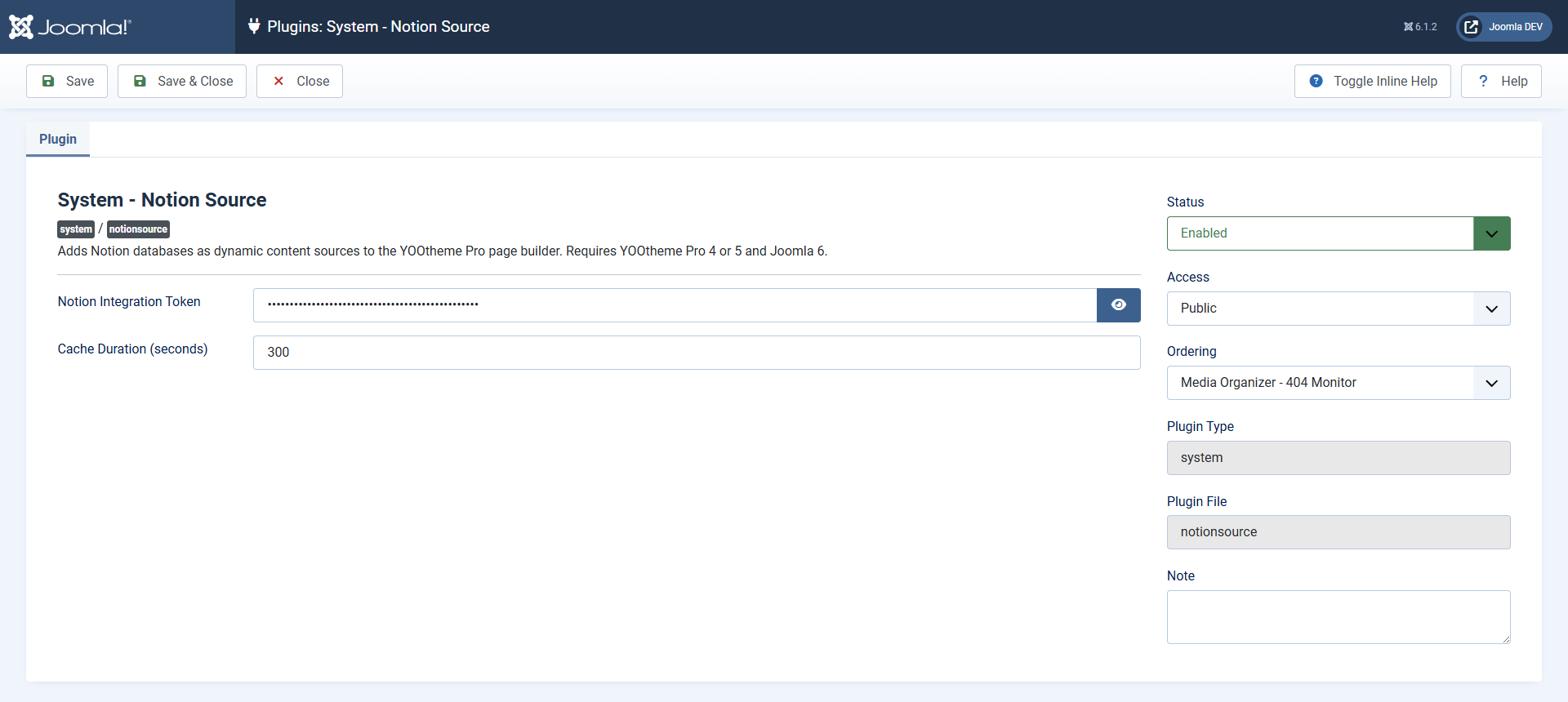 The settings: Notion integration token and cache lifetime. The token is masked as a password field.## Notion integration token
Paste the token you created in Notion here (it starts with `ntn_` or `secret_`). Without a valid token the builder offers no Notion source.
## Cache lifetime (seconds)
For this long the answers of the Notion API are cached before they are fetched again. The default is **300** (five minutes). A higher value relieves the API and speeds up the pages; a lower value shows changes in Notion sooner. The value 0 switches the cache off — not recommended on production sites.
## What happens when you save
On saving, Notion Source reads the property schema of all shared databases and stores it locally. If that succeeds, a green message names the databases found, for example:
The builder then offers the fields from this schema — without querying the API on every page view.
**After changes in Notion** — when you add or rename a property (column) or share a new database — **save the plugin once more**. Only then is the schema updated and the new fields appear in the builder.
## If no token is entered
If you remove the token and save, the schema cache is deleted and the Notion source disappears from the builder. If the token format is invalid, the plugin says so on saving and does not build the schema.
Applies to version 1.2.3.
[Deutsche Fassung](https://docs.graup-it.de/link/108)
# Using the Notion source in the YOOtheme builder
As soon as the token is entered, the Notion source is available in the YOOtheme builder. This page shows how to fill an element with data from a Notion database.
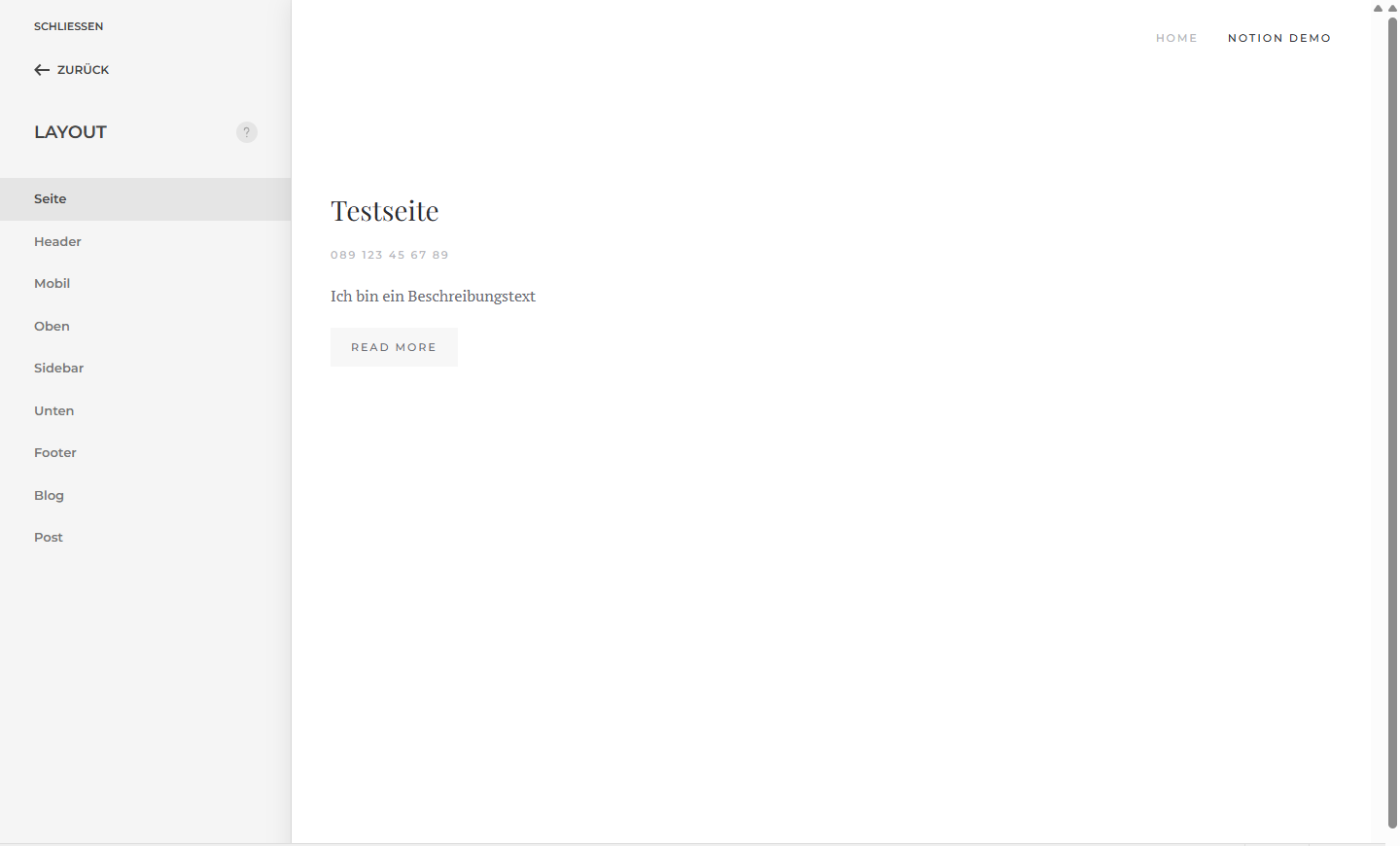 The YOOtheme builder. Via *Dynamic Content* you bind an element to the Notion source.## Choosing the source
1. Open the page in the YOOtheme builder and insert an element that can display lists (a *grid*, for example).
2. Enable **Dynamic Content** in its settings.
3. Choose **Notion Database Items** as the source.
4. In the field **Database**, select the Notion database you want from the list.
## Filtering, sorting, limiting
The source comes with several options for narrowing down the entries:
**Filter: property name**
Name of the Notion property to filter on (for example *Status*). Empty = no filter.
**Filter: value**
The value being looked for (for example *Published*).
**Filter: property type**
Type of the property: select, status, text, checkbox (true/false) or number. It must match the field in Notion.
**Sorting: property name**
Property to sort by. Empty = no sorting.
**Sort direction**
Ascending or descending.
**Number of entries**
Maximum number of entries. 0 = load all.
Property names are expected **exactly** as they are spelled in Notion — including capitalisation and spaces. A typo means the filter does not take effect.
## Assigning fields
Inside the dynamic element you assign the Notion fields to the individual parts (title, text, image, link …). Which fields exist and how they are grouped is described in the chapter [Fields and properties](https://docs.graup-it.de/books/notion-source-en/page/fields-and-properties).
Applies to version 1.2.3.
[Deutsche Fassung](https://docs.graup-it.de/link/109)
# Fields and properties
Notion Source provides two kinds of fields: the **properties** (columns) of your databases and a few **meta fields** of the Notion page itself. In the builder they are grouped by topic and labelled with their type, for example "Status (select)".
## Supported properties
Text
Title, text (rich text)
Selection
Select, multi-select (tags), status
Date
Date, created time, last edited time
Number
Number, checkbox
Media
Files (returns the URL of the first file)
Contact
URL, email, phone
Person
Person(s), created by, last edited by
Relation
Relation, rollup
Computed
Formula, unique ID
Multi-value fields (multi-select, person, relation) are output as a comma-separated list, a checkbox as `true`/`false`.
## Meta fields of the page
In addition to the properties there is the group *Notion Meta*:
Page ID
the Notion-internal ID of the entry
Page URL
the link to the Notion page (useful as a "read more")
Created / last edited
the timestamps of the page
Cover image URL
the cover image of the Notion page
Icon
the icon (emoji or image URL)
## Date format
Every date field has the argument **date format** — a PHP `date()` pattern. Examples: `d.m.Y` gives "24.07.2026", `d.m.Y H:i` gives "24.07.2026 09:30". If a value cannot be read as a date, it is output unchanged.
## Important: fields belong to the selected database
The builder shows the fields of **all** shared databases together. If you assign a field to an element that does not exist in the currently selected database, the value stays empty. So take care to use only fields that match the database chosen in the source element.
Properties of the same name in different databases (for example a "Title" field everywhere) share one entry in the field list — that is intended and returns the right value for every entry.
Applies to version 1.2.3.
[Deutsche Fassung](https://docs.graup-it.de/link/110)
# Permissions and privacy
Notion Source is built so that your credentials stay protected and no data leaves your website unnecessarily.
## The token stays on the server
- The Notion token lives solely in the plugin configuration (database table `#__extensions`) on your server.
- In the backend it is masked as a password field.
- It is **never** output to the frontend. All Notion requests run server-side; your visitors' browsers never see the token.
## Only Notion is contacted
The only external connection goes to the Notion API (`api.notion.com`). No other services, no statistics or tracking servers are contacted. The data fetched is cached locally (see [Entering the token and options](https://docs.graup-it.de/books/notion-source-en/page/entering-the-token-and-options)).
## The cache holds no secrets
The schema stored locally (under `administrator/cache/`) contains only database and field names, no token. It is stored as a PHP file with access protection, so calling it directly in a browser reveals nothing.
## Image and file URLs from Notion
Files and cover images from Notion are embedded via URLs hosted by Notion. For uploaded files these URLs are **time-limited** and may expire after a while. For images embedded permanently, better use an external URL in Notion or load the image into the Joomla media manager.
## Who may change the settings
The plugin configuration — and with it the token — is accessible only to users with the corresponding backend permissions (usually administrators). Notion Source creates no frontend forms of its own and accepts no input from visitors.
Applies to version 1.2.3.
[Deutsche Fassung](https://docs.graup-it.de/link/111)
# Common questions and troubleshooting
Answers to common questions and the quickest routes to fixing things.
## No Notion source appears in the builder
- Is a **YOOtheme Pro template** active? Without YOOtheme there is no builder source.
- Is the plugin *System - Notion Source* enabled under *System → Plugins*?
- Is a **token** entered? Without a token the source is not loaded.
## The database selector is empty
- Is the token valid (starting with `ntn_` or `secret_`)? An invalid format is reported by the plugin when saving.
- Have you **shared** the databases with the integration? That is the most common reason — see [Setting up the Notion integration](https://docs.graup-it.de/books/notion-source-en/page/setting-up-the-notion-integration).
- Save the plugin again to rebuild the schema.
## A new Notion property is missing in the builder
The schema is read when the plugin is saved. After changes in Notion (new column, rename, newly shared database) **save the plugin once more** — the new fields are available afterwards.
## A field stays empty
- Does the field belong to the **selected database**? The builder shows the fields of all databases together; a field from elsewhere returns empty.
- For filters, is the **property name** exactly right (capitalisation, spaces) and does the chosen **property type** match the field in Notion?
## Changes in Notion appear with a delay
The API responses are cached for the configured *cache lifetime* (default 5 minutes). For faster updates lower the value; for an immediate test you can set it to 0 briefly (not recommended permanently on production sites).
## The update is not found or fails
- Click *Check for Updates* first to refresh the cache.
- Is the **download key** entered at the update site — and **without spaces** at the beginning or end? A space copied along with it leads to "Package download failed".
- If need be, download the new version manually and install it via *System → Install*.
## An image from Notion stops being displayed after a while
URLs hosted by Notion for uploaded files are time-limited. For permanent images use an external URL in Notion or the Joomla media manager.
Applies to version 1.2.3.
[Deutsche Fassung](https://docs.graup-it.de/link/112)
# Changelog
This changelog lists every released version of Notion Source, the most recent first.
This page is generated automatically from the product's changelog file when a release is made. Changes made by hand are lost at the next synchronisation.
## Version 1.2.3 – 16 August 2026
### Fixed
- The links in the overview panel always led to the German manual. They now follow the configured language.
- The panel shown after the installation named licence version 2. It now shows the GNU General Public License version 3 or later, as everywhere else.
## Version 1.2.2 – 1 August 2026
### Changed
- In the extension manager the extension is now called "System - Notion Source". Nothing changes about its function or settings.
## Version 1.2.1 – 31 July 2026
### Added
- The plugin is enabled automatically on a first installation.
- After an installation or update an overview panel appears with version, status and entry points to getting started, download key and manual.
- The extension manager now shows the list of changes behind the version number.
- The installation messages are available in German and English.
### Changed
- Notion Source ships as a single plugin; the earlier package version is gone.
### Fixed
- Automatic updates failed with "403 Invalid Domain". The download key is now passed in the form the update server expects.
- The extension looked for updates at the wrong address and therefore found none.
[Deutsche Fassung](https://docs.graup-it.de/link/127)