# The review view
The review view is your workplace. Here you go through the inventory, filter it and select what is to be cleaned up. You reach it through **All files** or directly through **Files without a reference**.
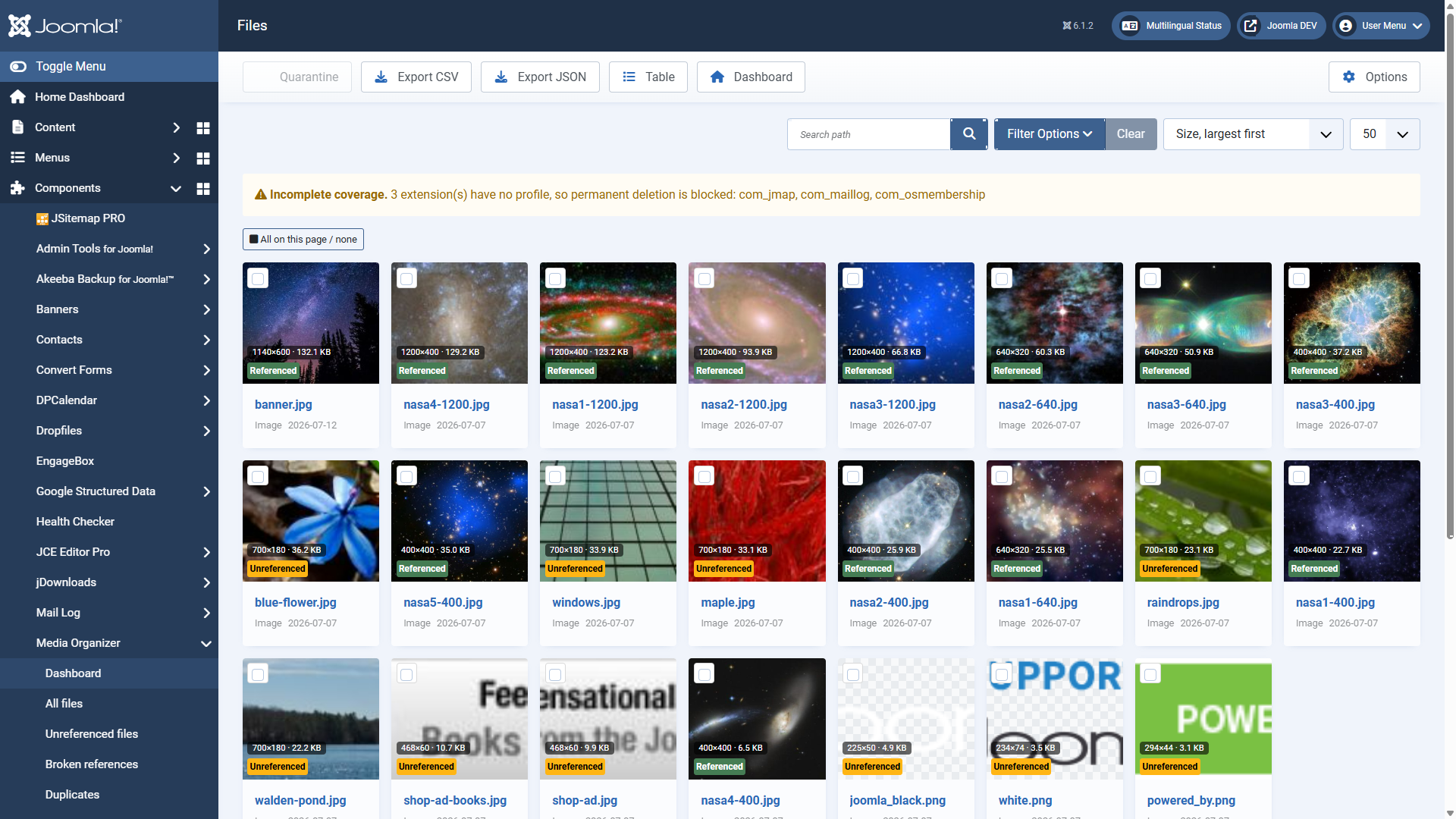 The review view as a grid: preview, dimensions, size and status at a glance.## Grid or table
The button **Table** or **Grid** switches the presentation:
- The **grid** shows thumbnails — good for recognising images.
- The **table** shows more entries per screen and sorts better — good for large collections.
## The status indicators
Status
Meaning
**Referenced**
At least one occurrence found. The file is in use.
**Without a reference**
No occurrence found. A candidate — check the evidence before you act.
**In quarantine**
Already moved, restorable at any time.
**No longer present**
The file is not where it used to be — deleted or renamed without Joomla being involved (over FTP, for instance).
Why such files do not simply drop out of the list: their entry carries the optimisation backups and the quarantine history. So the entry stays and is only labelled — the reports on duplicates and optimisation leave it out, because there is nothing left to tidy up here. The *Status* filter shows you at any time which files are affected. If one comes back, the next scan picks it up again.
In addition, every tile shows **dimensions** and **file size**. Sorting by size descending is a good start: the largest unreferenced files bring the most space.
## Filtering and searching
- **Search path** — full-text search over the file path.
- **Filter options** — narrow down by status, media type and folder. A folder filter includes subfolders.
- **Sorting** — by size, name or modification date, among others.
- **Reset** — restores the initial state if you have filtered yourself into a corner.
## Selection across pages
The selection is kept server-side. So you can filter, page through, keep selecting — the files marked earlier stay selected. That matters when you are picking out specific files from several hundred.
With **all on this page / none** you mark the current page at once.
## The coverage notice
If **"incomplete coverage"** appears at the top, at least one installed extension is not covered by a vetted profile yet. Media Organizer then cannot rule out that this extension uses media files.
The consequence: **deleting for good is blocked**. Quarantine and restoring stay possible — both are reversible after all. That is not a fault but the extension knowing its own limits.
## Export
With **Export CSV** or **Export JSON** you take the inventory out — useful for agreeing things with clients or for a second opinion before anything happens. The export respects the filters currently set.
## Where to go from here
- [Reading the evidence](https://docs.graup-it.de/books/media-organizer-en/page/reading-the-evidence-why-is-a-file-considered-orphaned)
- [Quarantine, restoring, deleting for good](https://docs.graup-it.de/books/media-organizer-en/page/quarantine-restoring-deleting-for-good)
Applies to version 1.2.0.
[Deutsche Fassung](https://docs.graup-it.de/link/63)