# Media Organizer (EN)
Finds media files no longer used in Joomla and helps to remove them safely, with evidence · Version 1.4.2 · Stand 27.10.2026
# Media Organizer at a glance
Media Organizer finds media files that are no longer used on your Joomla website and helps you remove them safely. For every file the extension shows *where* it looked, *what* it found and *why* the file counts as orphaned. So you decide on the basis of evidence — not on a guess.
Media Organizer is a pure administrator extension for Joomla 6 and produces no output in the frontend whatsoever.
The screenshots in this manual were taken on a German Joomla installation. The extension follows the language of your installation, so the labels appear in English on an English backend.
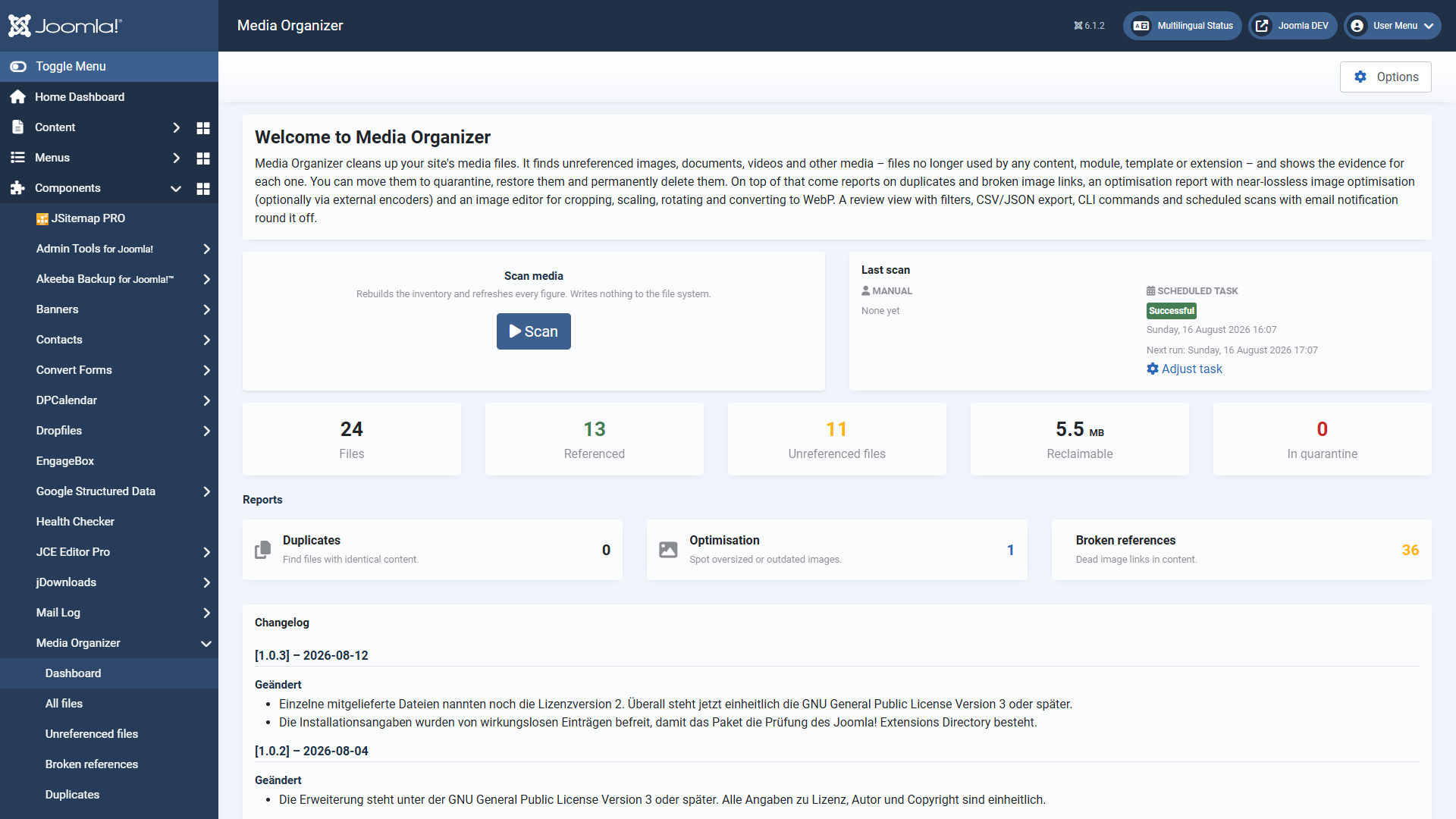 The dashboard sums up the last scan: number of files, referenced and unreferenced files, space that could be freed, and the three reports.## Why cleaning up is safe here
Deleting media files is irreversible. The whole extension is therefore built around a single rule:
**Nothing is moved or deleted without a human having selected and confirmed it.**
That rule is not a promise but anchored in the code. In practice it means:
- **Quarantine is the normal case.** Files are moved to a protected folder and can be brought back at any time. Deleting for good is a separate, deliberate step.
- **A single gate protects deletion.** Before the final removal, twelve independent conditions are checked, plus a one-time confirmation token that binds action, user, scan and the exact file list together. There is no switch that bypasses it.
- **There is evidence for every classification.** For each file you see which search areas were checked, where the search happened and with what result — including links straight into the content that uses the file.
- **The extension knows its own limits.** If an installed extension is not covered, Media Organizer blocks the final deletion instead of risking a wrong one.
- **Nothing runs by itself.** The scheduled scan and the command line can *find and report*, but never delete. A scan writes nothing to the file system, ever.
- **Strictly local.** No external services are contacted. No data leaves your website.
## What Media Organizer finds
The search for references covers the usual hiding places:
- Articles and core content, including custom fields
- Modules — including the HTML of `mod_custom`, module parameters and folder parameters
- The version history of articles
- Templates and image paths hard-coded in CSS files
- Third-party extensions through vetted profiles
- A deep scan across the database as a safety net for everything else
## What else belongs to it
- **Duplicates** — files with identical content, detected by checksum
- **Broken references** — dead image links in your content
- **Optimisation report and image optimisation** — near-lossless, optionally through external encoders, every change reversible
- **Image editor** — crop, scale, rotate, convert to WebP
- **Command line** for scans, reports and maintenance
- **Scheduled scans** through the Joomla task scheduler, with email notification
- **404 monitoring**, which records accesses to files in quarantine — additional evidence before deleting for good
## How to read on
If you are starting out, this order works best:
1. [Requirements and installation](https://docs.graup-it.de/books/media-organizer-en/page/requirements-and-installation)
2. [Download key and updates](https://docs.graup-it.de/books/media-organizer-en/page/download-key-and-updates)
3. [Quick start: the first scan](https://docs.graup-it.de/books/media-organizer-en/page/quick-start-the-first-scan)
4. [The review view](https://docs.graup-it.de/books/media-organizer-en/page/the-review-view)
5. [Reading the evidence](https://docs.graup-it.de/books/media-organizer-en/page/reading-the-evidence-why-is-a-file-considered-orphaned)
6. [Quarantine, restoring, deleting for good](https://docs.graup-it.de/books/media-organizer-en/page/quarantine-restoring-deleting-for-good)
Applies to version 1.4.2.
[Deutsche Fassung](https://docs.graup-it.de/link/59)
# Requirements and installation
## System requirements
Joomla
6.0 or newer
PHP
8.3 or newer
Database
MySQL 8.0.13+ or MariaDB 10.4+
A backward compatibility plugin (`plg_behaviour_compat`) is **not**required. Media Organizer runs exclusively on the current Joomla 6 interfaces.
For the **optional** image optimisation through external encoders (pngquant, oxipng, jpegoptim, gifsicle, cwebp, avifenc) those programs have to be available on the server. Without them everything else works unchanged — the optimisation report then uses the built-in means only.
## Installation
Media Organizer ships as a single package:
1. Open **System → Install → Extensions**.
2. Upload the file `pkg_jimgo-.zip`.
3. The installation runs through without further questions.
The package contains:
Part
Purpose
After the installation
Component com_jimgo
The application itself in the backend
active
Console plugin
Provides the jimgo: commands
enabled automatically
Task plugin
Scheduled scans through the Joomla task scheduler
enabled automatically
System plugin (404 monitoring)
Records accesses to files in quarantine
**disabled** — deliberately your decision
Extension profiles
Vetted knowledge about third-party extensions
installed
 This panel greets you after the installation. It names the installed version and leads to the three things now due: the first scan, the download key for updates, and the manual. After an update, the changelog takes the place of "Getting started".## Enabling the 404 monitoring
The 404 monitoring is switched off by default because it runs along with every page view. It is useful but not mandatory: it logs accesses to files you have already moved to quarantine. If a hit turns up there, the file was in use somewhere after all — a very strong reason *not* to delete it for good.
To switch it on: **System → Plugins** → search for *Media Organizer* → enable the system plugin.
## After the installation
You find Media Organizer under **Components → Media Organizer**. Nothing has been scanned and nothing changed yet — the extension is waiting for your first scan.
Before you start, a look at **Options** is worthwhile: there you define which areas are searched and which folders stay untouched in principle. The defaults are deliberately cautious and suitable for most websites.
**Recommendation:** make a backup before the first cleanup — as you would before any major change to a live website. Media Organizer works reversibly, but a backup is no substitute for trust and trust is no substitute for a backup.
## Where to go from here
- [Download key and updates](https://docs.graup-it.de/books/media-organizer-en/page/download-key-and-updates) — so that you receive updates
- [Quick start: the first scan](https://docs.graup-it.de/books/media-organizer-en/page/quick-start-the-first-scan)
Applies to version 1.4.2.
[Deutsche Fassung](https://docs.graup-it.de/link/60)
# Download key and updates
Media Organizer is a commercial extension. After the installation it works completely — even without a key. The download key is needed for **updates** only.
Without a key entered, Media Organizer keeps running unchanged. It is merely that no updates are offered.
## 1. Create the key
Log in to your account on [graup-it.de](https://www.graup-it.de/produkte/media-organizer-fuer-joomla). There you find your personal download key.
The key belongs to your subscription. Treat it like a password: whoever has it can download your updates. Do not pass it on and do not publish it in screenshots or support requests.
## 2. Enter the key in Joomla
1. Open **System → Update → Update Sites**.
2. Find the entry **Media Organizer**.
3. Enter the key into the field **Download Key** and save.
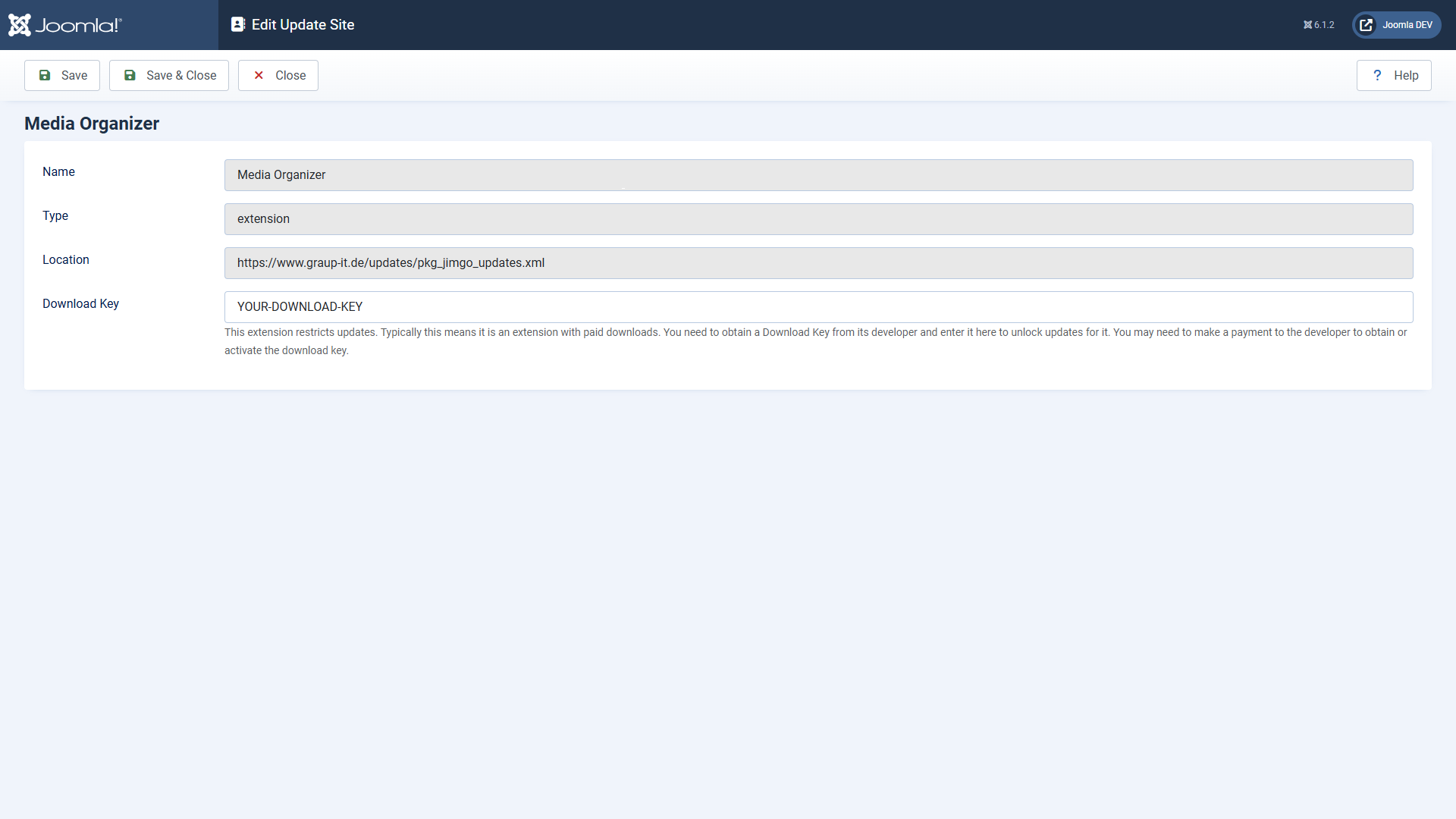 The update site of Media Organizer with the download key stored. As long as no key is there, Joomla reports "the download key is missing".## 3. Updating
From now on Media Organizer appears like any other extension under **System → Update → Extensions**. Select the entry and click **Update** — Joomla downloads the package and installs it.
While downloading, Joomla verifies a **SHA-256 checksum** of the package. If it does not match the one stored on the update server, the installation stops instead of installing a possibly damaged or manipulated package.
## When no update is offered
Observation
Cause and remedy
"The download key is missing"
The key is not stored (or not at this update site). See step 2.
Media Organizer does not appear in the update list at all
Click **Check for Updates**. Joomla caches results; only then is it asked again.
The update appears but stops with "checksum verification failed"
The downloaded package does not match the stored checksum. Try again; if the error persists, contact support — do not install anything manually past Joomla in that case.
"Update site not reachable"
Your server cannot reach the update server. Check outgoing HTTPS connections and any firewall.
## Where to go from here
- [Quick start: the first scan](https://docs.graup-it.de/books/media-organizer-en/page/quick-start-the-first-scan)
Applies to version 1.4.2.
[Deutsche Fassung](https://docs.graup-it.de/link/61)
# Quick start: the first scan
A scan rebuilds the inventory of your media files and searches for references to them. It is harmless:
**A scan never writes to the file system.** It reads, compares and writes the result to the database. Nothing is moved, nothing renamed, nothing deleted.
## Starting the scan
Open **Components → Media Organizer** and click **Scan**. The scan runs in steps and shows its progress; on larger websites you can abort it and continue later.
How long it takes depends mainly on the number of media files and the size of your database. On a typical medium-sized website it is seconds to a few minutes.
## Reading the dashboard
 After the scan the dashboard sums up the result.
Figure
Meaning
**Files**
All media files recorded in the configured media folders.
**Referenced**
Files for which at least one occurrence was found. These are in use.
**Files without a reference**
Files for which *no* occurrence was found. These are candidates — not a verdict. Check them before you act.
**Reclaimable**
How much space the unreferenced files occupy together.
**In quarantine**
Files already moved, waiting to be restored or deleted for good.
**"Without a reference" does not mean "superfluous".** It means: nothing was found in any of the enabled search areas. If a file is used somewhere that is not covered yet, it appears here as well. That is exactly what the evidence is for — and exactly why Media Organizer deletes nothing by itself.
## The three reports
- **Duplicates** — files with identical content (same checksum), images uploaded more than once, for instance.
- **Optimisation** — images that are considerably larger than necessary.
- **Broken references** — content pointing to a file that does not (any longer) exist. Dead image links, in other words. Nothing is deleted here; the list is for repairing.
## What you should do now
Resist the temptation to push everything unreferenced into quarantine straight away. A sensible first pass looks like this:
1. Open **Files without a reference**.
2. Look at **a few files in detail** — the evidence shows you everywhere that was searched. That gives you a feel for whether the coverage fits your website.
3. Watch out for a notice about **incomplete coverage**. If it appears, an installed extension is not covered yet — then the list has to be taken with care, and deleting for good is blocked anyway.
4. Start with a **small, unambiguous selection** and move it to quarantine. Watch your website for a few days. Then the rest.
## Automating scans
Scans can run regularly through the Joomla task scheduler and inform you by email. The scheduled scan can only *find and report* — it never moves or deletes anything. There is deliberately no automatic cleanup.
## Where to go from here
- [The review view](https://docs.graup-it.de/books/media-organizer-en/page/the-review-view)
- [Reading the evidence](https://docs.graup-it.de/books/media-organizer-en/page/reading-the-evidence-why-is-a-file-considered-orphaned)
Applies to version 1.4.2.
[Deutsche Fassung](https://docs.graup-it.de/link/62)
# The review view
The review view is your workplace. Here you go through the inventory, filter it and select what is to be cleaned up. You reach it through **All files** or directly through **Files without a reference**.
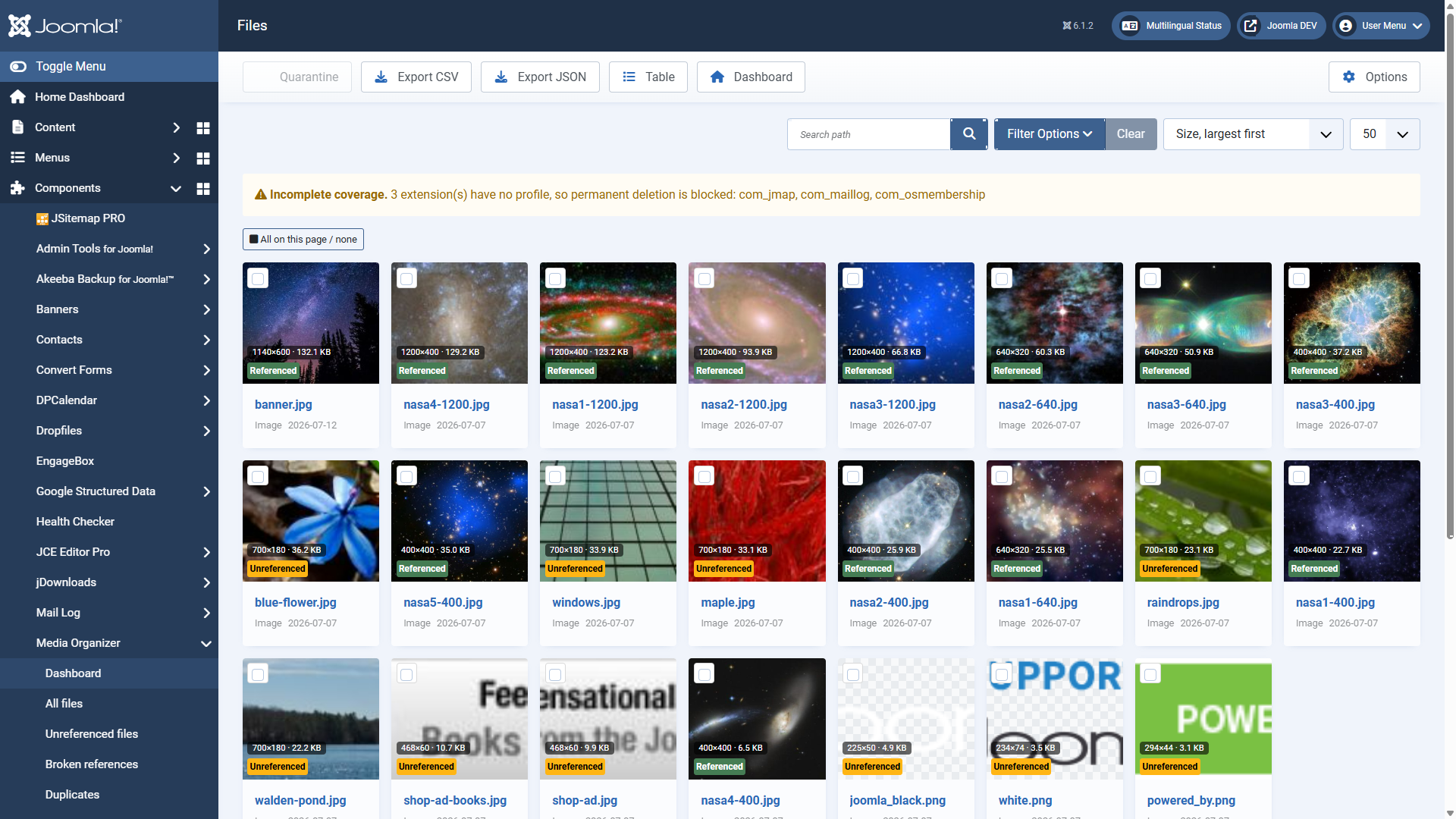 The review view as a grid: preview, dimensions, size and status at a glance.## Grid or table
The button **Table** or **Grid** switches the presentation:
- The **grid** shows thumbnails — good for recognising images.
- The **table** shows more entries per screen and sorts better — good for large collections.
## The status indicators
Status
Meaning
**Referenced**
At least one occurrence found. The file is in use.
**Without a reference**
No occurrence found. A candidate — check the evidence before you act.
**In quarantine**
Already moved, restorable at any time.
**No longer present**
The file is not where it used to be — deleted or renamed without Joomla being involved (over FTP, for instance).
Why such files do not simply drop out of the list: their entry carries the optimisation backups and the quarantine history. So the entry stays and is only labelled — the reports on duplicates and optimisation leave it out, because there is nothing left to tidy up here. The *Status* filter shows you at any time which files are affected. If one comes back, the next scan picks it up again.
In addition, every tile shows **dimensions** and **file size**. Sorting by size descending is a good start: the largest unreferenced files bring the most space.
The same sorting helps when a file is needed but too large: selected images can be shrunk straight from here — the **Optimise** button sits in the toolbar. What happens then is described under [Optimisation and image editor](https://docs.graup-it.de/books/media-organizer-en/page/optimisation-and-image-editor).
## Filtering and searching
- **Search path** — full-text search over the file path.
- **Filter options** — narrow down by status, media type and folder. A folder filter includes subfolders.
- **Sorting** — by size, name or modification date, among others.
- **Reset** — restores the initial state if you have filtered yourself into a corner.
## Selection across pages
The selection is kept server-side. So you can filter, page through, keep selecting — the files marked earlier stay selected. That matters when you are picking out specific files from several hundred.
With **all on this page / none** you mark the current page at once.
## The coverage notice
If **"incomplete coverage"** appears at the top, at least one installed extension is not covered by a vetted profile yet. Media Organizer then cannot rule out that this extension uses media files.
The consequence: **deleting for good is blocked**. Quarantine and restoring stay possible — both are reversible after all. That is not a fault but the extension knowing its own limits.
## Export
With **Export CSV** or **Export JSON** you take the inventory out — useful for agreeing things with clients or for a second opinion before anything happens. The export respects the filters currently set.
## Where to go from here
- [Reading the evidence](https://docs.graup-it.de/books/media-organizer-en/page/reading-the-evidence-why-is-a-file-considered-orphaned)
- [Quarantine, restoring, deleting for good](https://docs.graup-it.de/books/media-organizer-en/page/quarantine-restoring-deleting-for-good)
Applies to version 1.4.2.
[Deutsche Fassung](https://docs.graup-it.de/link/63)
# Reading the evidence: why is a file considered orphaned?
The detail view is the heart of Media Organizer — and the reason you can trust a classification without having to believe it. You open it by clicking the file name in the review view.
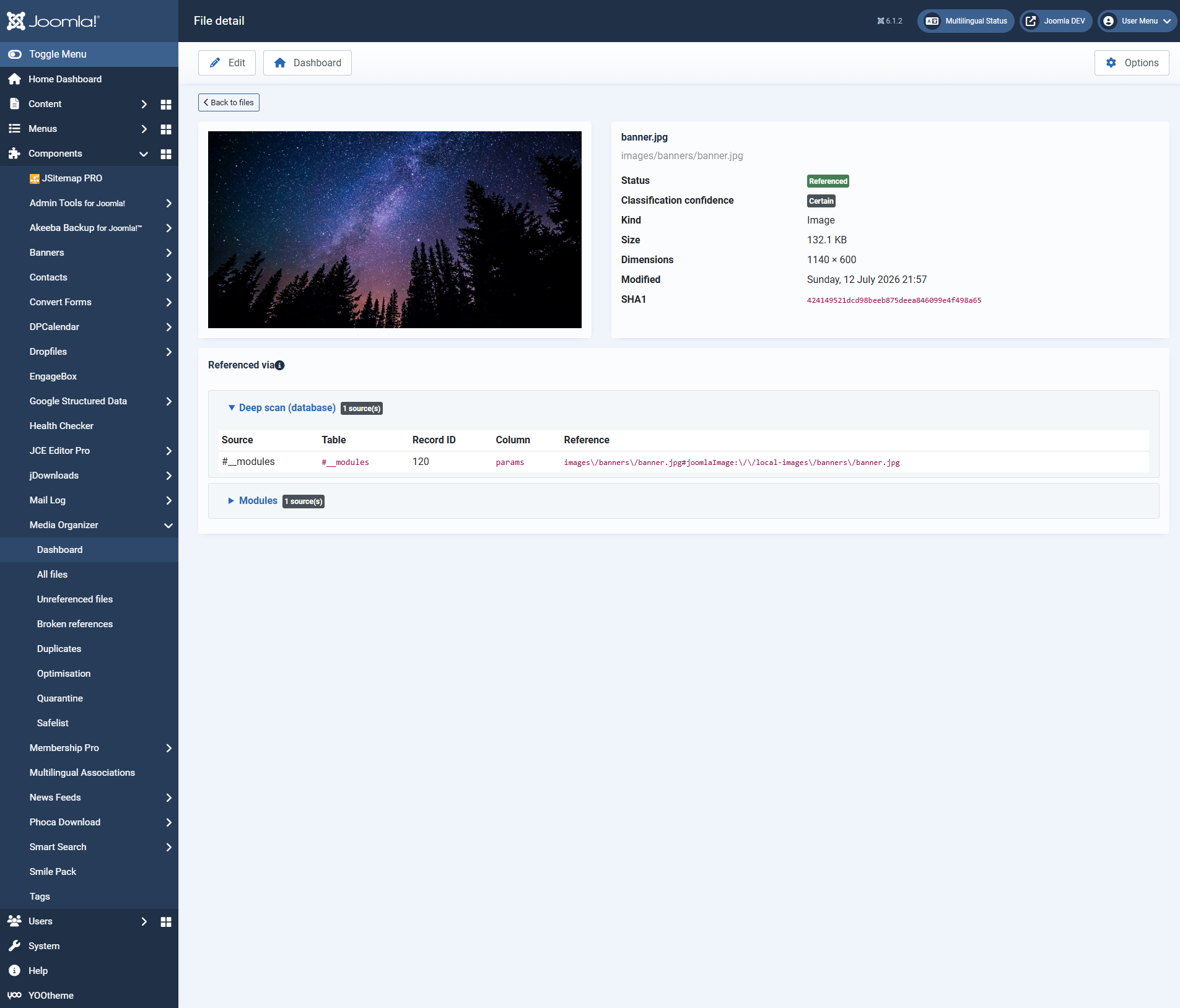 The detail view: the preview on the left, the metadata on the right, below them the occurrences with a direct edit link.## The header area
Status
Referenced, without a reference or in quarantine.
Classification confidence
How solid the classification is. "Certain" means: the search areas relevant for this file ran through completely.
Type, size, dimensions, modified
The usual key data.
SHA1
The checksum of the content. Media Organizer detects duplicates by it — and by it the deletion gate notices when a file has changed since the scan.
## "Referenced by" — the occurrences
Here you see *who* uses the file. The occurrences are grouped by search area, for example:
- **Articles (com\_content)** — the article the file appears in
- **Modules** — module HTML, parameters or folder parameters
- **Version history** — older versions of an article
- **Deep scan (database)** — the safety net that searches the database broadly
- **Extension profiles** — occurrences in third-party extensions
Every row shows the **source** (for example "Article #3 'Welcome to your blog'"), the **table** and the **record**, the **column** as well as the **reference** found in the original text. On the right an **edit link**leads straight to that content — useful when you want to remove or correct a reference.
Several search areas may report the same occurrence. That an article provider *and* the deep scan report the same file is not a fault but two independent pieces of evidence for the same statement.
## Why a file counts as "without a reference"
If none of the enabled search areas finds a reference, the file counts as unreferenced. The detail view then shows which areas were checked — and thereby also what was *not* checked.
This is exactly where a second look pays off:
- Are all relevant **search areas enabled**? Switching off the deep scan gives you more candidates — and less certainty.
- Is there a **coverage notice**? Then knowledge about an installed extension is missing.
- Might the file be used **outside Joomla**, in a newsletter, a PDF or from another website? No software can know that. That is what quarantine and the 404 monitoring are for.
## Folder references: the most important special case
Some extensions do not point to a file but to a **whole folder** — a random-image module showing "all images from `images/banner`", for instance.
Media Organizer treats such a folder reference as fully valid: **all** files below it count as used, even if none is named individually. Otherwise a single module would be enough to make half an image directory look orphaned by mistake.
## Derivatives
Many images have automatically generated variants — thumbnails, scaled-down versions, responsive sizes. Media Organizer recognises such derivatives and treats them like the original: if the original is in use, the derivative counts as used as well. That way no thumbnail disappears whose original is still needed.
## Where to go from here
- [Quarantine, restoring, deleting for good](https://docs.graup-it.de/books/media-organizer-en/page/quarantine-restoring-deleting-for-good)
- [Common questions and troubleshooting](https://docs.graup-it.de/books/media-organizer-en/page/common-questions-and-troubleshooting)
Applies to version 1.4.2.
[Deutsche Fassung](https://docs.graup-it.de/link/64)
# Quarantine, restoring, deleting for good
Cleaning up in Media Organizer always runs in two separate steps: first **quarantine**(reversible), then — much later and only if you want it — **deleting for good**(irreversible). This separation is the core of the safety concept.
## Step 1: move to quarantine
Select the files in the review view and click **Quarantine**. They do not go straight into quarantine but first into a confirmation dialogue.
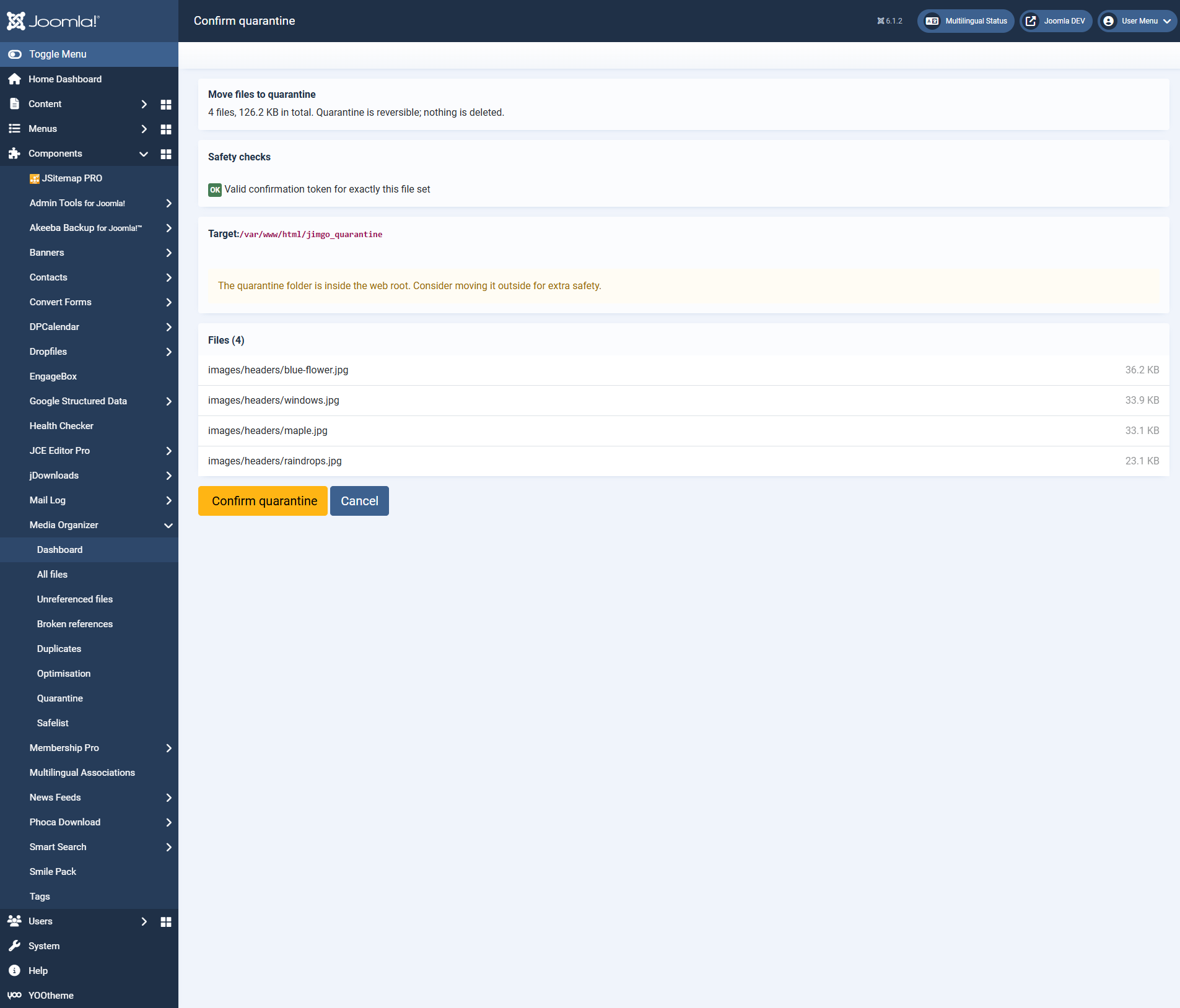 The confirmation dialogue shows exactly what will happen — completely, not abbreviated.The dialogue shows you:
- **Scope** — how many files and how much space.
- **Safety checks** — among them that a valid confirmation token exists for exactly this set of files.
- **Target folder** — where they are moved to.
- **The complete file list** — every path individually, so that you can check it.
The **confirmation token** binds action, user, scan and the exact file list together and is valid only once. If you change the selection it becomes invalid. That way no old or foreign confirmation click can delete a different file list than the one you saw.
## What happens in quarantine
The files are moved to a protected folder. They can no longer be reached from the web — so your website behaves as if they had been deleted. That is exactly the point: you see the effects without losing the files.
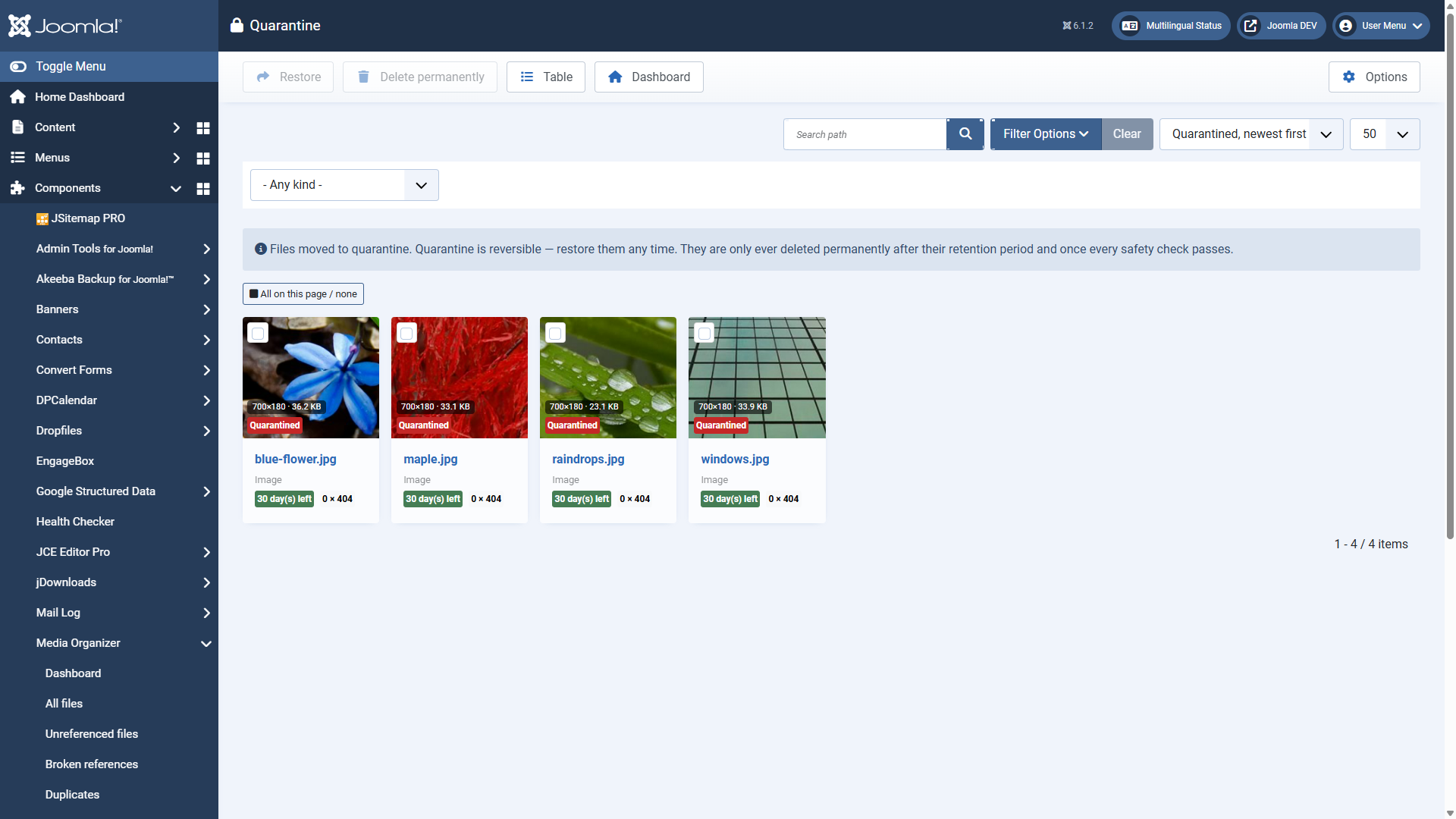 The quarantine view with the remaining retention period per file.Every tile shows the remaining **retention period** ("30 days left"). The thumbnails keep working although the files sit outside the web root — Media Organizer streams them for administrators only.
**The quarantine folder should be outside the web root.** If it is inside, the confirmation dialogue points that out. You can change the path in the options.
## Restoring
If you notice that a file is needed after all: select it, **Restore**. It moves back to its original place. At the next scan it is classified anew as normal.
That is the whole trick of it — the worst case is a brief scare, not data loss.
## Step 2: delete for good
Only this step really removes files. It is deliberately inconvenient.
Before deleting, Media Organizer checks **twelve independent conditions**. All of them have to be met. There is no switch that bypasses this — not even for administrators. Among them are:
- The **retention period** has expired.
- The file is **unchanged** since the quarantine (checksum and modification date).
- A **valid, one-time confirmation token** exists for exactly this file list.
- The user has the **necessary permission**.
- The **coverage is complete** — no installed extension without a profile.
- Since the quarantine **no 404 accesses** to the file have been recorded (if the 404 monitoring is active).
If a condition fails, Media Organizer names **all** violations at once — not just the first. That way you know everything that is in the way.
**The retention period is a precondition, not a trigger.** After it expires, *nothing* happens by itself. It merely allows you to delete — you still have to do it yourself.
## A proven approach
1. Move a small, unambiguous selection to quarantine.
2. Keep running the website normally. Let the 404 monitoring run along.
3. After a few weeks: have any 404 hits turned up? Then restore and look for the reference.
4. If all stayed quiet and the period has expired: delete for good.
5. Next batch.
## Where to go from here
- [Common questions and troubleshooting](https://docs.graup-it.de/books/media-organizer-en/page/common-questions-and-troubleshooting)
Applies to version 1.4.2.
[Deutsche Fassung](https://docs.graup-it.de/link/65)
# Common questions and troubleshooting
## Classification
### A file is shown as "without a reference" although it is in use. Why?
Because none of the enabled search areas found a reference. Open the detail view: it says where the search happened. Typical causes:
- A **search area is switched off** (Options → scan areas), the deep scan for instance.
- An **extension is not covered** — then the coverage notice appears and deleting for good is blocked anyway.
- The file is used **outside Joomla**: in a newsletter, a PDF, another website. No software can detect that. That is exactly what quarantine and 404 monitoring are for.
### Why is deleting for good blocked?
Because at least one of the twelve conditions is not met. Media Organizer names all violations at once. The most common:
- **The retention period is still running.** Wait, or adjust the period in the options.
- **Incomplete coverage.** An installed extension has no profile.
- **The file was changed.** Checksum or modification date differ from the scan — scan again.
- **404 hits.** The file was accessed since it went into quarantine. A strong reason to restore it.
### What does "incomplete coverage" mean?
Media Organizer knows for many third-party extensions where they store media — that knowledge sits in vetted profiles. If an installed extension is not among them, it cannot be ruled out that it uses files. That is why deleting for good is blocked.
Quarantine and restoring stay possible — both are reversible. So you can still clean up safely, just not permanently.
### Why does the same occurrence appear more than once?
Because several search areas searched independently and found the same thing. That is not a fault but a confirmation.
## Operation
### Can a scan damage my website?
No. A scan never writes to the file system. It reads and puts the result into the database.
### The scan aborts or runs into a timeout.
The scan runs in steps, and its progress is kept in the database. A step that was cut short therefore does not cost the whole run: click **Resume scan** and it carries on from the same place.
If it happens again, reduce the step size under **Performance** in the options. If that does not help either, run the scan as a scheduled task or from the command line — both share their progress with the backend and can finish what was started there.
There is a page on this in full: [Large websites and tight time limits](https://docs.graup-it.de/books/media-organizer-en/page/large-websites-and-tight-time-limits) — including which of your server's time limits actually bites.
### How much memory does Media Organizer need?
The extension is built to process even very large collections with tight PHP memory. Results are not loaded into memory in full but processed step by step.
### Does the scheduled scan delete automatically?
No — and that is not a setting but a deliberate product decision. The scheduled scan and the command line can find and report. Moving and deleting always requires a human who selects and confirms.
### Does data leave my website?
No. Media Organizer contacts no external services. The only exception is the update process, which Joomla itself performs when you trigger it.
## Restoring and deleting
### I moved too much to quarantine. What now?
Select it and **Restore**. The files move back to their original place. As long as nothing was deleted for good, nothing is lost.
### I deleted for good and need the file after all.
Then only your backup helps. Deleting for good is irreversible — that is why the retention period comes before it and why quarantine is the normal case.
### What happens with duplicates?
The duplicates report only displays them. Cleaning up runs through quarantine and confirmation here as well — you decide which copy stays.
## More questions?
If you are stuck here, get in touch through the [product page](https://www.graup-it.de/produkte/media-organizer-fuer-joomla). Helpful for a quick answer: the Joomla and PHP version, what you expected and what happened instead — and, if it is about a classification, a look at the detail view of the file concerned.
Please **never send your download key** along — not in screenshots either. Support does not need it.
Applies to version 1.4.2.
[Deutsche Fassung](https://docs.graup-it.de/link/66)
# How the detection works
This chapter explains how Media Organizer arrives at its verdict. You do not need it for everyday work — but if you want to follow a classification or judge how well your website is covered, it is exactly the right place.
## Two separate steps
A scan consists of two parts that are deliberately kept apart:
1. **Build the inventory.** Which media files exist at all? Read from the configured media adapters.
2. **Collect references.** Who points to which file? That is done by several independent *search areas*.
Only then does Media Organizer compare the two. A file without a matching reference becomes a candidate — no more than that.
Important for understanding: a search area **only reports occurrences**. It does not judge. The statement "without a reference" is made solely by the evaluating stage, after *all* search areas have run.
## The search areas
Area
What it searches
**Articles and categories**
Articles (intro and full text, article image) and categories, including custom fields.
**Modules**
The HTML of "custom HTML" modules, the module settings and folder entries. Unpublished modules and those in the trash count as well (configurable).
**Version history**
Older versions of articles. Whoever restores an old version needs its images.
**Template files**
CSS and template files with image paths hard-coded in them — background images, for instance.
**Extension profiles**
Third-party extensions for which a vetted profile exists.
**Deep scan**
The safety net: searches all database tables for image references — including those of extensions without a profile of their own.
All six can be switched off individually (Options → *scanning*). That is rarely a good idea: every area switched off makes the list of candidates longer and the conclusion weaker.
## The deep scan
The specialised areas know exactly where to look. The deep scan does not — it goes broadly across the database and searches for everything that looks like a media reference.
That makes it slower but indispensable: it catches references from extensions for which there is (as yet) no profile. If you switch it off, you lose exactly that safety net.
## Folder references
Some references point not to a file but to a folder — a random-image module with the parameter "folder: `images/banner`", for instance.
Media Organizer counts that as a full reference to **all** files below it, including subfolders. Overlooking that would make a whole image directory count as orphaned, just because no image is named individually.
## Normalisation: why paths get straightened out
The same reference can be written in many ways: with or without a leading slash, as an absolute URL, with Joomla's internal `#joomlaImage://` suffix, URL-encoded. For a comparison to succeed at all, Media Organizer reduces everything to one uniform form.
One special case deserves attention: **Unicode normalisation (NFC)**. Uploads from a Mac encode umlauts technically differently from Windows or Linux — *ä* can be one character or two. Without normalisation such files would wrongly count as "without a reference". The option is active by default; when in doubt, leave it on.
With **known website URLs** you additionally tell Media Organizer which absolute URLs count as local — useful when content is linked with full addresses.
## Derivatives
Many images have automatically generated variants: thumbnails, scaled-down versions. Media Organizer recognises this relationship and passes the classification on: if the original is in use, the derivative counts as used as well.
## What is never recorded
Certain top-level folders are off limits in principle and are not inventoried at all — among them `administrator`, `libraries`, `templates`, `plugins`, `cache` and the quarantine folder itself. That protects Joomla system files from being touched, even if a media adapter is configured wrongly.
The folder `media/` is deliberately *not* protected — on many websites real uploads live there.
## Where to go from here
- [Extension profiles and the coverage gate](https://docs.graup-it.de/books/media-organizer-en/page/extension-profiles-and-the-coverage-gate)
- [Configuration reference](https://docs.graup-it.de/books/media-organizer-en/page/configuration-reference)
Applies to version 1.4.2.
[Deutsche Fassung](https://docs.graup-it.de/link/67)
# Extension profiles and the coverage gate
Joomla extensions store media references in very different ways: sometimes as a path in a column, sometimes deep in a JSON parameter tree, sometimes as a folder entry. For Media Organizer to search a foreign extension reliably, it has to know *where* that extension keeps its references.
This knowledge sits in **profiles**.
## Profiles are data, not code
A profile describes, for exactly one extension, which tables and columns can contain media references and how they are to be read. It is a data file — not program code.
That has a practical advantage: profiles can be updated independently of the extension. When knowledge about another third-party extension is added, you do not need a new program — only new data.
Profiles are **not guessed**. Every one of them comes out of a documented procedure in which the actual data structure of the extension is examined and verified. An invented table or column name would be the most dangerous kind of error: it would make a file that is in use look orphaned.
Which profiles are currently available is shown in **Options → scanning** under *available profiles*.
## The coverage gate
Now the decisive question: what happens with an installed extension for which there is *no*profile?
Media Organizer could ignore it and hope. It does not. Instead it states: "for this extension I cannot rule out that it uses media" — and blocks deleting for good.
**Incomplete coverage blocks deleting for good and nothing else.** Scanning, reviewing, quarantine and restoring stay fully possible. All of that is reversible after all.
The notice appears at the top of the review view and names the extension concerned.
## How to establish coverage
There are three clean ways:
1. **Wait or ask.** For common extensions, profiles arrive with updates. If one you need is missing: report it.
2. **Register the extension as media-free.** If an extension demonstrably stores no media references, enter its element (for example `com_example`) under **Options → scan – advanced → media-free extensions**. It then counts as covered.
Under *detected media-free extensions* you find those already verified — you do not have to enter those yourself.
3. **Uninstall the extension** if you no longer need it anyway.
**"Media-free" is a claim you stand behind.** Only register an extension if you really know — not to get rid of the notice. That very entry helps decide whether a file may be deleted.
## The override — and why you should avoid it
There is a switch that lifts the block: **Options → security & retention → override the deletion block on incomplete coverage**.
It is deliberately built to be inconvenient:
- Only **super users** may set it.
- A **reason is mandatory** — no text, no override.
- The override is **recorded in the audit log** together with the reason.
It exists for the case where you know better than the software and stand behind that. It is not a shortcut for clicking the notice away. If you need it, the more honest question is usually: why is the profile missing — and would the route via "register as media-free" not be the right one?
## Custom fields: a common stumbling block
Custom fields can contain media. Which field types those are is defined under **Options → scan – advanced → custom field media types**. The default covers Joomla's own media field as well as common field plugins.
What matters is the automatism behind it: if media fields are *used* but not *searched*, deleting for good stays blocked. So if you use another field plugin that stores media, add its internal type name to this list.
## Where to go from here
- [Configuration reference](https://docs.graup-it.de/books/media-organizer-en/page/configuration-reference)
- [Quarantine, restoring, deleting for good](https://docs.graup-it.de/books/media-organizer-en/page/quarantine-restoring-deleting-for-good)
Applies to version 1.4.2.
[Deutsche Fassung](https://docs.graup-it.de/link/68)
# Configuration reference
All settings are reached through the **Options** button at the top right of every Media Organizer view. This page lists every option with its default.
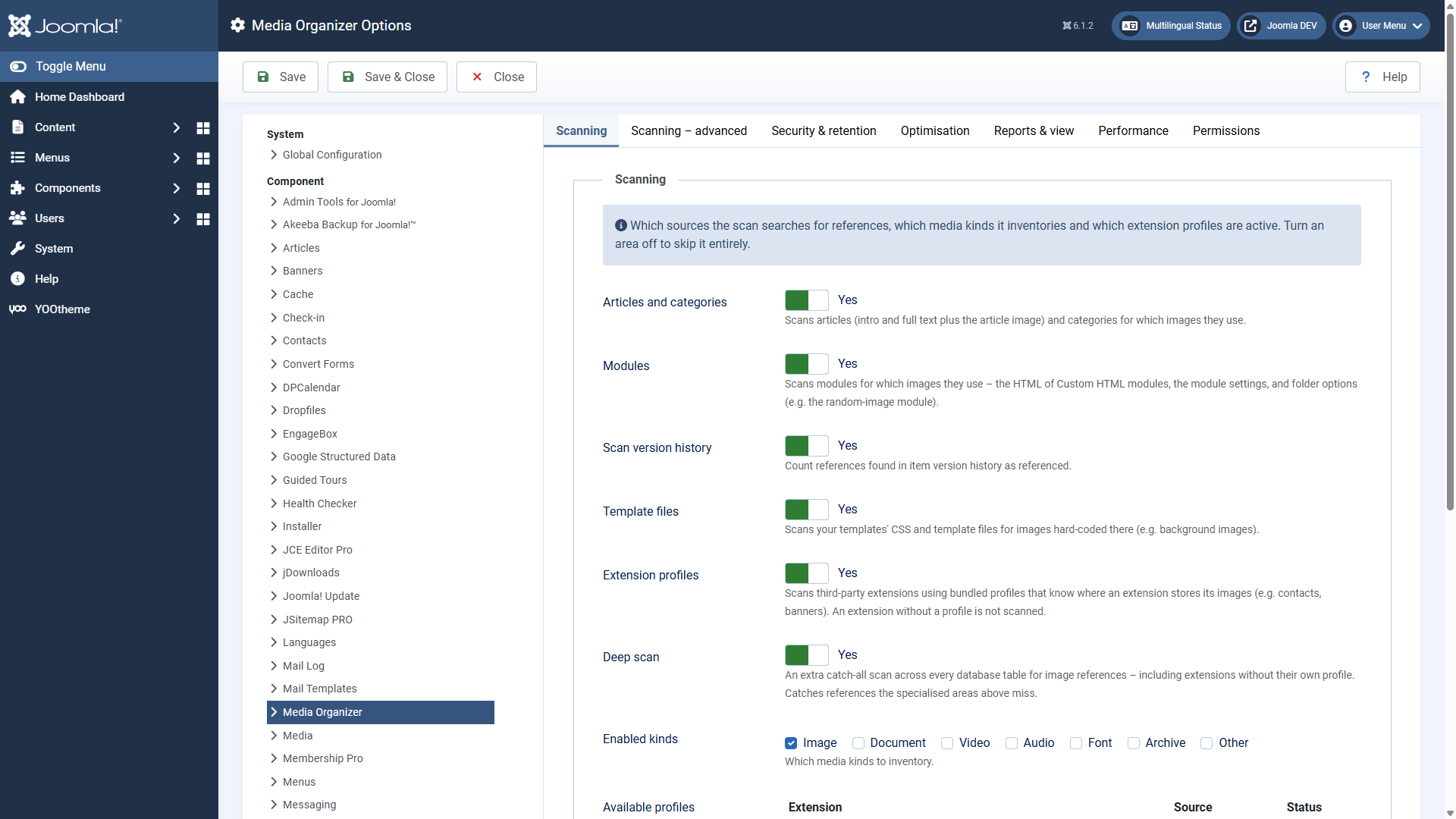 The options are divided into seven tabs.
The defaults are deliberately cautious and suitable for most websites. Change only what you have understood — especially in the tab *security & retention*.
## Scanning
Here you switch the search areas on and off. All of them are active by default.
Option
Default
Meaning
Articles and categories
Yes
Articles (intro/full text, article image) and categories.
Modules
Yes
Module HTML, module settings and folder entries.
Scan version history
Yes
Count hits in the version history as referenced.
Template files
Yes
Images hard-coded in CSS and template files.
Extension profiles
Yes
Third-party extensions with a profile.
Deep scan
Yes
Catch-all scan across all database tables.
Active media types
Image
Which types are inventoried: image, document, video, audio, font, archive, other.
Available profiles
—
Display only: which profiles exist.
## Scan – advanced
Option
Default
Meaning
Root directories
empty
Which media adapters are inventoried. Empty = the default adapter local-images. For media under media/, create a directory there in the media component and enter the adapter here.
Excluded paths
empty
One entry per line. A folder path excludes the folder including subfolders; glob patterns such as *.tmp work too.
Which custom field types contain media. Used but not searched ⇒ deleting stays blocked.
Normalise Unicode (NFC)
Yes
Unifies umlauts before comparing. Leave it on when in doubt.
Known website URLs
empty
One URL per line. Absolute URLs on these hosts count as local.
## Security & retention
This tab controls when deleting is allowed at all. Every relaxation here lowers your safety net.
Option
Default
Meaning
Retention: images
30 days
For this long a file of this type has to sit in quarantine before it *may* be deleted. **0 = never released automatically.** The period is a precondition, not a trigger — after it expires, nothing happens by itself.
Retention: documents
180 days
Retention: video
90 days
Retention: audio
90 days
Retention: fonts
0 (never)
Retention: archives / other
180 days
Require a super user for deleting
Yes
Restrict deleting for good to super users.
Maximum scan age
7 days
An older scan cannot authorise deleting.
Minimum number of consecutive scans
2
A file has to have been a candidate this many times in a row before it may be deleted.
Validity of the confirmation token
300 seconds
How long a confirmation token stays valid.
Override the deletion block
No
Super users only. Allows deleting despite incomplete coverage. Is recorded.
Reason for the override
empty
Mandatory reason, stored along with it.
Quarantine root
jimgo_quarantine
Where files are moved to. Protected with deny files on first use. **Do not use the cache folder** — it gets emptied. A warning appears if it is inside the web root.
## Optimisation
**Thresholds for the report** — they only decide what is *reported*:
Maximum file size
500 KB
Larger files are flagged. 0 = off.
Maximum edge length
2500 px
Larger images are flagged. 0 = off.
Outdated formats
bmp, tif, tiff
Are flagged as outdated.
Modernise from
150 KB
Raster images above this count as WebP/AVIF candidates. 0 = off.
Raster formats to modernise
jpg, jpeg, png, gif
Which formats could change.
**How optimisation works:**
Image library
Automatic
Prefers Imagick, falls back to GD.
Maximum edge length (px)
2560
Scale down from this edge. Never scales up. 0 = off.
JPEG quality
82
1–100. Around 80 is a good compromise.
PNG compression
8
0–9, lossless. Higher = smaller and slower.
WebP quality
82
When the source is already WebP.
Remove metadata
Yes
Remove EXIF, ICC and comments.
Minimum saving
10 %
Below that the original stays untouched.
Working memory for image processing
128 MB
How much memory shrinking may use. With ImageMagick only a question of speed — larger images then go via the hard disk, and that is many times slower. Without ImageMagick a limit: images above it are skipped as "too large to process" (at 128 MB around 18 megapixels). 0 removes the limit.
Time limit per image
20 s
How long ImageMagick may spend on a single image. An image that needs longer is skipped and listed as "Took too long"; nothing is changed about it. The limit rarely bites — a JPEG that is going to be downscaled anyway is not read at full size in the first place. It is the net for very large PNG and WebP files on slow servers. 0 removes it.
Maximum source pixels
0
A limit of your own for the image size (width × height). Leave at 0 — the working memory decides instead. When set it applies to ImageMagick as well.
Images per step
5
Upper bound per request. Usually the step ends earlier through the time limit.
Time per step
15 s
After this a step ends and the browser starts the next one. The image already started is finished; a very large one can exceed the value noticeably — leave room up to the server's own time limit. 0 disables the time limit.
Editor export quality
82
Default quality for images from the editor.
Backup location
jimgo_optimize_backup
Where originals are backed up before optimisation. Is protected.
**External optimisers** (optional, see the chapter of its own):
Use external optimisers
Yes
Uses pngquant, oxipng, jpegoptim, cwebp, gifsicle where available. Falls back automatically when a tool is missing.
Optimiser directory
empty
Empty = search the system PATH. Nothing is downloaded or shipped along.
Available optimisers
—
Display only: what was detected.
JPEG / PNG / WebP / GIF optimiser
Automatic
Which tool per format. For PNG: pngquant is lossy (the biggest saving), oxipng and OptiPNG are lossless.
PNG minimum / target quality
60 / 82
pngquant limits. If the minimum quality is not reached, the PNG stays unchanged.
## Reports & view
Entries per page
50
Default page size of all lists. The selection in the page footer takes precedence.
Hide providers from broken references
history
Their hits never appear as a broken reference.
History tables
#__history
Deep scan hits in them do not count as a broken reference.
## Performance
Files per scan step
200
How many files one scan step records and checks. Smaller = shorter steps, needed with a tight time limit. See [Large websites and tight time limits](https://docs.graup-it.de/books/media-organizer-en/page/large-websites-and-tight-time-limits).
Records per scan step
500
How many articles, modules and other records one step searches for references.
Maximum time per scan step
10 s
Safety net: a step ends after this time at the latest, even if the configured amount has not been reached. 0 disables the time limit.
Database chunk (rows)
500
How many rows the scan reads at once. Smaller = gentler on memory.
Keep scan detail data
2
For how many of the last scans the occurrence details are kept. Only the latest scan is ever displayed anyway; higher values grow the database without showing you more. The scan overview is kept regardless.
Calculate file hashes
Yes
Needed for duplicates and to detect changes. Switching it off makes the scan minimally faster — and the deletion gate blinder.
Cache thumbnails
Yes
Creates scaled-down previews under media/com_jimgo/thumbs. Requires PHP GD.
Thumbnail size
360 px
Longest edge of the thumbnails.
## Permissions
The standard Joomla tab. See [Permissions, export and privacy](https://docs.graup-it.de/books/media-organizer-en/page/permissions-export-and-privacy).
Applies to version 1.4.2.
[Deutsche Fassung](https://docs.graup-it.de/link/69)
# Reports: duplicates and broken references
Besides the unreferenced files, Media Organizer provides two more reports. Both are pure displays: **they delete nothing and change nothing.**
## Duplicates
The report finds files with **identical content** — detected by the checksum (SHA1), not by the file name. Two files can therefore have completely different names and sit in different folders; what counts is that their content is the same byte for byte.
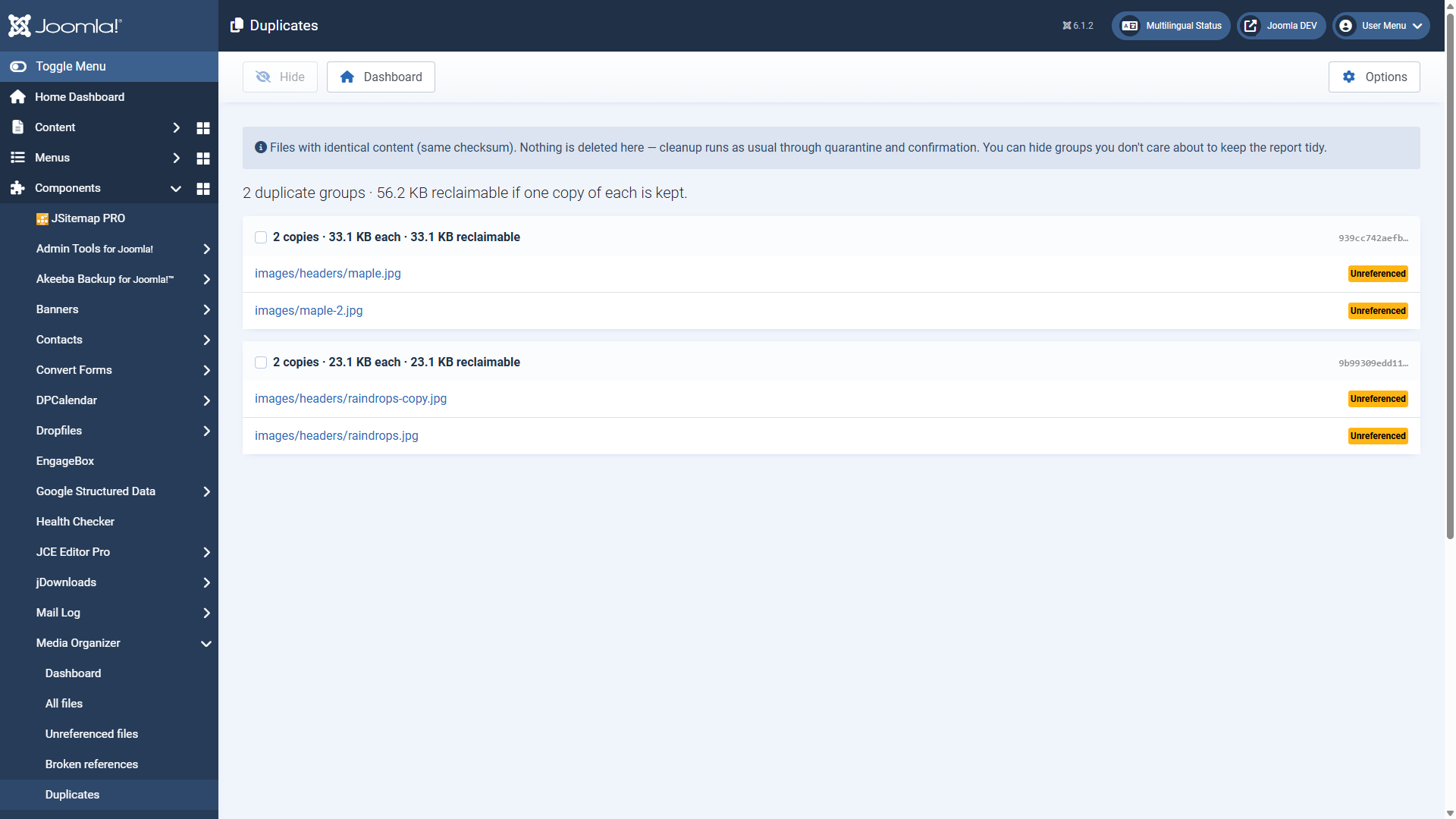 A duplicate group: two identical files, plus the space that could be freed if one copy stays.Every group shows:
- how many copies there are and how large each of them is,
- how much space would be freed if **one copy each stays**,
- the beginning of the checksum,
- the status of every single copy (referenced or without a reference).
**Do not blindly delete all copies but one.** Check the status: if several copies are referenced, different content points to different files. Delete one of them and the corresponding reference is broken — you would have created a dead image link.
The sensible case is: one copy referenced, the others not. Then the unreferenced ones can go — through the normal route.
Cleaning up runs through **quarantine and confirmation** here as well. The report is the magnifying glass, not the broom.
With **Hide** you take groups out of the report that you deliberately want that way — images maintained twice on purpose, for instance. That keeps the list useful over time.
## Broken references
This report turns the direction of view around: it shows **content pointing to a file that does not exist**. Dead image links, in other words — the broken image icon in the frontend.
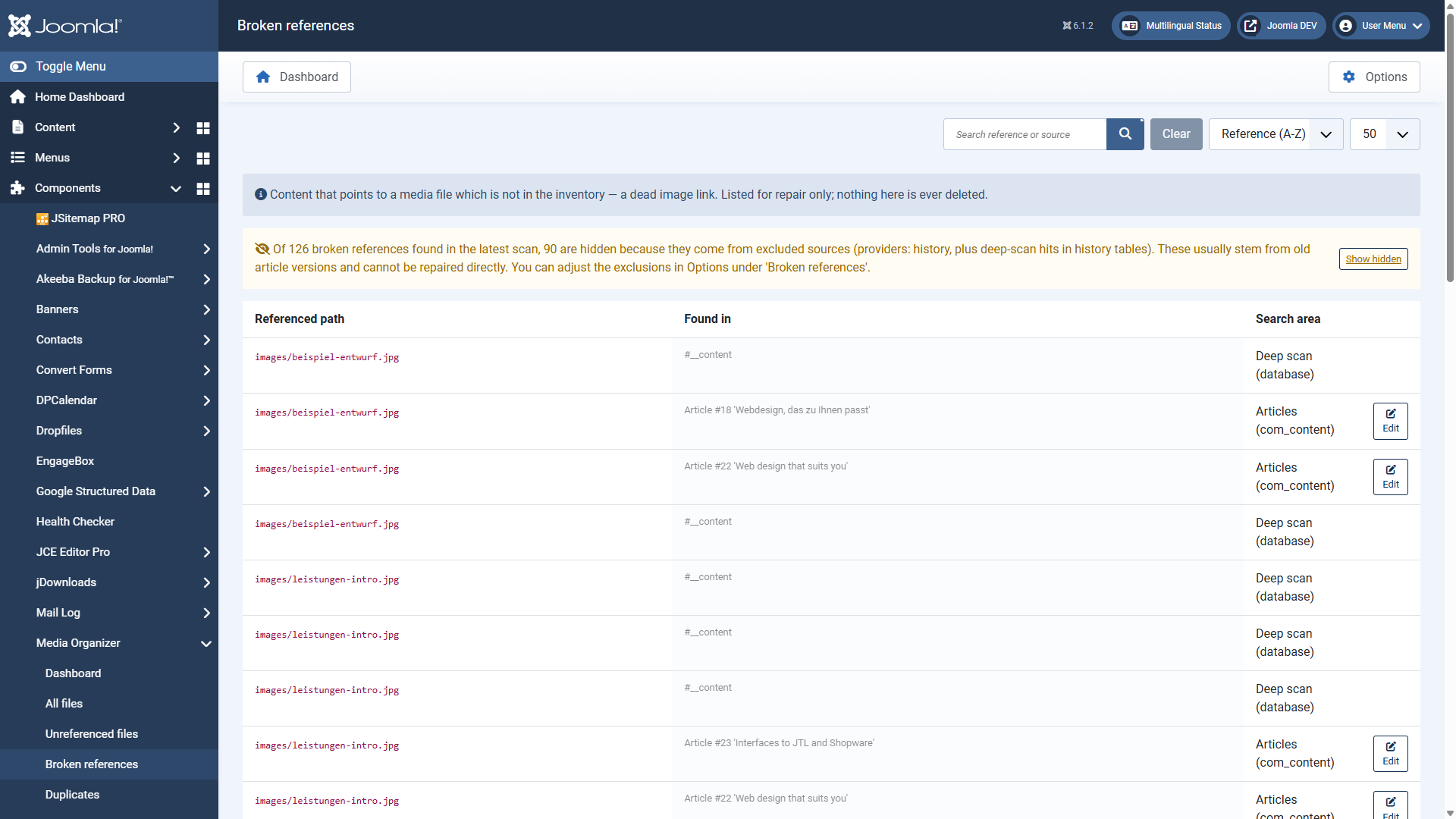 Every row names the missing path, where the reference sits and which search area found it — with a direct edit link.The columns:
Referenced path
The file that is missing.
Found in
Where the reference sits, for example "Article #3 'Welcome to your blog'".
Search area
Which area reported the reference.
Edit
Jumps straight into the content to repair it.
The same missing path appearing more than once is normal: several search areas found it independently.
### Why the version history is hidden
By default, hits from the version history are *not* listed as broken references. The reason is practical: old article versions naturally point to images that were replaced long ago. Those hits would flood the report without there being anything to repair.
You control this under **Options → reports & view** with *hide providers from broken references* (default `history`) and *history tables* (default `#__history`).
### A typical workflow
1. Open the report and see whether the missing file was merely moved or renamed.
2. If so: jump into the content via **Edit** and correct the path.
3. If the file is really gone: remove the reference or put a replacement image in.
4. Scan again — the entry disappears.
A look at this report is worthwhile **after** every cleanup. It is the counter-check: if you removed something by accident that was needed after all, it shows up here.
## Where to go from here
- [Optimisation and image editor](https://docs.graup-it.de/books/media-organizer-en/page/optimisation-and-image-editor)
- [Automation: scheduled scans and 404 monitoring](https://docs.graup-it.de/books/media-organizer-en/page/automation-scheduled-scans-and-404-monitoring)
Applies to version 1.4.2.
[Deutsche Fassung](https://docs.graup-it.de/link/70)
# Optimisation and image editor
Besides cleaning up, Media Organizer can also shrink and edit images. Both are **reversible** and run **strictly locally** — no image is sent to an online service.
## The optimisation report
The report shows images with optimisation potential, measured against the thresholds from the options. It is a recommendation — nothing is changed until you trigger it.
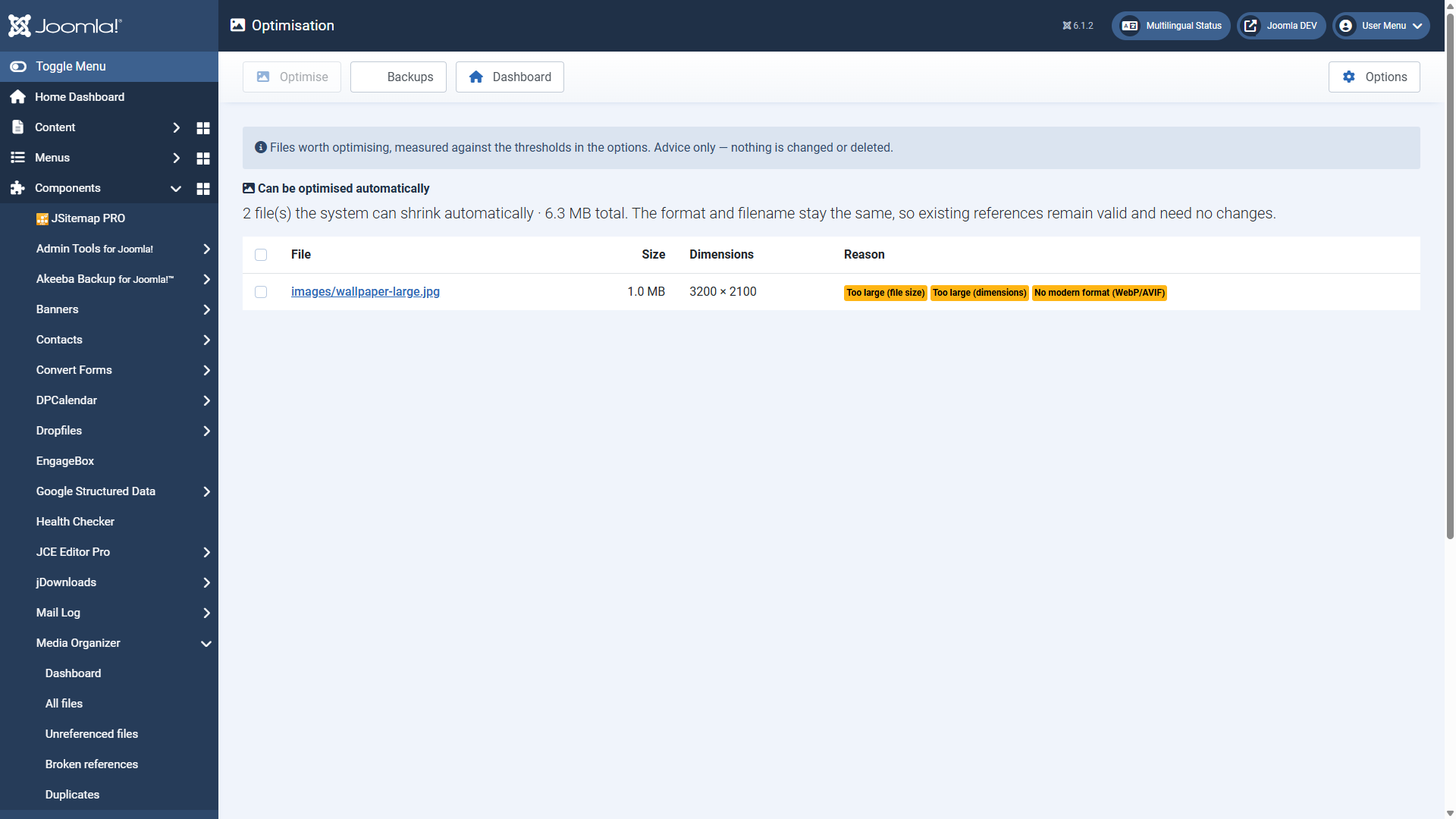 For every file it says *why* it was flagged — here for three reasons at once.Typical reasons:
- **Too large (file size)** — exceeds the configured maximum file size (default 500 KB).
- **Too large (dimensions)** — exceeds the maximum edge length (default 2500 px).
- **Not a modern format (WebP/AVIF)** — a raster image that would be considerably smaller as WebP or AVIF.
- **Outdated format** — BMP or TIFF, for instance.
### Two groups — and the difference matters
The report deliberately separates them:
**Automatically optimisable.** Format and file name stay the same. Existing references stay valid and do not have to be adjusted. This is the safe case.
**In the editor only.** Here an optimisation would change the format (to WebP, for example) and therefore the file name. Existing references still point to the old file and are **not** switched over automatically. Such images are therefore never touched automatically.
### Triggering optimisation
Select the files and click **Optimise**. Before that the following applies:
- The **original is backed up** (default: `jimgo_optimize_backup`, outside the web).
- Nothing is **ever scaled up** — only down.
- If the optimisation brings less than the **minimum saving** (default 10 %), the original stays untouched. No loss of quality for a few kilobytes.
- Protected files (safelist) stay untouched and are shown as such in the confirmation dialog.
The images are processed **one after another**, with a progress display. How long one run lasts before the next begins is set under **Options → Optimisation → Time per step**. The image already started is always finished.
Via **Backups** you reach the saved originals and can undo an optimisation.
## Optimising from "All files"
The report measures against the configured thresholds — it shows what the extension considers worth optimising. Sometimes you know better: you sort **All files** by size, see your largest images and want to shrink exactly those.
You can do that right there. Tick the boxes, click **Optimise** — it is the same backed-up, reversible operation as in the report, with the same settings.
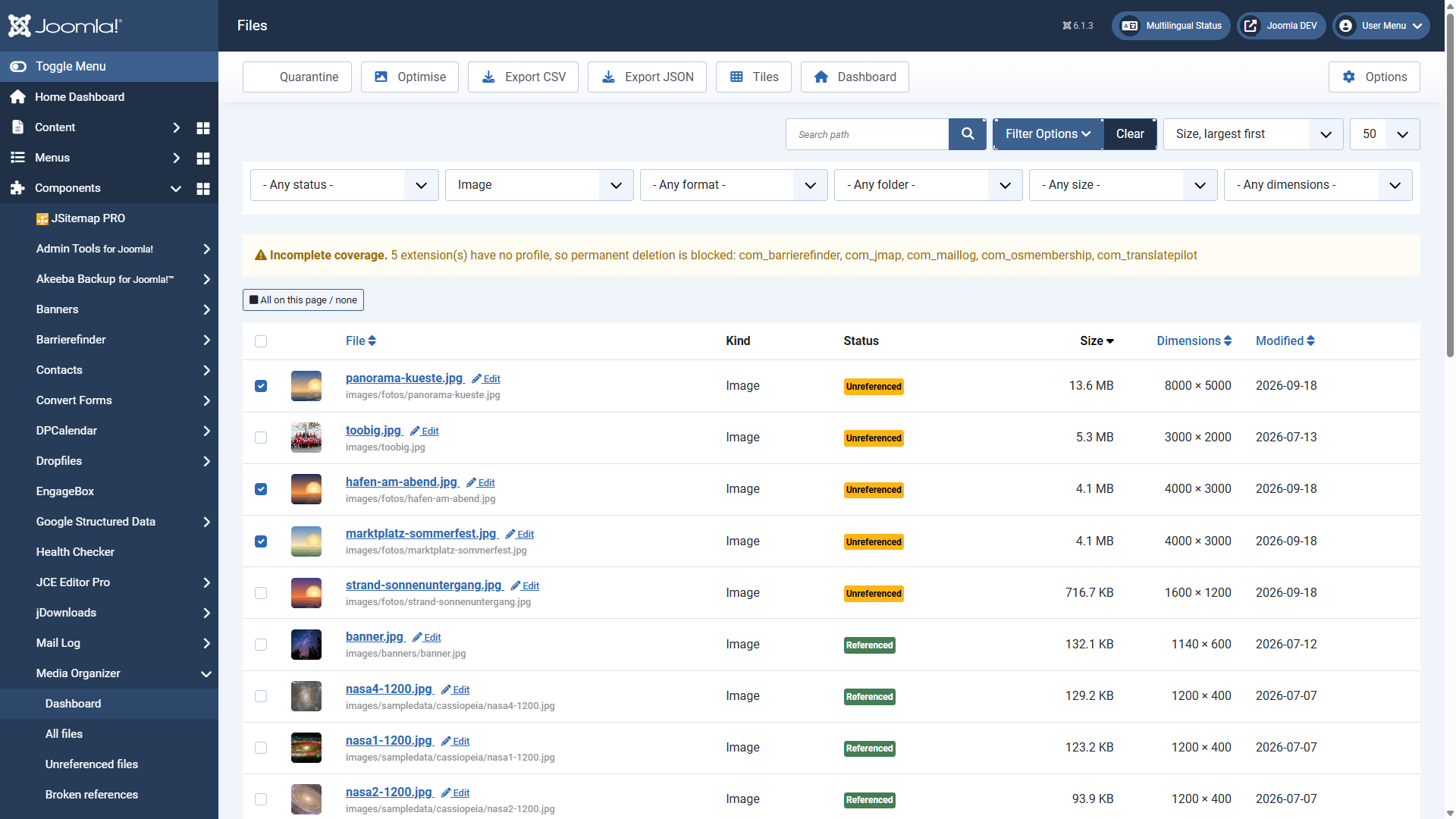 Sorted by size, the largest images selected — "Optimise" sits in the toolbar.Two differences from the report:
- **The list reaches every file.** The report shows the first 500 findings; on a large website not every large image appears there.
- **No before/after table.** The dialog states the count, the total size and the settings that apply, and then starts. That is deliberate: a preview would have to process every image in full, and the run itself would then do it a second time. With twenty large images the dialog would be minutes away.
If files are included that cannot be optimised — other file types, vector graphics, protected files — the dialog says so and leaves them untouched.
### When an image appears as "too large to process"
Shrinking an image needs memory, and the more pixels it has the more it needs. How much may be used is set under **Options → Optimisation → Working memory for image processing**(default 128 MB).
What happens then depends on what is installed on the server:
- **With ImageMagick** the setting is only a question of speed. An image that does not fit is processed via the hard disk — slower, but it is processed. There is then no image size it fails at.
- **Without ImageMagick** it is a limit. Images that do not fit are skipped and shown as "too large to process". At 128 MB that limit sits at around 18 megapixels.
So there are two ways out: raise the value, or ask your host for ImageMagick. Which library was detected is shown under **Options → Optimisation**.
### When an image stays unchanged
The confirmation dialog names, for every file, what has happened or will happen to it. If it stays unchanged, the reason is shown next to it — and for the cases that call for an action, the way out as well, as a tooltip on the state.
Shown as
What is behind it
No gain
The image is already well compressed; re-encoding it would bring nothing. It is left untouched and is not offered again until it changes.
Too large (memory)
See the section above.
Unsupported
The image library cannot read this file — usually a JPEG in the CMYK colour space from a print workflow.
Safelisted
The file is protected. It is deliberately left alone.
Changed on disk
The file has changed since the last scan. Run a scan, then try again.
No image library
This is not about the file: the server has neither ImageMagick nor GD, or the one selected under **Options → Optimisation → Image engine** is missing. No image can be optimised then, and the button is not offered at all.
Path rejected
The path recorded for this file is not a plain path below the site root. The file is left untouched.
Backup failed
The original could not be moved to the backup location. Usually that folder is not writable. Nothing was changed.
Could not be replaced
The optimised image could not be written back to its place. The original was restored.
Took too long
The server did not finish this image within the time set under **Options → Optimisation → Time limit per image**. This is about the server, not the image: an image that does not fit into the working memory allowed is processed from disk, and that takes many times longer. Allow more working memory, or more time. Nothing was changed.
Not recorded
The image was replaced but could not be recorded, so the original was put back. An image is never left optimised without its record.
For the last four the technical reason is in the site's log (see *Large websites*). After a run, the closing message also says how many files could not be optimised.
### External optimisers
If specialised encoders are installed on the server, Media Organizer uses them for compression — that brings considerably more than the built-in libraries:
Format
Tools
Note
JPEG
jpegoptim
—
PNG
pngquant, oxipng, OptiPNG
**pngquant is lossy** (the biggest saving); oxipng and OptiPNG are lossless. Automatic prefers pngquant.
WebP
cwebp
When the source is already WebP.
GIF
gifsicle
Keeps animations.
Media Organizer **downloads nothing and ships nothing along** — it only uses what is already installed. If a tool is missing, it falls back to the built-in library automatically. Under **Options → optimisation → available optimisers** you see what was detected.
## The image editor
You open the editor from the detail view via **Edit**.
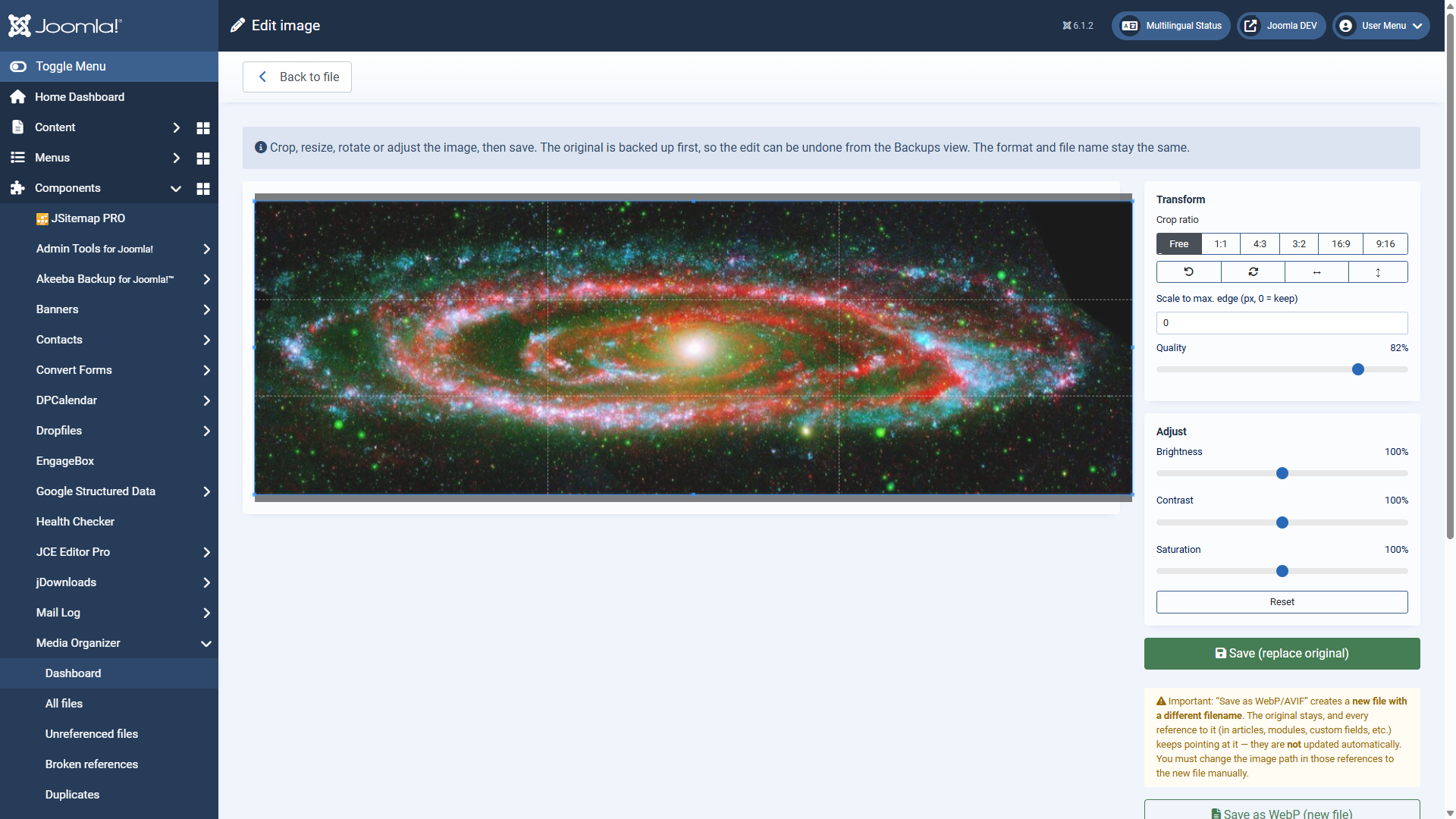 Crop, rotate, scale, quality and image adjustment — with a preview.Possible are:
- **Cropping** — freely or with a fixed ratio (1:1, 4:3, 3:2, 16:9, 9:16)
- **Rotating and flipping**
- **Scaling** to a maximum edge length
- Setting the **quality**
- **Adjusting** brightness, contrast and saturation
Here too the original is backed up beforehand; through the backups view you undo the edit.
### Saving: two routes with different consequences
Route
What happens
References
**Replace the original**
Format and file name stay the same.
stay valid ✓
**Save as WebP/AVIF**
Creates a **new file with a different file name**. The original remains.
still point at the original — you have to switch them over **manually**
This is the most common stumbling block. If you save an image as WebP, *nothing* changes in your content — it still points at the old file. The occurrences you have to adjust are listed in the detail view of the original under "referenced by".
## Where to go from here
- [Automation: scheduled scans and 404 monitoring](https://docs.graup-it.de/books/media-organizer-en/page/automation-scheduled-scans-and-404-monitoring)
- [The command line](https://docs.graup-it.de/books/media-organizer-en/page/the-command-line)
Applies to version 1.4.2.
[Deutsche Fassung](https://docs.graup-it.de/link/71)
# Automation: scheduled scans and 404 monitoring
Two parts run in the background. For both of them the same rule applies as for everything else:
**They find and report. They do not move and do not delete.** There is no automatic cleanup in Media Organizer — not even behind an option. That option deliberately does not exist.
## Scheduled scans
A scan can run regularly through the Joomla task scheduler. The task plugin is enabled automatically during the installation.
### Setting it up
1. Open **System → Scheduled Tasks**.
2. New task → task type **Media Organizer**.
3. Choose the interval — weekly or daily is enough for most websites.
4. Optionally set up the email notification.
From the dashboard, **Adjust task** takes you straight into the settings. The dashboard also shows when the last scheduled run was, whether it succeeded and when the next one is due.
The task scheduler needs a trigger. If it runs on page views ("lazy scheduler"), it starts only when somebody visits the site. For reliable timing, set up a real cron job — that is Joomla standard and described in its documentation.
### What the scheduled scan gives you
One thing above all: **continuity**. The deletion gate requires that a file was a candidate in several consecutive scans (default: 2) and that the scan is not too old (default: at most 7 days). A regular scan satisfies both by itself — you do not have to remember to scan manually just before cleaning up.
As a side effect the figures show you how your media library develops.
## The 404 monitoring
The system plugin logs accesses to files that sit in quarantine. It is **disabled**after the installation — switch it on under **System → Plugins**.
### Why this is so useful
Media Organizer can only find what is inside your Joomla installation. An image linked in a newsletter, embedded in a PDF or included from another website is invisible to any scan in the world.
The 404 monitoring closes exactly that gap — but only once the file is in quarantine: if somebody then requests the file, a 404 arises and the plugin records it.
A 404 hit on a file in quarantine is the **strongest indication there is** *not* to delete it: somebody actually requested it. You see the count on every tile in the quarantine view.
The deletion gate checks these counters too: if there were hits, deleting for good is blocked.
### Is this a performance problem?
The plugin runs along with page views but keeps itself tight: it is only interested in 404s on paths it knows to be in quarantine. If you still do not want it running permanently, a good compromise is: switch it on while a batch sits in quarantine — and off again afterwards.
### The recommended sequence
1. Enable the 404 monitoring.
2. Move a manageable batch to quarantine.
3. Wait out the retention period and keep running the website normally.
4. Before deleting for good, check the 404 counters. Any hits? Restore and look for the reference.
5. All stayed quiet: delete. Next batch.
## Where to go from here
- [The command line](https://docs.graup-it.de/books/media-organizer-en/page/the-command-line) — for scans without a browser time limit
- [Quarantine, restoring, deleting for good](https://docs.graup-it.de/books/media-organizer-en/page/quarantine-restoring-deleting-for-good)
Applies to version 1.4.2.
[Deutsche Fassung](https://docs.graup-it.de/link/72)
# The command line
Media Organizer brings commands for Joomla's console. They are useful above all when a scan runs into a time limit in the browser, or when you want to script maintenance.
All commands run through Joomla's CLI entry point:
```
php cli/joomla.php jimgo:scan
```
## The safety rule
Every command that changes something is **a dry run by default**. It shows what it would do, and does nothing.
It only executes with `--confirm=` — you have to **name the number** of files affected yourself and it has to be right. There is deliberately no `--yes`, no `--force` and no `--no-interaction` for destructive commands.
The reason: a typo or an outdated script must not delete something by accident. Whoever has to name the number has looked first.
## Read-only commands
### `jimgo:scan`
Runs a complete scan. Purely reading — never writes to the file system.
```
php cli/joomla.php jimgo:scan
```
This is the recommended route for large collections: no browser time limit, no clicking to continue. Ideal as a cron job alternative to the task scheduler as well.
### `jimgo:report`
Writes the inventory to standard output.
```
php cli/joomla.php jimgo:report --format=csv --state=orphan_candidate > orphaned.csv
```
--format=json|csv
Output format. Default: json.
--state=<state>
Only files in this state, orphan_candidate for example.
### `jimgo:duplicates`
Lists files with an identical checksum.
```
php cli/joomla.php jimgo:duplicates --limit=100
```
--limit=<n>
At most this many duplicate groups. Default: 50.
### `jimgo:optimize`
Reports files worth optimising according to the configured thresholds.
```
php cli/joomla.php jimgo:optimize --limit=100
```
--limit=<n>
At most this many files. Default: 50.
## Changing commands
### `jimgo:quarantine`
Moves the unreferenced files of the last scan to quarantine.
```
# Dry run — only shows what would happen
php cli/joomla.php jimgo:quarantine
# Execute: the number given has to match exactly
php cli/joomla.php jimgo:quarantine --confirm=42
```
### `jimgo:purge`
Deletes files in quarantine **for good**. The same twelve conditions apply as in the backend — the command line is not a back door.
```
php cli/joomla.php jimgo:purge
php cli/joomla.php jimgo:purge --confirm=17
```
### `jimgo:optimize:apply`
Optimises the flagged images. Originals are backed up beforehand.
```
php cli/joomla.php jimgo:optimize:apply
php cli/joomla.php jimgo:optimize:apply --confirm=8
```
### `jimgo:profiles:update`
Reloads the shipped extension profiles into the store. Useful after an update.
```
php cli/joomla.php jimgo:profiles:update
```
## Overview
Command
Effect
Needs --confirm
jimgo:scan
reading
no
jimgo:report
reading
no
jimgo:duplicates
reading
no
jimgo:optimize
reading
no
jimgo:profiles:update
writes to the profile store only
no
jimgo:quarantine
moves files
**yes**
jimgo:optimize:apply
replaces images (with a backup)
**yes**
jimgo:purge
**deletes for good**
**yes**
## A word on automation
You *can* put `jimgo:scan` into a cron job — that is sensible and recommended.
**Never** put jimgo:purge --confirm=… into a cron job. The number would have to be hard-wired there, and then the script deletes a different set of files on its next run than the one you checked once. The --confirm rule is built precisely so that a human looks.
## Where to go from here
- [Permissions, export and privacy](https://docs.graup-it.de/books/media-organizer-en/page/permissions-export-and-privacy)
Applies to version 1.4.2.
[Deutsche Fassung](https://docs.graup-it.de/link/73)
# Permissions, export and privacy
## Permissions
Media Organizer brings seven actions of its own, which you assign per user group as usual under **Options → Permissions**.
Action
Allows
**Scan**
Start a scan. Purely reading, harmless.
**Move to quarantine**
Move files into quarantine. Reversible.
**Restore**
Bring files back from quarantine.
**Delete for good**
Remove files irrevocably.
**Optimise**
Have images shrunk (with a backup).
**Edit**
Use the image editor.
**Maintain the safelist**
Exempt files from cleanup permanently.
On top of that Joomla's *admin login* permission (`core.manage`) applies — without it nobody gets into the component at all.
### A sensible split
The actions are deliberately separate so that you can stagger responsibility:
- **Editors:** scanning. They see what is piling up without being able to touch anything.
- **Webmasters:** additionally quarantine, restoring, optimising, editing. That is the everyday work — and all of it is reversible.
- **Super users:** deleting for good.
By default **require a super user for deleting** is active (Options → security & retention). So even someone holding the action *delete for good* does not get through unless they are a super user. Two independent hurdles for the only irreversible step.
## The safelist
Some files should never be up for debate — logos, images for a newsletter, a folder with material for external purposes. That is what the **safelist** is for: whatever matches it is no longer reported as "without a reference".
What you enter are **patterns, not individual files** — checked against the site-relative path:
Pattern type
Example
Effect
Glob pattern
images/keep/*
Protects everything below images/keep/.
Regular expression
—
For cases a glob cannot capture.
A pattern instead of a file list has a practical advantage: put a new file into `images/keep/` and it is protected automatically — you do not have to remember to add it.
The safelist is the honest route for "I know this better than the software" — considerably better than softening the deletion gate. It acts specifically on what you name, instead of lowering all safety checks across the board.
## Export
From the review view you export the inventory via **Export CSV** or **Export JSON**. The filters currently set are respected — so you can pull out "all unreferenced images over 1 MB" specifically.
The same works from the command line:
```
php cli/joomla.php jimgo:report --format=csv --state=orphan_candidate > orphaned.csv
```
Typical uses: agreeing things with the client before anything happens. A second opinion. Or simply documenting what you did.
## Privacy and data held
**Media Organizer works strictly locally. It contacts no external services. No data leaves your website.**
In detail:
- **No telemetry**, no usage statistics, no phoning home.
- **Images are not uploaded.** Optimisation and the image editor run on your server — the optional external encoders are locally installed programs too.
- **The only outgoing connection** is the update check. Joomla itself performs that when you trigger it.
### What is stored
Inventory
Path, size, dimensions, checksum, timestamps per file.
References
Occurrences: table, record, column, the reference found.
Scan history
When, how long, with what result.
Audit log
Who moved, restored or deleted what and when — including the reason for an override.
404 hits
Accesses to files in quarantine (only with the plugin active).
This is technical data about *files*, not personal data about website visitors. The audit log records which *administrator* triggered an action — that is the point of an audit log.
With **Options → performance → keep scan detail data** (default: 5) you control for how many of the last scans the occurrence details are kept. Older ones are removed automatically so that the tables do not grow indefinitely. The scan overview itself is kept.
### What happens when uninstalling
Removing the extension clears its tables. **Files in quarantine stay where they are** — they are not deleted. So bring back what you want to keep *before* you uninstall; otherwise you have to go through the quarantine folder by hand afterwards.
## Where to go from here
- [Common questions and troubleshooting](https://docs.graup-it.de/books/media-organizer-en/page/common-questions-and-troubleshooting)
- [Media Organizer at a glance](https://docs.graup-it.de/books/media-organizer-en/page/media-organizer-at-a-glance)
Applies to version 1.4.2.
[Deutsche Fassung](https://docs.graup-it.de/link/74)
# Large websites and tight time limits
On a website with a few thousand media files and a lot of content, a scan is a great deal of work. So that it gets through anyway — including with providers who keep computing time short — Media Organizer does not work in one go, but in **steps**.
## What a step is
When you click **Scan**, the dashboard keeps asking the server for a small piece of work: a few hundred files, a few hundred records. After every piece the server writes down how far it got and reports back. How long a scan takes therefore shows in the *number* of steps, not in the length of any one of them. That is the whole point: a server aborts an operation that takes too long, but it does not count how many short ones follow each other.
While the scan runs you can see what it is working on (“Listing files…”, “Collecting references: Articles”), how far the current phase is, what has been found so far, and how long it has been running.
**The progress is kept in the database, not in the browser.** You can close the window, switch the computer off, or navigate away — the scan then stands still, but it is not lost. The next time you open the dashboard, Media Organizer offers **Resume scan**.
## When a step is cut short
If Media Organizer reports that the server cut a step short, the server's time limit has almost always been reached. In that case:
1. Click **Resume scan**. The run carries on from the same place; the work done so far is kept.
2. If it stops again, reduce the step size under **Performance** in the options — see below.
3. If that does not help either, run the scan as a [scheduled task](https://docs.graup-it.de/books/media-organizer-en/page/automation-scheduled-scans-and-404-monitoring) or from the [command line](https://docs.graup-it.de/books/media-organizer-en/page/the-command-line).
## When a scan does not start at all
Not every message is about a step that was cut short. Media Organizer says what happened and names the next step that fits:
- **“There is already an unfinished scan”** — an earlier scan was not finished. **Resume scan** finishes it; **Scan** discards it and starts over. The step size plays no part here.
- **“The scan could not be started”** — nothing was begun, so there is nothing to resume. The cause is in the site's log, in the file “jimgo.php”.
## Setting the step size
**Options → Performance**:
Setting
Default
Meaning
Files per scan step
200
How many files one step records and checks.
Records per scan step
500
How many articles, modules and other records one step searches for references.
Maximum time per scan step
10 seconds
A step ends after this time at the latest, even if the configured amount has not been reached.
Smaller values make every step shorter and the whole run somewhat longer. That is the trade this is about: a scan that takes ten minutes but gets through beats one that stops after three.
The **maximum time** is the safety net for records that turn out to be unexpectedly expensive — an article with a great deal of text, media on network storage. It should sit well below your server's time limit; the default of 10 seconds fits the usual 30.
## Optimising large images
Optimisation follows the same pattern: image by image, with a time limit per run (**Options → Optimisation → Time per step**, default 15 seconds). A single image is indivisible — a very large one can exceed the limit noticeably, which is why room up to the server's time limit belongs here too.
What an image costs depends mostly on its pixels, and on whether it fits into the **working memory for image processing** (default 128 MB). An image of 40 megapixels does not fit:
- **With ImageMagick** it is then processed via the hard disk. Measured on a fast test system: around 16 seconds instead of 4, but it gets through. Raising the value trades memory for speed.
- **Without ImageMagick** it is skipped and shown as "too large to process". At 128 MB that limit sits at around 18 megapixels.
On a website with many very large images, ImageMagick is therefore the single most effective measure — far more so than any setting.
## The second scan is cheaper than the first
Media Organizer computes a checksum for every file — that is how it recognises duplicates and later changes. It is the part that costs the most time, because every file has to be read in full once.
On the next scan that only happens for files whose size or modification date differs. On a website where twenty images were added between two scans, only those twenty are read.
## Scanning without a browser
With very large collections the browser is not the best place for a scan. Two ways lead around it:
- **The scheduled task.** It carries a large scan through several runs: each run works for a while and the next one continues. The e-mail arrives when the scan has finished — not after every run.
- **The command line.** There is no time limit there; the scan runs in one go and shows its progress as it works.
Both share the same progress with the backend. A scan you started in the backend can be finished by the scheduled task — and the other way round.
## The log
When something goes wrong technically — a step that was cut short, a search area that could not be read, an image that could not be optimised — Media Organizer writes it to the file `jimgo.php` in your site's log folder (the path is under **System → Global Configuration → System → Path to Log Folder**). A line looks like this:
```
2026-09-12T14:22:31+00:00 ERROR A scan step failed. [scan=118 phase=providers error=… where=…]
```
Out of the box only failures are recorded, which in normal operation writes almost nothing. You can change that under **Options → Log** — “Everything” also records the start and end of every scan and is not meant to be left on.
If you report a problem to us, this file is the most useful thing you can send along.
## If it still gets stuck
One point for the conversation with your provider: the PHP setting `max_execution_time` is often *not* the cause. It does not count time spent waiting for the database or for file access — and that is most of what a scan does. What usually cuts a scan short is the time limit of the web server in front of it (`fastcgi_read_timeout`in nginx, `request_terminate_timeout` in PHP-FPM). That is what to ask about once the step size no longer helps.
[Deutsche Fassung](https://docs.graup-it.de/link/288)
# Changelog
This changelog lists every released version of Media Organizer, the most recent first.
This page is generated automatically from the product's changelog file when a release is made. Changes made by hand are lost at the next synchronisation.
## Version 1.4.2 – 27 October 2026
### Fixed
- When a scan fails, the message now says what actually happened – a refused start, a failed step or a time limit – and what to do next.
- In Joomla's list of available updates, the changes in a new version can now be opened directly.
## Version 1.4.1 – 19 September 2026
### Fixed
- A scan could refuse to start for good with "a scan is already running", with neither starting, resuming nor cancelling getting out of it. Affected sites scan again after this update.
## Version 1.4.0 – 19 September 2026
### Added
- The options now show what the deep search found in which table, so tables that contribute nothing of their own can be taken out of it. That makes every scan faster.
- Mail Log, TranslatePilot and Barrierefinder are verified to hold no media references. They no longer appear under "incomplete coverage" and no longer block permanent deletion.
- New option “Time limit per image”: an image the server cannot finish within that time is skipped and listed as “Took too long”, instead of leaving the run hanging.
### Changed
- The optimisation report can now be paged through. It used to show the first 500 findings and point at the command line for the rest.
- The closing stage of a scan now runs in steps like the rest of it. On large sites it could previously run for so long in one go that the server dropped the request.
- When the file list is filtered to a single state, the page title now names it. The "Files" and "Unreferenced files" entries were previously indistinguishable in the browser tab.
### Fixed
- Very large images are now optimised many times faster with ImageMagick. A single large image could previously take so long that the server dropped the request and nothing happened at all.
- Files that no longer exist now show a placeholder icon in the overview instead of an empty preview image.
## Version 1.3.1 – 18 September 2026
### Changed
- When an optimisation fails, the message now names the reason and the way out. Technical details go to the site's log.
- After a run it now says how many images could not be optimised. Until now that was indistinguishable from a run that simply found nothing to save.
### Fixed
- Without an image library on the server, optimisation reported every image as failed, one by one. It now says once what the actual reason is.
- The optimisation report offered images for optimisation even when the server cannot process them at all. It now says so.
## Version 1.3.0 – 18 September 2026
### Added
- Several images can now be optimised straight from “All files”: select them, then “Optimise” — instead of opening each one in the editor.
### Changed
- The confirmation dialog now appears immediately, even for many large images.
- After an optimisation you return to where you started it — with the same filters and sorting as before.
### Fixed
- Very large images are now optimised on servers with little memory too. Until now they were skipped as “too large”, in some cases from 12 megapixels upwards.
- After an update the new interface appears immediately. Until now the browser could still show the old version until the page was fully reloaded.
## Version 1.2.0 – 12 September 2026
### Added
- When something goes wrong technically, it is now recorded in the site's log. What gets recorded is set under “Log” in the options.
### Changed
- If a scan step fails, the message now points at the log instead of showing a technical error line.
- Detail data of older scans is cleared away sooner. Only the latest scan is displayed anyway, which keeps the database smaller.
### Fixed
- A large scan the scheduled task cannot finish in one run is now continued straight away instead of waiting for the next scheduled time.
### Notes
- If you run the scheduler from a cron job: a run that could not finish a scan yet reports exit code 123. That is not an error.
## Version 1.1.0 – 12 September 2026
### Added
- While a scan runs, the dashboard shows what it is working on, what it has found so far, and how long it has been running.
- If a scan stops, its progress is kept: it can be resumed from the same place — in the backend, from the scheduled task, or on the command line.
### Changed
- The scan works in small steps and therefore gets through on large websites and with providers that set a tight time limit. The step size is in the options under “Performance”.
- A repeat scan only reads the files that have changed since the last one, and is faster for it.
- The scheduled task carries a large scan through several runs; the notification arrives once it has finished.
## Version 1.0.5 – 16 August 2026
### Added
- The state "No longer present" shows in the file list which files have vanished. If one comes back, the next scan picks it up again.
### Fixed
- Files deleted or renamed outside Joomla stayed in the reports and kept being counted, although they were no longer there.
- The links in the overview panel always led to the German manual. They now follow the configured language.
- The changelog on the dashboard always appeared in German, even with the backend set to English. It now follows the configured language.
- The panel shown after the installation named licence version 2. It now shows the GNU General Public License version 3 or later, as everywhere else.
## Version 1.0.3 – 12 August 2026
### Changed
- Some of the files shipped still named licence version 2. Everything now uniformly states the GNU General Public License version 3 or later.
- The installation details were cleared of entries that had no effect, so that the package passes the review of the Joomla! Extensions Directory.
## Version 1.0.2 – 4 August 2026
### Changed
- The extension is licensed under the GNU General Public License version 3 or later. All details on licence, author and copyright are consistent.
### Fixed
- The licence file shipped contained the text of version 2. It now contains the full text of version 3 with the name of this extension.
## Version 1.0.1 – 31 July 2026
### Added
- After an installation or update an overview panel appears with version, status and entry points to getting started, download key and manual.
- A click on "Enable updates" leads straight to the update sites, already filtered to missing download keys.
- The extension manager now shows the list of changes behind the version number.
### Changed
- The descriptions of the package and of the extension profiles are now translatable.
- The message "installed successfully" is gone; the new overview panel replaces it.
## Version 1.0.0 – 17 July 2026
### Added
- Initial release.
[Deutsche Fassung](https://docs.graup-it.de/link/123)