# Mail Log (EN)
Logs every email your Joomla website sends — with trigger, recipient and delivery status · Version 1.0.5 · Stand 07.09.2026
# Mail Log at a glance
Mail Log records every email your Joomla website sends through the Joomla mailer. For each message you see *who* triggered it, *whom* it went to, *whether* delivery succeeded and — depending on the settings — the full content. Failed deliveries are recorded just like successful ones. That gives you a complete record of what your website actually sent.
Mail Log is a pure administrator extension for Joomla 6 and produces no output in the frontend whatsoever.
The screenshots in this manual were taken on a German Joomla installation. The extension follows the language of your installation, so the labels appear in English on an English backend.
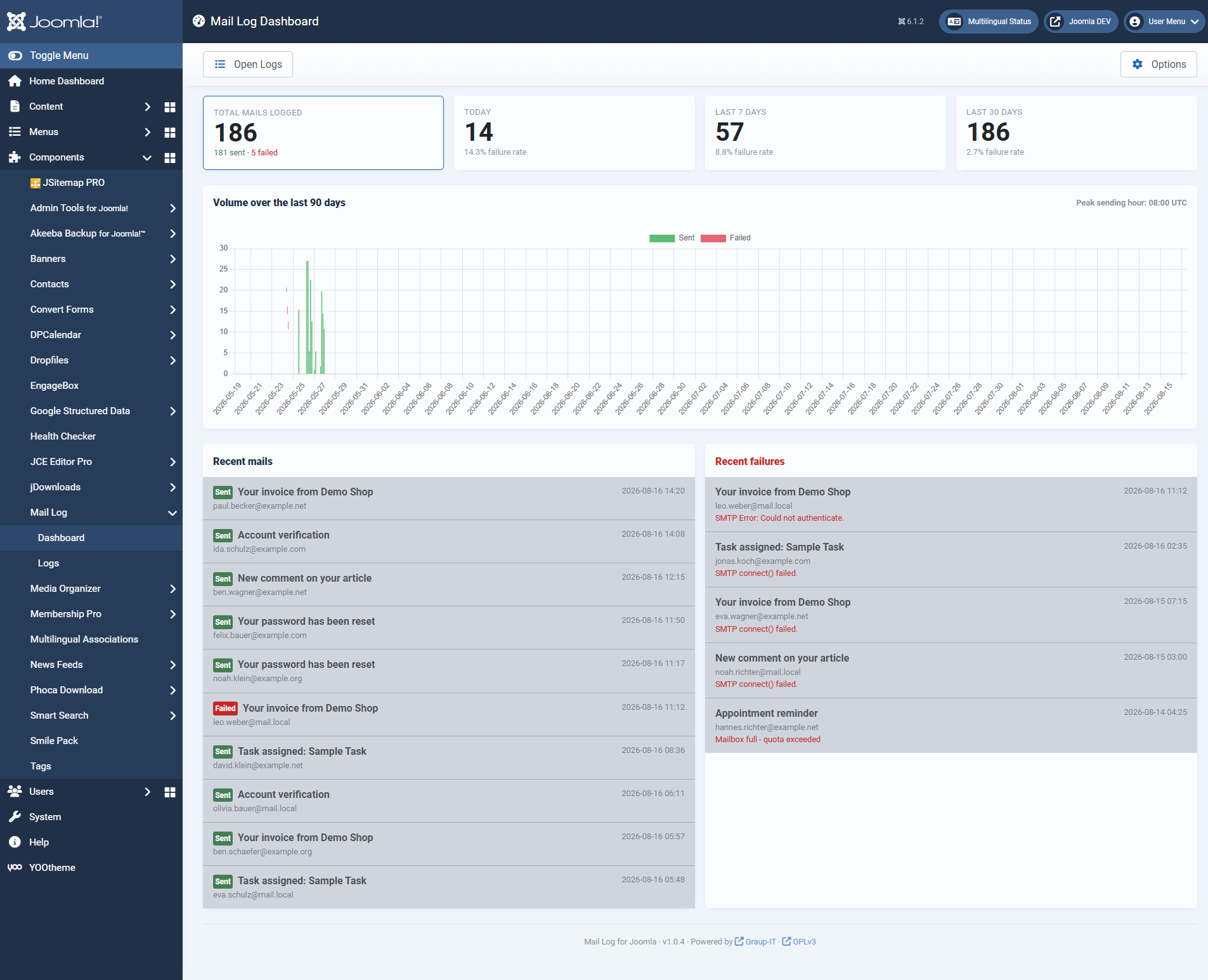 The dashboard sums up the mail volume: total, today's and weekly figures, error rates, an activity chart as well as the latest mails and errors.## What you use Mail Log for
- **Troubleshooting delivery.** You see immediately which mails failed, with the exact error message from the mail server.
- **Proof and audit.** Was the order confirmation, the registration mail, the notification really sent? The log answers that with timestamp, recipient and content.
- **Resending.** A lost mail can be delivered again with one click — to the original addresses or to a different one.
- **An overview of the volume.** The dashboard shows volume, peak times and error rates at a glance.
## Privacy is built in, not bolted on
A mail log inevitably stores potentially sensitive content. Mail Log is therefore frugal with the data out of the box:
**By default only a short excerpt of the message text is stored, no full body and no raw MIME message.**
- **Sensitive mails are recognised.** Messages with subject lines such as "reset password", "token" or "2FA" are classified as sensitive automatically and stored with metadata only by default — the reset link does not end up in the log.
- **Encryption without a key in the database.** If you choose encrypted storage, the key is derived from the Joomla secret and is not held in the database. A stolen database alone does not reveal the content.
- **Attachments outside the web root.** Captured attachments are copied to a protected directory that cannot be reached directly over the web.
- **Separate permissions for reading.** Whoever may see the list may not automatically read the message texts — that is a permission of its own.
- **Strictly local.** No external services are contacted. No data leaves your website.
## What Mail Log consists of
The package installs three extensions that belong together:
- **The component** `com_maillog` — the backend interface with dashboard, list and detail view.
- **The system plugin** `plg_system_maillog` — it intercepts the mail sending and writes the log entries. Without this plugin nothing is recorded.
- **The task plugin** `plg_task_maillog` — the maintenance tasks for the Joomla task scheduler (cleanup, statistics, migration).
## How to read on
If you are starting out, this order works best:
1. [Requirements and installation](https://docs.graup-it.de/books/mail-log-en/page/requirements-and-installation)
2. [Download key and updates](https://docs.graup-it.de/books/mail-log-en/page/download-key-and-updates)
3. [Quick start: the dashboard](https://docs.graup-it.de/books/mail-log-en/page/quick-start-the-dashboard)
4. [The log list](https://docs.graup-it.de/books/mail-log-en/page/the-log-list)
5. [Looking at an entry](https://docs.graup-it.de/books/mail-log-en/page/looking-at-an-entry)
6. [Body storage, encryption and sensitive content](https://docs.graup-it.de/books/mail-log-en/page/body-storage-encryption-and-sensitive-content)
Applies to version 1.0.5.
[Deutsche Fassung](https://docs.graup-it.de/link/76)
# Requirements and installation
Mail Log is installed as one package that deploys the component and both plugins together. This page lists the requirements and describes what is active after the installation.
## Requirements
Joomla
6.0 or newer
PHP
8.3 or newer
Database
MySQL 8.0.13+ or MariaDB 10.4+
PHP extension
`sodium` (for the optional encryption; present by default in PHP 8.3)
## Installation
1. Download the package `pkg_maillog-.zip`.
2. In the backend, open *System → Install → Extensions* and drag the ZIP file into the *Upload Package File* area.
3. After the upload, Mail Log is installed. You find it in the menu under *Components → Mail Log*.
There is a single ZIP file to install — the package contains the component and both plugins. Do not install the individual parts separately.
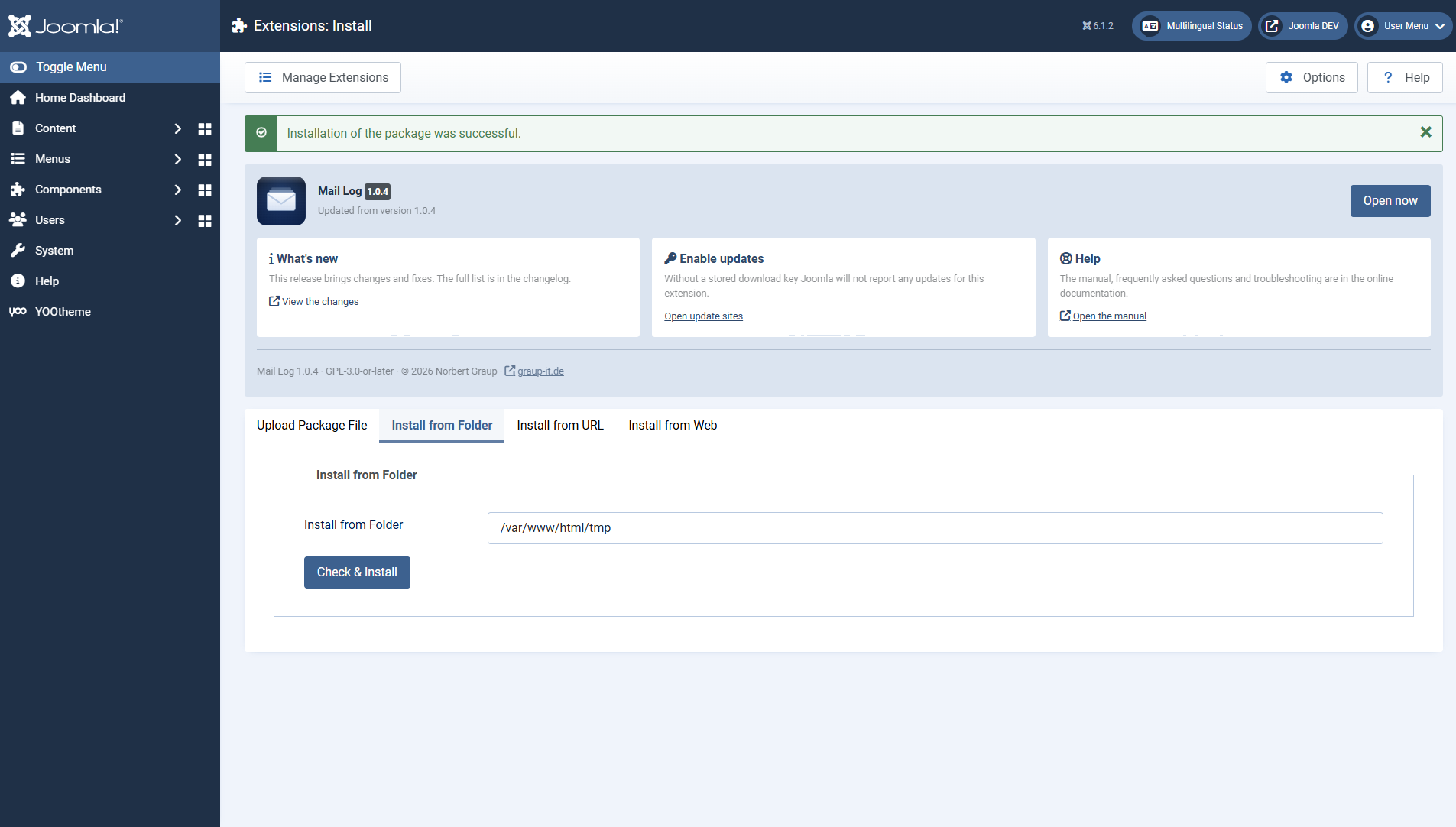 This panel greets you after the installation. It names the installed version and leads to the three things now due: the first test mail, the download key for updates, and the manual. After an update, the changelog takes the place of "Getting started".## What is active after the installation
So that Mail Log records from the start, the installation enables the **system plugin**automatically. From that moment on every mail sent is captured — you do not have to switch anything else on.
The **task plugin** is enabled as well but does nothing on its own. Its maintenance tasks only run once you set them up in the Joomla task scheduler (see the chapter [Maintenance: scheduled tasks](https://docs.graup-it.de/books/mail-log-en/page/maintenance-scheduled-tasks)).
## A first check
To verify that everything works, send a test email via *System → Global Configuration → Server → Send Test Mail*. Then open *Components → Mail Log*: the test message should appear as the most recent entry in the list.
## What is created in the database
The installation creates four tables (entries, recipients, daily statistics and a small table for throttling notifications). Uninstalling removes these tables and their data again. Captured attachment files in the protected directory are kept, however, so that uninstalling by accident destroys no evidence — delete that folder by hand if you need to.
Applies to version 1.0.5.
[Deutsche Fassung](https://docs.graup-it.de/link/77)
# Download key and updates
Mail Log receives updates through the official Joomla update mechanism. To allow your website to fetch them, enter your personal download key once.
## Entering the download key
1. Create your download key in your customer account on [graup-it.de](https://www.graup-it.de) (menu item *Download IDs*). One key applies per website and covers all extensions obtained through it.
2. In the backend, open *System → Update → Update Sites*.
3. Open the entry *Mail Log Update Site* and enter the key into the field *Download Key*.
4. Save.
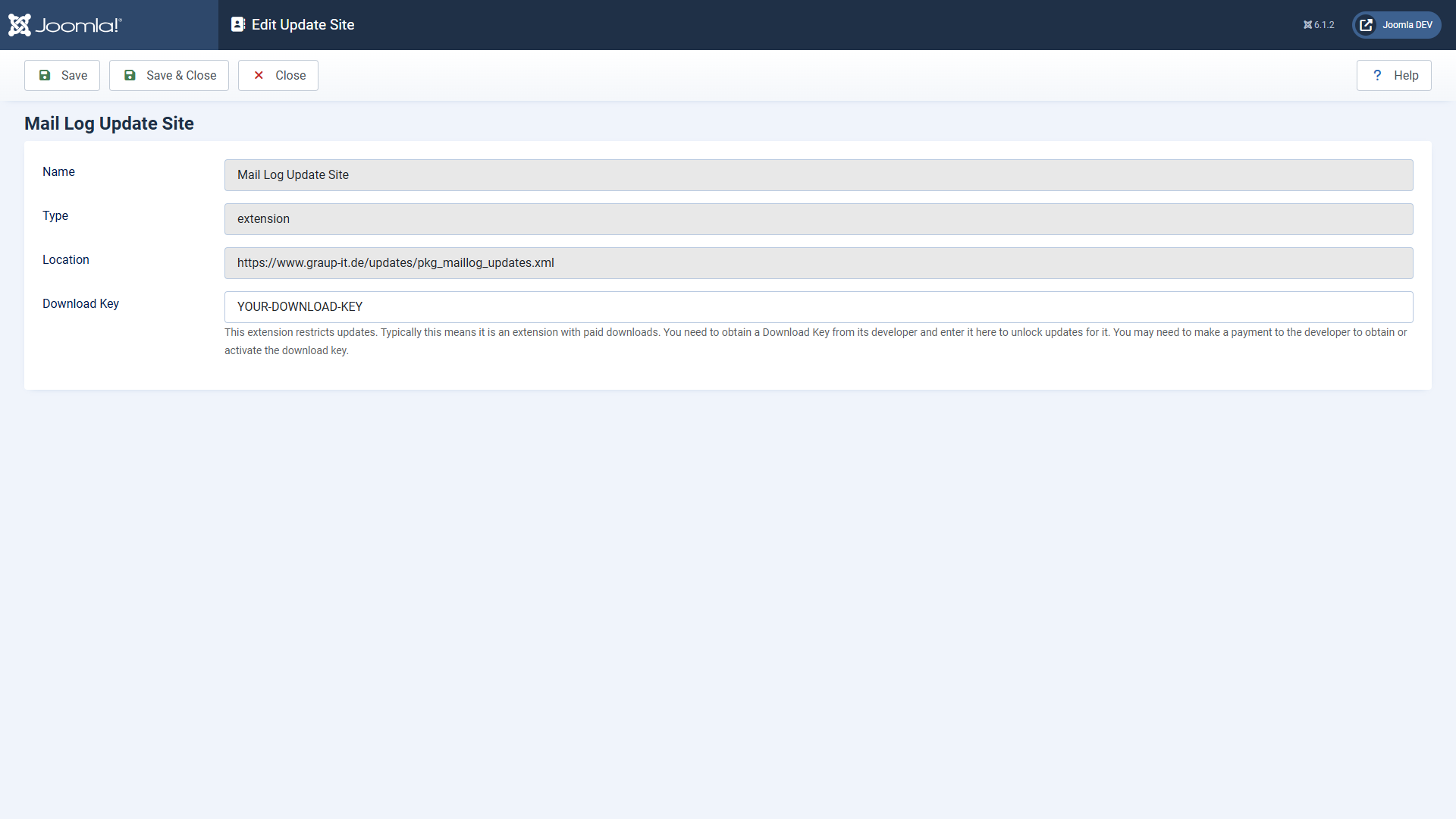 In the update sites you enter the download key at the Mail Log update site.
Make sure to paste the key **without leading or trailing spaces**. A space copied along with it makes the update fail with an error message ("URL rejected" or "Package download failed").
## Installing updates
1. Open *System → Update → Extensions*.
2. If a new version is available, Mail Log appears in the list. Select it and click *Update*.
3. Joomla downloads the package using your download key, verifies the checksum and installs the new version.
If Joomla finds no update although a new version exists, click *Check for Updates* first to refresh the cache.
## The manual route
You can also install any version by hand: download the ZIP and install it via *System → Install → Extensions*, just like the first installation. An update through the package overwrites the existing installation and keeps your settings and log data.
Applies to version 1.0.5.
[Deutsche Fassung](https://docs.graup-it.de/link/78)
# Quick start: the dashboard
Mail Log works immediately after the installation. This page shows how to produce the first entry and how to read the dashboard properly.
## Producing the first entry
Send any email through your website — easiest is the built-in test email under *System → Global Configuration → Server → Send Test Mail*. Then open *Components → Mail Log*. The message appears as the most recent entry.
## Reading the dashboard
 The dashboard is the start page of Mail Log.At the top there are four key figures:
Tile
Meaning
Emails in total
All logged mails, broken down into sent and failed.
Today
Mails of the current day with error rate.
Last 7 days
Weekly figure with error rate.
Last 30 days
Monthly figure with error rate.
Below them follow:
- **The activity chart** — sent and failed mails per day, stacked. Above the chart the peak hour of the period is shown.
- **Latest emails** — the most recent messages with status, subject and sender. One click opens the detail view.
- **Latest errors** — the most recent failed deliveries, so that you see problems immediately.
If the chart does not render (with JavaScript switched off, for instance), Mail Log shows the same figures as a table automatically. No information is lost.
## Where to go from here
The button *Open logs* takes you to the complete list. There you filter and search all entries — that is described in the chapter [The log list](https://docs.graup-it.de/books/mail-log-en/page/the-log-list).
Applies to version 1.0.5.
[Deutsche Fassung](https://docs.graup-it.de/link/79)
# The log list
The log list shows all logged mails. You reach it through the menu item *Mail Log* in the sidebar or via *Open logs* on the dashboard.
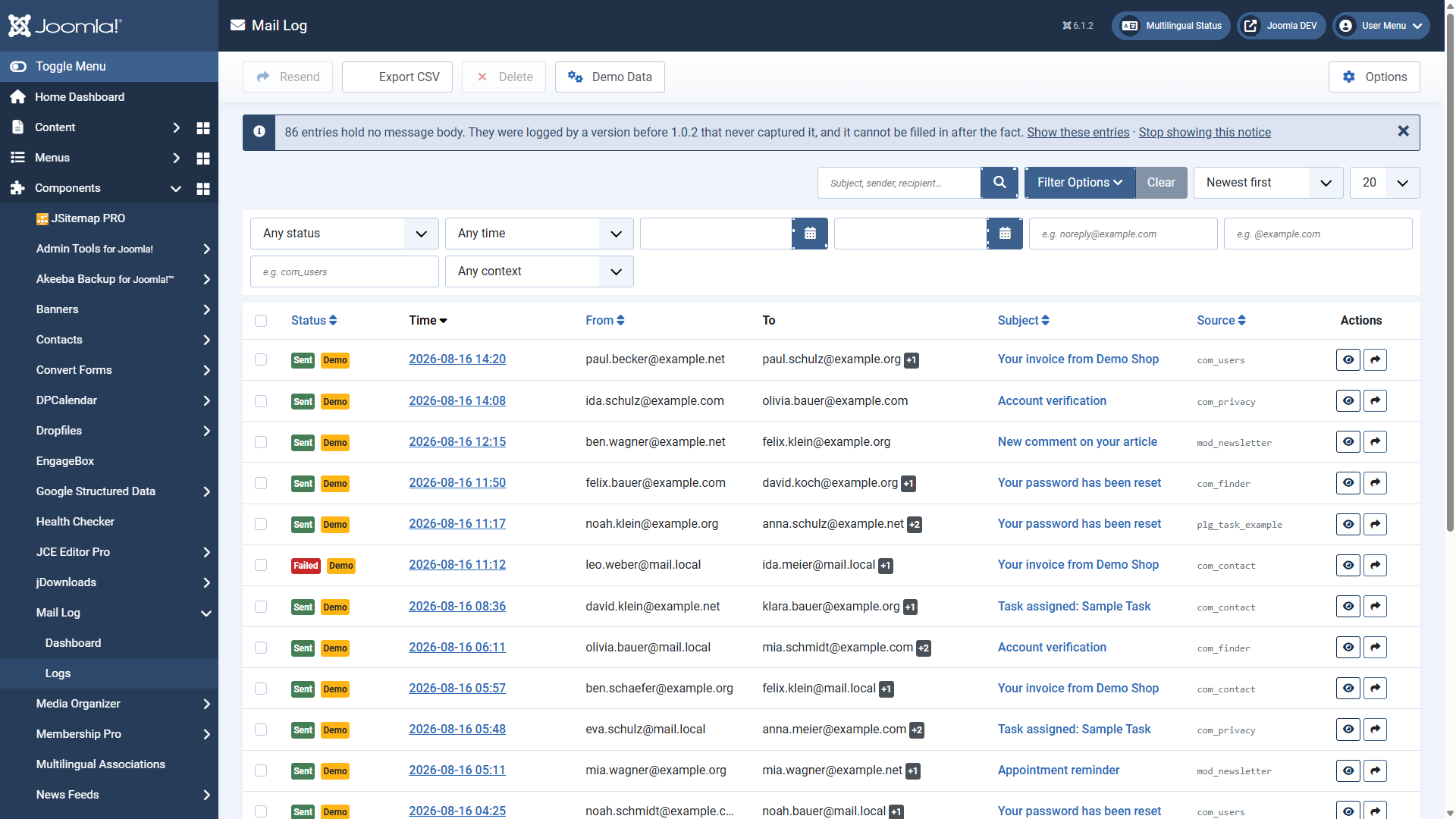 The log list with the filter options opened.## The columns
Column
Content
Status
*Sent*, *failed* or *skipped*. For errors a tooltip shows the error message.
Time
Time of sending.
Sender
The sender address.
Recipient
The first recipient; further ones are shown as "+n".
Subject
The subject line. Icons indicate attachments and resent mails.
Source
The extension that triggered the sending, where recognised (`com_users`, for example).
Actions
View the entry and — with the corresponding permission — resend it.
A yellow **demo** marker identifies test entries you created yourself (see below).
## Searching and filtering
Via *Filter options* you open the filter bar:
**Search**
Searches subject, sender, recipient, source and the reference ID.
**Status**
Sent only, failed only or all.
**Period**
Quick selection (today, 7/30/90 days) or your own from/to date.
**Sender contains** / **recipient contains**
Free-text partial matches on the addresses.
**Source extension**
Restrict to one triggering extension.
**Context**
Frontend, backend, CLI or API — depending on where the mail originated.
The column headers *status*, *time*, *sender*, *subject* and *source* are sortable. The page size is set at the foot of the list.
## Several entries at once
Use the checkboxes to mark several entries and then apply a toolbar action — *Resend* or *Delete* (each requiring the matching permission). Both actions ask for confirmation first.
## Exporting
The button *Export CSV* outputs the currently filtered list as a CSV file — completely, not just the page displayed. The body content is deliberately not included in the export; details under [Permissions, export and privacy](https://docs.graup-it.de/books/mail-log-en/page/permissions-export-and-privacy).
## Demo data for trying things out
With the permission *manage demo data* you create realistic-looking test entries through the toolbar, to try out the list, the dashboard and the detail view. All demo entries carry the demo marker and can be removed again with one click.
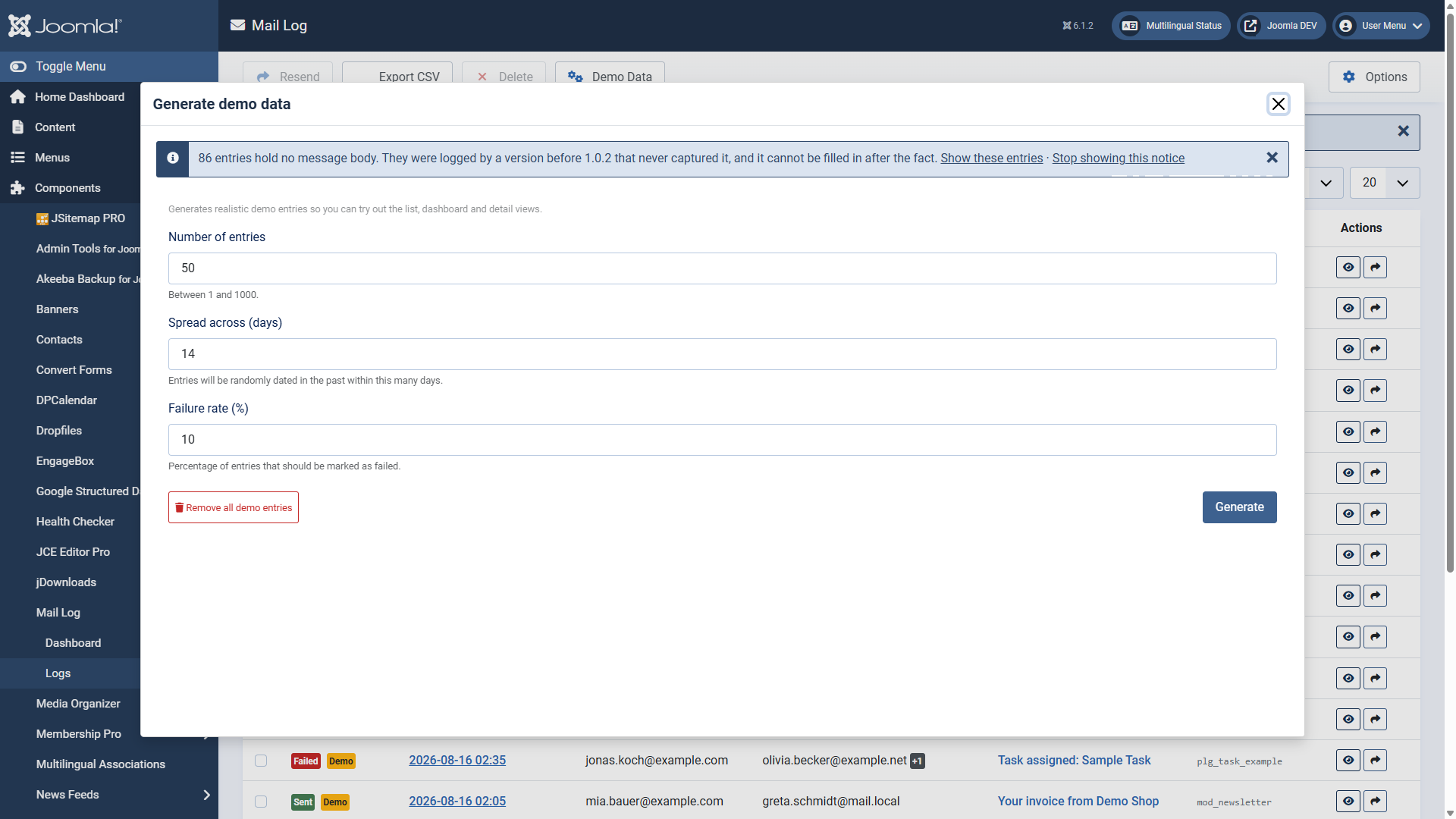 The demo dialogue: set the number, period and error rate of the test entries.Applies to version 1.0.5.
[Deutsche Fassung](https://docs.graup-it.de/link/80)
# Looking at an entry
Clicking an entry — on the time, the subject or the view button — opens the detail view with everything recorded about that mail.
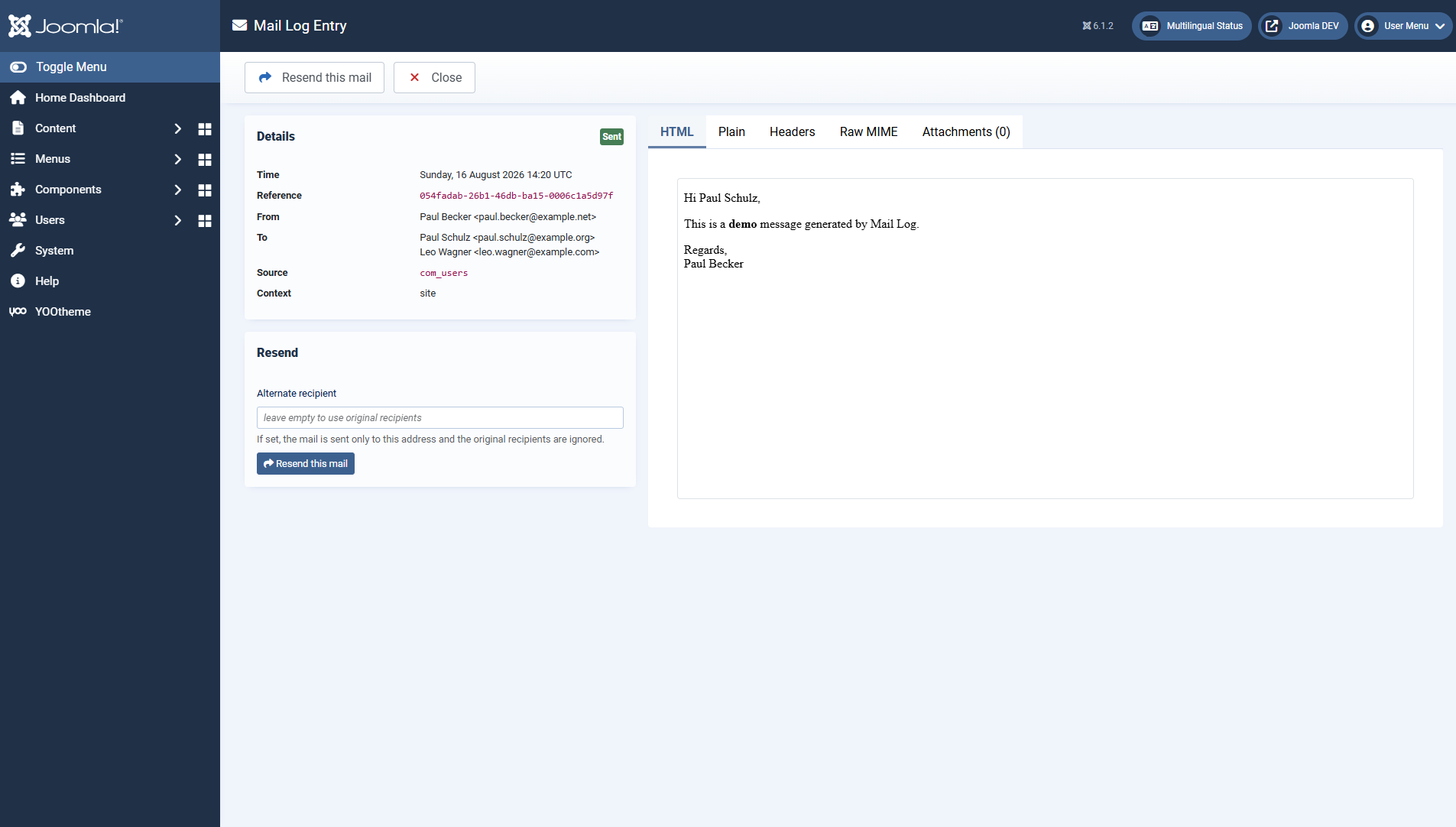 The metadata on the left, the content in several tabs on the right.## The metadata
The left column sums up what is known about the mail:
- status, time and a unique **reference** ID
- sender as well as **to**, **CC**, **BCC** and **reply-to**
- **source** (triggering extension) and **context** (frontend/backend/CLI/API)
- the **IP address** and the logged-in **user**, where available
- for errors, the full **error message** from the mail server
- a notice if the text was stored **truncated**
## The content tabs
Tab
Content
HTML
The HTML text, shown in an isolated preview (more on this below).
Text
The plain text version of the message.
Headers
The custom headers of the message.
Raw MIME
The exact RFC822 message, if storing it is enabled.
Attachments (n)
The captured attachments with name, type and size, ready to download.
The HTML text is displayed in an isolated frame (`sandbox`): scripts in the mail HTML are not executed, and the content cannot influence the backend. That way you can look at foreign messages safely.
## When there is no text
Depending on the settings, the body is deliberately not stored or stored only in part. In those cases a notice explains why:
- *"The body is stored encrypted and was decrypted for display."* — you see the plain text; in the database it is encrypted.
- *"For this entry only metadata is stored."* — typical for sensitive mails such as password resets.
- *"For this entry only the first 4 KB of the body are stored."* — the default stores a short excerpt; the size shown corresponds to the configured excerpt size.
Reading the bodies requires the permission *view mail content*. Without it you see the metadata but not the text.
## Downloading
With the permission *download attachments and .eml* you download the raw message as an **.eml** file through the toolbar (to open it in a mail client) as well as individual attachments from the tab of the same name.
## The sending chain
If a mail was resent, Mail Log links the new entry to the original one. The detail view shows this chain, so you can trace which sending came from which.
Applies to version 1.0.5.
[Deutsche Fassung](https://docs.graup-it.de/link/81)
# Resending a mail
Mail Log can deliver a logged message again. That is useful when a mail got lost, ended up in spam or went to the wrong address. Resending uses the stored content and goes through the normal Joomla mailer — a new log entry is created.
## How to resend
- **From the list:** the *Resend* button in the action column, or mark several entries and use the toolbar action *Resend*.
- **From the detail view:** the section *Resend* with the button *Resend this email*.
 In the detail view you can optionally give a different recipient address.## To a different address
In the detail view you can enter an **alternative recipient address**. If it is set, the mail goes to that one address only; the original recipients are ignored. If the field stays empty, subject, text and attachments go to the original recipients.
Resending requires the permission *resend mails*. Every resend creates a log entry of its own that refers back to the original.
## When resending is not possible
So that nothing unexpected happens, Mail Log refuses to resend in some cases with a clear message:
- **Only metadata stored.** If the mail was classified as sensitive (a password reset, say) and stored with metadata only, its text is not available and cannot be sent again.
- **Text cannot be reconstructed.** If the body is encrypted and the key is not available, or if it was stored truncated, Mail Log says so instead of sending an empty mail.
## Protection against misuse
Two limits prevent accidental mass sending and misuse:
- Between two resends of the same mail there is a **waiting time of 30 seconds**.
- A single mail can be resent **at most 20 times**.
Both values are deliberately fixed, so that a compromised account cannot misuse Mail Log as a spam cannon.
Applies to version 1.0.5.
[Deutsche Fassung](https://docs.graup-it.de/link/82)
# Body storage, encryption and sensitive content
How much of the message text Mail Log stores is up to you. This page explains the storage modes, the encryption and the special treatment of sensitive mails. All settings are found in the *options* under the tabs *body storage*, *raw MIME* and *sensitive content*.
Changes to the storage mode only affect **new** entries. Mails already stored stay as they are.
## The storage modes for the body
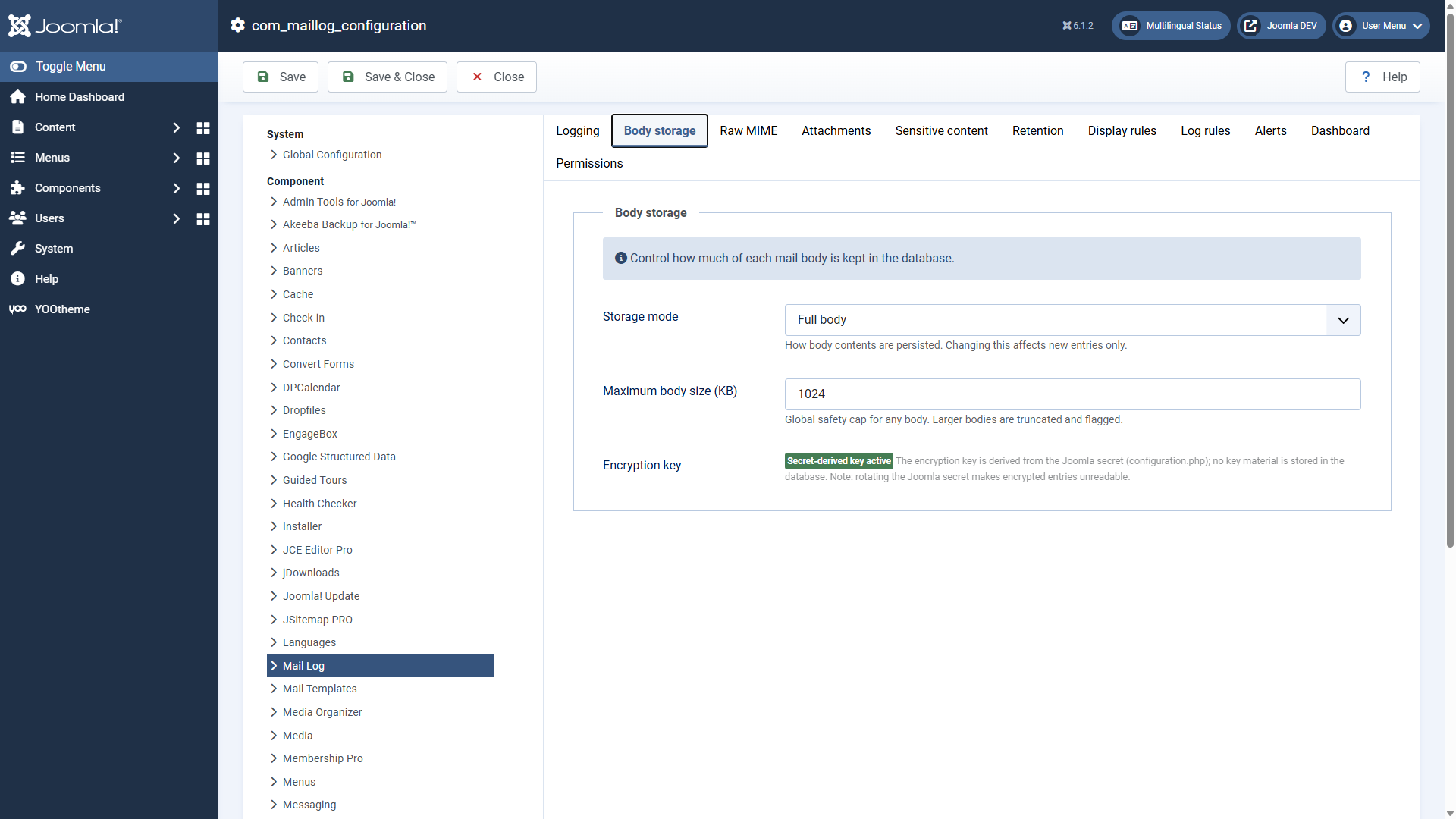 The tab *body storage* controls how much of the text is kept.
Mode
What is stored
**Metadata + first N KB**
*(default)*
Only the first kilobytes of the text. Enough for an impression without storing long messages in full. You set the size with *body size to keep (KB)* (default 4 KB).
**Full body**
The complete text in plain.
**Full, encrypted**
The complete text, encrypted in the database (see below).
**Full, deleted automatically after N days**
The complete text, but the maintenance task removes it again after the configured period and keeps the metadata only.
**Metadata only**
No text at all — only sender, recipient, subject, status and time.
In addition, *maximum body size (KB)* limits every text as a global safety ceiling; larger bodies are truncated and marked as truncated in the detail view.
## Raw MIME
Independently of the body mode, the tab *raw MIME* lets you store the exact RFC822 message as it was sent. That allows clean **.eml** downloads for an audit. Because the raw MIME contains the complete plain text, this option is **switched off out of the box**. It can be encrypted as well.
## Encryption
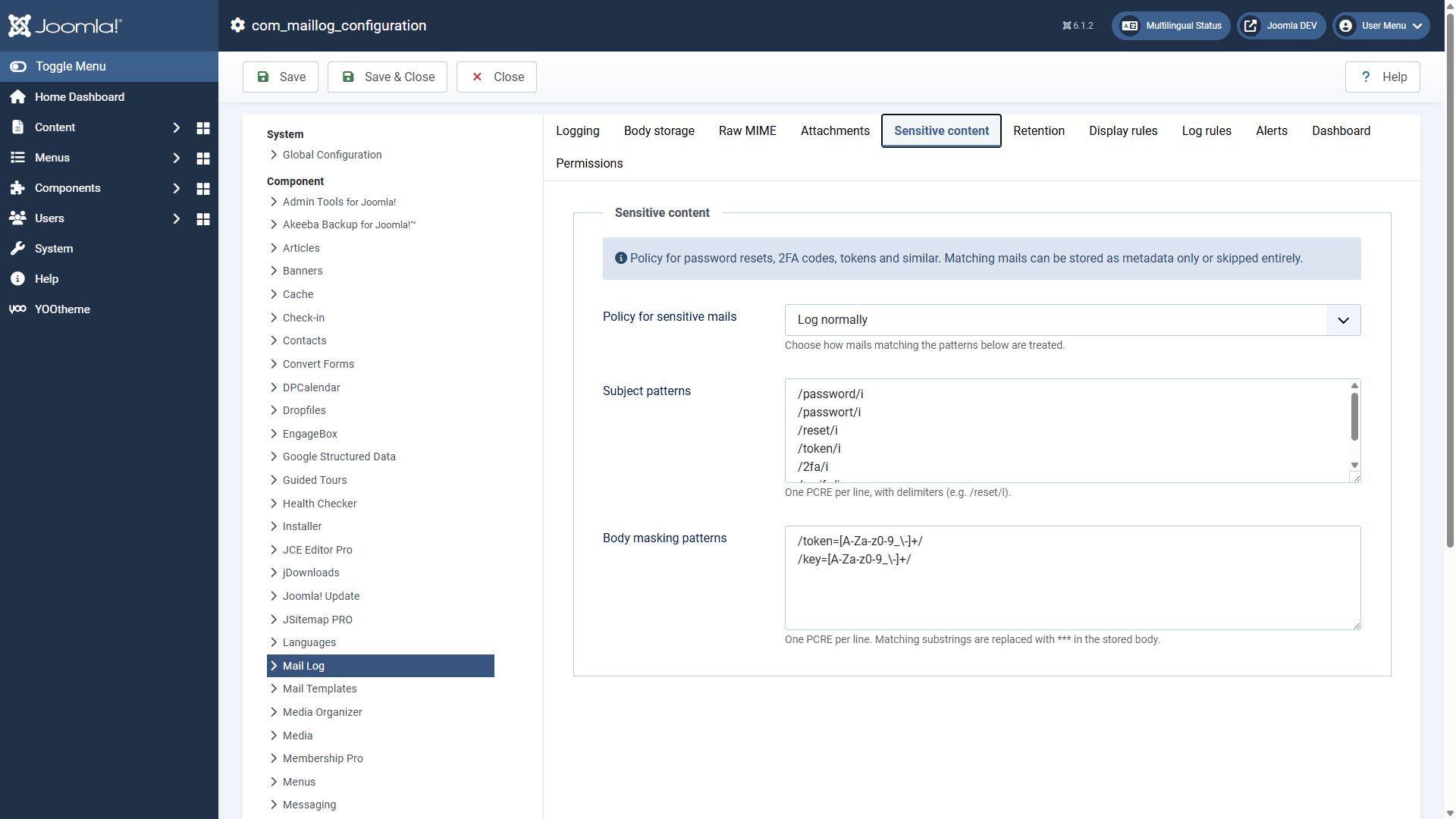 The tab *sensitive content* with the subject and masking patterns.Mail Log protects encrypted bodies and MIME messages with a modern method (AES-256-GCM or XChaCha20-Poly1305). What matters is where the key comes from:
The key is derived from the **Joomla secret** (in your `configuration.php`) and is **not held in the database**. An attacker who captures only the database therefore cannot decrypt the content.
The flip side: if you change the Joomla secret, previously encrypted entries can no longer be read. The secret is part of the core of your Joomla installation that needs protecting anyway — treat it accordingly.
The field *encryption key* in the options is, as of this version, purely a **status display**. You do not have to enter or generate anything. If it shows a "legacy key", it comes from an earlier version; the maintenance task *migrate legacy-encrypted bodies* converts such entries to the new method and removes the legacy key afterwards by itself.
## Sensitive mails
Some mails should never end up in the log in plain text — password resets, confirmation links, one-time codes. Mail Log recognises them by the subject line and treats them separately.
The tab *sensitive content* holds two pattern lists for this (one regular expression per line) and one policy:
**Subject patterns**
If the subject matches one of the patterns, the mail counts as sensitive. Out of the box there are patterns for `password`, `passwort`, `reset`, `token`, `2fa`, `verify` and `verifizier`.
**Handling of sensitive mails**
*Metadata only* (default, no body, no attachments), *log normally* or *do not log at all*.
**Body masking patterns**
Additional patterns whose matches are replaced by `***` in the stored text — `token=…` or `key=…`, for example.
With the default settings a password reset link therefore does not end up in the log, without you having to set anything up.
Applies to version 1.0.5.
[Deutsche Fassung](https://docs.graup-it.de/link/83)
# Attachments
On request Mail Log keeps the attachments of sent mails, so that you can later trace exactly what was sent. The settings for this are in the *options* in the tab *attachments*.
## How attachments are captured
If *capture attachments* is active, Mail Log copies every attachment into a protected directory while sending and records it in the log entry. In the detail view the attachments appear in the tab *attachments* with name, type and size and can be downloaded individually (the permission *download attachments and .eml* being required).
## Where attachments live — outside the web root
Out of the box, attachments are stored **outside the publicly reachable area** (in the Joomla log directory under `com_maillog/attachments`). They are therefore not retrievable directly through a URL, but only through the component with a permission check.
With *storage path* you can set a location of your own. If the field stays empty, the safe default path applies. For additional protection Mail Log places lock files (`.htaccess`, `web.config`) in the attachment directory.
**Coming from a very early version?** Earlier builds stored attachments inside the web root. After the update Mail Log still points at the old location so that nothing is lost. The maintenance task *move attachment files* moves the files to the safe default location once and clears the old reference afterwards.
## Limits and storage budget
Option
Default
Meaning
Capture attachments
Yes
Copy attachments to disk while sending.
Storage path
empty (= safe default)
Where the attachments are kept.
Max. per file (MB)
10
Larger attachments are skipped; their metadata (name, type, size) still stays in the log.
Total storage budget (MB)
500
Once the budget is used up, new attachments are no longer copied until the next cleanup.
## Cleaning up
How long attachment files are kept is controlled by *attachment retention (days)* in the tab *retention* (default 30 days). The maintenance task *clean up attachment files*removes older files and those whose log entry has already been deleted. How to set up this task is described in the chapter [Maintenance: scheduled tasks](https://docs.graup-it.de/books/mail-log-en/page/maintenance-scheduled-tasks).
## Safety of file names
Mail Log sanitises every attachment file name before storing it and defuses potentially executable extensions (`.php`, for instance) by appending `.bin`. Together with the storage location outside the web root, this rules out an attachment being executed on the server.
Applies to version 1.0.5.
[Deutsche Fassung](https://docs.graup-it.de/link/84)
# Log rules and display rules
Mail Log has two kinds of rules that are easy to confuse but do very different things. Both are found in the *options*.
**Log rules** decide which mails are stored at all.
**Display rules** only decide which stored mails appear in the list.
## Log rules: what is never stored in the first place
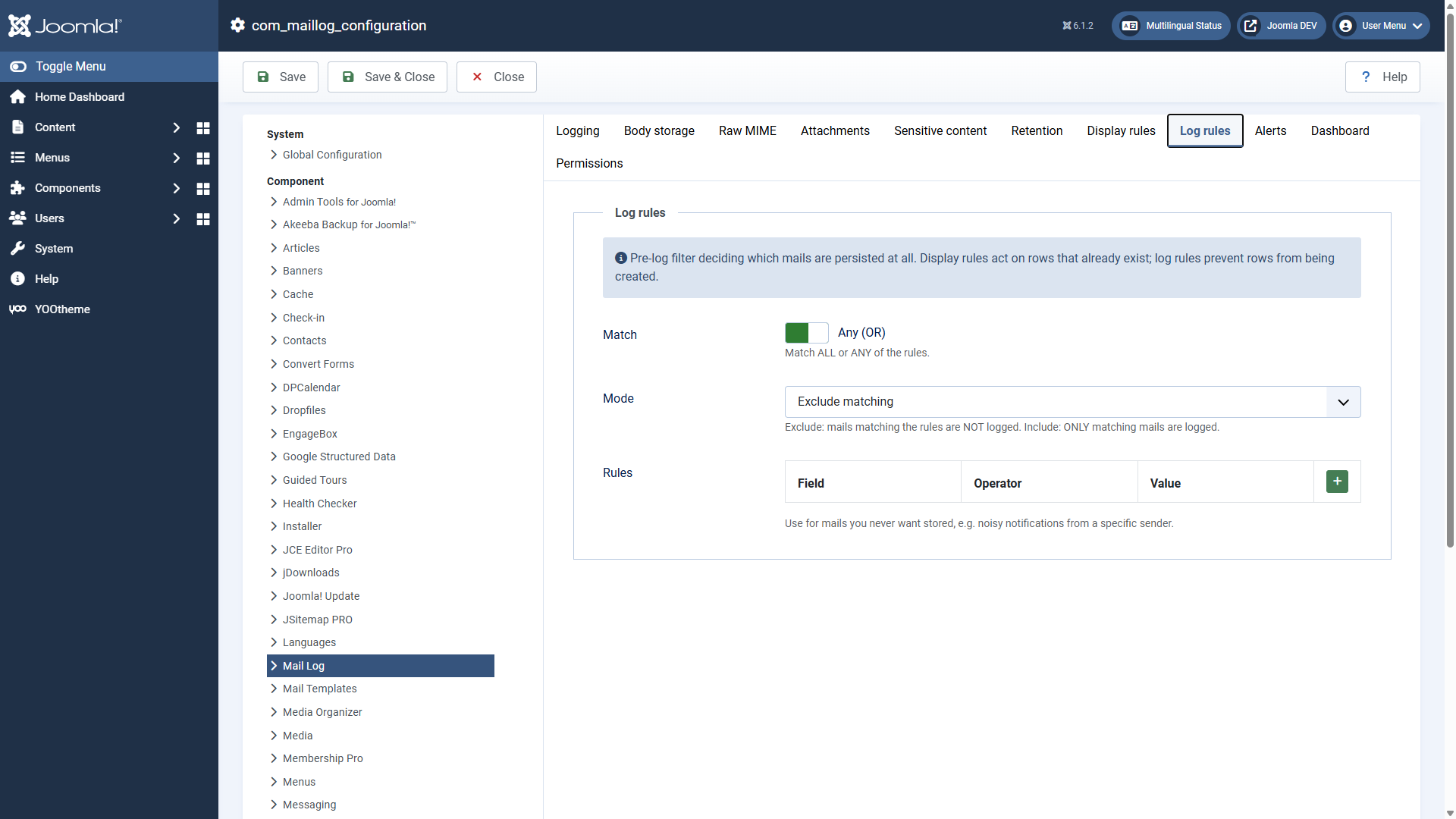 Log rules filter before anything is stored.Log rules take effect **before** anything is written to the database. That keeps uninteresting bulk mail out of the log — noisy notifications from a particular service, for instance. What a log rule excludes never becomes an entry.
Two settings determine the behaviour:
**Mode**
*Exclude matches* — matching mails are NOT logged. *Include matches only* — ONLY matching mails are logged, everything else is discarded.
**Match**
Whether a mail has to satisfy *all* rules (AND) or *any* of them (OR).
## Display rules: what is hidden in the list
Display rules take effect **after** storing. Matching entries are merely hidden in the list and on the dashboard — nothing is deleted. Change the rule and the entries reappear. Useful for tidying up an overloaded view without losing data.
## How a rule is put together
Both rule types are built from the same parts. Every rule checks a **field** with an **operator** against a **value**:
**Field**
Subject, body, recipient or sender.
**Operator**
contains, does not contain, equals, does not equal, starts with, ends with — for display rules additionally is empty / is not empty.
**Value**
The text to compare against.
## Examples
- **Do not log cron job mails:** log rule, mode *exclude matches*, field *sender*, operator *contains*, value `cron@`.
- **Log order mails only:** log rule, mode *include matches only*, field *subject*, operator *contains*, value `order`.
- **Hide internal test mails:** display rule, field *recipient*, operator *ends with*, value `@internal.example`.
The mode *include matches only* for log rules is sharp: everything that does not match is not logged. Use it deliberately and check afterwards that the mails you want still reach the log.
Applies to version 1.0.5.
[Deutsche Fassung](https://docs.graup-it.de/link/85)
# Notifications when delivery fails
Mail Log can warn you actively when a delivery fails — so you learn about a mail problem without having to keep looking into the log. The settings are in the *options* in the tab *notifications*.
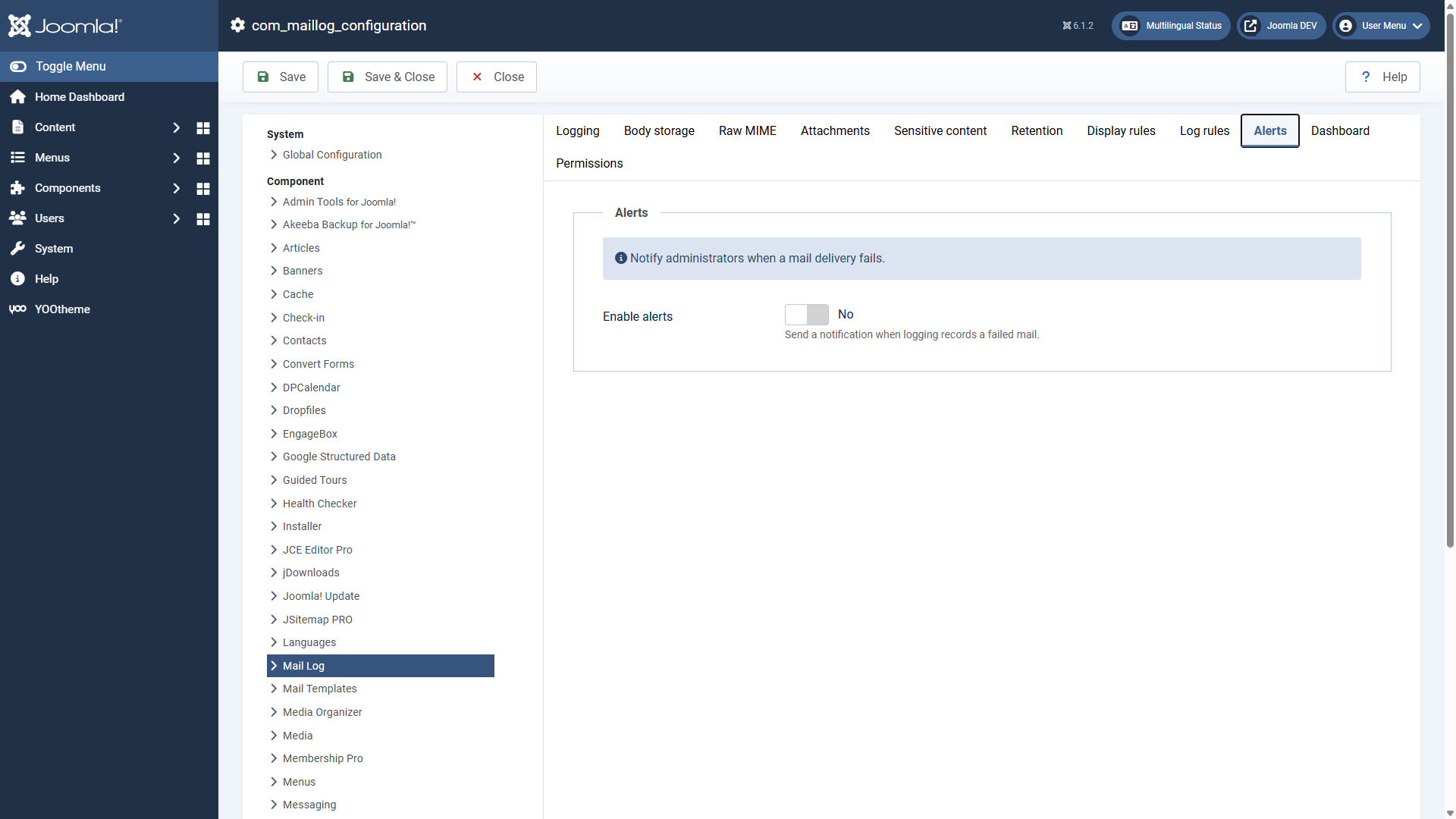 The tab *notifications*.## Enabling and choosing recipients
Option
Default
Meaning
Enable notifications
No
Main switch. Off by default.
Notify super admins
Yes
Send to all super users who have enabled *receive system emails* in their profile.
Additional recipients
empty
Further addresses, one per line or separated by commas.
Also as a Joomla private message
No
Additionally files the alert as an internal message (com\_messages) for every super user.
## Not too many messages: the throttle
So that a run of failures (a mail server that has gone down, say) does not flood you with hundreds of warnings, Mail Log combines alerts.
With *throttle window (minutes)* (default 30) you set the minimum gap between two alerts. Further errors within that window are counted but trigger no further message. So you get a warning, not an avalanche.
## No loop
The warning mail itself is not treated as a new error when it is sent — Mail Log deliberately prevents one notification from triggering another. That way no alert loop can arise.
## Recommendation
On production sites it is worth switching notifications on and keeping at least the super admins as recipients. That way you notice a delivery outage within minutes instead of at the next customer complaint.
Applies to version 1.0.5.
[Deutsche Fassung](https://docs.graup-it.de/link/86)
# Configuration reference
All settings are reached through the **Options** button at the top right of every Mail Log view. This page lists every option with its default. Some areas are described in more detail in chapters of their own; here you find the complete overview.
The defaults are deliberately frugal with data and suitable for most websites. Especially in the areas *body storage* and *sensitive content*, change only what you have understood.
## Logging
Option
Default
Meaning
Enable logging
Yes
Main switch. Off = no new entries; existing ones stay accessible.
Log failed mails
Yes
Also record mails the mailer reports as not sent.
Log contexts
Frontend, backend, CLI, API
Where logging happens. The four areas can be chosen independently.
Detect source extension
Yes
Determines the triggering extension (best effort). Switching it off saves a minimal amount of work per mail.
## Body storage
Option
Default
Meaning
Storage mode
Metadata + first N KB
How much text is kept (see the chapter *Body storage, encryption and sensitive content*). Affects new entries only.
Body retention (days)
30
Only with "full, deleted automatically": after this period the task removes the text.
Body size to keep (KB)
4
Only with "metadata + first N KB": how many kilobytes from the start are stored.
Maximum body size (KB)
1024
Global ceiling. Larger bodies are truncated and marked.
Encryption key
—
Purely a status display. The key is derived from the Joomla secret; there is nothing to enter.
## Raw MIME
Store raw MIME
**No**
Keep the exact RFC822 message (for clean .eml downloads). Off out of the box for privacy reasons.
Encrypt raw MIME
No
Apply the same encryption as for bodies to the MIME message.
## Attachments
Capture attachments
Yes
Copy every attachment to disk while sending.
Storage path
empty (= safe default outside the web root)
Where the attachments are kept.
Max. per file (MB)
10
Larger attachments are skipped; the metadata remains.
Total storage budget (MB)
500
When exceeded, new attachments are skipped until the next cleanup.
## Sensitive content
Handling of sensitive mails
Metadata only
How mails matching the subject patterns are treated: metadata only, normally, or not logged at all.
One regular expression per line. If the subject matches, the mail counts as sensitive.
Body masking patterns
`/token=…/`, `/key=…/`
Matches are replaced by `***` in the stored body.
## Retention
Entry retention (days)
180
Older entries are removed by the task "clean up logs". 0 = no age-based cleanup.
Maximum number of entries
0 (off)
FIFO ceiling: the oldest entries are removed as soon as the limit is exceeded.
Attachment retention (days)
30
Older attachment files are removed by the attachment cleanup task.
## Display rules
Match
All (AND)
Whether a row has to satisfy all or any of the rules to be hidden.
Rules
empty
Hide matching entries from the list and the statistics without deleting them. See the chapter *Log rules and display rules*.
## Log rules
Match
Any (OR)
Whether a mail has to match all or any of the rules.
Mode
Exclude matches
Exclude matches, or include matches only.
Rules
empty
Decide before storing which mails are logged at all.
## Notifications
Enable notifications
No
Warn when a delivery fails.
Notify super admins
Yes
To super users with system emails enabled.
Additional recipients
empty
Further addresses.
Throttle window (minutes)
30
Minimum gap between two alerts.
Also as a Joomla private message
No
File the alert internally (com\_messages) as well.
## Dashboard
Statistics mode
Live
*Live* calculates from the entries on every view. *Task* uses pre-aggregated daily figures maintained by the statistics task — faster with very many entries.
Default period
Last 30 days
Preset period of the chart.
Show latest mails
10
How many entries the dashboard lists show.
## Permissions
The standard Joomla tab. Which action needs which permission is described in the chapter [Permissions, export and privacy](https://docs.graup-it.de/books/mail-log-en/page/permissions-export-and-privacy).
Applies to version 1.0.5.
[Deutsche Fassung](https://docs.graup-it.de/link/87)
# Maintenance: scheduled tasks
Mail Log comes with maintenance tasks that run through the Joomla task scheduler. They keep the database lean, maintain the statistics and carry out one-off conversions. None of these tasks runs by itself — you set them up in the task scheduler.
## Setting up a task
1. Open *System → Manage → Scheduled Tasks* and click *New*.
2. In the selection dialogue, choose one of the Mail Log task types (see the table).
3. Give it a name, set the interval under *execution rules* (daily, for example) and save.
4. Enable the task. For scheduled tasks to actually run, the Joomla scheduler has to be triggered — by a website visit (the default) or by a real cron job.
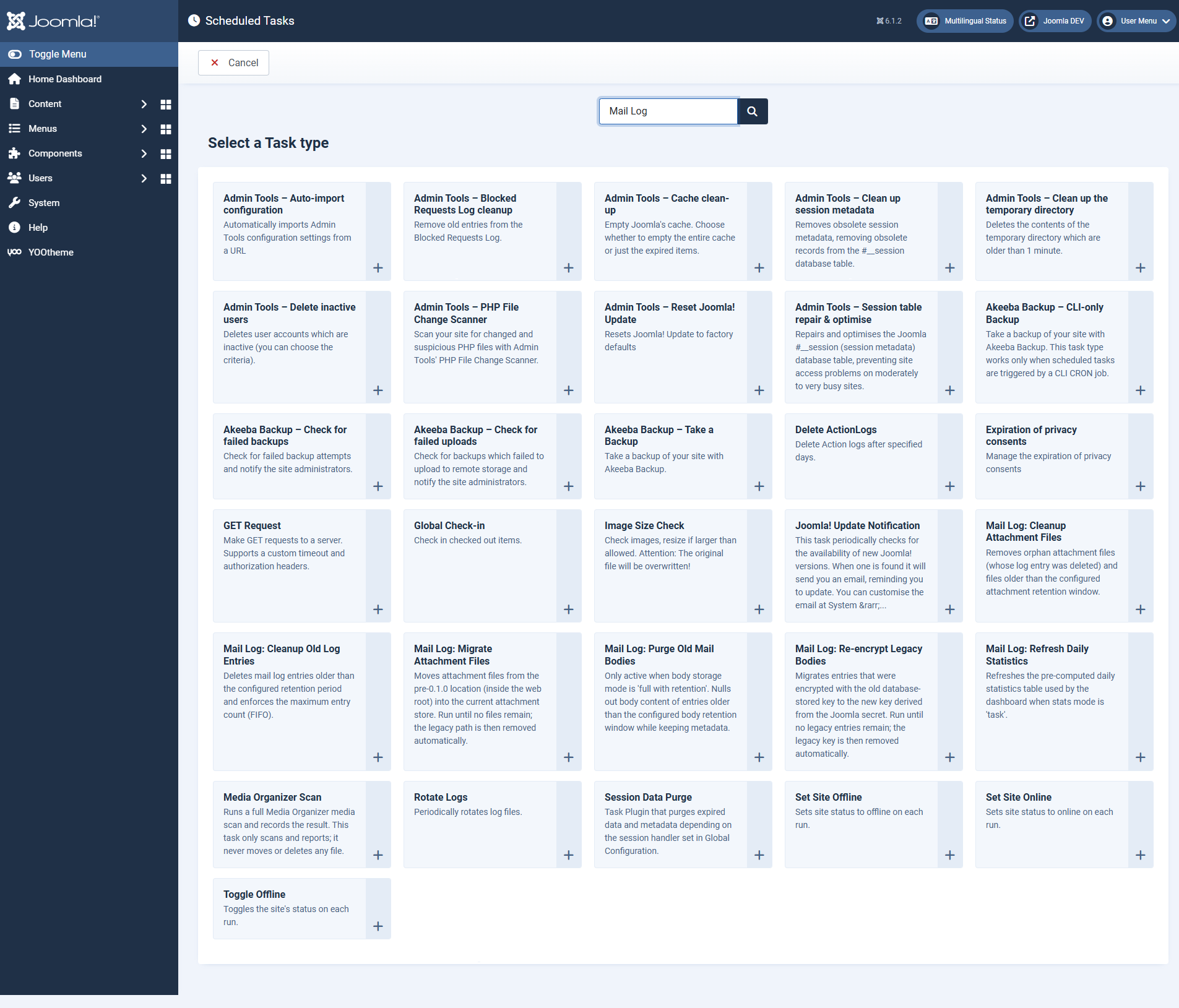 The Mail Log task types in the task scheduler.## The task types
Task
Purpose
**Clean up old log entries**
Deletes entries older than the configured retention and enforces the maximum number of entries (FIFO). Batched, so that even large tables are processed gently.
**Clean up attachment files**
Removes orphaned attachment files (whose entry was deleted) and files older than the attachment retention.
**Update daily statistics**
Maintains the pre-aggregated daily figures for the dashboard. Only needed if you have set the statistics mode to *task*.
**Clean up old mail bodies**
Resets the text of old entries and keeps only the metadata. Only effective with the storage mode "full, deleted automatically after N days".
**Migrate legacy-encrypted bodies**
A one-off conversion: re-encrypts entries from an earlier version to the current method and removes the old key once nothing depends on it any more. Run it until no legacy entries are reported.
**Move attachment files**
A one-off conversion: moves attachments from an old storage location (inside the web root) to the safe default location. Run it until no files are left.
## Recommendation for regular operation
For most websites two daily tasks are enough:
- **Clean up old log entries** — keeps the table within bounds.
- **Clean up attachment files** — only needed if you capture attachments.
The two migration tasks (*migrate legacy-encrypted bodies*, *move attachment files*) are only needed if you updated from a very early version. Once the migration is done you can disable or delete them. *Update daily statistics* and *clean up old mail bodies* only make sense with the matching settings.
All cleanup tasks work in blocks and with clear upper limits, so that they do not overload the server even with very large data sets.
Applies to version 1.0.5.
[Deutsche Fassung](https://docs.graup-it.de/link/88)
# Permissions, export and privacy
Mail Log stores potentially sensitive communication data. This page sums up who may do what, what is exported and which data is stored at all.
## Permissions
You assign the permissions as with every Joomla component under *Options → Permissions* per user group. Mail Log deliberately separates viewing from reading the content:
Permission
Allows
**View Mail Log**
Open the dashboard and the list — the metadata, but not necessarily the message texts.
**View mail content**
Read the full bodies (HTML, text, MIME). Granted separately because bodies can contain sensitive data.
**Download attachments and .eml**
Download attached files and the raw message.
**Resend mails**
Deliver logged mails again.
**Delete entries**
Remove log entries.
**Manage demo data**
Create and delete test entries.
Every action checks its permission server-side — it is not just the interface hiding buttons. So an action cannot be forced through a direct call either. An editor with "view Mail Log" but without "view mail content" sees the list but no texts.
Recommendation: grant *view mail content* and *download attachments and .eml*sparingly — ideally only to the people who actually investigate delivery problems.
## Export
The button *Export CSV* in the list outputs the currently filtered selection as a CSV file. The export contains ID, time, status, sender, recipient, subject, source, context and the error message — but **not** the message text. Whoever needs bodies opens the entry or downloads the .eml file (with the corresponding permissions).
Free-text fields are prepared in the CSV so that spreadsheet programs do not interpret them as a formula by accident. The export can therefore be opened safely in Excel or LibreOffice.
## Which data is stored
Per mail, Mail Log stores sender and recipients, subject, time and status, the context as well as — where available — the IP address and the user ID of whoever triggered it. How much of the text is kept is up to you through the storage mode; out of the box that is a short excerpt only, and sensitive mails are stored with metadata only.
## Privacy notes for operation
- **Limit retention.** Set an entry retention (default 180 days) and set up the cleanup task, so that old data does not lie around indefinitely.
- **Store frugally.** For most purposes the default "metadata + excerpt" is enough. Full or raw storage only if you really need it.
- **Encrypt if you keep full bodies.** Encrypted storage keeps the key outside the database.
- **Keep permissions narrow.** Separate reading the content from merely viewing the list.
- **Access and erasure requests.** For data subject requests, filter the list by the address and export or delete selectively.
All data stays on your server — Mail Log contacts no external services.
Applies to version 1.0.5.
[Deutsche Fassung](https://docs.graup-it.de/link/89)
# Common questions and troubleshooting
Answers to common questions and the quickest routes to fixing things.
## No mails are logged at all
- Check whether the **system plugin** `plg_system_maillog` is enabled (*System → Plugins*). Without this plugin nothing is captured.
- Is *enable logging* set to yes in the options?
- Is the context selected in which the mail originates? A mail from a cron run is only captured if *CLI* is enabled.
- Do **log rules** exclude the mail? Check the mode *include matches only* in particular.
If hooking into the mailer ever fails (after a major Joomla update, say), Mail Log reports that in the backend with a warning and writes it to the Joomla log — so you notice it instead of quietly getting no more entries.
## I see the list but no message texts
To read the bodies you need the permission *view mail content* — it is deliberately separate from merely viewing. Have it assigned to your group under *Options → Permissions*.
## An entry shows "metadata only" instead of text
That is usually intentional: the mail was classified as sensitive (a password reset, for example) and therefore stored without a body. Alternatively the default mode stores only a short excerpt. You control both in the options under *body storage* and *sensitive content* — changes affect new entries.
## "Resend" is not possible
If the mail was stored with metadata only or truncated, the full text is missing and the mail cannot be reconstructed. For encrypted bodies the Joomla secret must be unchanged. If the message was about a waiting time: there are 30 seconds between two sendings of the same mail, and at most 20 repetitions are possible.
## The update is not found or fails
- Click *Check for Updates* first to refresh the cache.
- Is the **download key** entered at the update site — and **without spaces** at the beginning or end? A space copied along with it leads to "Package download failed".
- If need be, download the new version manually and install it via *System → Install*.
## Encrypted entries have suddenly become unreadable
The key is derived from the Joomla secret (in `configuration.php`). If that was changed, previously encrypted bodies can no longer be decrypted. The secret should only be changed deliberately and with care.
## The database is growing a lot
Set up the task *clean up old log entries* and set an entry retention (default 180 days) or a maximum number of entries. Also store only as much body as you really need — the default "metadata + excerpt" is frugal already.
## Where are the attachments?
Out of the box outside the publicly reachable area, in the Joomla log directory under `com_maillog/attachments`. They are reachable only through the component with a permission check, not by a direct URL.
## What happens when uninstalling?
The four database tables with all log data are removed. Attachment files already captured stay in the protected directory, so that uninstalling by accident destroys no evidence — delete that folder by hand if you need to.
Applies to version 1.0.5.
[Deutsche Fassung](https://docs.graup-it.de/link/90)
# Changelog
This changelog lists every released version of Mail Log, the most recent first.
This page is generated automatically from the product's changelog file when a release is made. Changes made by hand are lost at the next synchronisation.
## Version 1.0.5 – 16 August 2026
### Fixed
- The links in the overview panel always led to the German manual. They now follow the configured language.
## Version 1.0.4 – 12 August 2026
### Changed
- The installation details of the three parts were cleared of entries that had no effect, so that the package passes the review of the Joomla! Extensions Directory.
### Fixed
- An English message in the overview ended with a superfluous space.
## Version 1.0.3 – 1 August 2026
### Changed
- The package and its three parts now carry meaningful names in the extension manager; technical abbreviations stood there before.
## Version 1.0.2 – 31 July 2026
### Added
- Emails from command line and scheduler runs are logged; nothing was captured there before.
- The option "logged contexts" now actually takes effect. With no selection, every context is still logged.
- The list points out entries from earlier versions that cannot contain a message text, and links them for deletion.
### Changed
- Downloading the raw message now additionally requires the permission "view message text". Groups without it lose the download; super users are not affected.
- New installations log completely out of the box: full message text, raw message and mails with a sensitive subject as well. Existing installations keep their settings.
### Fixed
- The message text of logged emails always stayed empty. It is captured again, as are attachments, reply-to, headers and the error message of failed deliveries.
- Resending from the log works again — without a stored message text it was not possible.
- With encrypted storage the masking patterns for sensitive content never took effect. Masking now happens before encrypting.
- On fresh installations nothing was masked although the options showed two masking patterns as active.
- The detection of HTML messages now also covers multipart messages and a plain-text alternative that has been set.
- With a truncated message text stored, the detail view did not show the original size.
- Saving the options made attachments from versions before 0.1.0 inaccessible because their storage location was lost.
- The options button appeared for groups without the necessary permission and refused the click.
## Version 1.0.1 – 31 July 2026
### Added
- After an installation or update an overview panel appears with version, status and entry points to getting started, download key and manual.
- A click on "Enable updates" leads straight to the update sites, already filtered to missing download keys.
- The extension manager now shows the list of changes behind the version number.
### Language
- The messages shown during installation and update are available in German and English.
## Version 1.0.0 – 20 July 2026
### Added
- Initial release.
[Deutsche Fassung](https://docs.graup-it.de/link/124)