**Pro version.** This feature is part of the Pro version of Fileshelf. What the Free version does is covered under *Free version and Pro version*.
When you replace the file of a download, the earlier file stays as a **version**. Visitors find it on the download page, with what changed. A download can also get an expiry date.
## Adding a new version
1. Open the download and upload the new file in the tab **File and description** (or choose one from the storage folder).
2. Enter the new version label in the tab **Versions** under “About the file”, e.g. 2026.2.
3. Write what is new under *Changes in this version* in the tab **Versions**.
4. Save.
The earlier file moves to a subfolder `_versions` of its category folder and keeps its label and its changes. Tools and media manager treat it as in use.
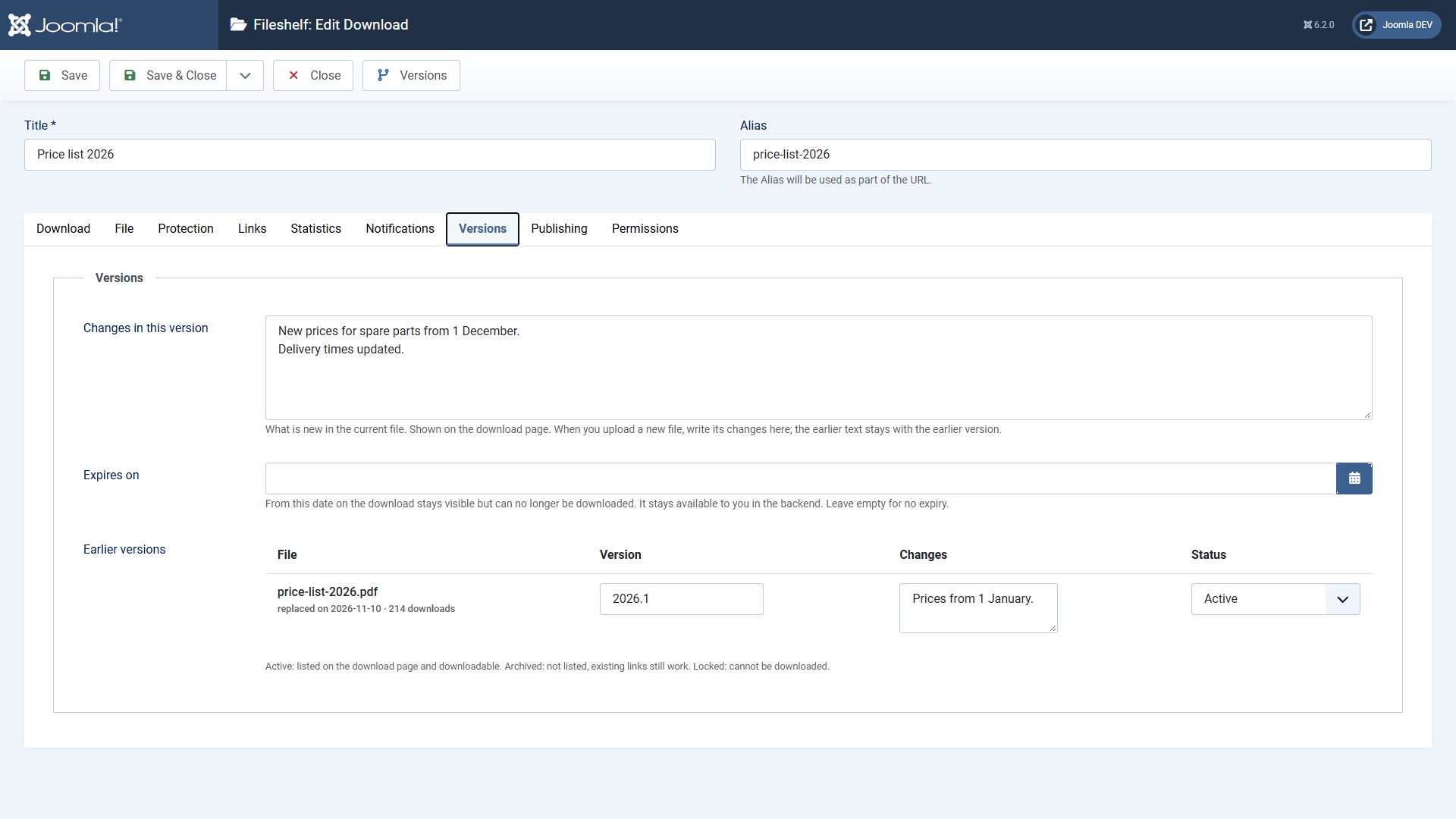 The tab “Versions”: changes, expiry date and earlier versions.## Managing earlier versions
Each earlier version has a label, changes, a counter of its own and a status:
- **Active:** listed on the download page and downloadable.
- **Archived:** no longer listed; existing links keep working.
- **Locked:** cannot be downloaded.
Whether visitors may download earlier versions at all is set in the plugin **Fileshelf - Versions**(*Earlier versions public*, default: yes).
## On the website
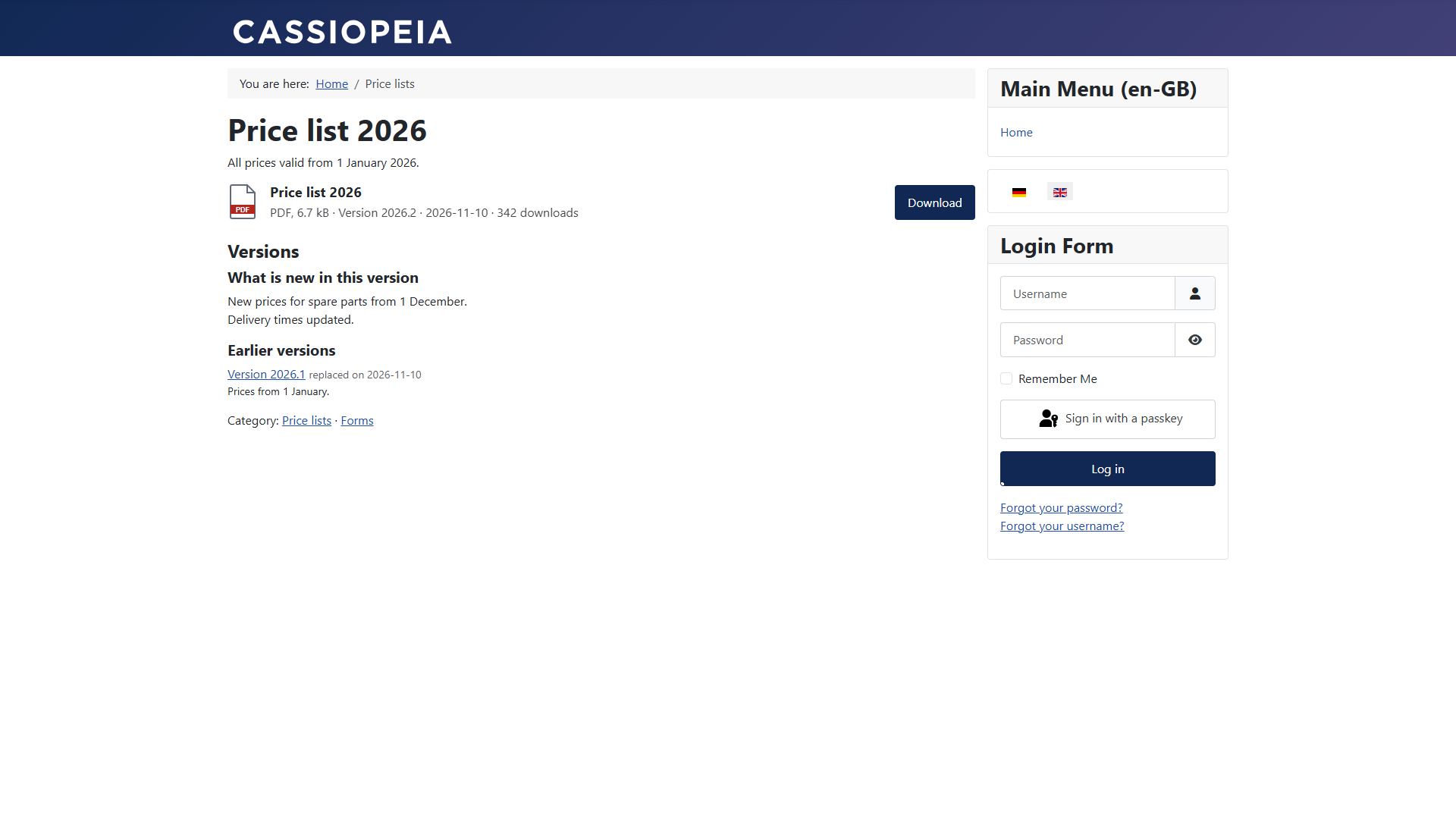 Below the file: what is new, and the earlier versions.## Expiry date
Enter a moment under *Expires on* in the tab **Versions**. From then on the download stays visible on the website but shows a lock saying it has expired. In the backend you can still download the file. Clear the field and the download is available again.
Unlike *Finish Publishing* (tab Publishing): there the download disappears from the website altogether.
[Deutsche Fassung](https://docs.graup-it.de/link/428)