**Pro version.** This feature is part of the Pro version of Fileshelf. What the Free version does is covered under *Free version and Pro version*.
Logged-in visitors upload files on the website, for example dealers their documents. Every upload waits unpublished until you have checked and approved it.
## Setting up
1. In the category (tab *Permissions*) or under **Options → Permissions**, give the right user groups the permission **Upload on the website**.
2. Create a menu item of the type **Fileshelf → Extension page** and choose the page **Upload a file**.
The form only offers categories the visitor may upload to. Whoever has the permission nowhere sees a note instead of the form; guests go to the login.
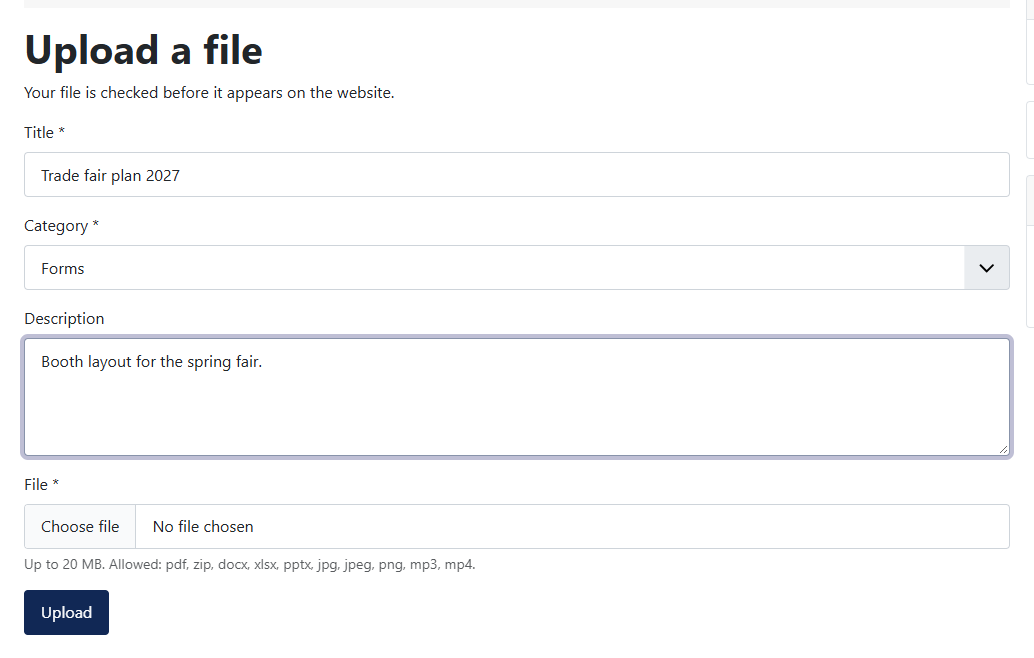 The form on the website.## What is checked
Every file runs through the same checks as in the backend: allowed file types, no executable content, Joomla's own checks. Images (JPG, PNG, GIF, WebP) are saved anew, so that nothing but the picture is kept. In the plugin **Fileshelf - Upload on the website** you set the largest file (default 20 MB) and the number of uploads per user and hour (default 5).
## Checking and approving
Until it is approved, the file lies in the folder `_quarantine` of the storage folder; Fileshelf never delivers it from there, not even if someone publishes the download by hand. You find the waiting uploads on the dashboard under **Approve uploads** (permission “Edit State”). Whoever is denied this permission in a category does not see its uploads there and cannot approve them. The page shows type, size and folder of every file; you look at the file and decide:
- **Approve** moves the file into the folder of its category and publishes the download.
- **Reject** deletes download and file – only after ticking *Delete*.
When nothing waits, the page says whether uploading is set up at all and links what is missing: the menu item of the page “Upload a file” or a user group with the right “Upload on the website”.
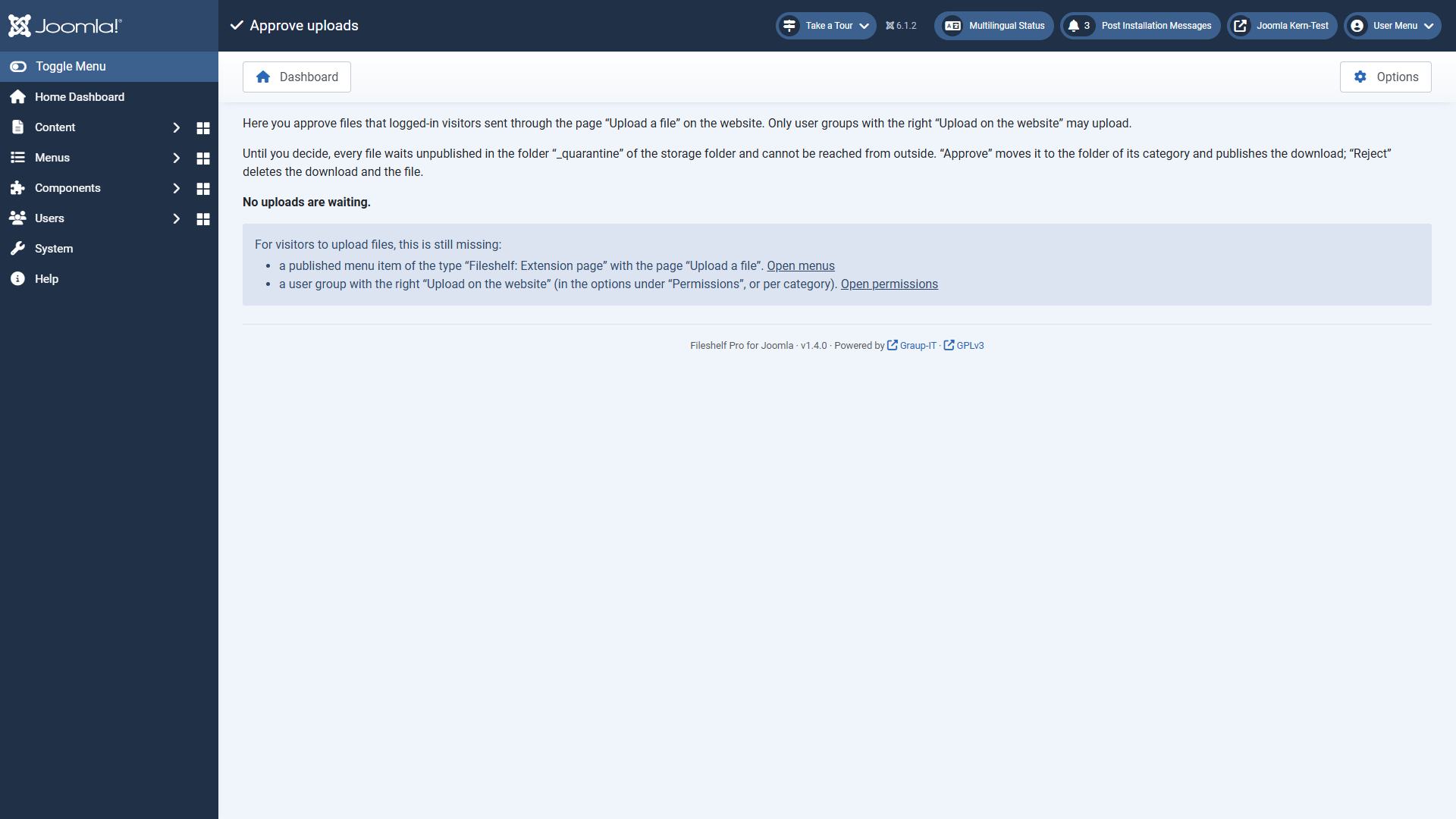 The page “Approve uploads”: when nothing waits, it names what is still missing for uploads.If you enter addresses under *Tell about new uploads* in the plugin, they get a mail about every new upload. The mails are sent by the scheduled task **Fileshelf - Send notifications**.
## Many files at once in the backend
On the dashboard under **Upload many files** (permission “Create”) you choose many files at once or drop them onto the field. Every file becomes a download of its own with the common settings of the page: category, additional categories, status, access level and tags. Title and alias come from the file name (“Price\_list\_2026.pdf” becomes “Price list 2026”); if the alias already exists in the category, Fileshelf adds a number.
The files go to the server one after the other, so the size limit applies per file. Every file is checked as with a single upload. At the end every file shows whether its download was created (with a link) or why it was rejected; a rejected file leaves nothing behind. Without JavaScript the page sends all files at once and reports the result in one message.
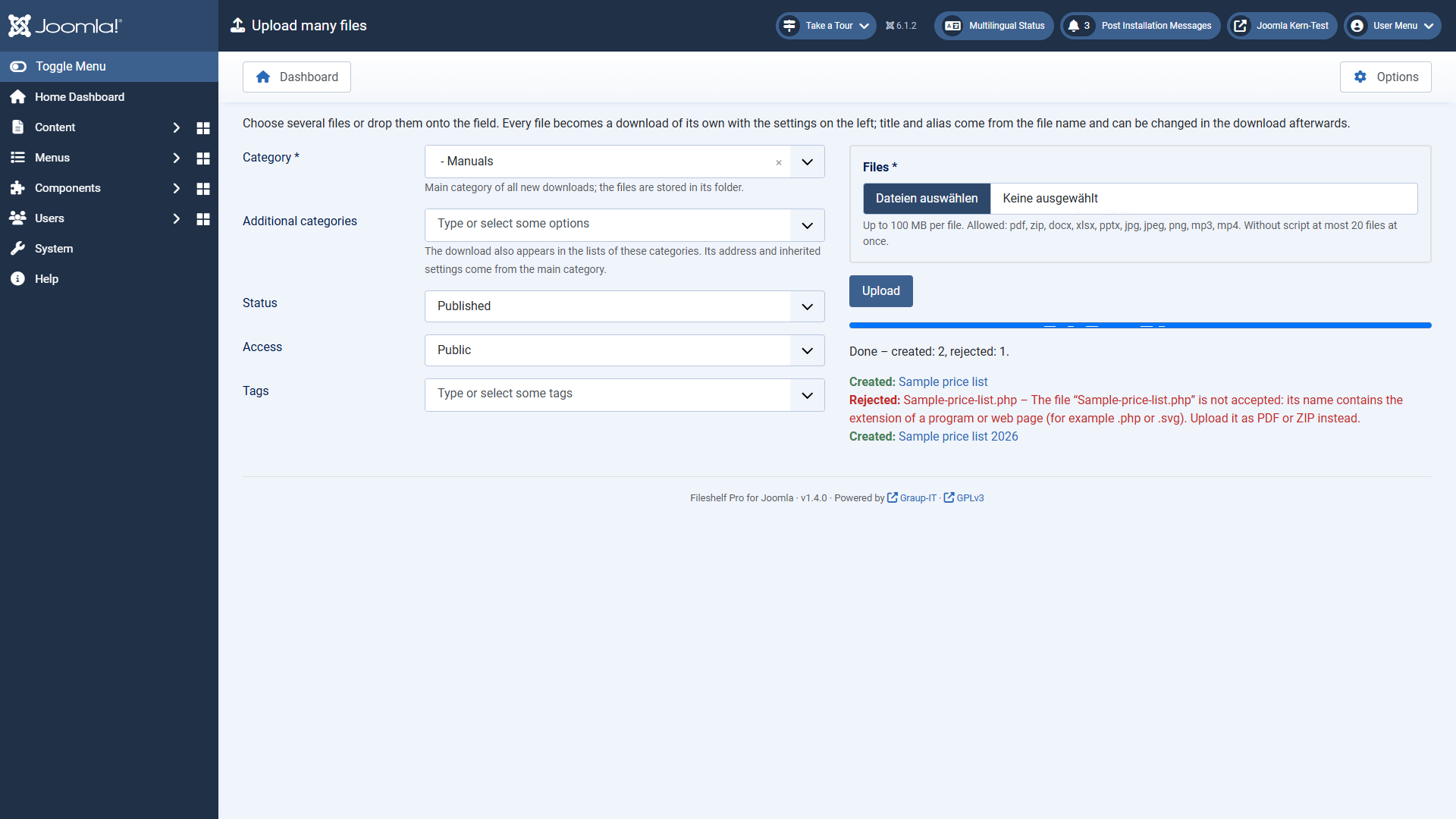 “Upload many files”: the common settings on the left, the result per file on the right.[Deutsche Fassung](https://docs.graup-it.de/link/446)