**Pro version.** This feature is part of the Pro version of Fileshelf. What the Free version does is covered under *Free version and Pro version*.
If you work with the JCE editor (2.9 or newer), pick downloads right in the link dialog. The plugin **JCE - Fileshelf links** adds Fileshelf to the dialog; the button *Fileshelf* below the editor (see *Editor button*) works in JCE as well.
## Inserting a link
Select the spot or the word in the text, open the link dialog and expand **Fileshelf** in the tree. Below the categories you find the downloads; a click takes over the link. It always goes through Fileshelf – with counter and access check –, never straight to the file. You only see categories and downloads you may see yourself.
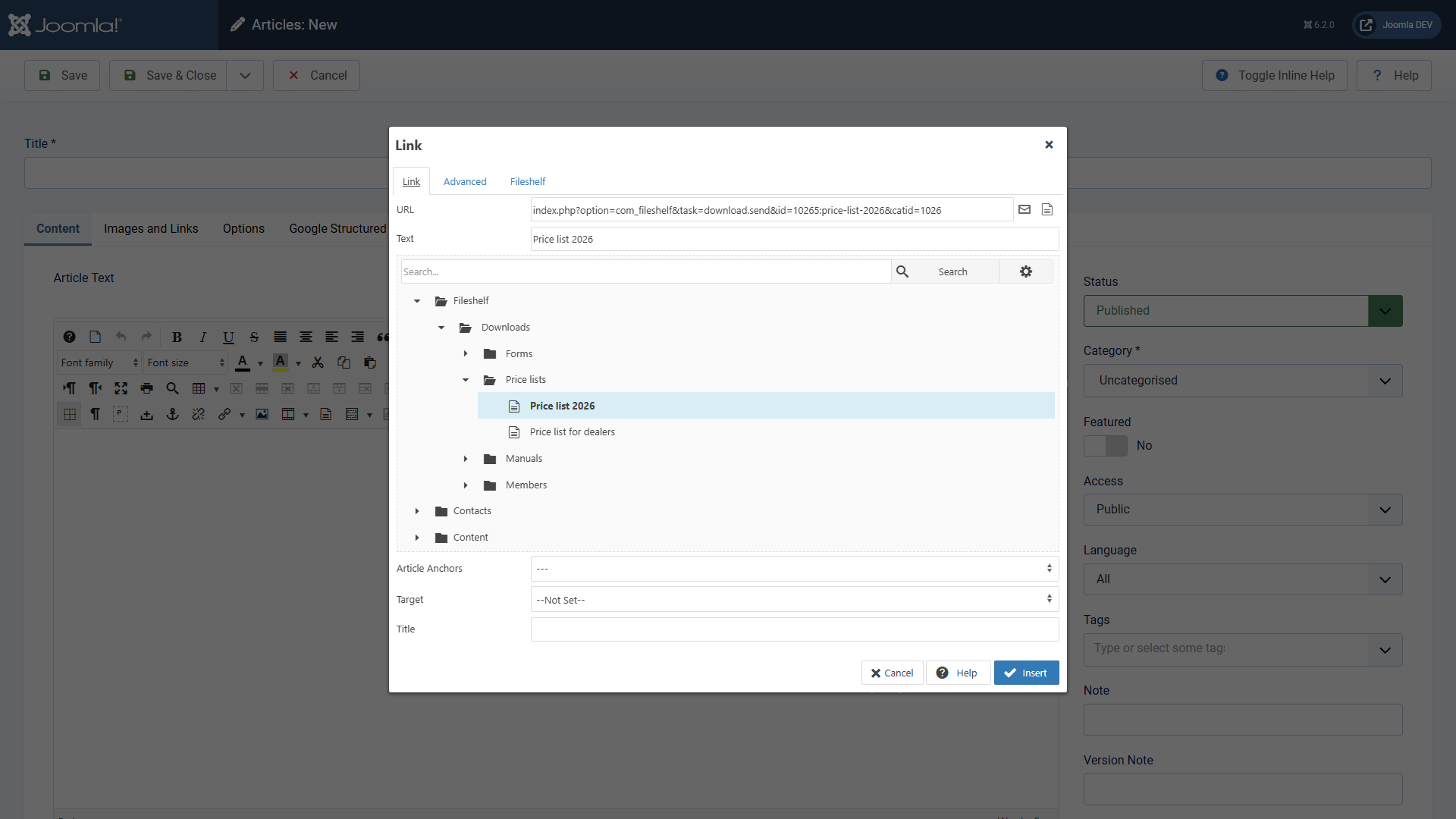 The Fileshelf tree in the link dialog.## Inserting a shortcode
Instead of a plain link, the tab **Fileshelf** inserts a shortcode: choose a download or a category in the tab *Link*, switch to the tab *Fileshelf* and choose the form – for a download link with file details, button or number of downloads, for a category list or cards. **Insert** puts the shortcode into the text; Fileshelf shows it with the current file, size and lock (see *Shortcodes in articles*).
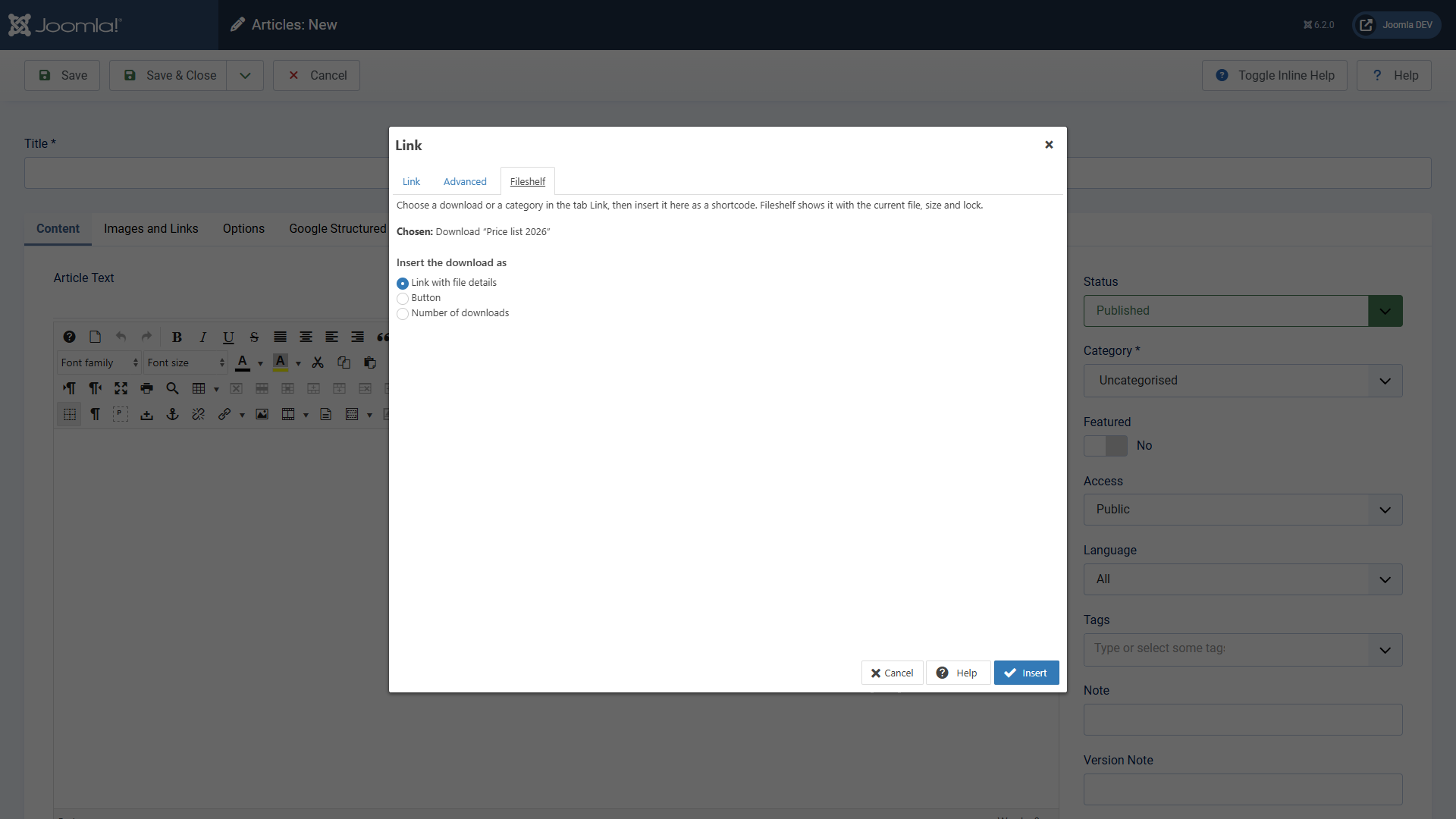 The “Fileshelf” tab.[Deutsche Fassung](https://docs.graup-it.de/link/444)