**Pro version.** This feature is part of the Pro version of Fileshelf. What the Free version does is covered under *Free version and Pro version*.
The Pro version does not only count how often a file was fetched, it records every download: when, which file, whether it arrived complete. That is what the statistics are made of – without storing any IP address.
## The page “Statistics”
Open it in the menu under **Components → Fileshelf → Statistics**, from the quick access of the dashboard or from the figure **Hits**.
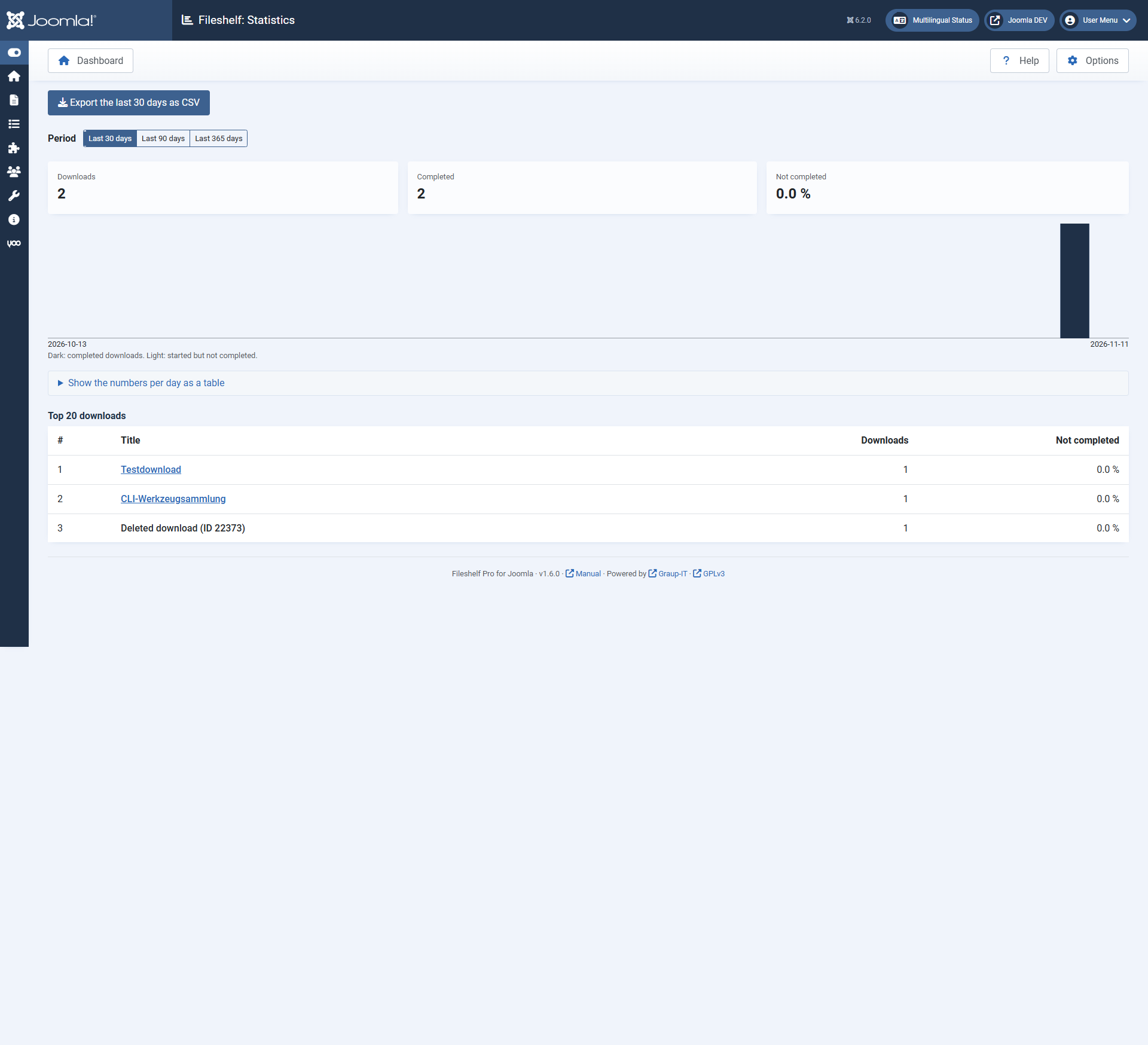 Downloads per day, dark the completed ones, light the interrupted ones.
- **Period:** the last 30, 90 or 365 days – a click on the button shows it at once.
- **Totals:** downloads, how many completed, and the share not completed – for example because someone interrupted the download.
- **Chart:** one bar per day. The same numbers are under *Show the numbers per day as a table* – for screen readers and for copying.
- **The top 20 downloads** of the period, with a link to each.
- **CSV export** of the chosen period: per day and download the number of downloads and of completed ones. The export contains no users and no addresses.
## In the download and on the dashboard
Every download has the tab **Statistics** with its last 30 days. The dashboard shows the figure **Hits** in four fields: today, last 7 days, last 30 days and all time. “All time” is the sum of the counters of all downloads, the same number as in “Most popular downloads”, imported counts included. “Open statistics” at the foot of the card leads here.
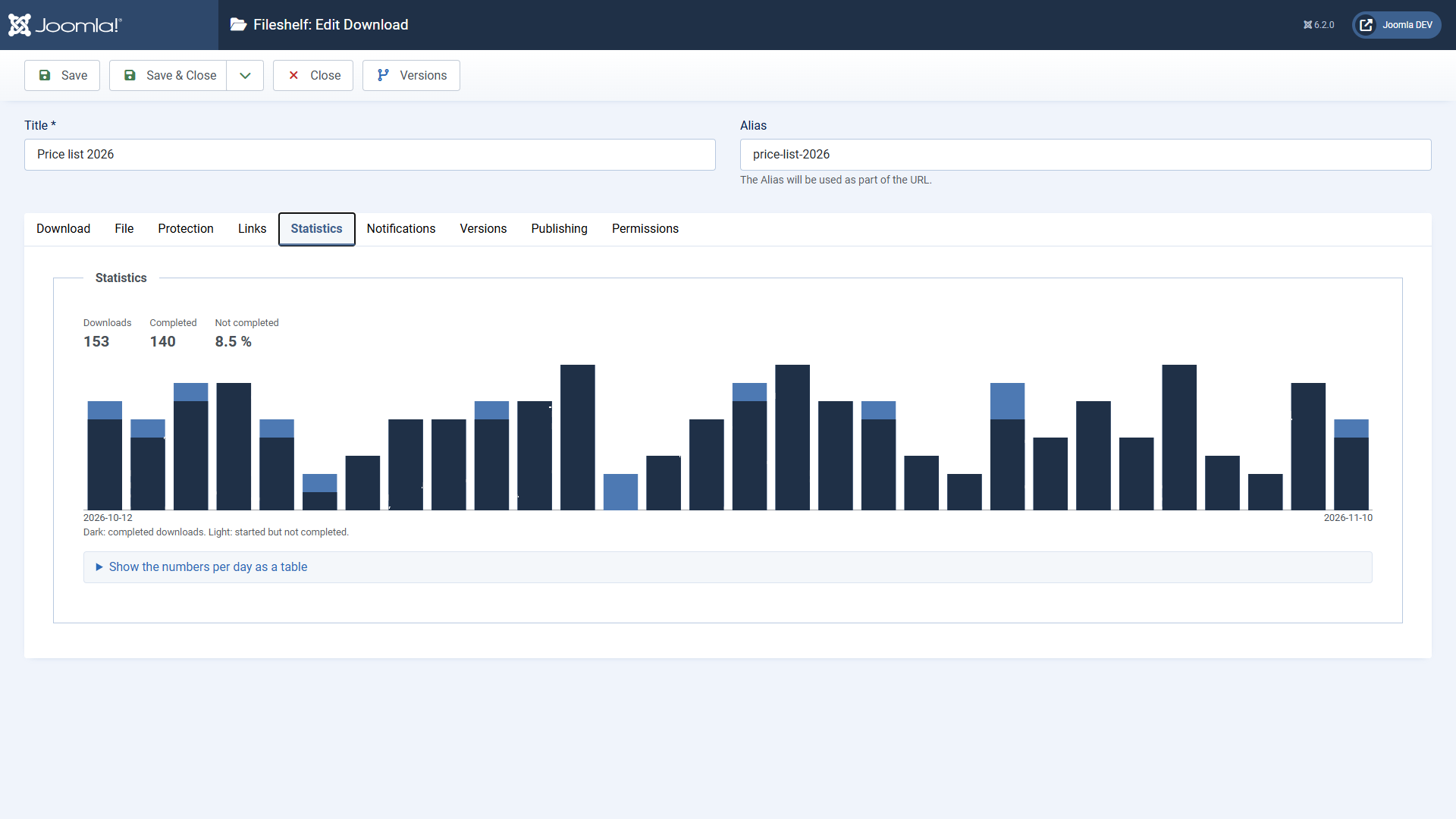 The tab “Statistics” of a download.## What is counted
- Every download on the website, the preview included. When a program fetches the file in parts – a browser resumes an interrupted download or a download manager fetches several pieces at once –, it counts once, with the part that holds the end of the file, or as soon as the parts together make up the whole file.
- **Completed** means: the whole file arrived.
- Downloads in the backend are not counted.
## Privacy and retention
Fileshelf stores **no IP address**. Instead there is a value computed from the address and a key of the day; the key is deleted the next day. Downloads of one day can be related to each other (for limits), but never to an address again. For logged-in visitors the user is stored.
Every night the scheduled task **Fileshelf - Retention of the download log** adds up the downloads of the day before per day and download. The statistics read these daily numbers and compute only today from the single entries – so they stay fast even with millions of downloads. If the task did not run once, the statistics compute the missing days from the entries; they are just slower then.
Fileshelf keeps single downloads for **365 days**; then the task deletes the single entries in small batches, and the statistics keep counting them through the daily numbers. Change the period in the task under **System → Scheduled Tasks**. When a download is deleted, its entries go with it.
## Who sees the statistics
The permission **View statistics** in the options of Fileshelf (tab Permissions). Super Users always have it.
[Deutsche Fassung](https://docs.graup-it.de/link/427)