# Contact Directory (EN)
Adds the Joomla contacts as a dynamic content source to the YOOtheme Pro page builder · Version 1.0.0 · Stand 21.11.2026
# Contact Directory at a glance
## What the extension does
Contact Directory makes the contacts of Joomla (component *Contacts*) available as *dynamic content*in the YOOtheme Pro builder. You build team pages, lists of contact persons and location overviews with the builder's elements – grid, cards, slider, list – and connect their fields to the contact data.
On its own, YOOtheme Pro only knows the single contact page. Contact Directory adds what is missing:
- **Source "Contacts":** several contacts, filtered by categories, tags, featured state, custom fields and user groups, sorted by name, last name, ordering, date, hits, custom fields or at random.
- **Source "Contact":** exactly one contact, picked from a list, or the default contact.
- **Templates** for the views *Contact Category* and *Featured Contacts*, with pagination.
- **Additional fields** per contact: links, contact card (vCard), contact form link, sort names, publishing dates.
## Privacy built in
Whatever is **hidden** in a contact or in the options of the contacts – the e-mail address, for example – stays empty in the builder too. This applies to the sources of Contact Directory and also to YOOtheme Pro's own contact page. The details are under *Fields and display options*.
Out of the box, Joomla hides the e-mail address, the vCard and the links of a contact. To show them, switch them on in the options of the contacts or in the single contact.
## What you need
- Joomla 6 and PHP 8.3
- YOOtheme Pro 5 as the active template
- Contacts in Joomla's *Contacts* component
The extension only reads. It creates no tables and changes no contacts.
Applies to version 1.0.0.
[Deutsche Fassung](https://docs.graup-it.de/link/471)
# Requirements and installation
## Requirements
- Joomla 6.x
- PHP 8.3 or newer
- YOOtheme Pro 5 as the template of the site
## Installation
1. In the backend, open *System → Install → Extensions*.
2. Drop the package `plg_system_ytp_contacts-….zip` into the field or select it.
3. Done: on its first install the plugin switches itself on. Its settings are under *System → Manage → Plugins*, *System - Contact Directory*. An update does not switch a plugin back on that you switched off.
The YOOtheme builder then offers the sources *Contacts* and *Contact* under *Dynamic Content*in the group *Contacts*, and the types *Contact Category* and *Featured Contacts* under *Templates*.
## Plugin options
| **Respect Display Options** | Details hidden in a contact or in the options of the contacts stay empty in the builder – also on the contact page. Default: on. Switch off only if every detail of every contact may be shown. |
## Updating and removing
Install a new version over the old one; your layouts and templates stay. If the plugin is disabled or uninstalled, elements with a source of Contact Directory stay empty – YOOtheme then hides them.
Applies to version 1.0.0.
[Deutsche Fassung](https://docs.graup-it.de/link/472)
# Using the sources in the builder
## Assigning a source
1. Open the page in the YOOtheme builder and select the element that is to show the contacts – a grid for a team, for example.
2. In an element with several items (grid, list, slider), select the **item** and choose the source *Contacts* under *Dynamic Content*. The builder then repeats the item for every contact.
3. For an element with exactly one contact, choose the source *Contact*.
4. Map the fields of the element to the fields of the contact – title to *Name*, image to *Image*, meta to *Contacts Position* and so on.
## Contacts
This source returns several contacts. All filters can be combined; empty filters do not restrict.
| **Filter by Categories** | Multiple choice of the contact categories. The operator decides whether the selected categories must match or are excluded; below it you choose whether child categories are included, excluded or count alone. |
| **Filter by Tags** | Multiple choice. "Match one", "match all" or "don't match"; child tags as well. |
| **Filter by Featured Contacts** | All, featured only or not featured. |
| **Filter by User Groups** | Only contacts whose linked user belongs to one of the selected groups. |
| **Filter by Field** | A custom field of the contacts *is*, *is not* or *contains* a value. "Is not" also includes contacts without a value for the field. |
| **Start and quantity** | How many contacts are skipped and how many are returned at most. Without a limit, at most 500. |
| **Order** | Name, sort name (e.g. last name – the fields *Sort Name 1–3* of the contact, as in Joomla's category view), ordering of the contacts (as in the backend), created, modified, hits, random or a custom field. Plus the direction, *Alphanumeric Ordering* (numbers by value) and *Reverse Results*. |
## Contact
This source returns exactly one contact: the selected one or the *default contact* (marked as default in the backend). If a visitor may not see the contact, the element stays empty.
## Who sees which contacts
Both sources only show what a visitor would also see on Joomla's contact pages: published contacts in published categories, within their publishing window, in the visitor's access levels and, on multilingual sites, in the current language or "All".
Applies to version 1.0.0.
[Deutsche Fassung](https://docs.graup-it.de/link/473)
# Fields and display options
## Fields of a contact
The sources return YOOtheme Pro's contact type. Every field YOOtheme offers there is available – name, image, e-mail, contacts position, address (street, city, state, postcode, country), telephone, mobile, fax, website, miscellaneous information, created, modified, category, user, tags, link, articles, hits, alias, ID – as are the **custom fields** of the contacts. Contact Directory adds:
| **Featured** | Yes or no – for a condition in the builder, for example. |
| **Sort Name 1–3** | The sort names of the contact. |
| **Start / Finish Publishing** | With the builder's date filter. |
| **Meta Description** | The meta description of the contact. |
| **Links** | The up to five links of the contact (tab *Links*) with name and address. Without a name, the address stands for itself. |
| **vCard Download** | The address of the contact card Joomla creates. Only with *Allow vCard*. |
| **Contact Form Link** | Jumps to the form on the contact page. Only with *Show Contact Form* and an e-mail address or a linked user. |
Contact Directory loads the *articles* of the linked user only for contacts with *Show User Articles*, and as many as set there.
## Display options
Whether a detail appears is decided by the display options – exactly as on Joomla's contact page:
1. The setting in the contact (tab *Display*) comes first.
2. If it is set to *Use Global*, the setting under *Contacts → Options → Contact* applies.
| Field | Option |
|---|
| E-mail | Email |
| Contacts Position | Position |
| Street, city, state, postcode, country | the options of the same name |
| Telephone, mobile, fax, website | the options of the same name |
| Miscellaneous Information | Miscellaneous Information |
| Image | Image |
| Tags | Tags |
| Articles | Show User Articles |
| Links | Show Links |
| vCard Download | Allow vCard |
| Contact Form Link | Show Contact Form |
This applies to the sources *Contacts* and *Contact*, to the templates of Contact Directory and to YOOtheme Pro's template *Single Contact*. If a detail is hidden, the field stays empty; YOOtheme hides empty fields.
Out of the box, Joomla hides the **e-mail**, the **vCard** and the **links**. If an e-mail address does not appear, it is almost always hidden there.
Joomla's plugin *Content - Email Cloaking* still protects e-mail addresses when it is enabled.
The plugin option *Respect Display Options* switches this rule off as a whole. Then every detail of every contact appears.
Applies to version 1.0.0.
[Deutsche Fassung](https://docs.graup-it.de/link/474)
# Templates for contact pages
## Templates for contact pages
With templates you design whole pages of a component in the YOOtheme builder. Contact Directory adds two types:
YOOtheme Pro brings the template for the single contact page (*Single Contact*) itself.
## Creating a template
1. In the YOOtheme customizer, open *Builder → Templates* and add a template.
2. Choose the type *Contact Category* or *Featured Contacts* and set the conditions if needed.
3. Build the layout. Under *Dynamic Content*, the group *Page* offers:
For pagination, put YOOtheme's element *Pagination* into the layout.
The display options and the visibility apply here as for the sources.
## Link of a contact category
The field *Link* of a contact category leads to the category view of the contacts – also for the field *Category* of a contact. Without Contact Directory, YOOtheme Pro leads to an article category here.
Applies to version 1.0.0.
[Deutsche Fassung](https://docs.graup-it.de/link/475)
# Frequently asked questions and troubleshooting
## The sources do not appear in the builder
Is the plugin *System - Contact Directory* enabled? Is YOOtheme Pro the template of the site? After enabling, reload the customizer once.
## The element stays empty
- Does a contact match all filters? Clear the filters to try.
- Is the contact published, is its category published, is it within its publishing window?
- May the visitor see it (access level)? In the builder you see more as an administrator than a guest.
- On a multilingual site: does the contact have the language of the page or "All"?
- Source *Contact* with *Default contact*: is a contact marked as default?
## The e-mail address (or vCard, links) is missing
Joomla hides it out of the box. Switch the detail on under *Contacts → Options → Contact* or in the contact (tab *Display*). See *Fields and display options*.
## The e-mail address is encrypted in the page source
That is Joomla's protection against address harvesters (plugin *Content - Email Cloaking*). In the browser the address appears as usual.
## At most 500 contacts appear
That is the upper bound per list, also with *no limit*. For very large directories use the template *Contact Category* with pagination.
## The choice lists for fields and user groups are empty
They are only filled in the builder. If there are no custom fields for contacts yet, the list stays empty.
Applies to version 1.0.0.
[Deutsche Fassung](https://docs.graup-it.de/link/476)
# Related sources (Pro)
**Pro version.** These features belong to the Pro version of Contact Directory. The Free version offers the sources *Contacts* and *Contact*, the templates and the display options.
## Finding contacts through a relation
The Pro version attaches contacts to other content. You choose the relation in the builder where the content is already the source – under the field of an article, a tag or a contact, for example:
| **Article → Contact of the Author** | The contact whose linked user wrote the article. For a contact box under every article – in lists of articles as well. |
| **Contact → More Contacts in the Category** | The other contacts of the same category, without the contact itself. With quantity and order – "more people in the team" on the contact page, for example. |
| **Tag → Contacts with this Tag** | The contacts carrying the tag – on the tag page "Sales", for example. With quantity and order. |
| **User → Contact** | The contact linked to the user. |
## Contact of the logged-in user
The source *Contact of the Logged-in User* (group *Contacts*) returns the contact of the visitor who is logged in – for a "my profile" area, for example. For guests the element stays empty.
## What applies
The relations, too, only show visible contacts (published, access, publishing window, language) and respect the display options. If a user has several contacts, the newest applies, as in Joomla.
Applies to version 1.0.0.
[Deutsche Fassung](https://docs.graup-it.de/link/477)
# Contacts on a map (Pro)
**Pro version.** Coordinates and geocoding belong to the Pro version of Contact Directory.
## Contacts on a map
The Pro version gives every contact the field *Coordinates* ("latitude, longitude"). With it, YOOtheme's element *Map* shows your contacts as markers:
1. Put the element *Map* on the page.
2. Select the **item** of the map and choose the source *Contacts* with the filters you need.
3. Map *Location* to *Coordinates* and *Title* to *Name*.
Contacts without coordinates do not appear on the map.
## Where the coordinates come from
| **By hand** | Create a custom field for contacts (e.g. "Coordinates"), enter "latitude, longitude" there (such as 48.1374, 11.5755) and choose the field in the plugin options under *Pro Version → Field with Coordinates*. This always wins. |
| **Automatically** | With *Pro version → Geocode Addresses*, Contact Directory gets the coordinates of a contact's address from OpenStreetMap Nominatim when the contact is saved. Only a changed address is asked again. Default: off. |
For existing contacts, run once on the server after switching it on:
```
php cli/joomla.php ytpcontacts:geocode --limit=100
```
The command asks for at most one address per second (Nominatim's usage policy) and only takes contacts that were never geocoded. With more contacts, run it again.
## Privacy
- Geocoding sends the **address** of a contact to OpenStreetMap Nominatim (OpenStreetMap Foundation). Mention this in your privacy policy, or enter the coordinates by hand.
- If the street of a contact is hidden (display option), the field *Coordinates* stays empty too – they would give the place away just the same.
- YOOtheme's element *Map* loads map tiles from OpenStreetMap and asks visitors for consent if you use YOOtheme's consent management.
Applies to version 1.0.0.
[Deutsche Fassung](https://docs.graup-it.de/link/478)
# The element "Contacts" (Pro)
**Pro version.** The element *Contacts* belongs to the Pro version of Contact Directory.
## The element "Contacts"
The Pro version comes with a builder element of its own. It shows one or more contacts with every detail a Joomla contact has: image, name, position, category, address, phone and mobile as links that dial, fax, e-mail address (cloaked against spam bots), website, miscellaneous information, tags, each custom field on its own, the contact's links, and buttons for the vCard and the contact form.
In the builder you find it under *Add Element* in the group *Graup-IT*.
## Four layouts
In the tab *Content*, **Layout** chooses how the contacts appear. Each layout brings only its own options to the tab *Settings*; what applies to a contact – image, name, position, details, links and buttons – you set once for all of them.
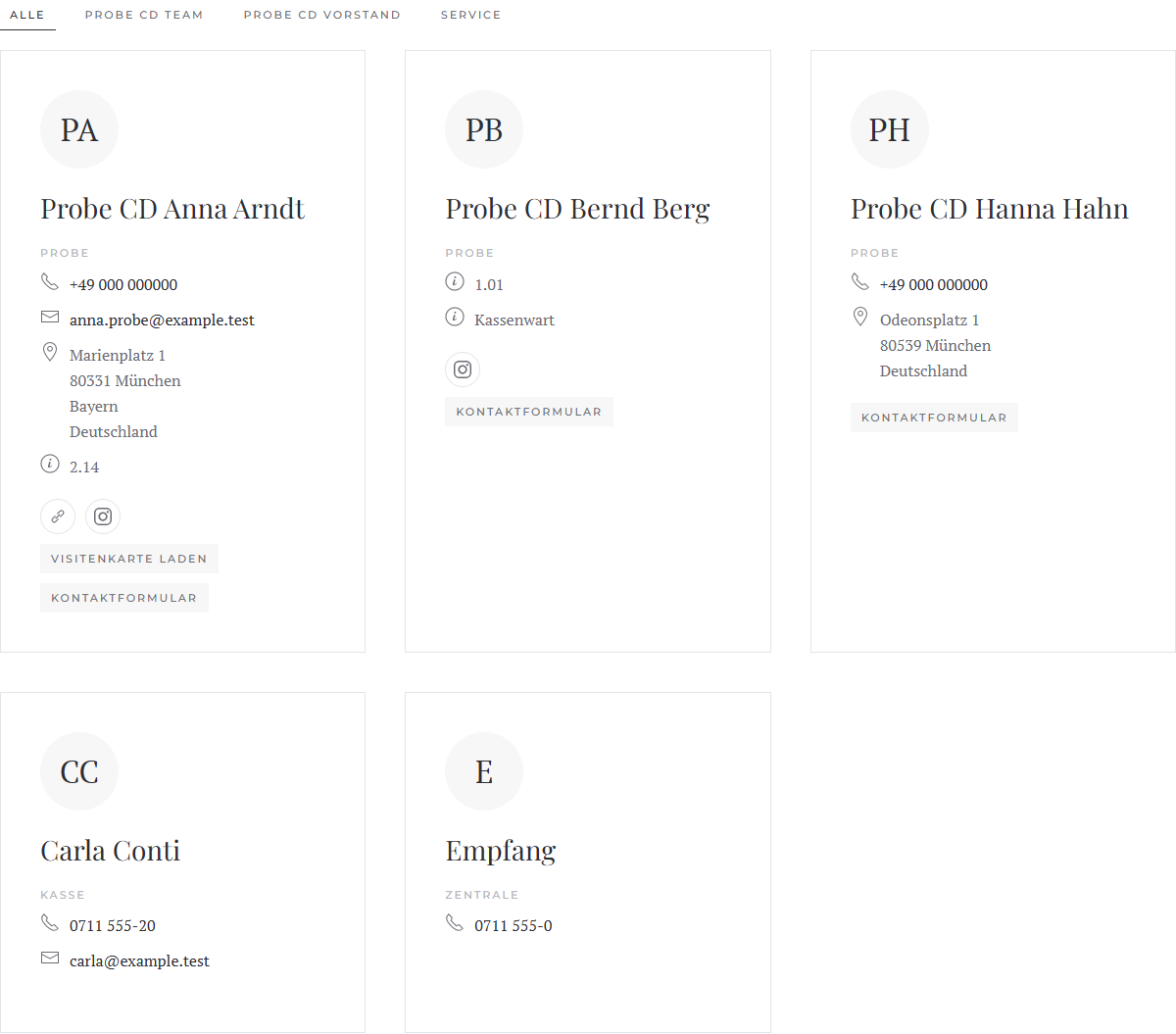
| **Grid** | Cards side by side: columns per screen width, gaps, divider, card style and padding as in YOOtheme's grid, optionally with a filter. |
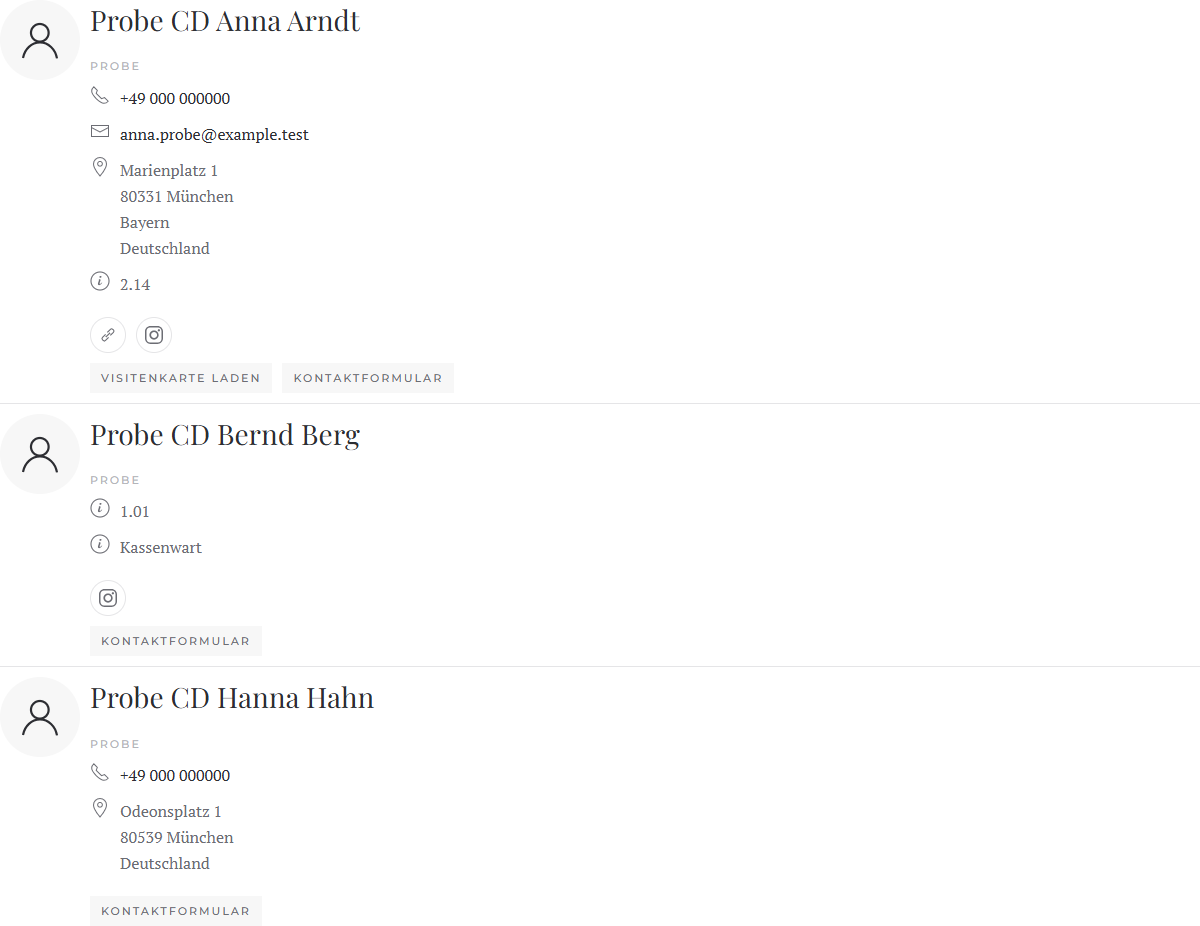
| **List** | One row per contact, the image beside the text: list style (divider, striped), size and columns as in YOOtheme's list, optionally with a filter. |
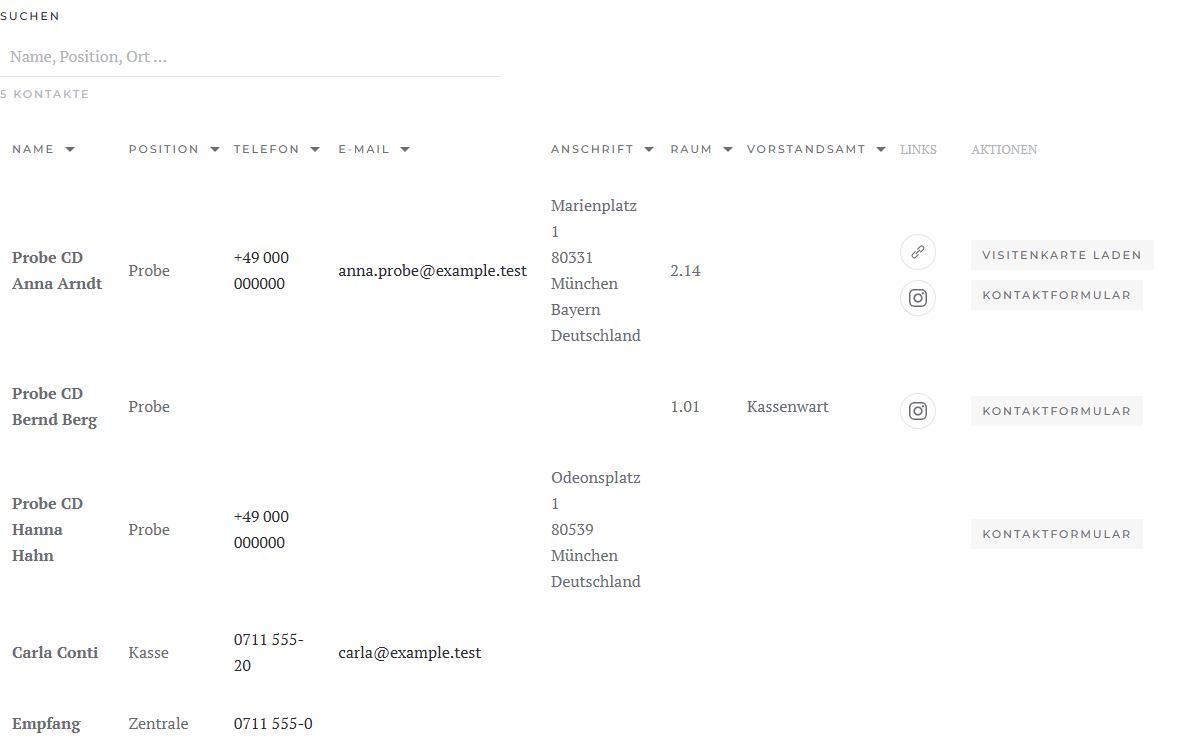
| **Table** | One row per contact, one column per detail. Style, hover highlight, size, alignment and the behaviour on small screens (scroll or stacked) as in YOOtheme's table. Optionally with a search field and sorting by clicking the column header. |
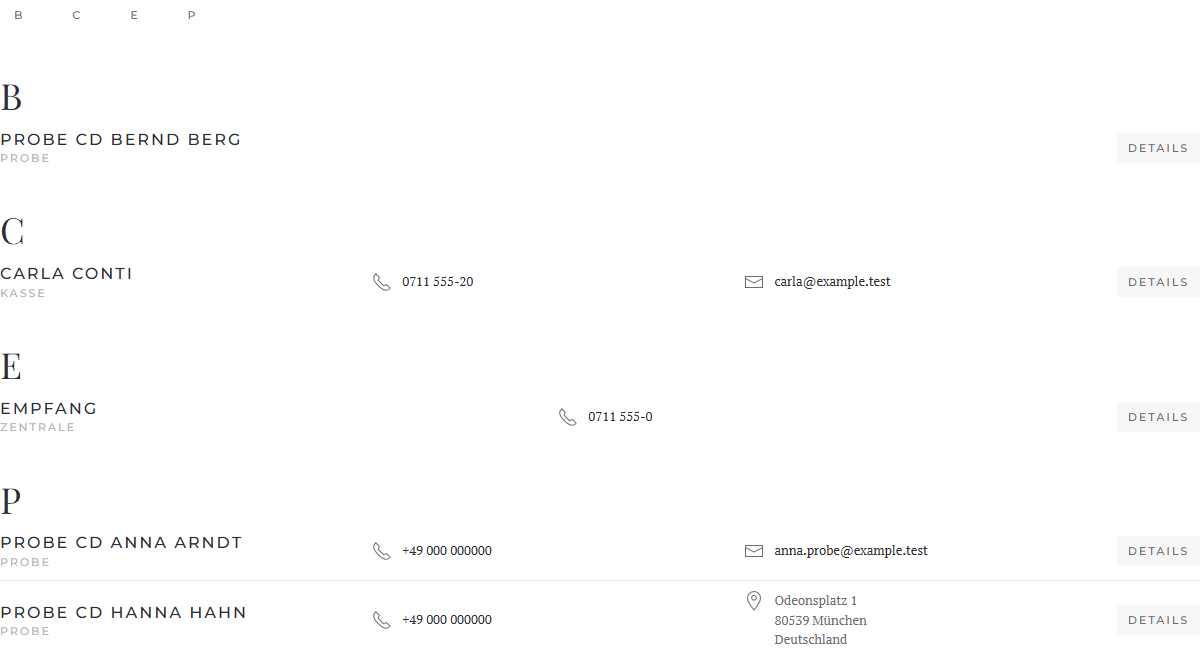
| **Directory** | Contacts grouped by initial or category, with a jump bar. Each row shows name, position and the first details; the rest expands. |
### Filter by category
Grid and list can show a filter with the categories above the contacts (or to their left or right), as in YOOtheme's grid: *All* and one tab per category. A click hides the other contacts, by keyboard too. If an entry has a category of its own, it counts instead of the contact's.
### Contact without image
Under *Image › Without Image* you choose what shows for a contact without an image: nothing (default), the initials or a person icon.
## Choosing single contacts
1. Put the element *Contacts* on the page.
2. Open an **entry** and choose the contact at the top under *Contact*.
3. For more contacts, add more entries.
You need not fill in name, position, image and link: left empty, name, position, image and contact page come from the contact. What you enter yourself takes precedence. An entry without a contact shows only what you enter.
The entry's tab **Contact** holds phone, mobile, fax, e-mail, address, website, category, miscellaneous and tags as fields of their own. Left empty, the detail comes from the contact; a value of your own – entered or mapped with *Dynamic Content* – replaces it. So entries without a contact show these details too, for example from articles or other sources. The contact's display options do not apply to values of your own.
## Several contacts from a source
1. Open the **entry** and choose, under *Dynamic Content* in the group *Contacts*, the source *Contacts* (or a related source) with the filters you need.
2. Done: when the source returns contacts, the element takes the contact from the source on its own, with name, position, image and all details. The field *Contact* stays unmapped; that is as it should be. Map name, position or image only if you want to show other fields there.
If you map the field *Contact* yourself, your mapping applies. With a source that returns no contacts (such as articles), the element maps nothing.
The element loads the details of all contacts with a single database query.
## Tab "Content": which details show
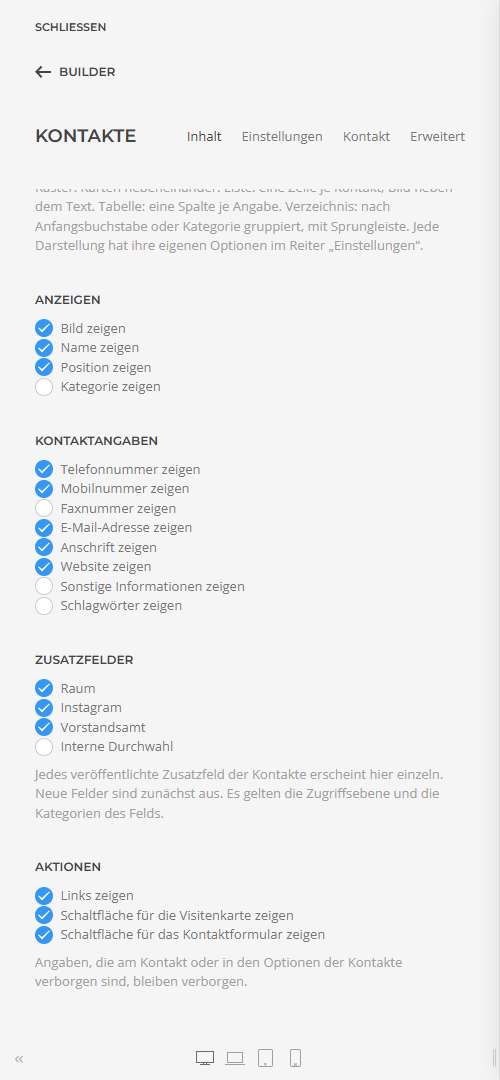
| **Display** | Image, name, position and category. |
| **Contact Details** | Phone, mobile, fax, e-mail, address, website, miscellaneous information and tags. |
| **Custom Fields** | Each published custom field of the contacts with a switch of its own (see below). |
| **Actions** | The contact's links and the buttons for the vCard and the contact form. |
Details that a contact or the options of the contacts hide never show in the element, whatever these switches say (see *Fields and display options*). Contacts the visitor may not see (unpublished, other access level, other language) are left out.
## Custom fields
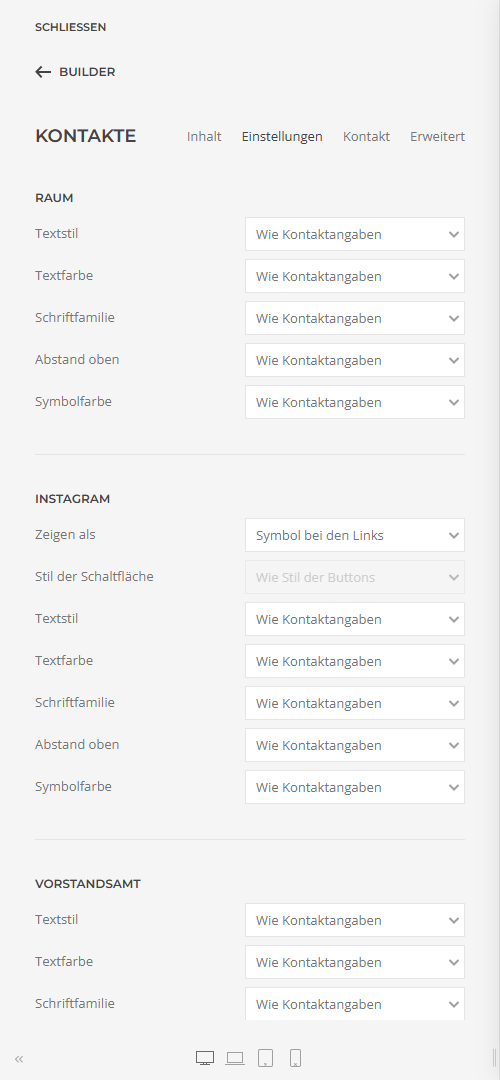
Each custom field you created and published under *Contacts › Fields* appears in the element as a detail of its own – with a switch, a group of its own in the tab *Settings*, and icon and position in the tab *Contact*. New fields appear by themselves and are off at first. If you rename a field, its settings stay.
- What Joomla sets for the field applies: its **access level** (a guest does not see a field for registered users only) and its **categories** (a field for one category shows only for contacts in that category).
- If *Edit Custom Fields* is off in the options of the contacts, the element shows no custom fields – provided *Respect Display Options* is on in the plugin options.
- Empty fields are left out.
A field of the type **URL** can show in three ways, chosen in its group under **Show as**:
| **Detail** | Like any other detail, with the link Joomla renders. |
| **Icon with the links** | As an icon in the row of the contact's links, after link A to E. The icon follows the address, for example Instagram, LinkedIn or YouTube; otherwise a link icon. |
| **Button** | As a button after vCard and contact form, labelled with the field's name, optionally with a style of its own. |
Elements of earlier versions in which "Show the custom fields" was on show each field published at the time of the update on its own afterwards.
## Tab "Settings": the design
At the top are the groups of the chosen layout (see *Four layouts*), then the parts of a contact, the same in every layout, and last *General* as in every YOOtheme element.
| **Image** | Width and height, loading, border, shadow, link, alignment to the text and what shows without an image. |
| **Name** | Style, link to the contact page, hover style, font family, colour, HTML element and margin (these two only in grid and list). |
| **Position** | Style, colour, place above or below the name, HTML element and margin (these three only in grid and list). |
| **Contact Details** | Display as a list or as a description list (label left, value right), label as icon, text, both or none (kept for screen readers), style and width of the label, list style, spacing, text style, top margin, colour and size of the icons. |
| **Per detail** | For each detail and each custom field switched on, a group of its own: text style, text colour, font family, top margin and icon colour. "Like contact details" takes the common settings. For telephone, mobile and e-mail, *Link* switches off that the detail is linked to call or to write (default: linked). |
| **E-mail** | Under *Show as* the *Address* among the details or an *E-mail* *Button* after the vCard and the contact form, with a style of its own if you like. In both cases the address stays hidden from spam programs. |
| **Links** | As icon button, icon or text, size and gap. |
| **Buttons** | Style, size, full width and alignment; vCard and contact form optionally with a style of their own. |
## Tab "Contact"
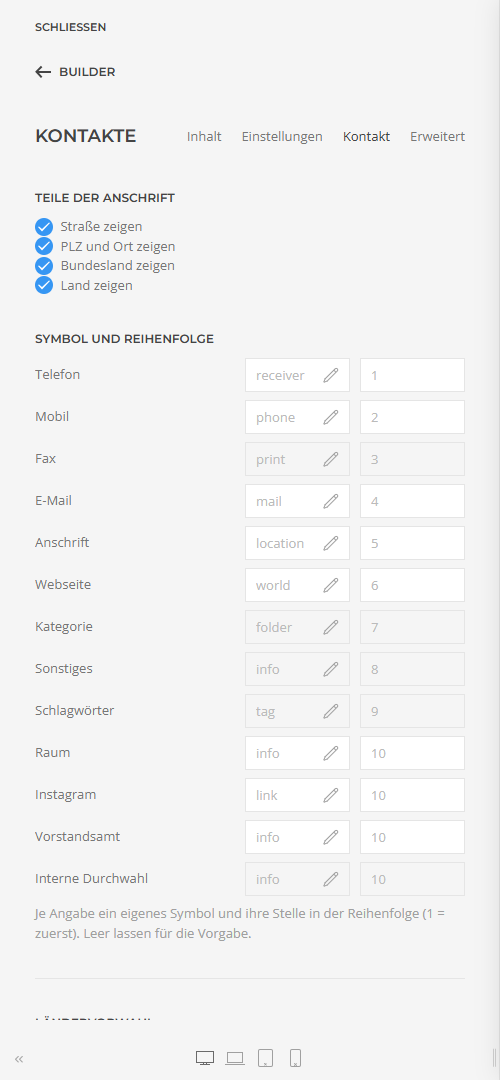
| **Parts of the Address** | Switch street, postcode and city, state and country on or off one by one – for example only the city in the table. |
| **Icon and Order** | For each detail and each custom field an icon of its own from YOOtheme's icon picker and its place in the order (1 = first). Left empty, the default applies; custom fields then follow the other details. |
| **Country Code** | Phone numbers without a country code (e.g. 0711 12345) are dialled with this one, e.g. +49 for Germany. |
| **Structured Data** | Describes the contacts shown for search engines (schema.org *Person*). The e-mail address stays out. |
## Directory
The initial comes from the contact's *Sort Field 1* (usually the last name), otherwise from the name; umlauts stand with their base letter. The jump bar shows only the groups in use, or A–Z with empty letters greyed out. How many details stand right beside the name, and whether the rest expands, is always visible or is left out, you set in the group *Directory*.
## Elements of earlier versions
Elements created with an earlier version are converted by Contact Directory when they load, from whichever version: settings with the same name stay as they are; video, hover image, lightbox and the text in an entry's field *Content* are dropped, as they do not fit contacts. Save the page once in the builder so the conversion lasts.
Applies to version 1.0.0.
[Deutsche Fassung](https://docs.graup-it.de/link/479)
# Changelog
This changelog lists every released version of Contact Directory, the most recent first.
This page is generated automatically from the product's changelog file when a release is made. Changes made by hand are lost at the next synchronisation.
## Version 1.0.0 – 21 November 2026
### Added
- Initial release.
[Deutsche Fassung](https://docs.graup-it.de/link/480)